
Introduction
Thank you for choosing the RECCAZR TK18 TKL Mechanical Gaming Keyboard. This compact wired keyboard is designed for an enhanced gaming and typing experience, featuring RGB backlighting, brown mechanical switches, and anti-ghosting technology. This manual provides instructions for setup, operation, maintenance, and troubleshooting.

Image: The RECCAZR TK18 TKL Mechanical Gaming Keyboard, showcasing its compact design and RGB lighting.
Setup
- Unpacking: Carefully remove the keyboard and any accessories from the packaging. Ensure all components, including the USB cable, are present.
- Connection: Connect the USB cable from the keyboard to an available USB port on your computer. The keyboard is plug-and-play, meaning it should be recognized automatically by your operating system.
- Initial Power-On: The keyboard's RGB backlighting should illuminate upon successful connection.

Image: The RECCAZR TK18 keyboard with icons indicating brown switches, 87 keys, ergonomic keycaps, RGB backlight, plug & play, and full key anti-ghosting.
Operating Instructions
Key Features
- Tenkeyless (TKL) Design: This compact 87-key layout saves desktop space, making it ideal for gaming and comfortable for extended use.

Image: A visual representation of the RECCAZR TK18's tenkeyless design, showing the absence of a numeric keypad to save space.
- Brown Mechanical Switches: Equipped with dustproof brown switches, offering a tactile bump feedback that is quieter than blue switches, suitable for both typing and gaming. These switches are rated for 50 million keystrokes.

Image: A detailed view of the brown mechanical switches on the RECCAZR TK18 keyboard, highlighting their construction.
- Full Key Anti-Ghosting (N-Key Rollover): All 87 keys are conflict-free, ensuring every keystroke is registered accurately, even during rapid, simultaneous presses, which is crucial for gaming performance.

Image: Robotic hands pressing multiple keys on the RECCAZR TK18 keyboard, illustrating the full key anti-ghosting feature.
RGB Backlighting Control
The keyboard features 18 different RGB lighting modes and 5 user-defined modes. You can adjust colors, brightness, and breathing speed.
- Changing Lighting Modes: Use the Fn key in combination with other keys (refer to the keyboard layout for specific combinations) to cycle through the 18 preset RGB modes.
- Custom Backlight Mode: Press Fn + 4, 5, 6, 7, or 8 to enter a custom backlight mode. Press Fn + Home to go to setting mode, then press Fn + Home again to save your custom settings.
- Adjusting Brightness/Speed: The roller wheel (default A Mode) can be used to adjust the brightness of the backlighting.

Image: The RECCAZR TK18 keyboard showcasing its vibrant RGB LED backlighting with different color patterns.
Multimedia and Roller Controller Functions
The keyboard includes 12 multimedia shortcut keys and a versatile roller controller.
- Multimedia Shortcuts (Fn + F-keys):
- Fn + F1: Open media player
- Fn + F2: Volume -
- Fn + F3: Volume +
- Fn + F4: Mute Key
- Fn + F5: Stop
- Fn + F6: Previous Track
- Fn + F7: Play/Pause
- Fn + F8: Next Track
- Fn + F9: Open Email
- Fn + F10: Open HomePage
- Fn + F11: Open My Computer
- Fn + F12: Open calculator
- Roller Wheel Function: The 'M' key next to the roller wheel allows you to switch its function:
- A Mode (Default): Brightness Adjustment
- B Mode: Volume Adjustment
- Windows Key Lock: Press Fn + WIN key to lock the Windows key, preventing accidental presses during gaming. Press again to release.
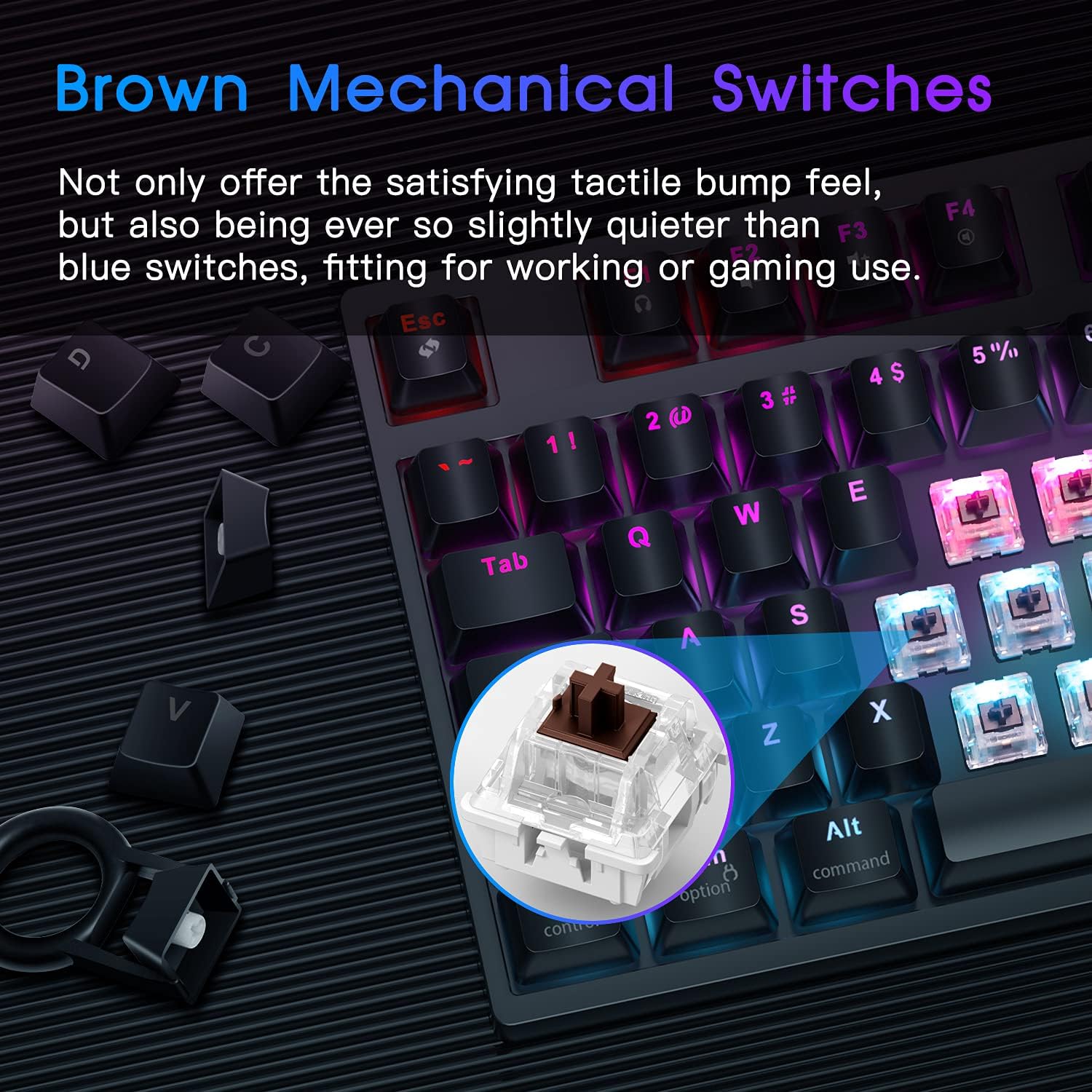
Image: A detailed view of the RECCAZR TK18 keyboard's function row and roller control, illustrating multimedia shortcuts and the scroll wheel's functionality.
Ergonomic Design
The keyboard features an ergonomically designed stepped keycap layout and curved keycaps to provide a comfortable typing and gaming experience, reducing hand fatigue during prolonged use.
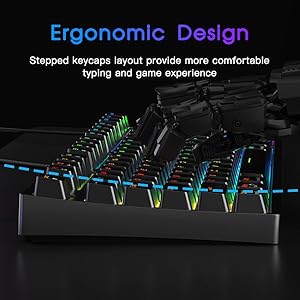
Image: A side profile of the RECCAZR TK18 keyboard, showing the stepped keycap design for improved ergonomics.
Product Video Overview
Video: An official product video demonstrating the RECCAZR TK18 TKL Mechanical Gaming Keyboard's features, including its compact design, anti-ghosting capabilities, RGB lighting effects, and the functionality of the scroll wheel controller.
Maintenance
To ensure the longevity and optimal performance of your RECCAZR TK18 keyboard, follow these maintenance guidelines:
- Cleaning: Regularly clean the keyboard with a soft, dry cloth. For dust and debris between keys, use compressed air. For stubborn grime, lightly dampen a cloth with water or a mild, non-abrasive cleaner. Avoid spraying liquids directly onto the keyboard.
- Keycap Removal (Optional): If necessary, keycaps can be carefully removed for deeper cleaning using a keycap puller (not included). Be gentle to avoid damaging the switches.
- Storage: When not in use for extended periods, store the keyboard in a dry, dust-free environment.
- Avoid Spills: Keep liquids away from the keyboard to prevent damage to internal components.
Troubleshooting
If you encounter issues with your RECCAZR TK18 keyboard, refer to the following common solutions:
| Problem | Possible Cause | Solution |
|---|---|---|
| Keyboard not responding | Loose USB connection, faulty USB port, driver issue. | Ensure the USB cable is securely connected. Try a different USB port on your computer. Restart your computer. |
| Backlighting not working or incorrect | Lighting mode off, brightness set too low, software conflict. | Check if the lighting is turned off or brightness is at minimum using the roller wheel or Fn key combinations. Try cycling through different lighting modes. |
| Keys not registering (ghosting) | Software issue, rare hardware defect. | Ensure no background applications are interfering. The keyboard features N-key rollover, so true ghosting is unlikely. If the issue persists, contact support. |
| Multimedia keys not functioning | Incorrect Fn key combination, media player not active. | Ensure you are pressing the Fn key simultaneously with the correct F-key. Verify your media player is running. |
| Windows key is locked | Windows key lock activated. | Press Fn + WIN key again to unlock the Windows key. |
If these steps do not resolve your issue, please refer to the Warranty and Support section for further assistance.
Specifications
| Feature | Detail |
|---|---|
| Model Name | TK18 (also referred to as TK10 BROWN in some specifications) |
| Brand | RECCAZR |
| Connectivity | Wired (USB Cable) |
| Number of Keys | 87 (Tenkeyless) |
| Switch Type | Brown Mechanical Switches (Linear, tactile bump) |
| Keycap Material | ABS Anti-Fading Keycaps |
| Backlighting | RGB (18 modes, 5 user-defined) |
| Special Features | Anti-Ghosting (N-Key Rollover), Roller Controller (Brightness/Volume), Multimedia Keys, Ergonomic Design |
| Compatible Devices | PC, Gaming PC |
| Compatible OS | Windows 10, 8, 7, Vista, XP; Limited Mac OS support |
| Item Weight | Approximately 2 Pounds |
Warranty and Support
RECCAZR products are designed for durability and performance. For warranty information and customer support, please refer to the documentation included with your purchase or visit the official RECCAZR website. If you experience any issues not covered in this manual, our customer service team is available to assist you.
For direct support, please contact RECCAZR customer service through the contact information provided on your product packaging or the official brand website.

Image: An illustration representing the RECCAZR customer service team, indicating 24/365 support availability.