
Introduction
This manual provides essential instructions for setting up, operating, maintaining, and troubleshooting your Surfans K7 Kids Tablet. Please read this guide thoroughly to ensure proper use and to maximize the tablet's features for a safe and engaging experience for children.
Product Overview
Key Features
- Android 10.0 Operating System: Provides a secure and fast user experience.
- 7-inch IPS FHD Display: Features a 1920 x 1200 resolution eye-care touchscreen with a 178-degree wide viewing angle.
- Quad-core Processor: Ensures smooth performance for apps and games.
- 2GB RAM, 32GB ROM: Sufficient memory for multitasking and storage, expandable via MicroSD card.
- Dual Cameras: Equipped with 2MP front and 5MP rear cameras for photos and video calls.
- Connectivity: Includes Wi-Fi and Bluetooth for wireless connections.
- Pre-installed iWAWA App: Offers updated educational content including games, videos, e-books, drawing, puzzles, and creative arts.
- Google Play Store Access: Allows downloading additional applications like YouTube Kids, Netflix, and Hulu.
- Parental Control Mode: Enables parents to manage content, set time limits, and customize child profiles.
- Durable Kid-Proof Case: Comes with a colorful, soft, and high-quality silicone case with an integrated 360-degree adjustable stand, suitable for children aged 2 to 10 years.

Image: The Surfans K7 Kids Tablet showcasing its GMS Certified Android 10.0 operating system and access to various applications via Google Play Store.

Image: The Surfans K7 Kids Tablet in use, illustrating its key features including quad-core processor, Android 10.0, 2GB RAM, 32GB ROM, WiFi, and Parent Mode.
Tablet Components
Familiarize yourself with the physical components of your tablet:
- Power Button: Typically located on the side, used to turn the tablet on/off or put it to sleep/wake it up.
- Volume Buttons: Adjust the audio output level.
- USB-C Port: For charging the tablet and connecting to a computer for data transfer.
- 3.5mm Audio Jack: For connecting headphones or external speakers.
- MicroSD Card Slot: Allows for memory expansion using a compatible MicroSD card.
- Front Camera: Used for video calls and taking selfies.
- Rear Camera: For capturing photos and videos.
- Speaker: Provides audio output for media and notifications.
Setup
1. Charging the Tablet
Before first use, fully charge the tablet. Connect the provided USB cable to the tablet's USB-C port and the other end to the power adapter. Plug the adapter into a wall outlet. The battery indicator on the screen will show the charging status.
2. Powering On/Off
- To Power On: Press and hold the Power Button until the screen lights up and the Surfans logo appears.
- To Power Off: Press and hold the Power Button until a menu appears on the screen. Select "Power off" and confirm.
- To Sleep/Wake: Briefly press the Power Button to put the tablet to sleep or wake it up.
3. Initial Setup
Upon first power-on, follow the on-screen prompts to configure basic settings:
- Select your preferred language.
- Connect to a Wi-Fi network (see next step).
- Set up your Google account or create a new one. This is necessary for downloading apps from the Google Play Store.
- Review and accept the terms and conditions.
4. Connecting to Wi-Fi
To connect your tablet to the internet:
- Go to Settings.
- Tap on Network & internet.
- Select Wi-Fi and turn it on.
- The tablet will scan for available networks. Select your desired network from the list.
- Enter the Wi-Fi password if prompted, then tap Connect.
Operating Instructions
1. Basic Navigation
The Surfans K7 tablet uses a touchscreen for interaction:
- Tap: Touch the screen once to select an item, open an app, or press a button.
- Swipe: Drag your finger across the screen to scroll through pages, lists, or switch between home screens.
- Pinch-to-Zoom: Place two fingers on the screen and move them apart or together to zoom in or out.
- Notifications & Quick Settings: Swipe down from the top of the screen to access notifications and quick settings toggles (Wi-Fi, Bluetooth, etc.).
2. Downloading Apps from Google Play Store
With a Google account set up, you can download a wide variety of applications:
- Tap the Play Store icon on your home screen or app drawer.
- Browse or search for apps, games, movies, and books.
- Select an item and tap Install to download and install it.
3. Using Pre-installed iWAWA App
The iWAWA app provides a safe and engaging environment for children:
- Locate and tap the iWAWA icon.
- Explore the various categories such as games, videos, e-books, and creative activities.
- Content within iWAWA is curated to be age-appropriate and educational.
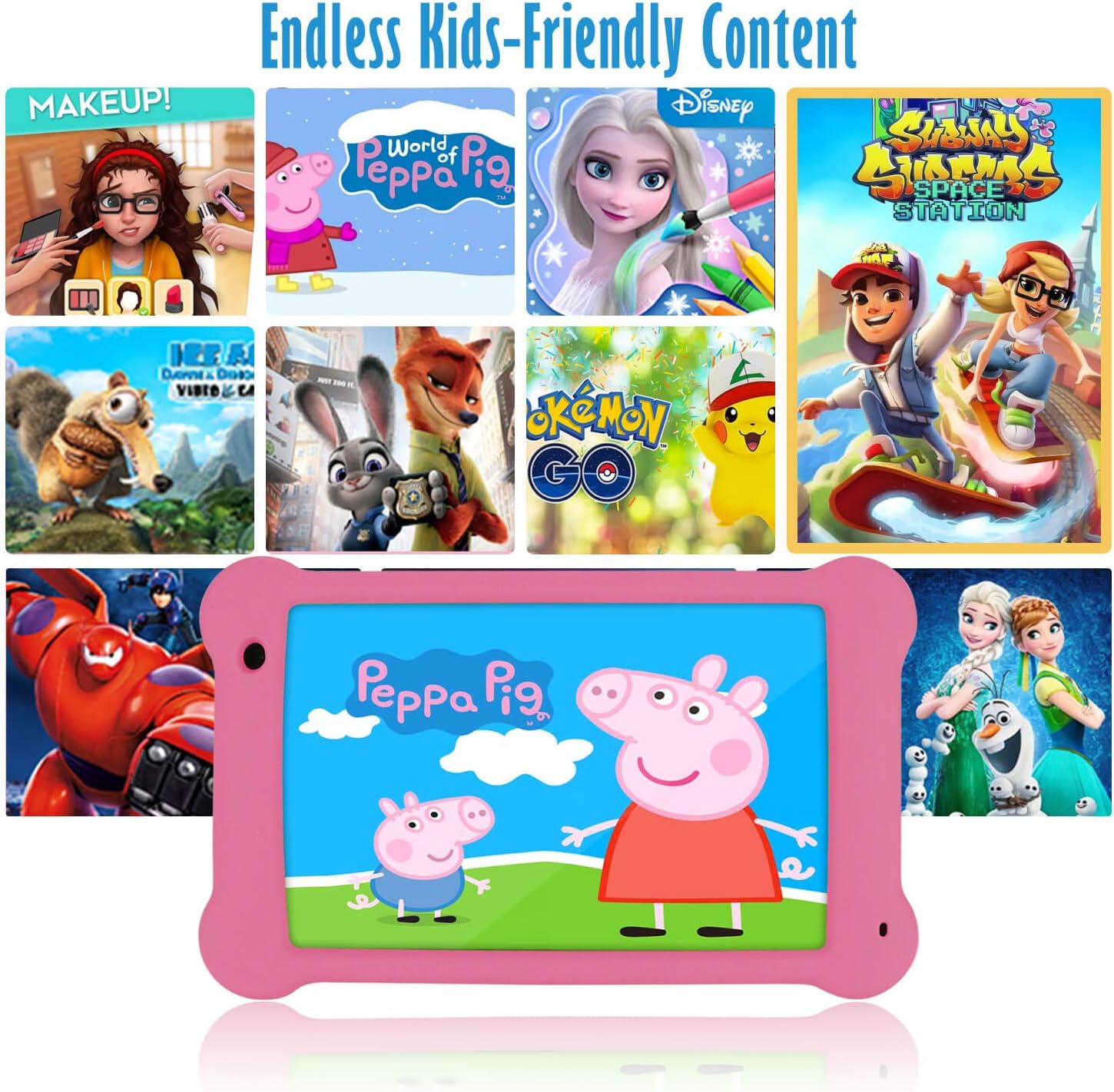
Image: The Surfans K7 Kids Tablet showcasing a variety of popular kid-friendly content, accessible through pre-installed apps and Google Play Store.
Parental Control Mode
The Surfans K7 tablet includes a dedicated Parental Control Mode to manage your child's usage and ensure a safe digital environment.
1. Accessing Parental Mode
To access and configure parental controls:
- Locate and open the Parent Mode or iWAWA Parent application on the tablet.
- You will be prompted to set up a password or PIN for secure access. Remember this password.
2. Setting Time Limits
Manage how long your child can use the tablet:
- Configure daily usage limits for the tablet.
- Set specific time blocks during which the tablet can or cannot be used (e.g., bedtime restrictions).
3. Content Filtering
Ensure your child accesses only appropriate content:
- Select and approve specific applications, websites, and media content that your child is allowed to access.
- Block inappropriate content categories or specific websites.
4. Managing Child Profiles
Create personalized experiences for each child:
- Create individual profiles for multiple children.
- Customize settings, content access, and time limits for each profile based on age and preferences.

Image: A parent and child using the Surfans K7 Kids Tablet, demonstrating the ease of setting up and managing parental controls for time limits, child lock, and content filtering.
Maintenance
1. Cleaning the Tablet
To keep your tablet clean and functional:
- Use a soft, lint-free cloth (e.g., microfiber cloth) to gently wipe the screen and tablet body.
- For stubborn smudges, slightly dampen the cloth with water. Avoid using harsh chemicals, abrasive cleaners, or excessive moisture, as these can damage the screen or internal components.
- Ensure the tablet is powered off and unplugged before cleaning.
2. Battery Care
Proper battery care extends the tablet's lifespan:
- Avoid fully discharging the tablet frequently. Charge the tablet when the battery level is low (e.g., below 20%).
- Do not expose the tablet to extreme temperatures (hot or cold), as this can degrade battery performance.
- Use only the provided charger or a certified compatible charger.
3. Software Updates
Keep your tablet's software up-to-date for optimal performance and security:
- Periodically check for system updates by going to Settings > System > System update.
- Ensure your tablet is connected to Wi-Fi and has sufficient battery charge before starting an update.
4. Protective Case Care
The included kid-proof silicone case offers protection:
- Clean the case with a damp cloth if it gets dirty.
- Ensure the case is properly fitted around the tablet to provide maximum protection against drops and bumps.

Image: A detailed view of the Surfans K7 Kids Tablet's durable kid-proof case, highlighting its soft silicone material and anti-drop corner design for enhanced protection.
Troubleshooting
This section addresses common issues you might encounter with your Surfans K7 Kids Tablet.
Tablet Does Not Turn On
- Check Battery: Ensure the tablet is charged. Connect it to the charger for at least 30 minutes, then try powering it on again.
- Force Restart: Press and hold the Power Button for about 10-15 seconds until the tablet restarts.
Screen is Black but Audio is Playing
This can sometimes occur:
- Briefly press the Power Button to put the screen to sleep, then press it again to wake it up.
- If the issue persists, perform a force restart by pressing and holding the Power Button for 10-15 seconds.
Wi-Fi Connection Issues
- Enable Wi-Fi: Go to Settings > Network & internet > Wi-Fi and ensure Wi-Fi is turned on.
- Restart Router: Restart your Wi-Fi router and modem.
- Forget Network: Go to Wi-Fi settings, tap on your network, and select "Forget network." Then, reconnect to the network and re-enter the password.
- Signal Strength: If the signal is weak, move closer to your Wi-Fi router.
Apps Are Slow or Crashing
- Close Unused Apps: Swipe up from the bottom of the screen (or tap the square navigation button) to view recent apps, then swipe them away to close.
- Restart Tablet: A simple restart can often resolve performance issues.
- Clear App Cache: Go to Settings > Apps > [App Name] > Storage & cache > Clear cache.
Tablet is Unresponsive
If the tablet freezes and does not respond to touch:
- Perform a force restart by pressing and holding the Power Button for approximately 10-15 seconds until the device powers off and restarts.
Factory Reset (Last Resort)
If all other troubleshooting steps fail, a factory reset may be necessary. Warning: This will erase all data on the tablet, including apps, photos, and user settings. Back up any important data before proceeding.
- Go to Settings > System > Reset options.
- Tap Erase all data (factory reset).
- Confirm your decision and follow the on-screen instructions.
Specifications

Image: Visual comparison highlighting the superior clarity of the 1920x1200 FHD IPS display with a 178-degree wide viewing angle on the Surfans K7 Kids Tablet.
| Feature | Specification |
|---|---|
| Brand | Surfans |
| Model Name | K7 |
| Operating System | Android 10.0 |
| Screen Size | 7 Inches |
| Max Screen Resolution | 1920 x 1200 pixels |
| Processor Brand | ARM (Quad-core 1.6GHz) |
| Installed RAM Memory | 2 GB |
| Memory Storage Capacity | 32 GB |
| Expandable Storage | MicroSD Card Slot |
| Front Photo Sensor Resolution | 2 MP |
| Max Webcam Image Resolution | 5 MP |
| Video Recording Resolution | FHD 1080p |
| Connectivity Technology | Bluetooth, USB, Wi-Fi |
| Wireless Compatibility | 802.11a/b/g/n |
| Hardware Connectivity | 3.5 mm Audio Jack, USB-C Port |
| Battery Type | Lithium Polymer |
| Battery Capacity | 3000 mAh |
| Average Battery Life | 8 Hours |
| Item Weight | 450 Grams |
| Color | Pink |
| Age Range Description | Baby, Children (2-10 years) |
Warranty and Support
The Surfans K7 Kids Tablet comes with a standard manufacturer's warranty. For specific warranty terms, conditions, and duration, please refer to the warranty card included in the product packaging or contact Surfans customer support.
For technical assistance, troubleshooting beyond this manual, or further inquiries, please visit the official Surfans website or contact their customer service department through the contact information provided with your purchase or on their website.
