
Introduction
This manual provides comprehensive instructions for the setup, operation, and maintenance of your Razer BlackWidow V3 Pro Mechanical Wireless Gaming Keyboard. Please read this guide thoroughly to ensure optimal performance and longevity of your device.
Key Features
- 3 Modes of Connectivity: Supports Bluetooth for efficient power consumption, HyperSpeed Wireless for lag-free gaming, and USB-C for charging while in use.
- Razer Yellow Mechanical Switches: Engineered for speed with a 1.2mm actuation point, these smooth, silent switches include sound dampeners for a quiet profile.
- Transparent Switch Housing: A clear design enhances Razer Chroma RGB lighting for improved immersion.
- Doubleshot ABS Keycaps: Manufactured with a doubleshot molding process, ensuring legends never wear off and providing extra-thick walls for durability.
- Ergonomic, Magnetic Wrist Rest: Crafted from plush leatherette to provide maximum comfort during extended gaming sessions.
- Durable Construction: Built with a military-grade metal top plate, supporting up to 80 million clicks for long-lasting reliability.
Package Contents
- Razer BlackWidow V3 Pro Mechanical Wireless Gaming Keyboard
- USB Cable (for charging and wired connection)
- Ergonomic Magnetic Wrist Rest
- Razer HyperSpeed Wireless Dongle (pre-installed or included)
- Product Information Guide
Setup
1. Connecting Your Keyboard
Your Razer BlackWidow V3 Pro offers three connectivity options:
- HyperSpeed Wireless (2.4 GHz): For optimal, lag-free gaming performance. Insert the Razer HyperSpeed Wireless Dongle into an available USB port on your computer. Ensure the keyboard's mode switch (located on the side/rear) is set to 2.4.
- Bluetooth: For efficient power consumption and multi-device connectivity. Set the keyboard's mode switch to BT. Follow your device's Bluetooth pairing instructions to connect to "Razer BlackWidow V3 Pro".
- USB-C (Wired): For direct connection and charging. Connect the included USB-C cable from your keyboard to an available USB port on your computer. The keyboard will automatically switch to wired mode and begin charging.

Image: The keyboard supports HyperSpeed Wireless, Bluetooth, and USB-C connectivity options.
2. Attaching the Wrist Rest
Align the magnetic wrist rest with the front edge of your keyboard. It will snap into place, providing ergonomic support for your wrists during use.

Image: The plush leatherette wrist rest magnetically attaches to the keyboard for enhanced comfort.
3. Installing Razer Synapse Software
For full customization of lighting, macros, and performance settings, download and install the Razer Synapse software from the official Razer website. This software allows you to personalize your keyboard experience.
Operating Instructions
1. Mechanical Switches
Your keyboard is equipped with Razer Yellow Mechanical Switches. These linear and silent switches are designed for rapid actuation and smooth keystrokes, ideal for gaming where speed is critical.

Image: Razer Yellow Mechanical Switches provide quick, smooth, and silent key presses.
2. Multi-Function Digital Dial and Media Keys
The keyboard features a multi-function digital dial and dedicated media keys located on the top right. These allow for convenient control over media playback (play/pause, skip track) and volume adjustment.
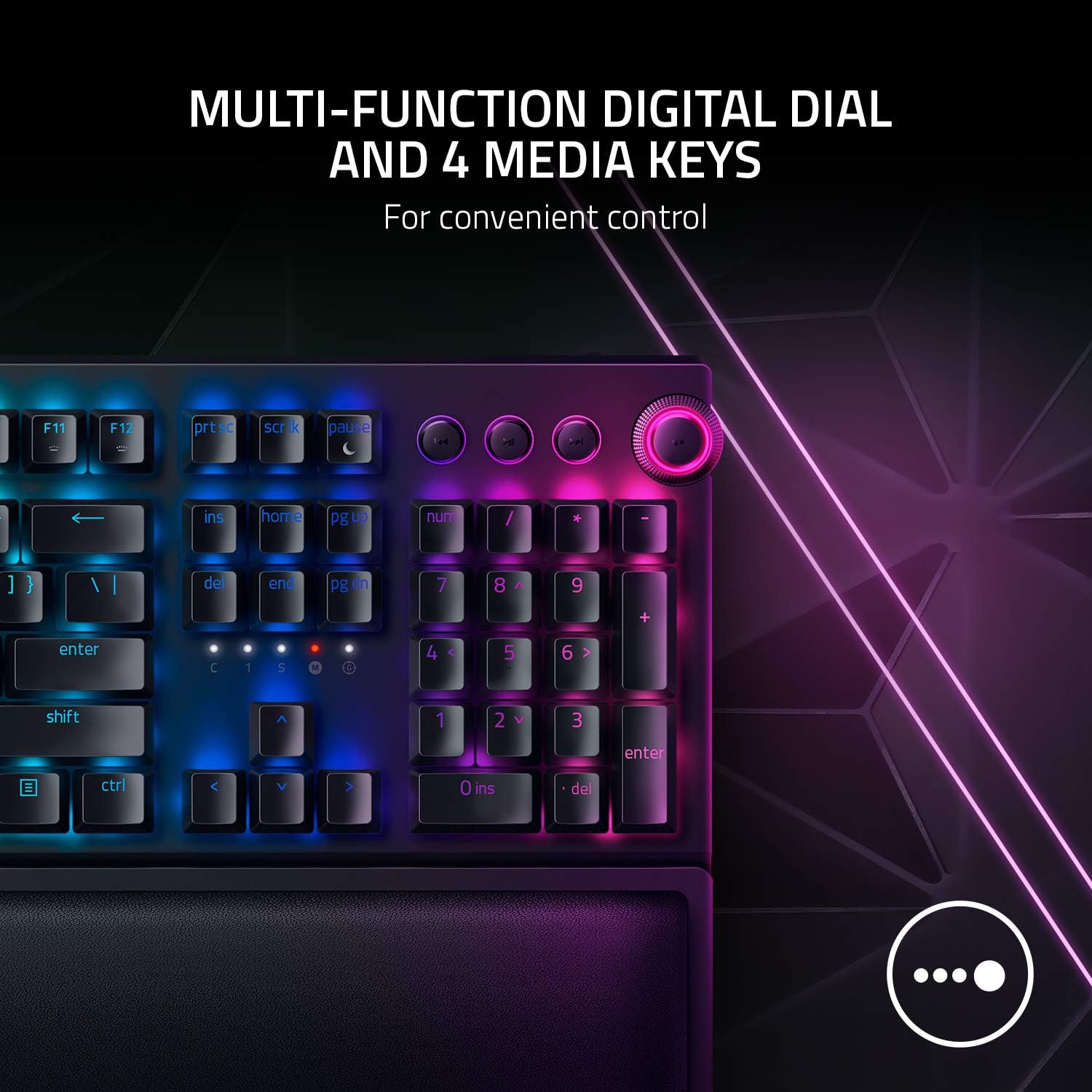
Image: The multi-function digital dial and media keys offer convenient control over audio and other functions.
3. Chroma RGB Lighting
Experience dynamic per-key RGB lighting with Razer Chroma. The transparent switch housing enhances the brightness and vibrancy of the lighting. Customize lighting effects and colors using the Razer Synapse software.

Image: Transparent switch housing allows for brighter and more immersive Razer Chroma RGB lighting effects.
Maintenance
1. Keycap Durability
The keyboard features Doubleshot ABS Keycaps. These keycaps are manufactured using a doubleshot molding process, ensuring that the legends (letters and symbols) will never wear off, even with intense use. The extra-thick walls of the keycaps also contribute to their overall toughness.
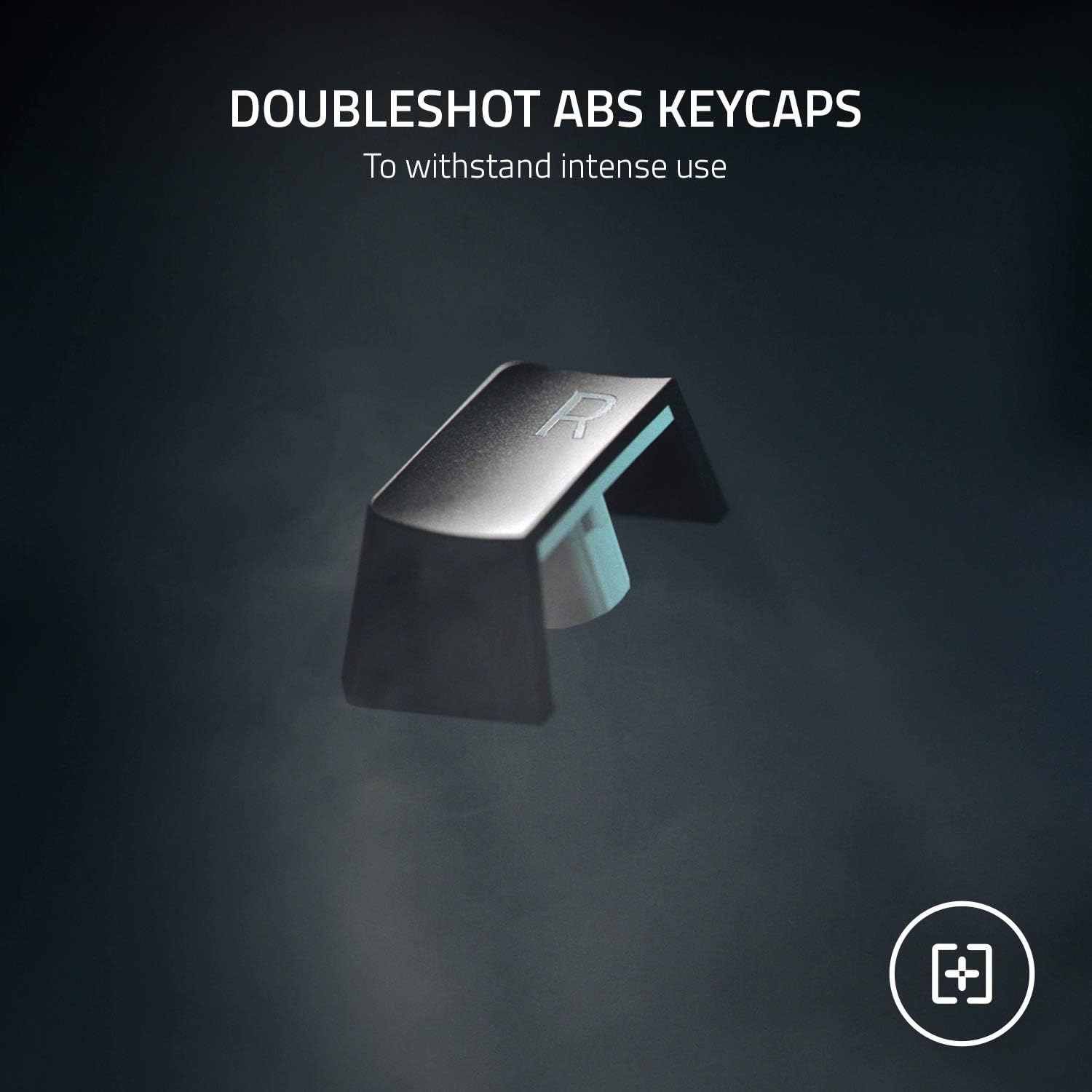
Image: Doubleshot ABS Keycaps are designed for extreme durability and to prevent legend wear.
2. Cleaning
To clean your keyboard, gently wipe the surfaces with a soft, damp cloth. Avoid using harsh chemicals or abrasive materials. For deeper cleaning, you may carefully remove keycaps (using a keycap puller, not included) and clean beneath them with compressed air.
Troubleshooting
- Connectivity Issues: Ensure the keyboard's mode switch is set correctly (2.4 for dongle, BT for Bluetooth). For HyperSpeed, try re-pairing the dongle via Razer Synapse. For Bluetooth, ensure your device's Bluetooth is on and the keyboard is in pairing mode.
- Lighting Not Working: Check Razer Synapse settings to ensure lighting is enabled and configured. Adjust brightness levels.
- Keys Not Responding: Try connecting the keyboard via USB-C cable to rule out wireless interference or battery issues. Ensure the keyboard is fully charged.
- Battery Life: Optimize battery life by adjusting RGB brightness or setting idle sleep timers in Razer Synapse.
Specifications
| Feature | Detail |
|---|---|
| Product Dimensions | 17.76 x 9.79 x 1.67 inches |
| Item Weight | 3.14 pounds |
| Manufacturer | Razer |
| Item Model Number | BlackWidow V3 Pro |
| Batteries | 1 Lithium Ion batteries required. |
| Connectivity Technology | Bluetooth, HyperSpeed Wireless, USB-C |
| Keyboard Description | Gaming |
| Special Feature | Magnetic (wrist rest) |
| Keyboard Backlighting | RGB (Razer Chroma) |
| Switch Style | Yellow Switches - Linear & Silent |
| Material | Acrylonitrile Butadiene Styrene, Metal |
| Keystroke Lifespan | Up to 80 million clicks |
Warranty and Support
This product is sold as an Amazon Renewed product and is eligible for replacement or refund under the Amazon Renewed Guarantee if not satisfied with the purchase. For further support or product information, please visit the official Razer support website.


