
Grandstream GRP2604P
Grandstream GRP2604P IP Phone User Manual
Model: GRP2604P
1. Introduction
This manual provides comprehensive instructions for the setup, operation, and maintenance of the Grandstream GRP2604P IP Phone. The GRP2604P is a professional 3-line Gigabit IP Phone designed for users requiring advanced features and high call volume handling. It features a 2.7-inch LCD display, HD voice support, and dual Gigabit Ethernet ports with integrated Power over Ethernet (PoE).
Please read this manual thoroughly before using the device to ensure proper functionality and to avoid any potential issues.
2. Package Contents
Verify that all items are present in your package:
- Grandstream GRP2604P IP Phone Unit
- Handset with Cord
- Ethernet Cable
- Phone Stand
- Quick Installation Guide (this manual serves as the full guide)

Figure 2.1: Front view of the Grandstream GRP2604P IP Phone, showing the display, keypad, and function buttons.
3. Physical Overview
3.1 Front Panel
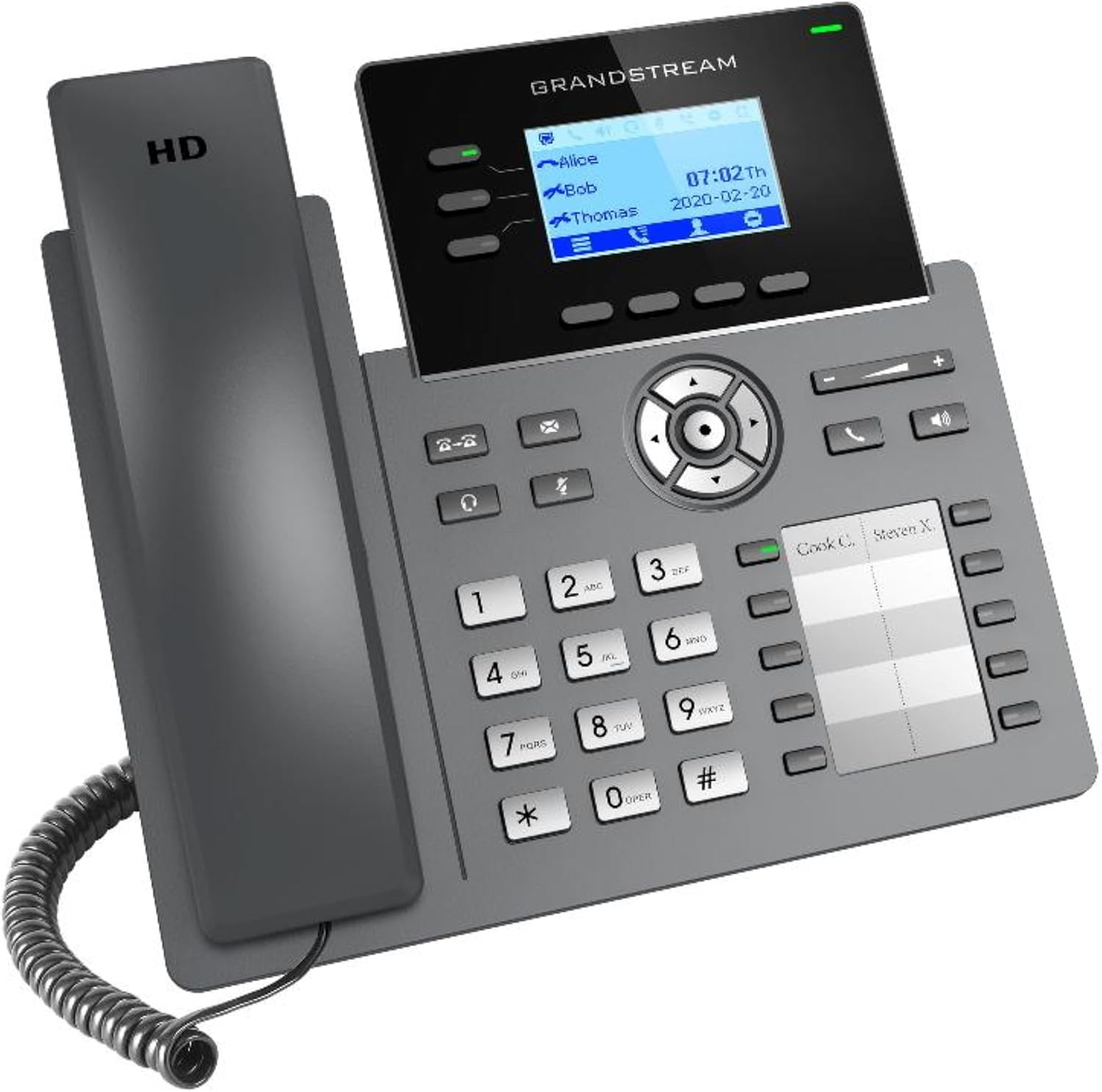
Figure 3.1: Angled front view of the Grandstream GRP2604P IP Phone, highlighting the display and button layout.
- LCD Display: 2.7-inch backlit graphical LCD for call information, menus, and status.
- Line Keys: Programmable keys for line appearance, speed dial, or other functions.
- Navigation Keys: For navigating menus and options.
- Soft Keys: Context-sensitive keys that change function based on the phone's state.
- Function Keys: Dedicated keys for Message, Headset, Mute, Hold, Transfer, Conference, Send/Redial, Speakerphone, and Volume.
- Keypad: Standard 12-button dial pad.
3.2 Rear Panel and Ports

Figure 3.2: Side view of the Grandstream GRP2604P IP Phone, showing the phone stand in position.
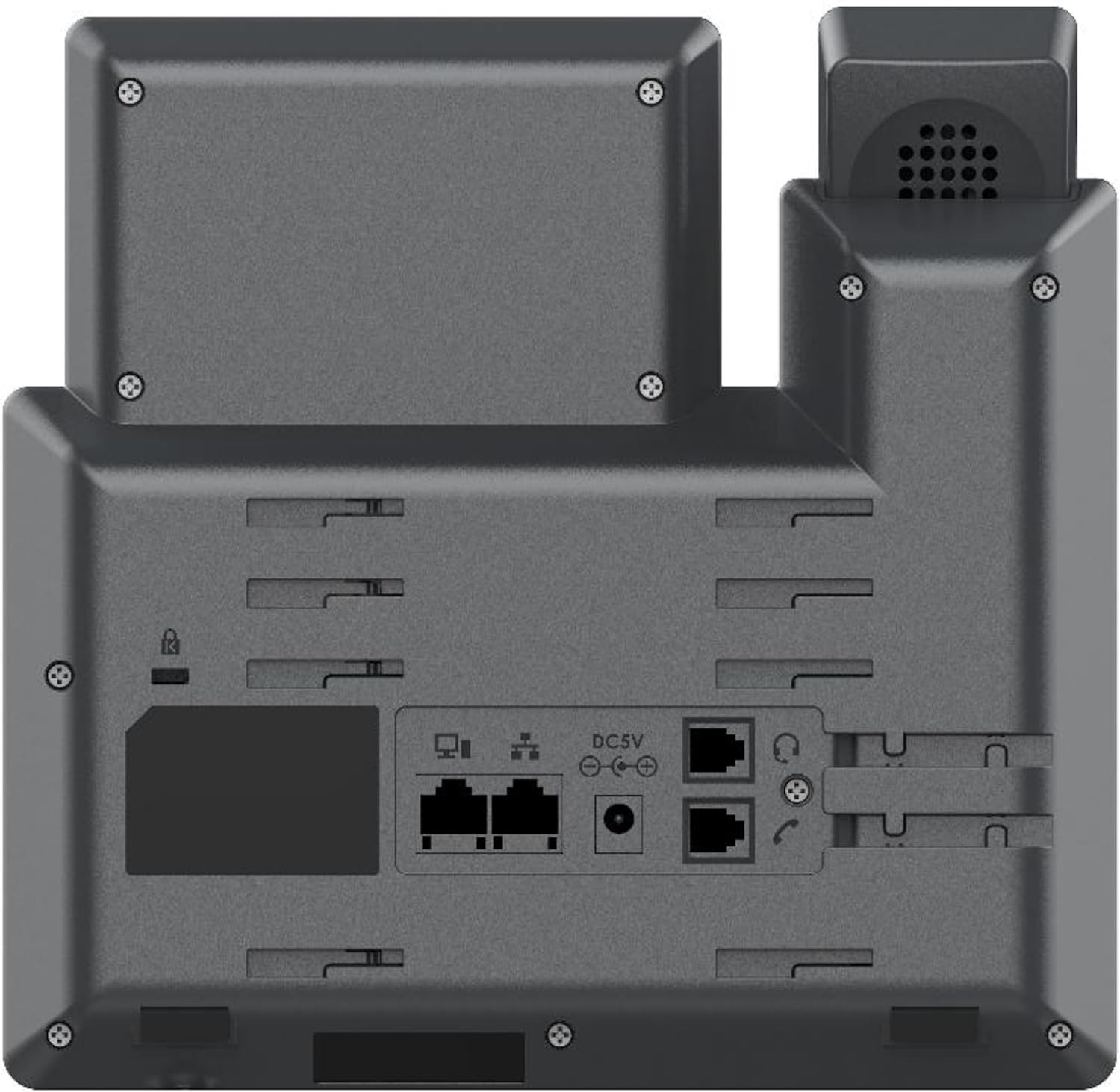
Figure 3.3: Rear view of the Grandstream GRP2604P IP Phone, detailing the various connection ports.
- PC Port: Gigabit Ethernet port for connecting a computer or other network device.
- LAN Port: Gigabit Ethernet port for connecting to the network (with PoE support).
- Handset Port: RJ9 port for connecting the phone handset.
- Headset Port: RJ9 port for connecting a wired headset.
- Power Port (DC 5V): For connecting an optional power adapter (not included with this model).
- Kensington Lock Slot: For security locking.
4. Setup and Installation
4.1 Attaching the Phone Stand
Align the tabs on the phone stand with the slots on the back of the phone unit. Gently push until the stand clicks into place. The stand allows for two angle positions for optimal viewing.
4.2 Connecting the Handset and Headset
- Connect the coiled cord to the handset and the handset port on the phone unit.
- If using a wired headset, connect it to the headset port.
4.3 Network Connection and Power
The GRP2604P supports Power over Ethernet (PoE), eliminating the need for a separate power adapter if connected to a PoE-enabled switch or injector.
- Connect one end of the Ethernet cable to the LAN port on the phone and the other end to a network switch or router.
- If your network switch supports PoE, the phone will power on automatically.
- If PoE is not available, connect an optional 5V DC power adapter (not included) to the power port on the phone and then to a power outlet.
- To connect a computer or other network device, use another Ethernet cable to connect the PC port on the phone to your device.
The phone will boot up and attempt to obtain an IP address from your network. The display will show the boot progress and then the main idle screen.
5. Basic Operation
5.1 Making Calls
- Off-hook Dialing: Pick up the handset, press the Speakerphone button, or press the Headset button. Dial the number and press the Send key or wait for 4 seconds.
- On-hook Dialing: Dial the number first, then pick up the handset, press the Speakerphone button, or press the Headset button.
- Redial: Press the Send/Redial button to redial the last dialed number.
5.2 Answering Calls
When the phone rings, you can answer by:
- Picking up the handset.
- Pressing the Speakerphone button.
- Pressing the Headset button.
- Pressing the corresponding flashing Line key.
5.3 Call Management
- Hold: During an active call, press the Hold button. Press it again to resume the call.
- Transfer: During an active call, press the Transfer button. Dial the number to transfer to, then press the Transfer button again (blind transfer) or wait for the party to answer and then press Transfer (attended transfer).
- Conference: During an active call, press the Conference button. Dial the number of the next participant and press Send. Once the party answers, press the Conference button again to establish the conference call.
- Mute: Press the Mute button to mute your microphone during a call. Press again to unmute.
- Volume Adjustment: Use the Volume buttons to adjust the handset, headset, or speakerphone volume during a call, or ringtone volume when idle.
6. Maintenance
6.1 Cleaning the Phone
To clean the phone, use a soft, dry, anti-static cloth. Do not use liquid cleaners or aerosol cleaners, as these may damage the device. Avoid getting moisture into any openings.
6.2 Firmware Upgrade
Firmware upgrades are typically managed by your system administrator. If manual upgrade is required, access the phone's web interface by entering its IP address into a web browser. Navigate to the maintenance or upgrade section and follow the on-screen instructions. Always back up your configuration before performing a firmware upgrade.
Note: The phone may ship with older firmware, and an upgrade might be necessary for optimal performance and access to the latest features.
7. Troubleshooting
| Problem | Possible Cause | Solution |
|---|---|---|
| Phone does not power on. | No PoE from network switch or power adapter not connected/faulty. | Ensure Ethernet cable is connected to a PoE-enabled port, or connect a functional 5V DC power adapter. Check power outlet. |
| No dial tone. | Network connectivity issue, SIP registration failure, or incorrect configuration. | Check network cable connection. Verify SIP account registration status on the phone's display or web interface. Contact your VoIP service provider or system administrator. |
| Cannot make/receive calls. | SIP registration failed, network firewall issues, or incorrect dial plan. | Confirm SIP account is registered. Check firewall settings to ensure SIP ports are open. Consult your system administrator for dial plan verification. |
| Poor audio quality. | Network congestion, faulty cable, or incorrect audio codec settings. | Check network bandwidth. Replace Ethernet cable. Verify audio codec settings in the phone's configuration. |
| Ringtone volume is too low. | Volume setting is low. | Adjust the volume using the Volume buttons when the phone is idle. |
8. Specifications
| Feature | Detail |
|---|---|
| Lines | 3 Lines |
| SIP Accounts | 6 SIP Accounts |
| Display | 2.7-inch (132x48) backlit graphical LCD |
| Ethernet Ports | Dual-switched auto-sensing 10/100/1000 Mbps Gigabit Ethernet ports |
| PoE | Integrated Power-over-Ethernet (PoE) |
| HD Audio | HD handset and speakerphone with support for wideband audio |
| Headset Support | RJ9 headset jack |
| Dimensions (L x W x H) | 8.43 x 8.11 x 2.68 inches (21.4 x 20.6 x 6.8 cm) |
| Item Weight | 1.74 pounds (790 grams) |
| Power Source | Corded Electric (PoE or optional 5V DC power adapter) |
| Model Number | GRP2604P |
9. Warranty and Support
9.1 Warranty Information
For detailed warranty information, please refer to the warranty card included with your product or visit the official Grandstream website. Warranty terms and conditions may vary by region and reseller.
9.2 Technical Support
For technical assistance, troubleshooting beyond this manual, or advanced configuration, please contact your VoIP service provider or system administrator. You may also visit the Grandstream support portal for FAQs, documentation, and community forums.
Official Grandstream Website: www.grandstream.com
Related documentsGRP2604P


Ask a question about this manual
Ask about setup, troubleshooting, compatibility, parts, safety, or missing instructions. Manuals+ will review the question and use this page’s manual context to help answer it.