Download PDFFree PDF. The Save button below keeps a bookmark and private notes in your account.
Nokia 6300 4G Instruction Manual
Model: TA-1324
1. Introduction
Welcome to the instruction manual for your Nokia 6300 4G. This device is designed to keep you connected with essential communication features and popular social applications. It combines classic phone functionality with modern connectivity, offering a streamlined experience with speedy 4G and access to services like WhatsApp, Facebook, YouTube, and Google Maps.
The Nokia 6300 4G is built with a durable polycarbonate shell, ensuring longevity. This manual provides comprehensive guidance on setting up, operating, maintaining, and troubleshooting your device to help you get the most out of its features.
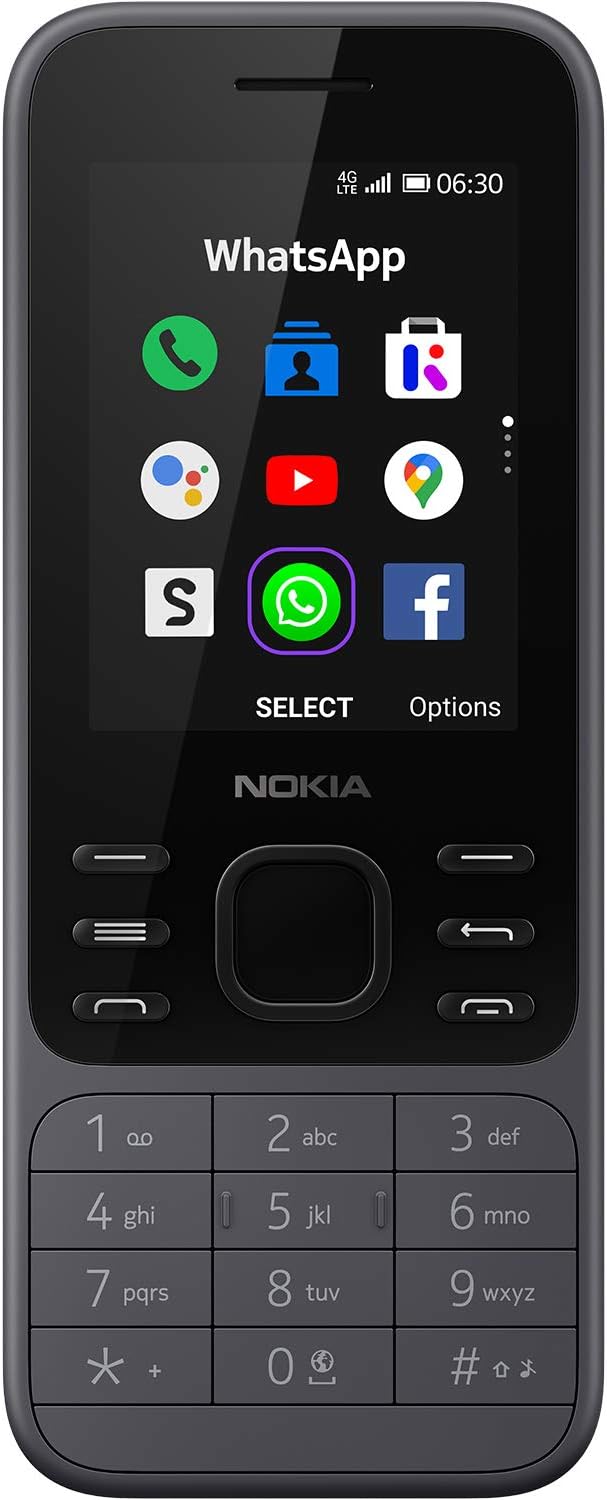
Figure 1: Front view of the Nokia 6300 4G, showcasing its display with various app icons.
2. Setup
2.1 Unboxing and Initial Inspection
Upon receiving your Nokia 6300 4G, carefully open the packaging and ensure all components are present. The product box typically includes:
Nokia 6300 4G device
Battery
Micro USB Charger
Quick start guide
Figure 2: Contents included in the Nokia 6300 4G product box.
2.2 Inserting SIM Card and Battery
The Nokia 6300 4G uses a nano SIM card. If you do not have a nano SIM card or your current SIM card does not fit, please contact your carrier for assistance.
Carefully remove the back cover of the phone.
Insert your nano SIM card into the designated SIM card tray. This device supports Dual SIM functionality.
Insert the removable battery into its compartment.
Replace the back cover, ensuring it clicks securely into place.
Video 1: Demonstration of inserting the SIM card and battery into the Nokia 6300 4G. This video provides a visual guide for the setup process.
2.3 Powering On and Initial Configuration
Press and hold the power button until the Nokia logo appears. Follow the on-screen prompts to complete the initial setup, including language selection, date and time settings, and network connection.
For network compatibility, this device is designed to work with GSM carriers. It will not support Verizon or Verizon subsidiaries. Please confirm compatibility with your chosen carrier before use.
3. Operating Your Nokia 6300 4G
3.1 Basic Navigation and Keypad Functions
Navigate through the phone's menus and options using the directional keypad and the central 'Select' button. The soft keys below the screen provide context-sensitive options.
Directional Pad: Use Up, Down, Left, Right to move between menu items.
Select Button: Confirm selections or open applications.
Left Soft Key: Typically for 'Notices' or context-specific actions.
Right Soft Key: Typically for 'Camera' or context-specific actions.
Call Key: Initiate calls or answer incoming calls.
End Key: End calls or return to the home screen.
3.2 Communication Features
The Nokia 6300 4G supports standard communication functions:
Making Calls: Enter the number using the keypad and press the Call key.
Sending Text Messages: Access the Messaging application to compose and send SMS/MMS messages.
WhatsApp and Facebook: Stay connected with friends and family using pre-installed social applications.
Figure 3: The Nokia 6300 4G supports popular social applications available through its app store.
3.3 Internet and Multimedia
Experience enhanced connectivity and entertainment:
4G Connectivity: Enjoy faster internet speeds for browsing and streaming.
WiFi Hotspot: Share your phone's 4G internet connection with other devices.
YouTube: Stream videos directly on your device.
Google Maps: Navigate and find directions.
Google Assistant: Access information, make calls, and organize plans using voice commands.
Figure 4: Enjoy smooth YouTube streaming with the phone's 4G capabilities.
Figure 5: The Nokia 6300 4G offers reliable 4G connectivity and WiFi hotspot functionality.
Figure 6: Utilize Google Assistant for voice-activated commands and information retrieval.
3.4 Camera and Gallery
The phone features a rear camera for capturing photos. Access the Camera application from the main menu. Captured images and videos can be viewed in the Gallery.
4. Maintenance
4.1 Charging the Device
Use only the charging adapter and cable provided in the product box. Charging with incompatible equipment may cause malfunction. Ensure basic safety steps are observed during charging, and do not charge with malfunctioning or damaged equipment.
If the battery is completely drained, it may take 2 to 3 minutes for the phone to begin charging and power on.
4.2 General Care
To maintain your device's performance and appearance:
Keep the phone clean and free from dust and debris.
Avoid exposing the device to water or extreme temperatures.
Do not obstruct the microphone or headphone port with dirt or debris.
Ensure the Google Assistant button is not stuck or dirty, as this can affect microphone functionality.
5. Troubleshooting
5.1 Network Connection Issues
If your Nokia 6300 4G is having issues connecting to your mobile network or the hotspot feature is not working as expected:
Ensure your SIM card is properly inserted and your phone is powered on.
Verify that your carrier supports GSM devices and that your plan includes the necessary services (4G, hotspot).
Contact your carrier for assistance with network connections and hotspot activation.
5.2 Microphone Issues
If others cannot hear you on your microphone:
Check that the Google Assistant button is not stuck or dirty.
Ensure there is no dirt or debris in the headphone port.
5.3 Phone Feeling Warm or Slowing Down
During extended operation, the device may feel warm. This is generally normal. To prevent overheating, the device may automatically slow down, close apps, or switch off charging. If the device is not working properly, visit Nokia’s customer support website.
5.4 Charging Problems
If your phone is not charging:
Verify the power source and socket by trying a different outlet.
Inspect the charging cable and the phone's charging port for any damage or debris.
Turn the phone off completely and plug it in. If the battery is fully drained, it might take a few minutes to show charging activity.
5.5 Button Issues
Before troubleshooting, ensure the product has no physical damage, has not been exposed to water, the screen is clean, and your fingers/hands are not wet or dirty.
6. Specifications
Feature
Detail
Product Dimensions
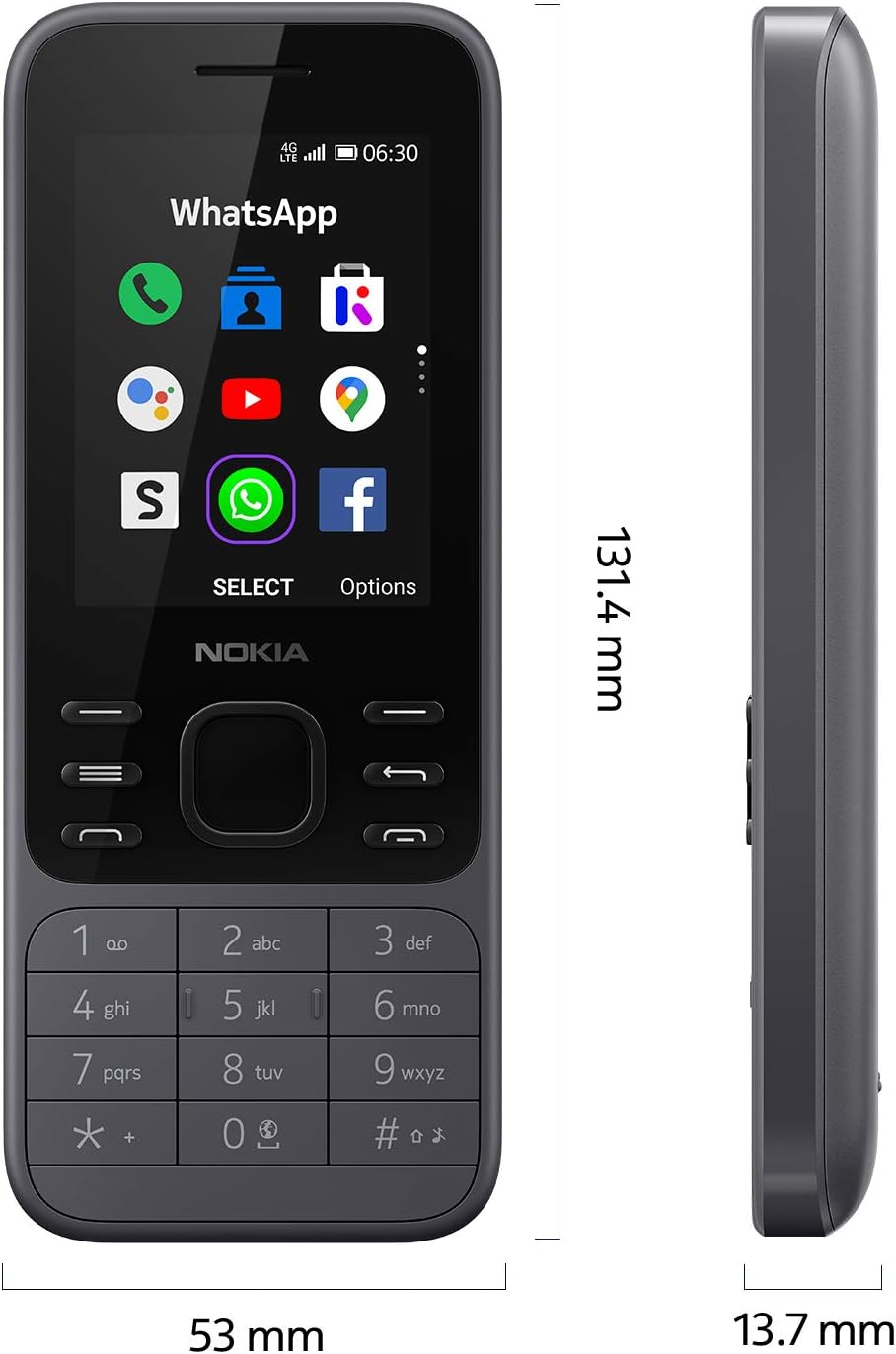
4.91 x 2.09 x 0.54 inches
Item Weight
3.7 ounces
Item Model Number
TA-1324
Batteries
1 Lithium Ion batteries required (included)
Operating System
KaiOS
RAM
0.5 GB (512 MB)
Memory Storage Capacity
4 GB
Wireless Communication Technologies
Bluetooth, Cellular, Wi-Fi
Connectivity Technologies
Bluetooth, Wi-Fi, USB
Special Features
Basic Phone, Text/Messaging, Camera, LTE, Mobile Hotspot Capability
Human Interface Input
Microphone, Buttons, Numeric Keypad
Scanner Resolution
240 x 320 pixels
Other Camera Features
Rear
Audio Jack
3.5 mm
Form Factor
Bar
Color
Light Charcoal
Battery Power Rating
1500 mAh
Phone Talk Time
6 Hours
Manufacturer
HMD Global Oy
Date First Available
January 12, 2021
Standing Screen Display Size
2.4 Inches
Charging Time
5 Watts
CPU Model
Snapdragon
CPU Speed
1.1 GHz
Refresh Rate
60 Hz
Figure 7: Physical dimensions of the Nokia 6300 4G.
7. Warranty and Support
7.1 Warranty Information
For detailed warranty information, please refer to the warranty card included with your product or visit the official Nokia customer support website. Keep your proof of purchase for warranty claims.
7.2 Contacting Support
If you encounter issues that cannot be resolved using this manual, Nokia offers various support options:
Ask about setup, troubleshooting, compatibility, parts, safety, or missing instructions. Manuals+ will review the question and use this page’s manual context to help answer it.