
Sanyipace 4K HDMI Video Capture Card
Sanyipace 4K HDMI Video Capture Card User Manual
Model: 4K HDMI Video Capture Card
1. Introduction
This manual provides detailed instructions for the Sanyipace 4K HDMI Video Capture Card. It covers product features, specifications, setup procedures, operating guidelines, and troubleshooting tips to ensure optimal performance and user experience for game recording and live streaming.
2. Product Overview
2.1 Device Components
The Sanyipace 4K HDMI Video Capture Card features the following ports and indicators:
- DC/5V Power Input: Micro USB port for external power supply.
- HDMI Input: Connects to your HDMI source device.
- Mic Input: 3.5mm jack for microphone audio input.
- USB 3.0 Output: Connects to your computer for data transfer.
- HDMI Loop Out: Connects to an external display for real-time monitoring.
- Audio Output: 3.5mm jack for headphone or speaker connection.
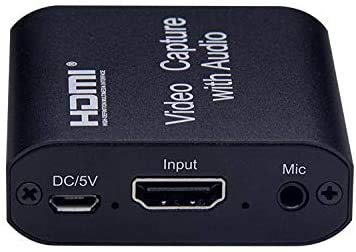
Image 1: Front view of the Sanyipace 4K HDMI Video Capture Card with labeled ports.
3. Features
- Supports HDMI loop out for real-time monitoring.
- Includes microphone audio input and 3.5mm stereo audio output.
- Capable of superimposing microphone audio with HDMI audio during capture.
- Supports maximum input resolution of 4K.
- Supports maximum output resolution of 1080P.
- Compatible with AWG26 HDMI standard cables, allowing input distances up to 15 meters (for 1080P and lower resolutions).
- Works with most acquisition software, including VLC, OBS Studio, and Amcap.
- Compatible with Windows, Android, and MacOS operating systems.
- Conforms to USB Video (UVC) and USB Audio (UAC) standards.
- Compact and portable design for ease of use.
4. Specifications
| Specification | Value |
|---|---|
| HDMI Input Resolution | Max 4K |
| Video Output Resolution | Max 1080P |
| Supported Video Format | 8/10/12bit Deep Color |
| Video Output Format | YUV, JPEG |
| Supported Audio Format | L-PCM |
| Input Cable Distance | ≤15m, AWG26 HDMI standard cable |
| Max Working Current | 0.7A/5VDC |
| Operating Temperature Range | -10 to +55℃ |
| Hardware Interface | USB, USB 3.0 |
| Operating System Compatibility | Android, Mac, Windows |
| Recommended Uses | Video Recording, Live Streaming |
| Item Weight | 6.3 Ounces (approx. 178g) |
| Item Dimensions | 10.2 x 10.2 x 4.8 Centimeters |
5. System Requirements
To ensure optimal performance, your computer should meet or exceed the following specifications:
- CPU:
- PC: Intel i5-3400 or above
- Notebook: Intel i7-3537U 3.0GHZ or above
- Graphics Card:
- PC: NVIDIA GT630 or above
- Notebook: NVIDIA GT735M or above
- RAM: 4GB RAM or more
6. Setup
6.1 Connection Diagram
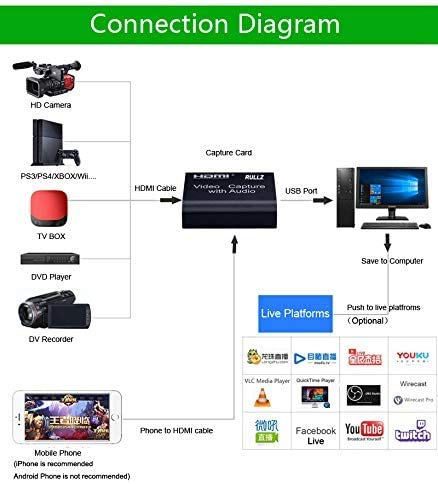
Image 2: Detailed connection diagram showing various input and output configurations.
6.2 Step-by-Step Installation
- Connect your HDMI source device (e.g., HD Camera, PS3/PS4/Xbox/Wii, TV Box, DVD Player, DV Recorder, Mobile Phone via HDMI cable) to the HDMI Input port of the capture card using an HDMI cable.
- (Optional) Connect an HDMI display (e.g., TV, monitor) to the HDMI Loop Out port of the capture card using an HDMI cable to monitor the input signal in real-time.
- Connect a microphone to the Mic input port (3.5mm) for external audio input.
- (Optional) Connect headphones or speakers to the Audio Output port (3.5mm) for audio monitoring.
- Connect the capture card's USB 3.0 Output port to a USB 3.0 port on your computer using the provided USB cable.
- Connect the DC/5V power input (Micro USB) to a 5V power source if additional power is required, especially for longer HDMI cables or power-intensive devices.
- Your computer should automatically detect the capture card as a new video and audio device. No driver installation is typically required for UVC/UAC compliant devices.
7. Operating Instructions
7.1 Software Compatibility
The Sanyipace 4K HDMI Video Capture Card is compatible with most standard video acquisition software that supports UVC/UAC devices. Recommended software includes:
- VLC Media Player
- OBS Studio
- Amcap
- QuickTime Player (MacOS)
- Wirecast
7.2 Basic Operation
- Ensure all physical connections are secure as described in the "Setup" section.
- Open your preferred video capture or streaming software (e.g., OBS Studio).
- In the software, add a new "Video Capture Device" source. Select "USB Video" or a similar name for the video input device.
- Add a new "Audio Input Capture" source and select "USB Audio" or a similar name for the audio input device. If using a microphone, ensure it is also selected as an audio input.
- Configure video resolution, frame rate, and audio settings within the software as needed. Ensure the output resolution is set to 1080P or below for optimal performance.
- Start recording or streaming through your chosen software.
8. Application Scenarios
The Sanyipace 4K HDMI Video Capture Card is a versatile tool suitable for a wide range of applications:
- Live Broadcasts: Ideal for business events, video conferences, concert shows, and other live streaming needs.
- Gaming: Capture or live broadcast phone games, computer games, and console games (e.g., PS4).
- Education: Useful for recording medical surgery lectures, teacher presentations, and other educational content.
- Media Capture: Capture video from TV boxes, DVD players, and other sources for study or archival purposes.
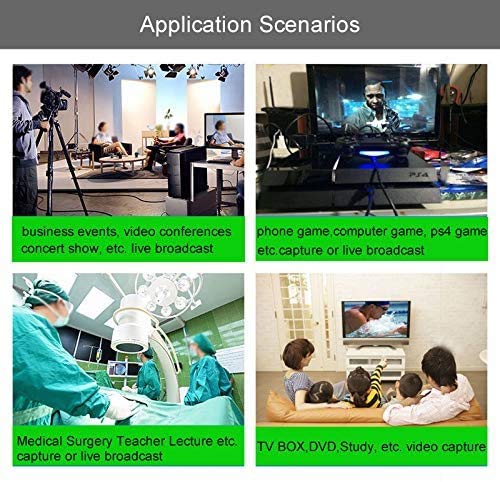
Image 3: Examples of how the Sanyipace capture card can be used in different settings.
9. Troubleshooting
- No Video Signal:
- Check all HDMI cable connections. Ensure they are securely plugged in at both ends.
- Verify the HDMI source device is powered on and actively outputting a signal.
- Ensure the HDMI cable length does not exceed 15 meters for 1080P resolution.
- Confirm the input resolution from the source does not exceed 4K.
- No Audio:
- Check all audio cable connections (microphone, audio output).
- Ensure the correct audio input device ("USB Audio") is selected in your capture software.
- Verify the audio source is active and not muted.
- Software Not Detecting Device:
- Ensure the USB 3.0 cable is connected to a USB 3.0 port on your computer. Try a different USB 3.0 port.
- Restart your computer and the capture software.
- Check your operating system's Device Manager (Windows) or System Information (MacOS) to confirm if "USB Video" and "USB Audio" devices are recognized.
- Poor Performance/Lag:
- Ensure your computer meets the minimum system requirements (CPU, GPU, RAM) outlined in Section 5.
- Close other demanding applications running in the background.
- Try reducing the output resolution or frame rate settings in your capture software.
10. Maintenance
- Keep the device clean and free from dust. Use a soft, dry cloth for cleaning.
- Avoid exposing the device to extreme temperatures, high humidity, or direct sunlight.
- Do not attempt to disassemble or repair the device yourself. Refer to qualified service personnel if needed.
- Store the device in a cool, dry place when not in use.
11. Warranty and Support
11.1 Warranty Information
The Sanyipace 4K HDMI Video Capture Card comes with a 12-month replacement warranty. To claim the warranty, product registration is mandatory at the manufacturer's website within 10 days of your purchase.
11.2 Customer Support
For technical assistance, warranty claims, or any other inquiries, please refer to the contact information provided on the product packaging or visit the official Sanyipace website for support resources.
Related documents4K HDMI Video Capture Card

Ask a question about this manual
Ask about setup, troubleshooting, compatibility, parts, safety, or missing instructions. Manuals+ will review the question and use this page’s manual context to help answer it.