
1. Introduction
This manual provides essential instructions for the safe operation, setup, and maintenance of your Ruko 1088 Smart Robot. Please read this manual thoroughly before using the product to ensure proper function and to prevent damage.

Figure 1: Ruko 1088 Smart Robot
2. Safety Information
Observe the following safety precautions to prevent injury or damage to the product:
- Age Recommendation: This product is recommended for users aged 4-9 years. Adult supervision is advised for younger children.
- Battery Safety: Use only the original charging cable provided. USB-C to USB-C cables are not supported for charging and may cause damage. Do not attempt to open or replace the internal Lithium-Ion battery.
- Environmental Conditions: Operate the robot on smooth, flat surfaces. Avoid rough terrain or thick carpets, which may impede movement and cause falls.
- Water Exposure: Keep the robot away from water and moisture to prevent electrical damage.
- Physical Handling: Avoid excessive force or rough handling of the robot's joints and components.
- Choking Hazard: Ensure small parts are kept away from young children to prevent choking.
3. What's in the Box
Verify that all items are present upon unboxing:
- 1088 Smart Robot × 1
- Remote Control × 1
- USB Charging Cable × 1
- User Manual × 1
- Box × 1

Figure 2: Package Contents
4. Product Components
Familiarize yourself with the robot's key features and the remote control layout.
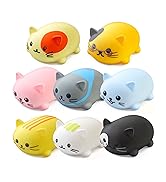
Figure 3: Robot and Remote Control Details
Robot Features:
- Sensitive Touch Sensor: Located on the head for interactive responses.
- AI Chip: Enables intelligent functions and programming.
- Flexible Joints: Allows for various movements and dance actions.
- LED Face: Displays expressions.
- Ears with Lights: Provide visual feedback.
- Glide Rollers: For smooth movement.
Remote Control Functions:
- Directional controls (Slide Forward, Walk Back).
- Action buttons (Dance, Song, Story, Action Programming).
- Specific body part controls (Left Hand Up, Left Arm Down, Right Shoulder Down, Twist Waist).
- Recording Message function.
5. Setup
5.1. Charging the Robot
The Ruko 1088 Smart Robot is equipped with a built-in Lithium-Ion battery. Before first use, fully charge the robot.
- Locate the charging port on the robot.
- Connect the provided USB Charging Cable to the robot's charging port.
- Connect the other end of the USB Charging Cable to a compatible USB power adapter (not included) or a computer USB port.
- The robot's indicator lights will show charging status. Refer to the robot's display for full charge indication.
Important: Only use the original USB Charging Cable. USB-C to USB-C cables are not compatible and will not charge the device.
5.2. Remote Control Batteries
Insert batteries into the remote control (batteries for remote control are typically not included and need to be purchased separately).
- Open the battery compartment on the back of the remote control.
- Insert the required batteries, observing correct polarity (+/-).
- Close the battery compartment securely.
5.3. Powering On
To power on the robot, locate the power switch, usually on the back or base of the robot, and switch it to the "ON" position. The robot will perform a startup sequence.
6. Operation
The Ruko 1088 Smart Robot offers multiple control methods for diverse interaction.
6.1. Remote Control Operation
Use the provided 2.4GHz remote control for direct command of the robot's movements and functions.
- Movement: Use the directional buttons to make the robot slide forward, walk back, or turn.
- Actions: Press dedicated buttons for pre-programmed actions such as Dance, Song, and Story.
- Body Control: Activate specific joint movements like Left Hand Up or Twist Waist.
- Recording: Utilize the Recording Message function to record and play back short audio clips.
6.2. App Control
Download the dedicated Ruko robot application on your smartphone or tablet for advanced control and features.
- Search for the "Ruko Robot" app in your device's app store.
- Install and open the application.
- Follow the in-app instructions to connect to your Ruko 1088 robot via Bluetooth.
- Once connected, you can access additional controls, programming interfaces, and interactive modes.

Figure 4: Multiple Control Methods
6.3. Voice Control
The robot responds to specific voice commands. Ensure the robot is powered on and in an environment with minimal background noise for optimal recognition.
- Refer to the app or a quick reference guide for a list of supported voice commands.
- Speak clearly and at a moderate volume.
6.4. Gravity Sensor Control
When using the app, some functions may allow control through your device's gravity sensor, enabling intuitive movement commands by tilting your device.
6.5. Touch Sensor Interaction
The touch sensor on the robot's head allows for direct interaction, triggering responses or actions when touched.
6.6. Bluetooth Speaker Function
The Ruko 1088 can function as a Bluetooth speaker.
- Ensure the robot is powered on.
- Enable Bluetooth on your smartphone or audio device.
- Search for "Ruko 1088" (or similar name) in your device's Bluetooth settings and pair.
- Once connected, audio played on your device will output through the robot's speaker.
7. Programming and STEM Learning
The Ruko 1088 Smart Robot is designed to enhance creativity and imagination through programmable features.
- Action Programming: Use the remote control or app to program sequences of movements and actions. The robot supports up to 200 programmable actions.
- Expressions: Explore 10 different expressions displayed on the robot's LED face.
- Pre-loaded Content: Enjoy 10 songs and 4 stories, accessible via the remote or app.

Figure 5: STEM Educational Interaction
8. Maintenance
Proper care ensures the longevity and optimal performance of your robot.
- Cleaning: Wipe the robot with a soft, dry cloth. Do not use harsh chemicals or abrasive materials.
- Storage: Store the robot in a cool, dry place away from direct sunlight when not in use.
- Battery Care: If storing for an extended period, charge the robot's battery to approximately 50% to prolong battery life.
9. Troubleshooting
| Problem | Possible Cause | Solution |
|---|---|---|
| Robot does not power on. | Battery is depleted. | Charge the robot using the original USB cable. |
| Robot does not respond to remote control. | Remote control batteries are low or incorrectly inserted. Robot is out of range. | Replace remote control batteries. Ensure robot and remote are within operating range. |
| Robot moves slowly or falls on carpet. | Operating surface is unsuitable. | Operate the robot on smooth, hard surfaces or low-pile rugs. |
| Volume is too loud/soft. | Volume setting needs adjustment. | Use the volume control buttons on the remote or within the app. (Note: Remote volume buttons may require multiple presses). |
| Cannot connect via Bluetooth. | Robot's Bluetooth is not active or device is not discoverable. | Ensure robot is powered on. Restart Bluetooth on your device and try pairing again. |
10. Specifications
- Model Number: 1088
- Product Dimensions: 11 x 4.7 x 15.8 inches
- Item Weight: 4.33 pounds
- Battery: 1 Lithium Ion battery (included)
- Recommended Age: 4 - 9 years
- Control Methods: APP, 2.4GHz Remote Control, Voice Control, Gravity Sensor, Touch Sensor
- Programmable Actions: Up to 200
- Manufacturer: Ruko

Figure 6: Ruko 1088 Robot Size and Features
11. Customer Support
For technical assistance, warranty inquiries, or any questions regarding your Ruko 1088 Smart Robot, please contact Ruko customer support:
- Phone: +1 (888) 892-0155 (Mon-Fri: 8 AM to 2 AM PST; Sat-Sun: 8 AM to 5 PM PST)
- Email: service@rukoytoy.com
Please have your model number (1088) and purchase information ready when contacting support.
Figure 7: Ruko Customer Support Information


