
1. Introduction
This manual provides detailed instructions for the installation, operation, and maintenance of your CUSP PX6 Car Radio GPS Navigation System. This unit is designed to enhance your driving experience with advanced features including GPS navigation, multimedia playback, smartphone integration (CarPlay & Android Auto), and vehicle system control for Ford Explorer models from 2011 to 2019.
Please read this manual thoroughly before installation and operation to ensure proper use and to maximize the unit's capabilities. Keep this manual for future reference.
2. Safety Information
- Professional Installation Recommended: Due to the complexity of vehicle electronics, professional installation by a qualified car audio technician is highly recommended. Incorrect installation can lead to damage to the unit or vehicle.
- Driving Safety: Do not operate the unit or view videos that may distract you while driving. Always prioritize road safety.
- Power Supply: Ensure the unit is connected to a 12V DC power supply with negative grounding.
- Temperature: Avoid exposing the unit to extreme temperatures or direct sunlight for prolonged periods.
- Cleaning: Use a soft, dry cloth for cleaning. Do not use abrasive cleaners or solvents.
3. Package Contents
Verify that all components listed below are included in your package:
- PX6 Car Radio GPS Navigation Unit (Main Display)
- Power Cable
- GPS Antenna
- Video Cable
- Decorative Strip
- OBD Adapter
- Original USB Cable
- USB Cable
- WiFi Antenna
- AUX Line
- Canbus Adapter
- Metal Brackets
- Backup Camera
- Installation Tool
- Instruction Manual (this document)
- Warranty Card

Figure 3.1: Overview of included components. This image displays the front and rear views of the main unit, along with various cables, adapters, and accessories such as the power cable, GPS antenna, video cable, OBD adapter, USB cables, WiFi antenna, AUX line, Canbus adapter, metal brackets, backup camera, and an installation tool.
4. Installation Guide
The CUSP PX6 unit is designed for specific Ford Explorer models. Proper identification of your vehicle's A/C system (Auto A/C or Manual A/C) and model year is crucial for correct setup.
4.1. Compatibility and Pre-Installation Checks
This stereo is compatible with Ford Explorer models from 2011-2019. The default setting is for 2011-2015 Auto A/C cars. If your vehicle is a 2011-2019 Manual A/C or 2016-2019 Auto A/C, you must change the setting in the unit's software after physical installation.

Figure 4.1: Dashboard configurations for Ford Explorer 2011-2019, showing differences between Manual A/C and Auto A/C systems across different model years. This helps identify your vehicle's specific setup before installation.
4.2. Wiring and Connections
Refer to the rear view of the unit and the provided wiring diagram for correct connections. Ensure all cables are securely connected to their respective ports.
- Power: Connect the main power harness to the vehicle's wiring.
- GPS Antenna: Connect the GPS antenna and place it in a location with a clear view of the sky (e.g., dashboard).
- WiFi Antenna: Connect the WiFi antenna for network connectivity.
- USB-IN: Connect USB devices for media playback or smartphone integration.
- CAMERA-IN: Connect the provided backup camera or an aftermarket camera.
- AUX-IN / AUDIO OUT: For external audio devices or amplifiers.
- Canbus: Connect the Canbus adapter to ensure proper communication with vehicle systems, including steering wheel controls and A/C.

Figure 4.2: Detailed rear view of the CUSP PX6 unit, highlighting connection ports such as Power, CAMERA-IN, USB-IN, WIFI Antenna, GPS Antenna, Radio Antenna, AUX-IN, AUDIO OUT, and Fuse location. This diagram is essential for correct wiring during installation.
4.3. Post-Installation A/C Setting Adjustment
After physical installation, if your car is a 2011-2019 Manual A/C or 2016-2019 Auto A/C, you must access the unit's settings to adjust the A/C configuration. This is typically found in the system settings or factory settings menu. Consult the on-screen interface for specific steps to change this setting.

Figure 4.3: The CUSP PX6 unit seamlessly integrated into a Ford Explorer dashboard, showcasing its large 12.1-inch vertical display and user interface. This image provides a visual reference for the completed installation.
5. Operating Instructions
The PX6 unit runs on Android 9.0, offering a familiar and intuitive interface.
5.1. Basic Operations
- Power On/Off: The unit typically powers on with the vehicle's ignition. A long press on the power button (if available) can turn it off or put it into standby.
- Volume Control: Adjust volume using the on-screen controls or the vehicle's steering wheel controls.
- Home Screen: Navigate through applications and widgets on the customizable home screen.
5.2. GPS Navigation
The unit features built-in GPS navigation supporting both online and offline maps (e.g., Google Maps, Waze, Igo). You can download map data for offline use. The GPS dual-zone function allows you to listen to music or radio while navigating.
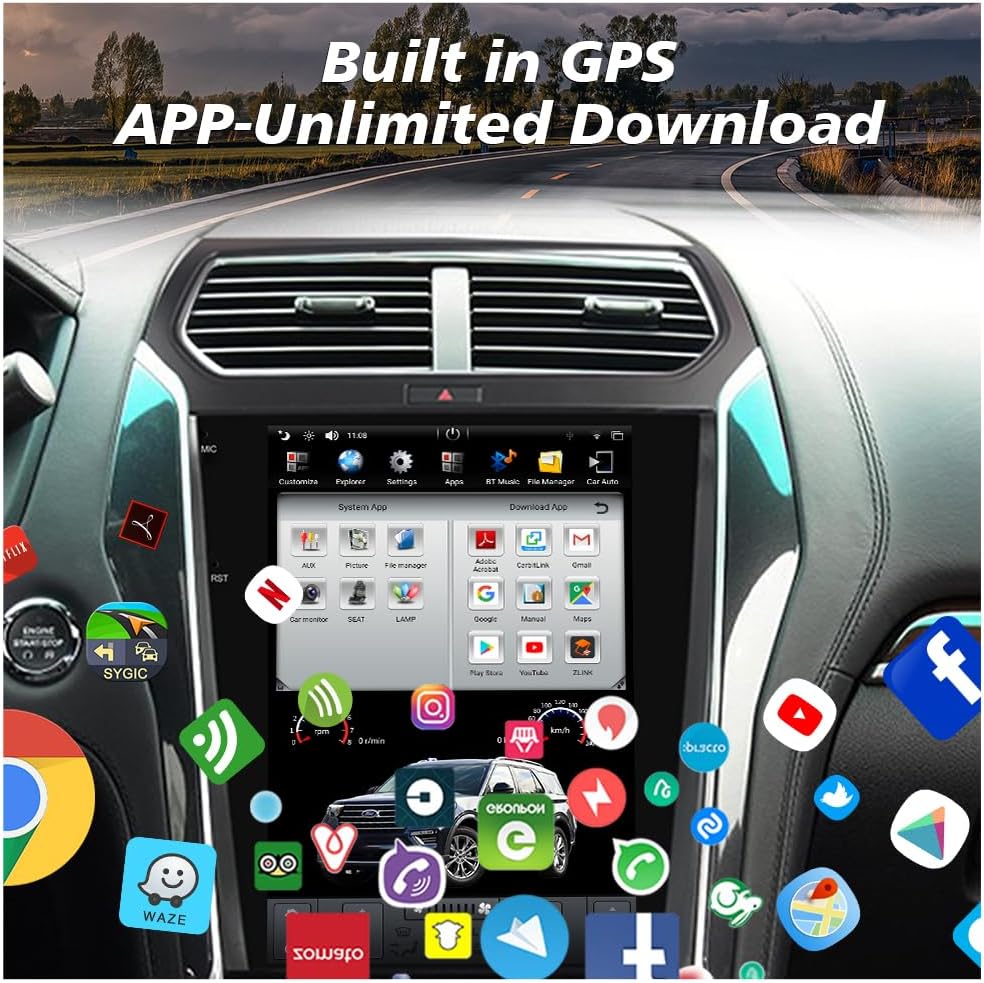
Figure 5.1: The unit's screen showing a GPS navigation map and a selection of downloadable applications, emphasizing its built-in GPS and app download capabilities.
5.3. CarPlay & Android Auto
The unit supports both wired and wireless CarPlay for iPhone users, and wired Android Auto for Android phone users. Connect your smartphone via USB or Bluetooth (for wireless CarPlay) to access compatible apps, navigation, calls, and messages directly on the unit's screen.

Figure 5.2: Visual representation of the unit's support for Wireless & Wired CarPlay and Android Auto, showing how smartphone interfaces are mirrored and controlled on the large display.
5.4. Bluetooth Functionality
Pair your mobile phone via Bluetooth for hands-free calling and audio streaming (A2DP). The unit supports phonebook synchronization, call history, and caller ID display.
5.5. Wi-Fi and App Downloads
Connect the unit to a Wi-Fi hotspot (e.g., from your smartphone) to access the Google Play Store. You can download and install various applications, similar to a tablet, expanding the unit's functionality.
5.6. Multimedia Playback
The unit supports various audio and video formats (e.g., MKV, MP4, 3GP, AVI). Play media from USB drives or streaming apps. The built-in DSP (Digital Signal Processor) allows for advanced audio adjustments.

Figure 5.3: The unit's interface showing audio equalization settings (Built-in DSP) and a video player, demonstrating its multimedia capabilities and sound customization options.
5.7. Steering Wheel Control & A/C Control
The unit integrates with your vehicle's steering wheel controls, allowing you to manage audio, calls, and other functions without taking your hands off the wheel. It also provides on-screen control for your vehicle's A/C system, compatible with both Auto and Manual A/C types (after correct configuration).
5.8. Rear Camera Input
The unit automatically displays the rear camera feed when the vehicle is shifted into reverse, providing parking assistance with guidelines.
6. Maintenance
- Screen Cleaning: Use a soft, lint-free cloth to clean the screen. For stubborn smudges, slightly dampen the cloth with water or a screen-safe cleaner. Avoid excessive pressure.
- Software Updates: Periodically check for software updates through the unit's system settings or the manufacturer's website to ensure optimal performance and access to new features.
- Fuse Replacement: If the unit loses power, check the fuse located at the rear of the unit (refer to Figure 4.2). Replace with a fuse of the same rating if blown.
7. Troubleshooting
This section addresses common issues you might encounter.
| Problem | Possible Cause | Solution |
|---|---|---|
| Unit does not power on. | No power supply; Blown fuse; Incorrect wiring. | Check power connections; Inspect and replace fuse if necessary; Verify wiring according to the installation guide. |
| A/C controls not working or incorrect. | Incorrect A/C type setting; Canbus connection issue. | Go to system settings and adjust the A/C type (Auto/Manual) to match your vehicle; Ensure Canbus adapter is correctly connected. |
| No sound or distorted audio. | Volume too low; Incorrect audio output settings; Loose speaker wires. | Increase volume; Check audio settings; Verify speaker wire connections. |
| GPS signal weak or inaccurate. | GPS antenna not properly placed or connected. | Ensure GPS antenna has a clear view of the sky and is securely connected. |
| Backup camera not displaying. | Camera not connected; Incorrect camera input selected; Faulty camera. | Check camera connections; Ensure the unit is in reverse gear; Test with a known working camera if possible. |
| Time display is incorrect or reverts. | Automatic time zone/network time setting enabled; Region setting. | Disable automatic time synchronization in settings and set time manually; Verify correct region settings. |
| Unit freezes or crashes. | Too many apps running; Software glitch. | Close unnecessary applications; Restart the unit; Perform a factory reset if issues persist (note: this will erase all data). |
8. Specifications
- Model Name: Car Stereo
- Item Model Number: CV-F631
- Operating System: Android 9.0
- Processor: Six Core Rockchip PX6 CPU
- RAM: 4GB
- ROM: 64GB
- Screen Size: 12.1 Inches IPS Capacitive Touch Screen
- Resolution: 1280*800
- Video Support: 4K Video Playback
- Connectivity: Bluetooth 5.0, USB, Wi-Fi
- Special Features: Built-in GPS Navigation, CarPlay, Android Auto, DSP, Voice Control, Steering Wheel Control, Rear Camera Input, DVR Input, TPMS Input
- Audio Output Mode: Stereo
- Mounting Type: Dashboard Mount
- Item Weight: Approximately 9.23 pounds
- Package Dimensions: 18 x 14.2 x 6.2 inches
9. Warranty and Technical Support
CUSP provides a 1-year warranty for this product. Additionally, lifetime professional technical support is available. For any questions, concerns, or technical assistance, please contact CUSP Manufacturer Direct through your purchase platform or the contact information provided on the warranty card.
It is recommended to seek assistance from a car audio modification shop for installation if you are not confident in performing it yourself.