
1. Important Safety Information
- Ensure all connections are secure before operation to prevent damage to equipment or devices.
- Do not expose the sound card or microphone to moisture or extreme temperatures.
- Handle the microphone and stand components with care to avoid physical damage.
- Keep the equipment away from strong electromagnetic fields to prevent interference.
- Use only the provided power cable or a compatible alternative to charge the sound card.
2. Package Contents
The ALPOWL BM800 Condenser Microphone Podcast Equipment Bundle includes the following items:
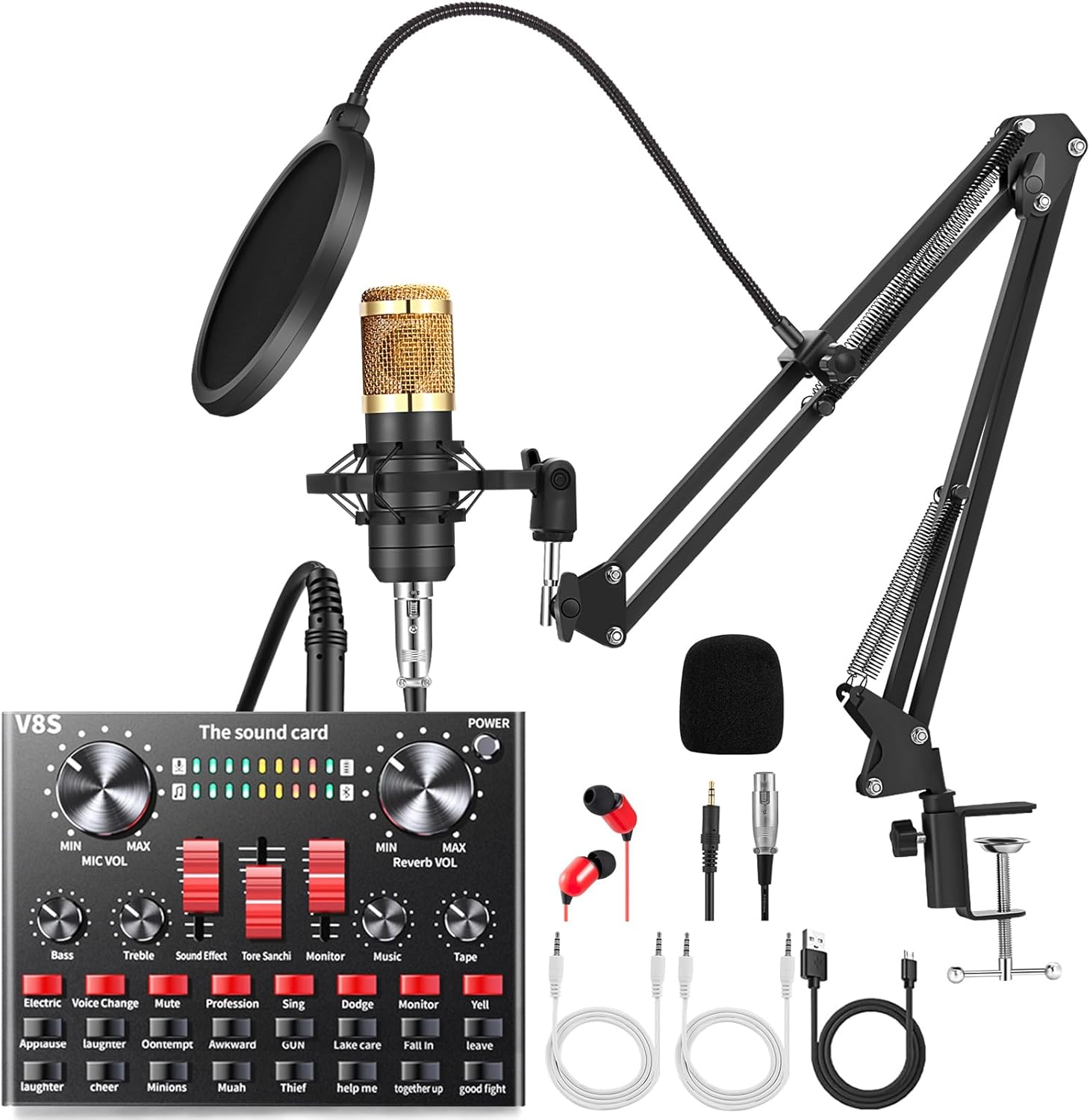
Image: Overview of the ALPOWL BM800 Condenser Microphone Podcast Equipment Bundle components.
- ALPOWL BM-800 Condenser Microphone
- Shock Mount
- Pop Filter
- Adjustable Suspension Scissor Arm Stand
- Anti-wind Foam Cap
- Power Cable
- ALPOWL Live Sound Card (V8S)
- Earphones
- Audio Cables
3. Setup Guide
3.1 Assembling the Microphone Stand and Accessories
- Attach the Desk Clamp: Secure the desk clamp to a sturdy surface, such as a desk or table edge. Tighten the screw until the clamp is firmly in place.
- Insert the Scissor Arm Stand: Insert the base of the adjustable suspension scissor arm stand into the hole on the desk clamp. Ensure it is seated securely.
- Mount the Shock Mount: Screw the metal shock mount onto the threaded end of the scissor arm stand.
- Install the Microphone: Gently place the ALPOWL BM-800 condenser microphone into the shock mount. Ensure it is held firmly but without excessive force.
- Attach the Pop Filter: Clamp the pop filter to the microphone stand or desk, positioning it approximately 2-3 inches in front of the microphone. Adjust the flexible gooseneck to cover the microphone's front.
- Place the Foam Cap: Slide the anti-wind foam cap over the microphone for additional plosive reduction.

Image: Proper microphone placement with pop filter and foam cap for optimal sound capture.
3.2 Connecting the Equipment
Refer to the connection diagram below for proper wiring:

Image: Detailed connection diagram showing how to connect the microphone, sound card, and various devices.
- Microphone to Sound Card: Connect the microphone cable (XLR to 3.5mm or similar, depending on microphone model) to the 'Capacitor MIC' input on the sound card.
- Sound Card to Device (Smartphone/Tablet): Use the provided audio cable to connect one of the 'LIVE' ports on the sound card to the 3.5mm headphone jack of your smartphone or tablet. For devices without a 3.5mm jack, an adapter may be required (not included).
- Sound Card to Computer: Connect the sound card to your computer using the USB charging/data cable. The computer port is typically labeled 'Computer' or 'USB'. This connection provides power and allows the computer to recognize the sound card as an audio device.
- Headphones/Earphones: Plug your headphones or earphones into the 'Earphone' or 'Headset' jack on the sound card for real-time monitoring.
- Charging: Connect the sound card to a power source using the 'Charging' port and the provided USB cable when the battery is low.
4. Operating Instructions
4.1 Sound Card Controls
The V8S sound card features various controls and sound effects to enhance your audio experience:

Image: The ALPOWL V8S sound card interface, highlighting the various sound effects and control knobs.
- MIC Volume Knob: Adjusts the microphone input level.
- ECHO Knob: Controls the echo effect intensity.
- Bass/Treble Sliders: Adjust the low and high frequencies of your voice.
- Sound Effect Sliders: Control the volume of various sound effects.
- Monitor Knob: Adjusts the volume of your headphones/earphones.
- Music Knob: Controls the volume of background music input.
- Sound Effects Buttons: Trigger pre-set sound effects such as Applause, Laughter, Cheer, Kiss, etc.
- Voice Change Buttons: Activate various voice modulation effects (e.g., Electric, Voice Change).
4.2 Device Compatibility and Usage
The ALPOWL podcast equipment is compatible with a wide range of devices and applications:

Image: Demonstrates the versatility of the equipment for recording, meetings, video calls, and gaming.
- Mobile Phones: Connect via the 'LIVE' port for live streaming, calls, or recording on platforms like TikTok, YouTube, WeChat.
- Computers (Windows, Mac OS): Connect via USB for studio recording, podcasting, video calls, or gaming. The sound card will be recognized as an audio input/output device.
- Gaming Consoles (PS4, Xbox, Switch): Connect for enhanced in-game communication and streaming.
- Applications: Suitable for various applications requiring high-quality audio input, including recording software, communication apps, and live broadcasting platforms.
5. Maintenance
- Cleaning: Use a soft, dry cloth to clean the microphone and sound card. Avoid liquid cleaners or abrasive materials.
- Storage: When not in use, store the equipment in a dry, dust-free environment. Disassemble the stand and microphone if storing for extended periods.
- Cable Care: Avoid bending or crimping cables excessively to prevent internal damage.
- Battery Care (Sound Card): For optimal battery life, avoid fully discharging the sound card frequently. Charge it regularly.
6. Troubleshooting
- No Sound Output/Input:
- Check all cable connections to ensure they are secure and plugged into the correct ports.
- Verify that the microphone and monitor volumes on the sound card are turned up.
- Ensure the sound card is powered on and charged.
- On your computer or mobile device, check audio input/output settings to confirm the sound card is selected as the default device.
- Static or Thumping Noise:
- Ensure all cables are fully inserted and not loose.
- Try using different audio cables to rule out faulty wiring.
- Move the equipment away from other electronic devices that might cause interference.
- Reduce the microphone gain if the noise is a hiss, indicating too high sensitivity.
- Sound Card Not Recognized by Computer:
- Ensure the USB cable is connected to the 'Computer' port on the sound card and a functional USB port on your computer.
- Try a different USB port or cable.
- Restart your computer.
- Check your computer's Device Manager (Windows) or System Information (Mac) to see if the sound card is listed.
- Echo or Delay in Audio:
- Adjust the 'ECHO' knob on the sound card to reduce or eliminate the effect.
- If experiencing a delay, ensure your monitoring setup does not create a feedback loop.
7. Specifications
| Feature | Detail |
|---|---|
| Brand | ALPOWL |
| Model Name | BM 800 (Microphone), V8S (Sound Card) |
| Microphone Form Factor | Table Array |
| Polar Pattern | Unidirectional |
| Connectivity Technology | Bluetooth (Sound Card), 3.5 mm Jack (Microphone/Headset) |
| Special Feature | Noise Reduction |
| Signal-to-Noise Ratio | 78 dB |
| Frequency Response | 20000 Hz |
| Power Source | Corded Electric |
| Material | Foam, Metal |
| Item Weight | 2.97 pounds |
| Package Dimensions | 16.45 x 8.11 x 2.6 inches |
| UPC | 783979973307 |
8. Warranty and Support
ALPOWL offers a 45-day replacement or refund policy for faulty products. For any queries or issues, please contact ALPOWL customer support. Refer to the product packaging or the official ALPOWL website for the most current warranty information and contact details.
No official seller videos were found for this product that meet the embedding criteria.

