
JIFAR E16
JIFAR E16 1080P Projector User Manual
Model: E16
Introduction
This user manual provides comprehensive instructions for the setup, operation, maintenance, and troubleshooting of your JIFAR E16 1080P Projector. Please read this manual thoroughly before using the projector to ensure proper functionality and to extend the product's lifespan. Keep this manual for future reference.
Safety Instructions
To prevent fire or electric shock, do not expose this appliance to rain or moisture. Do not open the casing to avoid electric shock. Refer all servicing to qualified service personnel.
- Do not block ventilation openings.
- Use only attachments/accessories specified by the manufacturer.
- Unplug the projector during lightning storms or when unused for long periods.
- Avoid direct eye exposure to the projector lens when the lamp is on.
- Ensure proper ventilation around the projector to prevent overheating.
What's in the Box
Upon opening the package, verify that all the following items are included:
- Projector Lens Cover
- HDMI Cable
- AV Cable
- Remote Control
- Power Cord
- User Manual (this document)

Image: The JIFAR E16 projector shown with its included carrying case, highlighting the compact design and portability.
Product Overview
Front and Side View
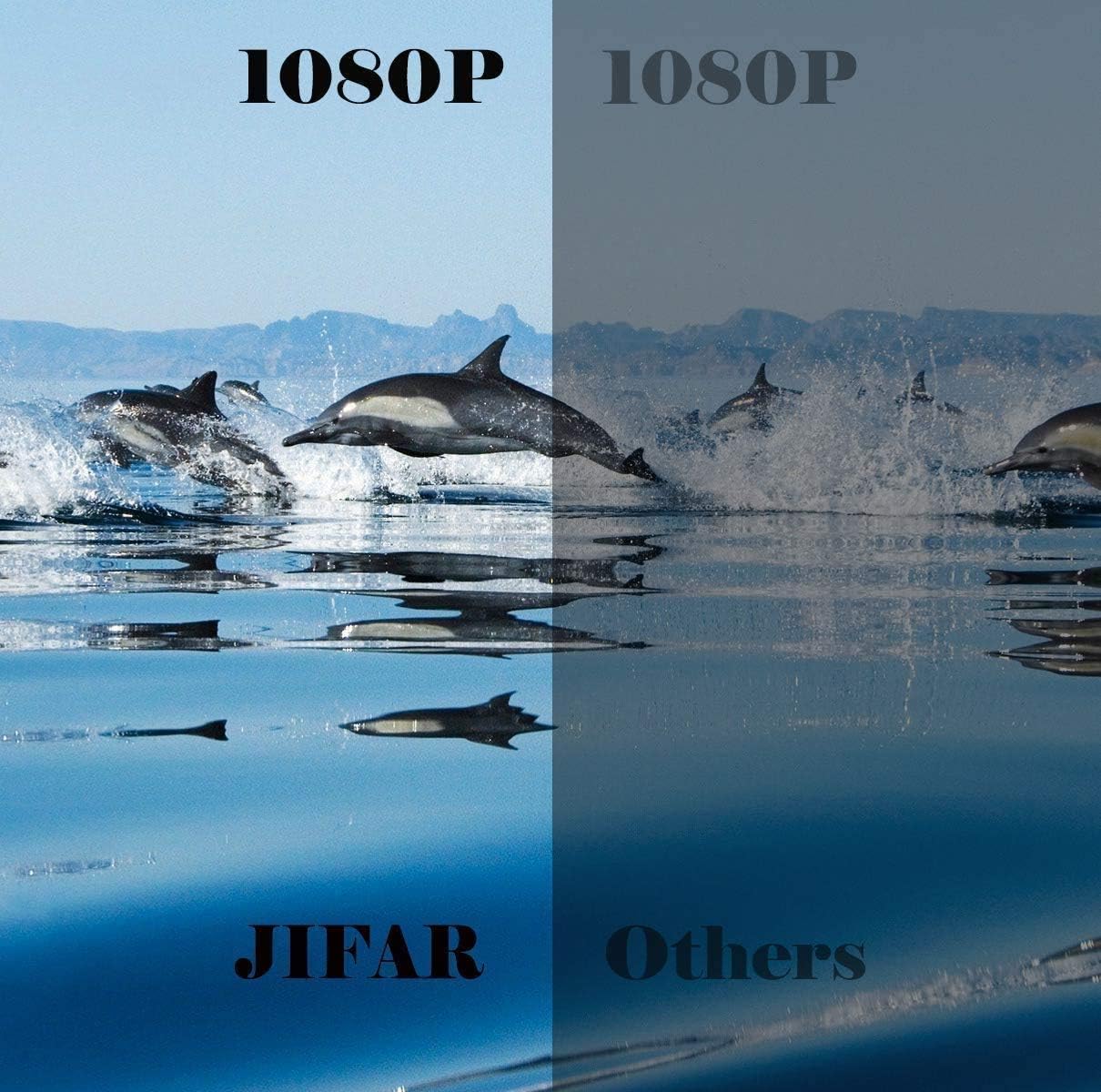
Image: Front and side view of the JIFAR E16 Projector, showing the lens, ventilation, and control buttons on top.
Rear Panel and Ports

Image: Rear panel of the JIFAR E16 Projector, illustrating the HDMI, USB, AV, and audio ports for various connections.
Remote Control

Image: The remote control for the JIFAR E16 Projector, showing buttons for power, navigation, source selection, and volume.
Setup
1. Placement
Place the projector on a stable, flat surface. For optimal viewing, position the projector perpendicular to the screen or wall. The projection distance and screen size can vary; refer to the specifications section for recommended distances.
2. Power Connection
- Connect the power cord to the projector's power input.
- Plug the other end of the power cord into a power outlet.
- The power indicator light on the projector will illuminate.
3. Initial Power On
Press the power button on the projector or the remote control to turn on the device. The projector will display the startup screen.
4. Focus and Keystone Adjustment
Adjust the focus ring on the projector lens until the projected image is clear. Use the keystone correction dial (if available) to correct any trapezoidal distortion, ensuring a rectangular image.
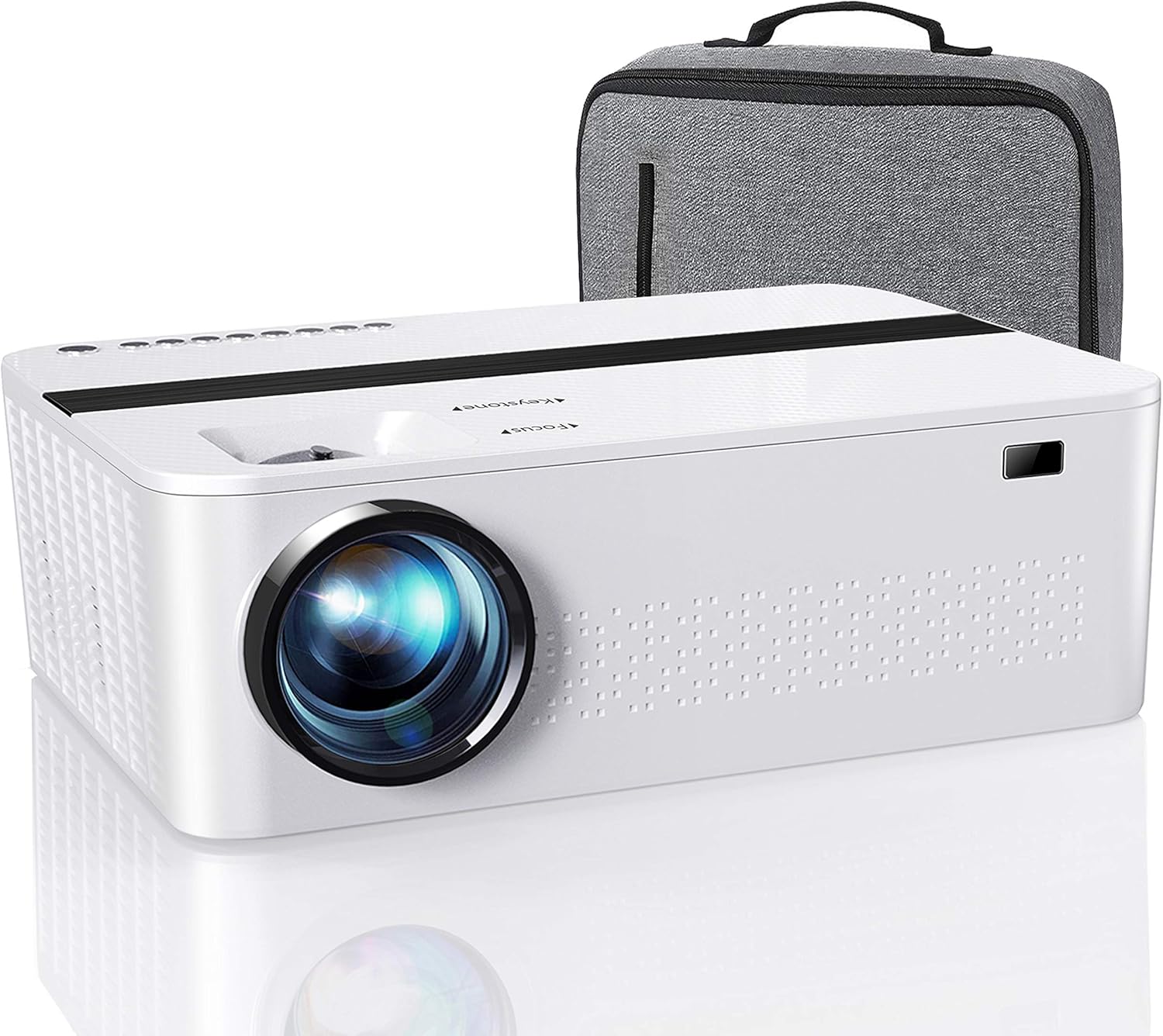
Image: A visual representation of the projector in a home theater setup, demonstrating the clarity and size of the projected image after focus and keystone adjustments.
Operating the Projector
1. Connecting Devices
The JIFAR E16 projector supports various input sources:
- HDMI: Connect laptops, gaming consoles, Blu-ray players, or TV sticks using an HDMI cable.
- USB: Insert USB drives to play media files directly.
- AV: Use the provided AV cable to connect older devices like DVD players.
- TF Card: Insert a TF card for direct media playback.
After connecting a device, press the "Source" button on the remote or projector to select the corresponding input source (e.g., HDMI1, USB, AV).

Image: Diagram illustrating the versatile connectivity of the projector, showing connections to smartphones, tablets, and laptops via various methods.
2. Wireless WiFi Connection (Screen Mirroring)
The projector supports 2.4G and 5G WiFi for screen mirroring from iOS and Android devices.

Image: Visual comparison demonstrating the faster and smoother performance of 5G WiFi connectivity compared to 2.4G for streaming content to the projector.
For iOS Devices:
- Select "Screen Mirroring" as the input source on your projector.
- Connect your projector to your WiFi network.
- On your iOS device, open Control Center and tap "Screen Mirroring".
- Select your projector's name (e.g., LZS-XXXXXXX) from the list to connect.

Image: Step-by-step guide for connecting an iOS device to the projector via screen mirroring, showing menu selections and connection process.
Note: Due to copyright restrictions, streaming services like Netflix, Amazon Prime, and Disney+ do not support screen mirroring. For these services, please use an HDMI connection with a compatible streaming device (e.g., TV Stick, Chromecast).
3. Bluetooth Connection
The projector features built-in Bluetooth for connecting external audio devices such as Bluetooth speakers or headphones.
- Navigate to the Bluetooth settings on the projector's menu.
- Enable Bluetooth and search for available devices.
- Select your desired Bluetooth speaker or headphone from the list to pair.
Note: The projector's Bluetooth function is for audio output only. It does not support data transfer from smartphones via Bluetooth.
Maintenance
1. Cleaning the Lens
Use a professional lens cleaning cloth or lens paper to gently wipe the projector lens. Avoid using abrasive cleaners or cloths that could scratch the lens surface.
2. Cleaning the Projector Body
Wipe the projector's exterior with a soft, dry cloth. For stubborn marks, a slightly damp cloth can be used, followed by a dry cloth. Do not use harsh chemicals or solvents.
3. Storage
When not in use for extended periods, store the projector in a cool, dry, and dust-free environment. Use the provided lens cover to protect the lens from dust and scratches.
Troubleshooting
| Problem | Possible Cause | Solution |
|---|---|---|
| No Power | Power cord not connected; Power outlet issue; Projector in standby mode. | Ensure power cord is securely connected. Try a different outlet. Press power button on projector or remote. |
| No Image | Incorrect input source selected; Cable not connected properly; Device not outputting signal. | Select correct input source. Check HDMI/USB/AV cable connections. Ensure source device is on and outputting. |
| Blurred Image | Focus not adjusted; Keystone not adjusted; Projector too close/far. | Adjust focus ring. Adjust keystone correction. Reposition projector within recommended distance. |
| No Sound | Volume too low; Muted; External audio device not connected/paired. | Increase volume. Unmute projector. Check Bluetooth connection or audio cable. |
| Screen Mirroring Issues (Netflix/Prime Video) | Copyright protection on streaming apps. | Connect a streaming device (e.g., Fire TV Stick, Roku) via HDMI to play copyrighted content. |
Specifications
| Feature | Detail |
|---|---|
| Native Resolution | 1280 x 720P (Supports 1920 x 1080P) |
| Contrast Ratio | 6000:1 |
| Brightness | 350 ANSI Lumens / 12000L |
| Connectivity Technology | HDMI, USB, AV, TF Card, WiFi (2.4G/5G), Bluetooth |
| Product Dimensions | 9.26 x 5.5 x 3 inches |
| Item Weight | 4.55 pounds |
| Display Resolution | 1920 x 1080 (Supported Input) |
| Recommended Uses | Tabletop Mount |
| Special Feature | Built-in Speakers |
| Visible Screen Diagonal | Up to 450 inches / 1143 cm |
Warranty and Support
JIFAR is committed to providing excellent products and customer service. Your JIFAR E16 Projector comes with the following support:
- 6-Month Money Back & New Replacement Guarantee: If any problems occur, contact us immediately for a refund or a new replacement within 6 months of purchase.
- 2-Year Professional Technical Support: We offer professional technical assistance for two years from the date of purchase.
- Missing or Broken Parts: If you receive a package with missing parts or a broken item, we will send a new one to you free of charge.
For any inquiries or support, please contact JIFAR customer service through the platform where you purchased the product or refer to the contact information provided on the official JIFAR website.
Related documentsE16

Ask a question about this manual
Ask about setup, troubleshooting, compatibility, parts, safety, or missing instructions. Manuals+ will review the question and use this page’s manual context to help answer it.