
1. Introduction
This manual provides essential information for setting up, operating, maintaining, and troubleshooting your Apple iPhone 12 Mini. The iPhone 12 Mini features a compact design with a 5.4-inch Super Retina XDR display, powered by the A14 Bionic chip, and includes a dual-camera system with 5G connectivity. This device is a renewed product, ensuring functionality and a minimum battery capacity of 80%.

Image: Front and back view of the Apple iPhone 12 Mini in Black.
2. Setup
2.1 What's Included
- Apple iPhone 12 Mini (Renewed)
- Generic (Mfi certified) charging cable
Please note that headphones and a SIM card are not included with this renewed device.
2.2 Inserting a SIM Card
- Locate the SIM tray on the side of your iPhone.
- Use a SIM ejector tool (not included) or a small paperclip to open the SIM tray.
- Place your nano-SIM card into the tray with the gold contacts facing down.
- Carefully reinsert the SIM tray into the iPhone.
2.3 Initial Power On and Activation
- Press and hold the side button until the Apple logo appears.
- Follow the on-screen prompts to select your language and region.
- Connect to a Wi-Fi network.
- Follow the instructions to activate your service with your carrier. Ensure your carrier is compatible with an unlocked device.
2.4 Charging the Device
Connect the included generic (Mfi certified) charging cable to the Lightning port at the bottom of your iPhone and plug the other end into a compatible USB power adapter (not included) or computer USB port. The battery icon on the screen will indicate charging status.
3. Operating Your iPhone
3.1 Basic Controls
- Power/Side Button: Press and hold to turn on/off, press to wake/sleep.
- Volume Buttons: Adjust media and call volume.
- Silent/Ring Switch: Toggle between silent and ring modes.
3.2 Display Features
The iPhone 12 Mini features a 5.4-inch Super Retina XDR display with a resolution of 2340 x 1080 pixels, offering vibrant colors and deep blacks. The display is designed for clear visibility in various lighting conditions.
3.3 Camera Usage
Your iPhone 12 Mini is equipped with a dual-camera system, including Ultra Wide and Wide cameras. It supports Night mode on both cameras for improved low-light photography and videos. The TrueDepth camera on the front also features Night mode for selfies.
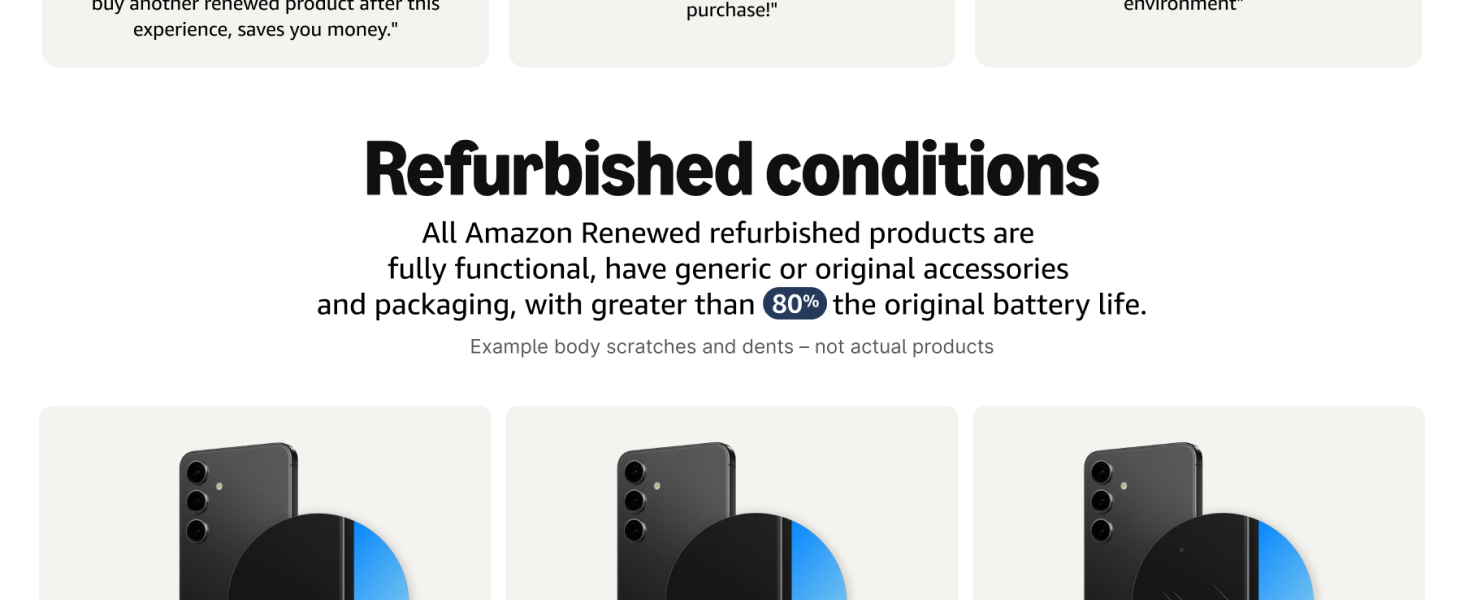
Image: Illustration of the iPhone 12 Mini's dual-camera system and Night mode capabilities.
3.4 Performance and Connectivity
The A14 Bionic chip provides powerful performance for gaming, photo editing, and other demanding tasks, including 4K Dolby Vision recording. The device supports 5G connectivity for faster downloads and streaming, with Smart Data mode to optimize battery life by switching between 5G and LTE when needed.
Image: Visual representation of the A14 Bionic chip's fast and powerful performance.
Image: Display showing 5G connectivity and battery life indicator on the iPhone 12 Mini.
4. Maintenance
4.1 Cleaning Your iPhone
To clean your iPhone, use a soft, lint-free cloth. Avoid abrasive materials, aerosols, solvents, or ammonia-based cleaners. Do not spray cleaners directly onto the device. For stubborn marks, lightly dampen the cloth with water.
4.2 Battery Care
This renewed iPhone is guaranteed to have a minimum battery capacity of 80%. To maximize battery lifespan, avoid extreme temperatures and keep your software updated. For optimal performance, charge your device regularly and avoid fully discharging it frequently.
4.3 Software Updates
Regularly check for and install software updates to ensure your iPhone has the latest features, security enhancements, and performance improvements. Go to Settings > General > Software Update to check for available updates.
5. Troubleshooting
5.1 Common Issues and Solutions
- Device not turning on: Ensure the battery is charged. Connect to a power source for at least 30 minutes. If it still doesn't turn on, perform a force restart (press and quickly release the Volume Up button, press and quickly release the Volume Down button, then press and hold the Side button until you see the Apple logo).
- Network connectivity issues: Check if your SIM card is properly inserted. Verify with your carrier that your plan is active and compatible. Try toggling Airplane Mode on and off.
- Apps freezing or crashing: Close and reopen the app. If the issue persists, restart your iPhone.
- Slow performance: Close unused apps. Check for available software updates. Ensure you have sufficient storage space.
5.2 Factory Reset
If you encounter persistent issues, a factory reset may be necessary. This will erase all data and settings on your iPhone. Before performing a factory reset, ensure you have backed up your data. Go to Settings > General > Transfer or Reset iPhone > Erase All Content and Settings.
6. Specifications
| Feature | Detail |
|---|---|
| Model Name | iPhone 12 mini |
| Item Model Number | A2172 |
| Brand | Apple |
| Operating System | iOS 16 (upgradable) |
| CPU Model | Apple A14 Bionic |
| CPU Speed | 1.8 GHz |
| Memory Storage Capacity | 64 GB |
| RAM Memory Installed Size | 4 GB |
| Screen Size | 5.4 Inches |
| Display Technology | OLED (Super Retina XDR) |
| Resolution | 2340 x 1080 |
| Refresh Rate | 60 Hz |
| Other Camera Features | Front, Rear (Dual-camera system) |
| Wireless Communication Technologies | Cellular, Wi-Fi (5G capable) |
| Connectivity Technologies | Wi-Fi, Bluetooth, GPS |
| Special Features | Built-In GPS |
| Battery Type | 1 Lithium Ion battery (included) |
| Battery Capacity | 2227 Milliampere Hour (mAh) |
| Color | Black |
| Product Dimensions | 2.53 x 0.29 x 5.18 inches |
| Item Weight | 7 ounces |
| Manufacturer | Apple Computer |
| Date First Available | December 3, 2020 |
7. Warranty and Support
7.1 Return Policy
This renewed product is covered by a 90-day refund or replacement policy. Please refer to the seller's specific return instructions for details on initiating a return or replacement within this period.
7.2 Product Support
For further assistance with your Apple iPhone 12 Mini, including software guidance, advanced features, or specific technical issues, please visit the official Apple Support website or contact Apple customer service. You can find comprehensive resources and contact options at support.apple.com/iphone.


