
1. Introduction
Welcome to your Apple iPhone 12 Pro (Renewed) instruction manual. This guide provides essential information to help you set up, operate, maintain, and troubleshoot your device. Your iPhone 12 Pro is a powerful smartphone featuring the A14 Bionic chip, an advanced camera system, and a durable Ceramic Shield front cover.
As a renewed product, your iPhone 12 Pro has been professionally inspected and guaranteed to have minimal cosmetic damage, not noticeable when held at arm's length. It has successfully passed a full diagnostic test to ensure like-new functionality and removal of any prior-user personal information. The battery is guaranteed to have a minimum capacity of 80%.

Figure 1: Apple iPhone 12 Pro in Pacific Blue, showcasing its sleek design and triple camera system.
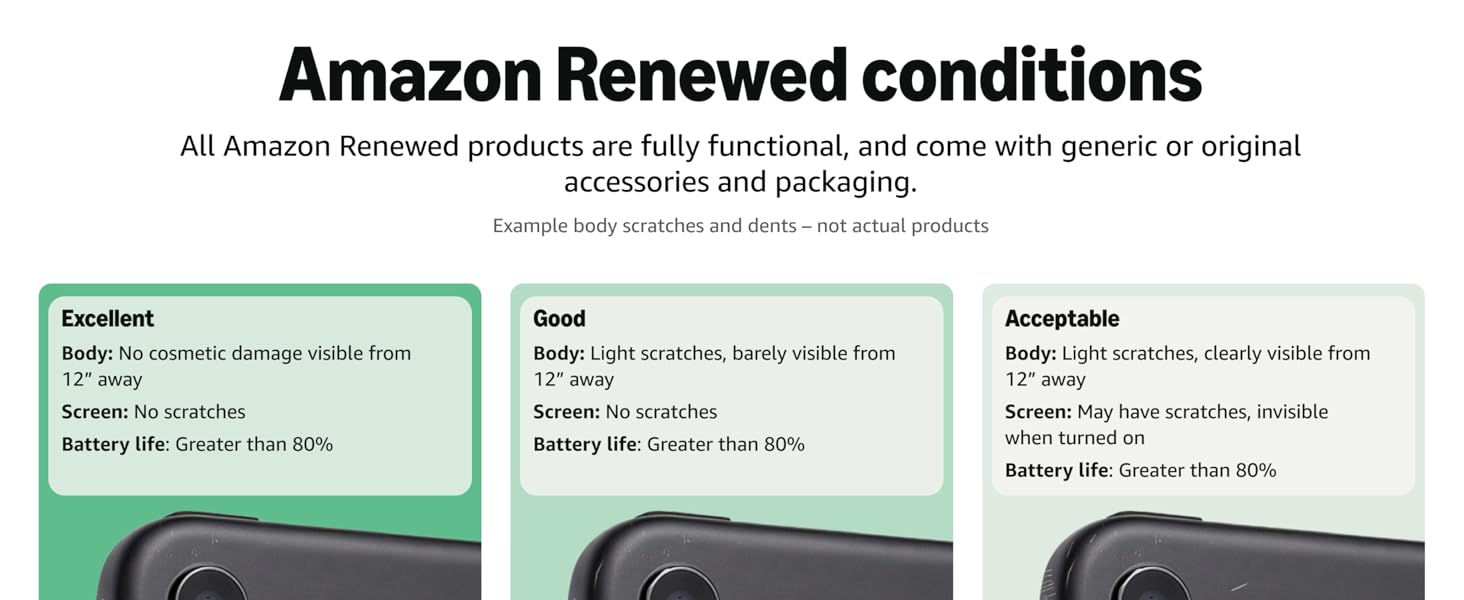
Figure 2: Overview of Amazon Renewed product conditions, ensuring quality for your device.
2. What's in the Box
Upon receiving your Apple iPhone 12 Pro (Renewed), please ensure the following items are included:
- Apple iPhone 12 Pro (256GB, Pacific Blue, Unlocked)
- USB Cable (may be generic)
Please note that headphones and a SIM card are not included with this renewed device.
3. Setup
3.1. Inserting Your SIM Card
- Locate the SIM tray on the left side of your iPhone.
- Insert a SIM eject tool (or a small paperclip) into the small hole on the SIM tray.
- Push firmly until the tray ejects.
- Place your nano-SIM card into the tray with the gold contacts facing down.
- Carefully reinsert the tray into your iPhone.
3.2. Powering On/Off
- To Power On: Press and hold the Side button (on the right side) until the Apple logo appears.
- To Power Off: Press and hold the Side button and either Volume button simultaneously until the power off slider appears. Drag the slider to power off.
3.3. Initial Setup
Follow the on-screen instructions to set up your iPhone:
- Select your language and region.
- Connect to a Wi-Fi network.
- Set up Face ID (facial recognition for security).
- Create a passcode.
- Restore data from a backup (iCloud, iTunes, or Android) or set up as a new iPhone.
- Sign in with your Apple ID or create a new one.
4. Operating Your iPhone 12 Pro
4.1. Basic Navigation
- Home Screen: Swipe up from the bottom edge of the screen.
- App Switcher: Swipe up from the bottom edge and pause in the middle of the screen.
- Control Center: Swipe down from the top-right corner of the screen.
- Notification Center: Swipe down from the top-left corner or center of the screen.
4.2. Making Calls & Sending Messages
- Calls: Tap the Phone app, then tap Keypad to dial a number or Contacts to select a contact.
- Messages: Tap the Messages app, then tap the New Message icon to start a new conversation or select an existing one.
4.3. Camera Usage
Your iPhone 12 Pro features a versatile triple-camera system (Main, Ultra Wide, and Telephoto) and a LiDAR Scanner for enhanced depth perception.
- Taking Photos: Open the Camera app, select 'Photo' mode, and tap the Shutter button.
- Night Mode: Automatically activates in low-light conditions to capture brighter, more detailed photos.
- Portrait Mode: Creates a depth-of-field effect, blurring the background while keeping your subject in sharp focus.
- QuickTake Video: Press and hold the Shutter button in Photo mode to record a quick video.

Figure 3: Detailed view of the iPhone 12 Pro's advanced triple-lens camera and LiDAR scanner.
4.4. Face ID
Face ID allows you to unlock your iPhone, authorize purchases, and sign in to apps using facial recognition. To set up Face ID, go to Settings > Face ID & Passcode and follow the on-screen instructions.
Note:
- Face ID requires your eyes, nose, and mouth to be visible. It may not work if you are wearing a face mask.
4.5. Apps and Widgets
- Home Screen: Organize your apps into folders and customize your layout.
- App Library: Swipe left past your last Home Screen page to access the App Library, which automatically organizes your apps into categories.
- Widgets: Add widgets to your Home Screen for quick access to information from your favorite apps. Touch and hold an empty area on the Home Screen, then tap the '+' button in the top-left corner.
4.6. Audio
The iPhone 12 Pro features stereo speakers for an immersive audio experience. The earpiece acts as a second speaker, providing balanced sound for media playback and calls.
Video 1: An honest review of the Apple iPhone 12 Pro in Pacific Blue, highlighting its features and performance.
5. Maintenance
5.1. Battery Care
- Your renewed iPhone 12 Pro is guaranteed to have a minimum battery capacity of 80%.
- To maximize battery lifespan, avoid extreme temperatures and keep your iPhone charged between 20% and 80%.
- Use the included USB cable and a compatible power adapter for charging.
5.2. Cleaning Your iPhone
- Use a soft, lint-free cloth to clean your iPhone.
- Avoid using abrasive materials, alcohol, or harsh chemicals.
- For stubborn smudges, lightly dampen the cloth with water.
5.3. Software Updates
Keep your iPhone's software up to date to ensure optimal performance and security. Go to Settings > General > Software Update to check for and install available updates.
6. Troubleshooting
6.1. Common Issues & Solutions
| Issue | Solution |
|---|---|
| iPhone not responding | Force restart: Press and quickly release the Volume Up button, then the Volume Down button, then press and hold the Side button until the Apple logo appears. |
| Poor battery life | Check Battery Health in Settings > Battery > Battery Health. Close background apps, reduce screen brightness, or enable Low Power Mode. |
| Network connectivity problems | Toggle Airplane Mode on/off. Reset Network Settings (Settings > General > Transfer or Reset iPhone > Reset > Reset Network Settings). Ensure SIM card is properly inserted. |
| Face ID not working | Ensure your face is fully visible and well-lit. Remove any obstructions (e.g., masks, sunglasses). Reset Face ID in Settings > Face ID & Passcode. |
If you encounter issues not listed here or require further assistance, please refer to the Warranty & Support section.
7. Specifications
| Feature | Detail |
|---|---|
| Brand | Apple |
| Model Name | iPhone 12 Pro |
| Operating System | iOS 14 |
| CPU Model | Apple A14 Bionic |
| CPU Speed | 3.1 GHz |
| RAM Memory Installed Size | 256 GB |
| Memory Storage Capacity | 256 GB |
| Screen Size | 6.1 Inches |
| Display Type | OLED (Super Retina XDR) |
| Resolution | 2532 x 1170 Pixels |
| Refresh Rate | 60 Hz |
| Color | Pacific Blue |
| SIM Card Slot Count | Dual SIM |
| Cellular Technology | 5G |
| Wireless Provider | Unlocked for All Carriers |
| Biometric Security Feature | Face ID (Facial Recognition) |
| Water Resistance Level | Not Water Resistant (Note: Renewed products may not retain original water resistance) |
| Battery Capacity | 2815 Milliamp Hours |
| Battery Average Life | 17 Hours |
| Item Weight | 7 Ounces |
| Item Dimensions | 7 x 4 x 5 inches |
8. Warranty & Support
Your Apple iPhone 12 Pro (Renewed) comes with a 90-day warranty. For any warranty claims, technical support, or product-related inquiries, please contact the seller directly through your purchase platform.
For general Apple support resources, you can visit the official Apple Support website.


