
1. Introduction and Overview
This manual provides instructions for the Apple iPhone 12 Pro, a renewed smartphone. This device features a 6.1-inch Super Retina XDR display, a triple 12MP camera system, and is powered by the A14 Bionic chip. As a renewed product, it has undergone inspection and testing to ensure full functionality. It is fully unlocked for use with any compatible carrier.

Image: Front and back view of the Apple iPhone 12 Pro in Graphite.
2. Setup
2.1. Unpacking and Initial Inspection
Carefully remove the iPhone from its packaging. The package includes the iPhone 12 Pro and a generic USB charging cable. Headphones and a SIM card are not included. Inspect the device for any visible damage. Renewed products are guaranteed to have minimal cosmetic damage, not noticeable from arm's length.
2.2. Inserting a SIM Card
- Locate the SIM tray on the side of the iPhone.
- Insert a SIM ejector tool (not included) or a small paperclip into the small hole on the SIM tray.
- Gently push until the tray pops out.
- Place your nano-SIM card into the tray with the gold contacts facing down.
- Carefully reinsert the SIM tray into the iPhone.
2.3. Initial Power On and Activation
- Press and hold the Side button until the Apple logo appears.
- Follow the on-screen instructions to select your language, region, and connect to a Wi-Fi network.
- Set up Face ID, create a passcode, and restore data from a backup (iCloud or computer) or set up as a new iPhone.
- Sign in with your Apple ID or create a new one.
2.4. Charging the Device
Connect the provided USB charging cable to the iPhone's Lightning port and plug the other end into a compatible USB power adapter (not included) or computer USB port. It is recommended to fully charge the device before first use.
3. Operating Instructions
3.1. Basic Navigation
- Home Screen: Swipe up from the bottom edge of the screen to go to the Home screen.
- App Switcher: Swipe up from the bottom edge and pause in the middle of the screen to view open apps.
- Control Center: Swipe down from the top-right corner of the screen.
- Notification Center: Swipe down from the top-center of the screen.
- Face ID: Unlock your iPhone by looking at it.
3.2. Making Calls and Sending Messages
- Calls: Tap the Phone app, enter a number, and tap the green call button.
- Messages: Tap the Messages app, tap the new message icon, enter a contact or phone number, type your message, and tap send.
3.3. Using the Camera
The iPhone 12 Pro features a versatile triple-camera system. Open the Camera app to access various modes like Photo, Portrait, Video, and Night mode.

Image: Detail of the iPhone 12 Pro's triple camera lenses.
3.4. App Store and Applications
Access the App Store to download and install new applications. Ensure your Apple ID is signed in to make purchases or download free apps.
4. Maintenance
4.1. Cleaning Your iPhone
To clean your iPhone, use a soft, lint-free cloth. Avoid abrasive materials, sprays, or solvents. For stubborn smudges, slightly dampen the cloth with water. Do not submerge the device in liquid.
4.2. Software Updates
Keep your iPhone's software up to date to ensure optimal performance and security. Go to Settings > General > Software Update to check for and install available updates.
4.3. Battery Health
As a renewed product, your iPhone 12 Pro is guaranteed to have a minimum battery capacity of 80%. You can check your battery's health by going to Settings > Battery > Battery Health & Charging. To prolong battery life, avoid extreme temperatures and enable Low Power Mode when needed.
4.4. General Care
Protect your iPhone from drops and impacts by using a protective case and screen protector. Avoid exposing the device to excessive moisture or direct sunlight for prolonged periods.
5. Troubleshooting
5.1. Common Issues and Solutions
- Device Unresponsive: Press and quickly release the Volume Up button. Press and quickly release the Volume Down button. Press and hold the Side button until the Apple logo appears.
- Network Connectivity Issues: Check your SIM card, restart your iPhone, or reset network settings (Settings > General > Transfer or Reset iPhone > Reset > Reset Network Settings).
- App Crashing: Close the app from the App Switcher and reopen it. If the issue persists, delete and reinstall the app.
5.2. Factory Reset
If you encounter persistent software issues, a factory reset may be necessary. Warning: This will erase all data on your iPhone. Ensure you have a backup before proceeding. Go to Settings > General > Transfer or Reset iPhone > Erase All Content and Settings.
6. Specifications
| Brand | Apple |
| Model Name | iPhone 12 Pro |
| Storage Capacity | 256 GB |
| Color | Graphite |
| Operating System | iOS 14 (upgradable) |
| RAM Memory | 6 GB |
| Screen Size | 6.1 Inches |
| Resolution | 2532 x 1170 Pixels |
| Battery Capacity | 2815 Milliamp Hours |
| Cellular Technology | 5G |
| Connectivity Technology | Wi-Fi |
| SIM Card Slot Count | Dual SIM |
| Connector Type | Lightning |
| Item Weight | 7 Ounces |
7. Warranty and Support
7.1. Warranty Information
This renewed Apple iPhone 12 Pro comes with a 90-day warranty. Please refer to your purchase documentation for specific terms and conditions regarding returns or replacements.
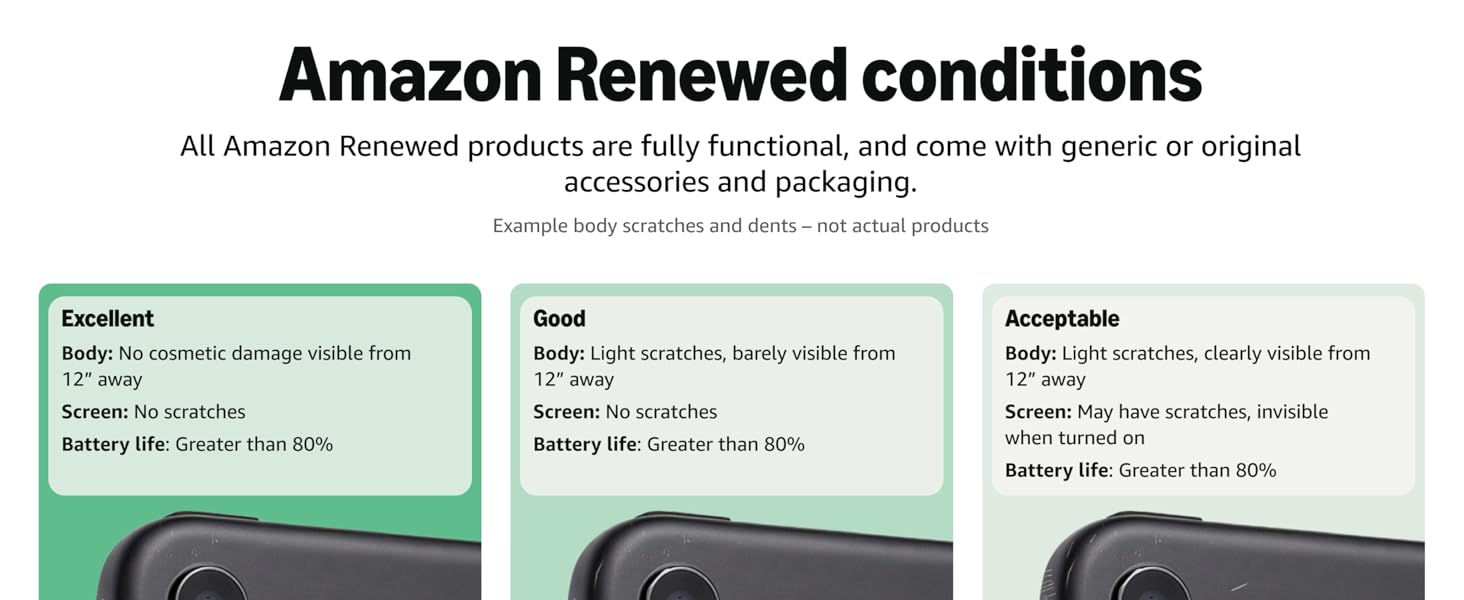
Image: Explanation of renewed product conditions, including cosmetic damage and battery life.
7.2. Customer Support
For further assistance, technical support, or warranty claims, please contact the seller or visit the official Apple Support website. You can find comprehensive guides, troubleshooting steps, and contact options there.


