
Newskill Arakne Elite
Newskill Arakne Elite Wireless Gaming Mouse User Manual
1. Introduction
This manual provides detailed instructions for the setup, operation, and maintenance of your Newskill Arakne Elite Wireless Gaming Mouse. Designed for versatility, the Arakne Elite offers both wired and 2.4GHz wireless connectivity, customizable RGB lighting, and an ambidextrous design to suit various user preferences. Please read this manual thoroughly to ensure optimal performance and longevity of your device.
2. Package Contents
Verify that all items are present in your product packaging:
- Newskill Arakne Elite Wireless Gaming Mouse
- 2.4GHz USB Nano Receiver
- USB-C Panacord Cable (1.75m)
- Additional Modular Side Buttons (if included)
- Additional Modular Top Cover (if included)
3. Product Overview
The Newskill Arakne Elite mouse features a robust design with several key components for enhanced gaming performance and customization.

Figure 3.1: Top view of the Newskill Arakne Elite mouse, highlighting the scroll wheel and logo with active RGB lighting.
3.1. Key Components
- Left/Right Click Buttons: Standard mouse buttons with durable HUANO mechanical switches.
- Scroll Wheel: Functions as a scroll input and a clickable button. Features RGB lighting.
- DPI Cycle Button: Located behind the scroll wheel, used to cycle through DPI settings.
- Side Buttons: Modular and magnetic, allowing for easy customization and assignment of quick commands.
- Modular Top Cover: Interchangeable cover that allows for a traditional or honeycomb-style aesthetic.
- USB-C Port: Located at the front for wired connection and charging.
- 2.4GHz USB Nano Receiver: For wireless connectivity, typically stored within the mouse.
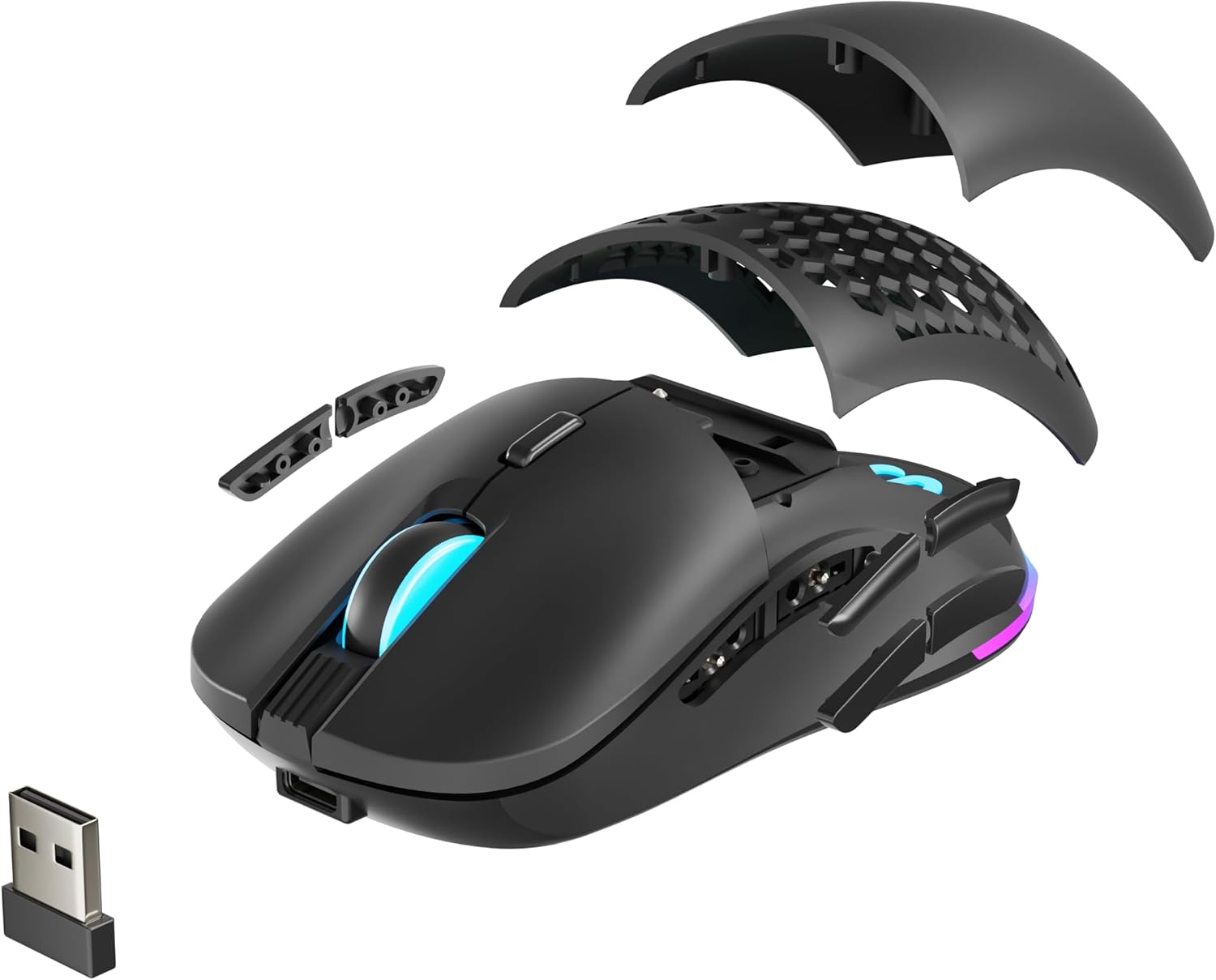
Figure 3.2: Exploded view illustrating the modular top cover, interchangeable side buttons, and the USB Nano Receiver.

Figure 3.3: Side view of the mouse, highlighting the ergonomic design and the position of the modular side buttons.
4. Setup
4.1. Charging the Mouse
Before initial use, it is recommended to fully charge the mouse. Connect the supplied USB-C Panacord cable to the mouse's USB-C port and the other end to an available USB port on your computer or a USB wall adapter. The RGB lighting may indicate charging status.
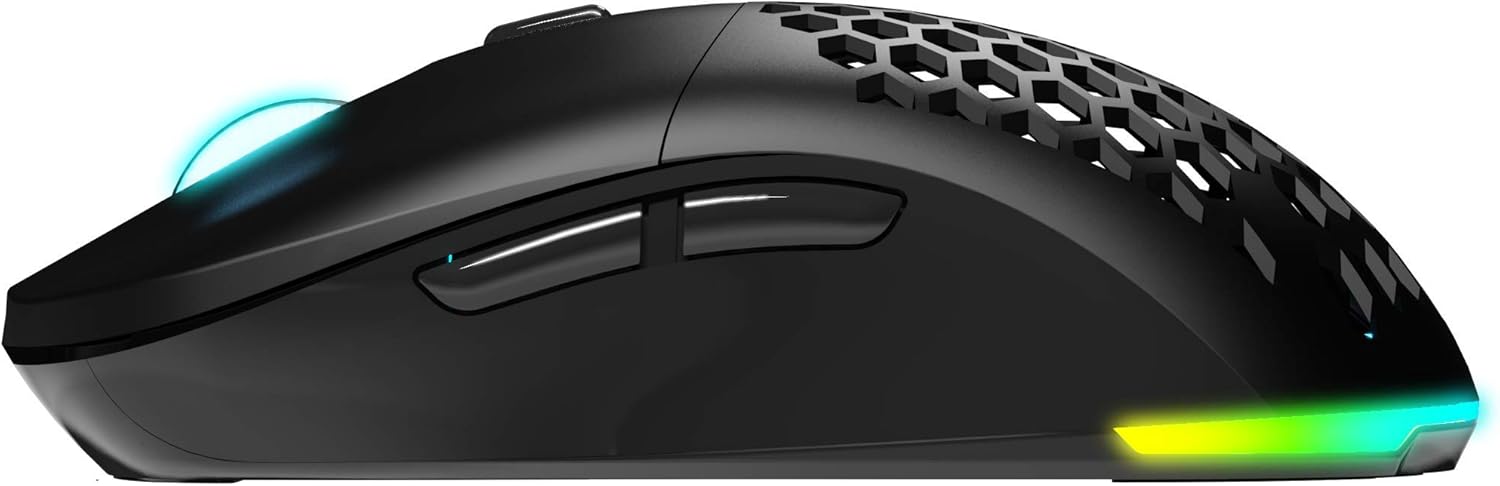
Figure 4.1: Front view of the mouse, illustrating the USB-C port for charging and wired connection.
4.2. Wireless Connection (2.4GHz)
- Locate the 2.4GHz USB Nano Receiver. It is often stored in a compartment on the underside of the mouse.
- Plug the USB Nano Receiver into an available USB port on your computer.
- Turn on the mouse using the power switch located on the underside.
- Your computer should automatically detect the mouse. If not, ensure the receiver is securely plugged in and the mouse is powered on.
4.3. Wired Connection
To use the mouse in wired mode, simply connect the USB-C Panacord cable from the mouse to a USB port on your computer. The mouse will function immediately and will also charge its internal battery.
4.4. Software Installation
For full customization of DPI settings, button assignments, and RGB lighting, download the official Newskill Arakne Elite software from the official Newskill website. Follow the on-screen instructions for installation.
5. Operating Instructions
5.1. DPI Adjustment
The Arakne Elite mouse offers up to 16,000 DPI, configurable in six levels. Use the DPI cycle button (located behind the scroll wheel) to switch between preset DPI levels. The default levels are typically 800, 1600, 2400, 3600, 5000, and 16000 DPI. These levels can be customized further using the Newskill software.
5.2. Button Programming
The mouse features 9 programmable buttons. Utilize the official Newskill software to assign custom functions, macros, or shortcuts to these buttons, tailoring them to your specific gaming or productivity needs.
5.3. RGB Lighting Customization
The Arakne Elite includes customizable RGB backlighting. Through the Newskill software, you can select from various lighting effects, colors, and brightness levels to personalize your mouse's appearance.

Figure 5.1: The Newskill Arakne Elite mouse displaying its customizable RGB lighting effects.
5.4. Modular Design
The mouse features modular side buttons and a modular top cover. These components are magnetic and can be easily removed and replaced. This allows users to switch between different button layouts or aesthetic styles (e.g., traditional solid cover or honeycomb pattern) without tools.
6. Maintenance
6.1. Cleaning
- Disconnect the mouse from your computer before cleaning.
- Use a soft, dry cloth to wipe the surface of the mouse.
- For stubborn dirt, slightly dampen the cloth with water or a mild cleaning solution. Avoid harsh chemicals.
- Use compressed air to clear dust from crevices and around buttons.
6.2. Battery Care
- Avoid fully discharging the battery frequently to prolong its lifespan.
- Store the mouse in a cool, dry place when not in use for extended periods.
- If the mouse will not be used for a long time, charge it to about 50% before storage.
7. Troubleshooting
7.1. Mouse Not Responding
- Wireless Mode: Ensure the USB Nano Receiver is securely plugged into a working USB port. Check if the mouse is powered on and sufficiently charged. Try a different USB port.
- Wired Mode: Ensure the USB-C cable is securely connected to both the mouse and the computer. Try a different USB port or cable.
- Software: If using the software, ensure it is up-to-date and not conflicting with other drivers.
7.2. DPI Not Changing
- Ensure you are pressing the correct DPI cycle button.
- Check the Newskill software to verify DPI settings and ensure they are applied correctly.
7.3. RGB Lighting Not Working
- Verify that the RGB lighting is enabled in the Newskill software.
- Ensure the mouse is properly connected and powered.
7.4. Intermittent Wireless Connection
- Ensure the USB Nano Receiver is not obstructed and is within close proximity to the mouse.
- Avoid placing the receiver near other wireless devices that may cause interference (e.g., Wi-Fi routers, other 2.4GHz devices).
- Ensure the mouse battery is adequately charged.
8. Specifications
| Feature | Detail |
|---|---|
| Model Name | ARAKNE Elite |
| Item Model Number | 342803 |
| Connectivity | Wired (USB-C), Wireless (2.4GHz low latency) |
| Sensor | PIXART PMW-3335 Optical Sensor |
| DPI Resolution | 800/1600/2400/3600/5000/16000 DPI (Configurable) |
| Maximum Acceleration | 40G |
| Motion Detection Speed | 400 IPS |
| Polling Rate | 1000 Hz |
| Switches | HUANO Mechanical Switches (50 Million Clicks Lifespan) |
| Buttons | 9 Programmable Buttons (including modular side buttons) |
| Design | Ambidextrous, Modular Side Buttons and Top Cover |
| Cable Type | 1.75m Panacord USB-C (Removable) |
| Dimensions (LxWxH) | 125 x 64 x 42 mm |
| Weight | 95g |
| Operating System Compatibility | Linux, Windows 7, Windows XP (and newer Windows versions) |
9. Warranty and Support
For warranty information, technical support, software downloads, and frequently asked questions, please visit the official Newskill website. Keep your proof of purchase for warranty claims.
Official Website: www.newskillgaming.com
Related documentsArakne Elite




Ask a question about this manual
Ask about setup, troubleshooting, compatibility, parts, safety, or missing instructions. Manuals+ will review the question and use this page’s manual context to help answer it.