
1. Introduction
This manual provides detailed instructions for the installation, operation, and maintenance of your Montavue 8MP 4K Active Deterrence Turret Camera Security System. This system includes a 16-channel Network Video Recorder (NVR) and 8MP 4K Active Deterrence Turret Cameras. Please read this manual thoroughly before using the product to ensure proper setup and functionality. Keep this manual for future reference.
2. Package Contents
Verify that all items listed below are included in your package. If any items are missing or damaged, please contact Montavue support.
- 1x MNR12160-16 16-Channel Network Video Recorder (NVR)
- 1x 3TB Surveillance Grade Hard Disk Drive (pre-installed)
- 8x MTT8108-AISMDAD 8MP 4K Active Deterrence Turret Cameras (white or black, depending on order)
- 8x 100ft Cat5e Ethernet Cables (one per camera)
- 1x HDMI Cable
- 1x Network Cable
- 1x USB Mouse
- Camera mounting templates
- Screws and anchors for camera installation
- Allen Wrench
- Water Resistant Casing for PoE connections
3. Product Overview
3.1. System Components
The Montavue security system is designed for comprehensive surveillance, featuring 4K resolution cameras and an advanced NVR. The system utilizes H.265 compression for efficient storage and bandwidth usage.
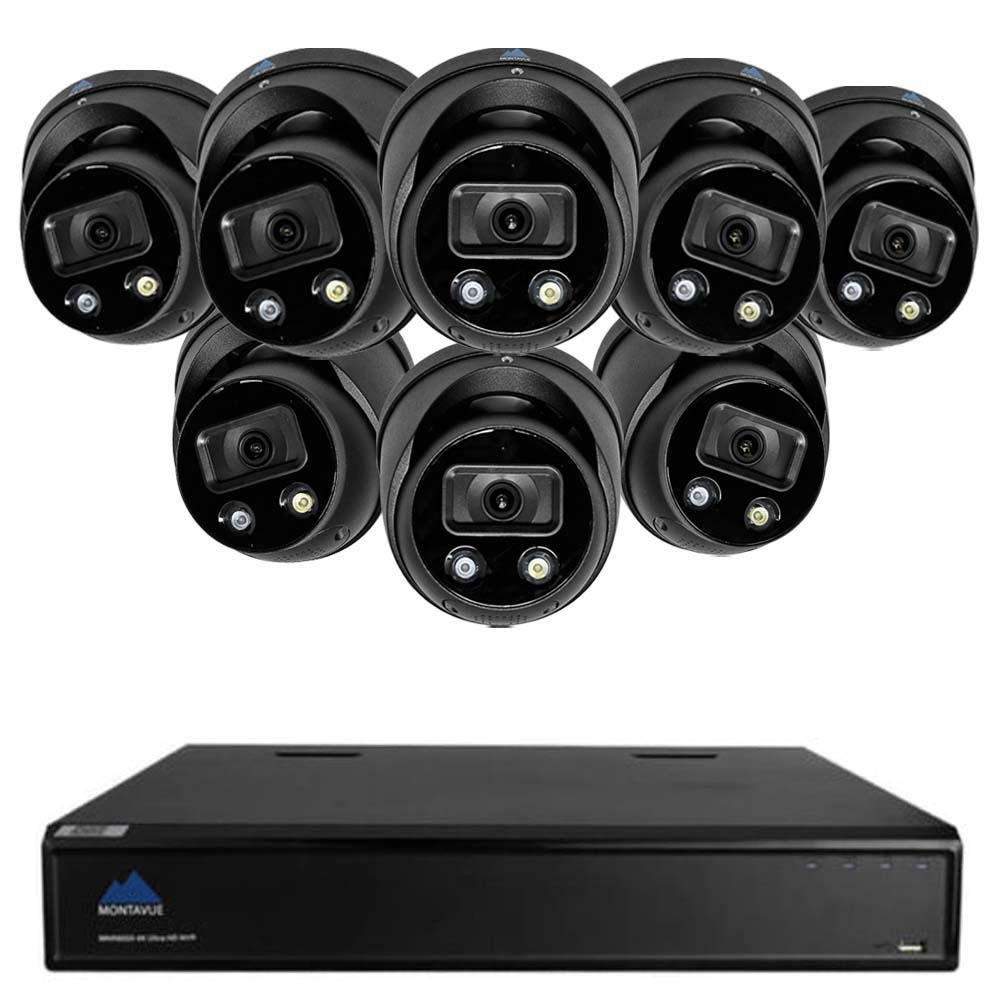
Figure 3.1: Montavue 8MP 4K Active Deterrence Turret Camera (MTT8108-AISMDAD). This image shows the front view of the black turret camera, highlighting the lens and active deterrence lights.
3.2. Network Video Recorder (NVR)
The MNR12160-16 NVR is a 16-channel recorder capable of managing and storing video footage from up to 16 IP cameras. It comes with a pre-installed 3TB surveillance-grade hard drive and supports up to 20TB total storage. The NVR features PoE (Power over Ethernet) ports for direct camera connection, simplifying installation.

Figure 3.2: Rear panel of the Montavue 16-Channel NVR. This image displays the various ports including PoE ports, HDMI, VGA, USB, and audio inputs/outputs.
3.3. 8MP 4K Active Deterrence Turret Cameras
The MTT8108-AISMDAD cameras offer 8-megapixel (4K) resolution at 20-30 frames per second, providing clear and smooth video. Key features include:
- AI Smart Motion Detection (AI-SMD): Advanced detection capabilities to distinguish between humans and vehicles, reducing false alarms.
- Active Deterrence: Built-in strobe light and siren to deter intruders.
- 2-Way Audio: Integrated microphone and speaker for communication.
- Night Vision: 100ft IR night vision for clear monitoring in low-light conditions.
- Wide Dynamic Range (WDR): Improves image quality in scenes with both very bright and very dark areas.
- IP67 Rated: Suitable for both indoor and outdoor installation, resistant to dust and water.

AI Smart Motion Detection

Tripwire Motion Detection

WDR, BLC, HLC, 3D DNR Features
4. Setup Guide
Follow these steps to set up your Montavue security system.
4.1. NVR Connection
- Connect to Power: Plug the NVR into a power outlet using the provided power adapter.
- Connect to Monitor: Connect the NVR to a monitor using the HDMI or VGA cable.
- Connect Mouse: Plug the USB mouse into a USB port on the NVR.
- Network Connection: Connect the NVR to your local network router using the provided Ethernet cable. This is required for remote viewing and firmware updates.
4.2. Camera Installation and Connection
- Mounting Location: Choose a suitable location for each camera, ensuring optimal viewing angles and coverage. Use the mounting template for drilling holes.
- Secure Camera: Mount the camera securely using the provided screws and anchors.
- Connect Ethernet Cable: Connect one end of the 100ft Cat5e Ethernet cable to the camera's PoE port. Use the water-resistant casing to protect the connection if installing outdoors.
- Connect to NVR: Connect the other end of the Ethernet cable to one of the PoE ports on the back of the NVR. The NVR will automatically power the camera and establish a video connection.
- Adjust Camera Angle: Adjust the camera's angle and focus as needed.
5. Operating Instructions
Once the system is set up, you can begin monitoring and managing your security footage.
5.1. NVR Interface
Navigate the NVR interface using the connected USB mouse. The main interface provides live views of all connected cameras. Right-click to access the main menu for settings, playback, backup, and system configuration.
5.2. MontavueGO Mobile App
Download the free MontavueGO mobile app from your device's app store. This app allows you to:
- View live camera feeds remotely.
- Playback recorded footage.
- Receive push notifications for motion detection events.
- Control active deterrence features (strobe/siren).
- Utilize 2-way audio.

Figure 5.1: MontavueGO mobile app interface displayed on a smartphone.
5.3. Recording and Playback
The NVR continuously records footage to the 3TB hard drive. You can configure recording schedules, motion-triggered recording, and event-based recording through the NVR's menu. To playback footage, access the playback menu on the NVR or through the MontavueGO app, select the desired camera and time range.
6. Maintenance
Regular maintenance ensures optimal performance and longevity of your security system.
- Lens Cleaning: Periodically clean camera lenses with a soft, damp cloth to remove dust and smudges. Do not use harsh chemicals.
- Firmware Updates: Check the Montavue website or NVR settings for available firmware updates. Keeping firmware updated ensures the latest features and security patches.
- Hard Drive Health: Monitor the health of the NVR's hard drive through the system settings. Consider backing up important footage regularly.
- Cable Inspection: Periodically inspect all cables for wear and tear, especially outdoor connections, to ensure reliable operation.
7. Troubleshooting
This section addresses common issues you might encounter.
7.1. No Video from Camera
- Check Cable Connection: Ensure the Ethernet cable is securely connected to both the camera and the NVR's PoE port.
- Verify PoE Port: Confirm the NVR's PoE port is active. Try connecting the camera to a different PoE port.
- Power Cycle: Disconnect and reconnect the NVR's power to restart the system.
7.2. Remote Viewing Not Working
- Network Connection: Ensure the NVR is connected to your router and has internet access.
- App Configuration: Double-check the NVR's network settings and the MontavueGO app configuration.
- Firewall Settings: Your router's firewall might be blocking access. Consult your router's manual or IT support.
7.3. Poor Image Quality
- Clean Lens: Clean the camera lens as described in the maintenance section.
- Lighting Conditions: Ensure adequate lighting. Adjust camera settings like WDR if necessary.
- Cable Quality: Ensure you are using the provided Cat5e cables or equivalent high-quality Ethernet cables.
8. Specifications
| Feature | Detail |
|---|---|
| Brand | Montavue |
| Model Numbers | MTT8108-AISMDAD (Camera), MNR12160-16 (NVR), MTIP4163-8-8108TAD-B |
| Connectivity Technology | Wired (PoE) |
| Video Capture Resolution | 8MP (4K) 3840 x 2160 |
| Number of Channels (NVR) | 16 |
| Memory Storage Capacity (NVR) | 3TB (pre-installed HDD), expandable up to 20TB |
| Power Source | Corded Electric (NVR), Power over Ethernet (Cameras) |
| Compatible Devices | Smartphones (via MontavueGO app), Monitors (HDMI/VGA) |
| Signal Format | Digital |
| Night Vision | 100ft IR Night Vision |
| Compression | H.265 |
| Ingress Protection (Camera) | IP67 (Dust and Water Resistant) |
| UPC | 810049551759 |
9. Warranty and Support
For warranty information, technical support, or further assistance, please visit the official Montavue website or contact their customer service. You can find additional resources and FAQs on their support page.
Montavue Official Store: Visit the Montavue Store on Amazon
