
Mirascreen mirascreen G4 Plus
MiraScreen G4 Plus 4K WiFi Display Dongle User Manual
Model: mirascreen G4 Plus
1. Introduction
This user manual provides detailed instructions for the setup, operation, and maintenance of your MiraScreen G4 Plus 4K WiFi Display Dongle. This device allows you to mirror content from your smartphone, tablet, laptop, or Mac to any HDMI-equipped display, such as a TV, monitor, or projector, supporting up to 4K resolution.
Please read this manual thoroughly before using the product to ensure proper functionality and to avoid any damage.
2. Safety Information
- Do not expose the device to water, moisture, or extreme temperatures.
- Avoid dropping or subjecting the device to strong impacts.
- Use only the provided or recommended power adapter to prevent damage.
- Do not attempt to disassemble or repair the device yourself. Refer all servicing to qualified personnel.
- Ensure proper ventilation around the device during operation to prevent overheating.
- Keep the device away from direct sunlight and heat sources.
3. Package Contents
Upon opening the package, please verify that all items are present and in good condition:
- MiraScreen G4 Plus 4K WiFi Display Dongle
- USB Power Cable (with Wi-Fi antenna)
- User Manual (this document)

Image: The MiraScreen G4 Plus dongle shown with its retail packaging, illustrating the compact size of the device and its box.
4. Product Overview
The MiraScreen G4 Plus is a compact wireless display adapter designed for seamless content mirroring. It features a built-in Wi-Fi module for connectivity and an HDMI output for display.
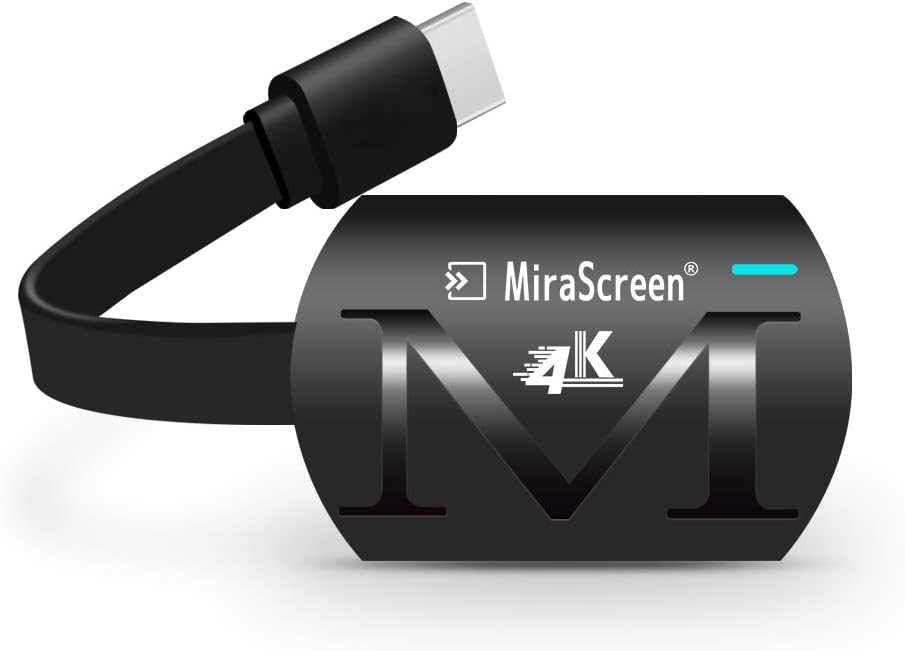
Image: A close-up view of the MiraScreen G4 Plus 4K WiFi Display Dongle, showing its sleek black design with the MiraScreen logo and 4K branding, and the attached USB power cable.
Key Features:
- 4K High Definition Support: Mirrors your mobile device screen to HDMI-equipped devices, supporting 3840x2160P resolution for HD videos, games, music, photos, and files.
- Video & Audio Sync: Streams video and audio simultaneously, supporting 3G/4G mobile data and home WiFi router connections.
- Mirroring Without Internet: The dongle creates its own MiraScreen WiFi network, allowing direct mirroring from your mobile devices to a TV/monitor without an external internet connection.
- Wide Compatibility: Compatible with Android 4.2+, iOS 8.0+, Windows 8.1+, and Mac OS 10+ devices that have an HDMI input port.
- One-Click Mode Switch: Easily switch between Android and iOS mirroring modes.

Image: The MiraScreen dongle connected to a TV, with icons below illustrating its versatility for pictures, documents, PPT display, game entertainment, and home theater use.

Image: A visual comparison demonstrating the superior clarity and detail of 4K HD picture quality versus 1080P, highlighting the dongle's high-resolution capability.
5. Setup
5.1 Connecting the Dongle
- Connect to Display: Plug the HDMI connector of the MiraScreen G4 Plus dongle into an available HDMI port on your TV, monitor, or projector.
- Connect Power: Connect the USB power cable (with the Wi-Fi antenna) to the dongle's micro USB port. Plug the other end of the USB cable into a USB power adapter (5V/1A recommended) or a USB port on your display device that provides sufficient power. Ensure the dongle receives stable power.
- Select HDMI Input: On your display device, select the corresponding HDMI input source to which the dongle is connected. You should see the MiraScreen setup screen.

Image: A diagram illustrating the wide compatibility of the MiraScreen dongle, showing connections to various mobile devices (iPhone, iPad) and display devices (TV, Projector, Monitor).
5.2 Initial Configuration (First Use)
When the MiraScreen setup screen appears on your display, it will show the dongle's Wi-Fi name (SSID) and password. You will use these to connect your mobile device.
- Connect Your Device to Dongle's Wi-Fi: On your smartphone, tablet, or laptop, go to Wi-Fi settings and connect to the MiraScreen dongle's Wi-Fi network (SSID). Enter the password displayed on the screen.
- Access Setup Page: Open a web browser on your connected device and enter the IP address displayed on the MiraScreen setup screen (e.g., 192.168.203.1). This will open the MiraScreen configuration page.
- Connect to Home Wi-Fi (Optional): On the configuration page, select "Internet" or "Wi-Fi Setup" and choose your home Wi-Fi network. Enter the password for your home Wi-Fi. This allows the dongle to access the internet, enabling online streaming and updates.
- Reboot: After connecting to your home Wi-Fi, the dongle may prompt you to reboot. Confirm the reboot. Your device will now be connected to your home network.
6. Operating Instructions
6.1 Mirroring for iOS Devices (AirPlay)
Ensure your iOS device (iPhone, iPad) is connected to the same Wi-Fi network as the MiraScreen dongle (or directly to the dongle's Wi-Fi if no internet is needed).
- Swipe down from the top-right corner (or up from the bottom for older models) to open Control Center.
- Tap "Screen Mirroring" or "AirPlay Mirroring".
- Select the MiraScreen device from the list. Your iOS device screen will now be mirrored to the display.
6.2 Mirroring for Android Devices (Miracast/Google Home)
Android devices typically use Miracast or Google Home for mirroring. Ensure your Android device is connected to the same Wi-Fi network as the MiraScreen dongle.
- Using Miracast (Wireless Display):
- Go to your Android device's settings.
- Look for "Cast," "Smart View," "Wireless Display," "Screen Mirroring," or similar options (names vary by manufacturer).
- Select the MiraScreen device from the list.
- Using Google Home App:
- Download and open the Google Home app from the Google Play Store.
- Ensure your phone and the dongle are on the same Wi-Fi network.
- Tap on the MiraScreen device listed in the app.
- Tap "Cast my screen" at the bottom, then "Cast screen."

Image: A three-panel image demonstrating the process of casting your screen using the Google Home app on an Android device, showing the app interface and menu selections.
6.3 Mirroring for Windows/Mac OS
For Windows and Mac OS, you can typically use the built-in casting features or third-party applications.
- Windows: Press Windows key + P, then select "Connect to a wireless display" and choose the MiraScreen device.
- Mac OS: Use AirPlay Mirroring from the menu bar (if available) or compatible third-party software.
6.4 Switching Modes (Android/iOS)
The MiraScreen G4 Plus features a physical button on the dongle for one-click mode switching between Android and iOS compatibility. Press this button briefly to toggle between modes if you encounter connection issues or are switching between different operating systems.

Image: A view of the MiraScreen G4 Plus dongle highlighting the small button used for one-click mode switching between Android and iOS mirroring modes.
6.5 Important Notes on App Compatibility
Please be aware that the MiraScreen G4 Plus is not compatible with paid streaming applications that employ Digital Rights Management (DRM) protection. This includes, but is not limited to, services such as Netflix, Amazon Prime Video, Hulu Plus, Sky Go, DIRECTV, and HBO Go. Attempting to mirror content from these applications may result in a black screen or no audio.
7. Maintenance
- Cleaning: Use a soft, dry cloth to clean the surface of the dongle. Do not use liquid cleaners or aerosols.
- Storage: When not in use, store the dongle in a cool, dry place, away from direct sunlight and dust.
- Software Updates: Periodically check the MiraScreen configuration page (accessed via IP address) for any available firmware updates. Keeping the firmware updated can improve performance and compatibility.
8. Troubleshooting
| Problem | Possible Cause / Solution |
|---|---|
| No display on TV/monitor. |
|
| Cannot connect to the dongle's Wi-Fi. |
|
| Mirroring is laggy or disconnects frequently. |
|
| Cannot mirror content from Netflix/Amazon Prime Video. |
|
| No audio or distorted audio. |
|
9. Specifications
| Feature | Detail |
|---|---|
| Model Name | wireless display dongle |
| Item Model Number | mirascreen G4 Plus |
| Brand | Mirascreen |
| Resolution | 4K (3840x2160P) |
| Connectivity Technology | Wi-Fi, HDMI |
| Connector Type | HDMI |
| Special Features | Wifi Display, Wireless |
| Supported OS | Android 4.2+, iOS 8.0+, Windows 8.1+, Mac OS 10+ |
| Product Dimensions | 10.5 x 10.5 x 2.2 cm |
| Item Weight | 0.05 Kilograms (50 g) |
| Manufacturer | sagetech |
10. Warranty and Support
For warranty information and technical support, please refer to the documentation provided with your purchase or contact the retailer/manufacturer directly. Keep your proof of purchase for warranty claims.
Manufacturer: sagetech
Related documentsmirascreen G4 Plus


Ask a question about this manual
Ask about setup, troubleshooting, compatibility, parts, safety, or missing instructions. Manuals+ will review the question and use this page’s manual context to help answer it.