1. Introduction
This manual provides detailed instructions for the installation, operation, and maintenance of your Planet Audio P70CPA-C Car Audio Stereo System. Please read this manual thoroughly before using the product to ensure proper functionality and safety. Keep this manual for future reference.
Safety Information
- Always consult a professional for installation to prevent damage to the unit or your vehicle.
- Do not operate the system in a way that distracts you from driving.
- Ensure all wiring is correctly connected to avoid short circuits or electrical hazards.
- Keep the unit away from moisture and extreme temperatures.
2. Package Contents
Verify that all items are present in the box before beginning installation:
- Planet Audio P70CPA-C Head Unit
- Rear Camera
- Wiring Harness
- Mounting Hardware (screws, brackets)
- User Manual (this document)

3. Product Overview
The Planet Audio P70CPA-C is a double DIN car audio stereo system featuring a 7-inch touchscreen display. It supports Apple CarPlay, Android Auto, Bluetooth connectivity, and includes a backup camera for enhanced safety.
Key Features:
- Apple CarPlay & Android Auto compatibility
- 7-inch Double-DIN Touchscreen
- Bluetooth Audio and Hands-Free Calling
- Rear Camera Input (camera included)
- USB Charging and Playback
- SD Card Slot
- Built-in Equalizer
- Mechless design (No CD/DVD Player)
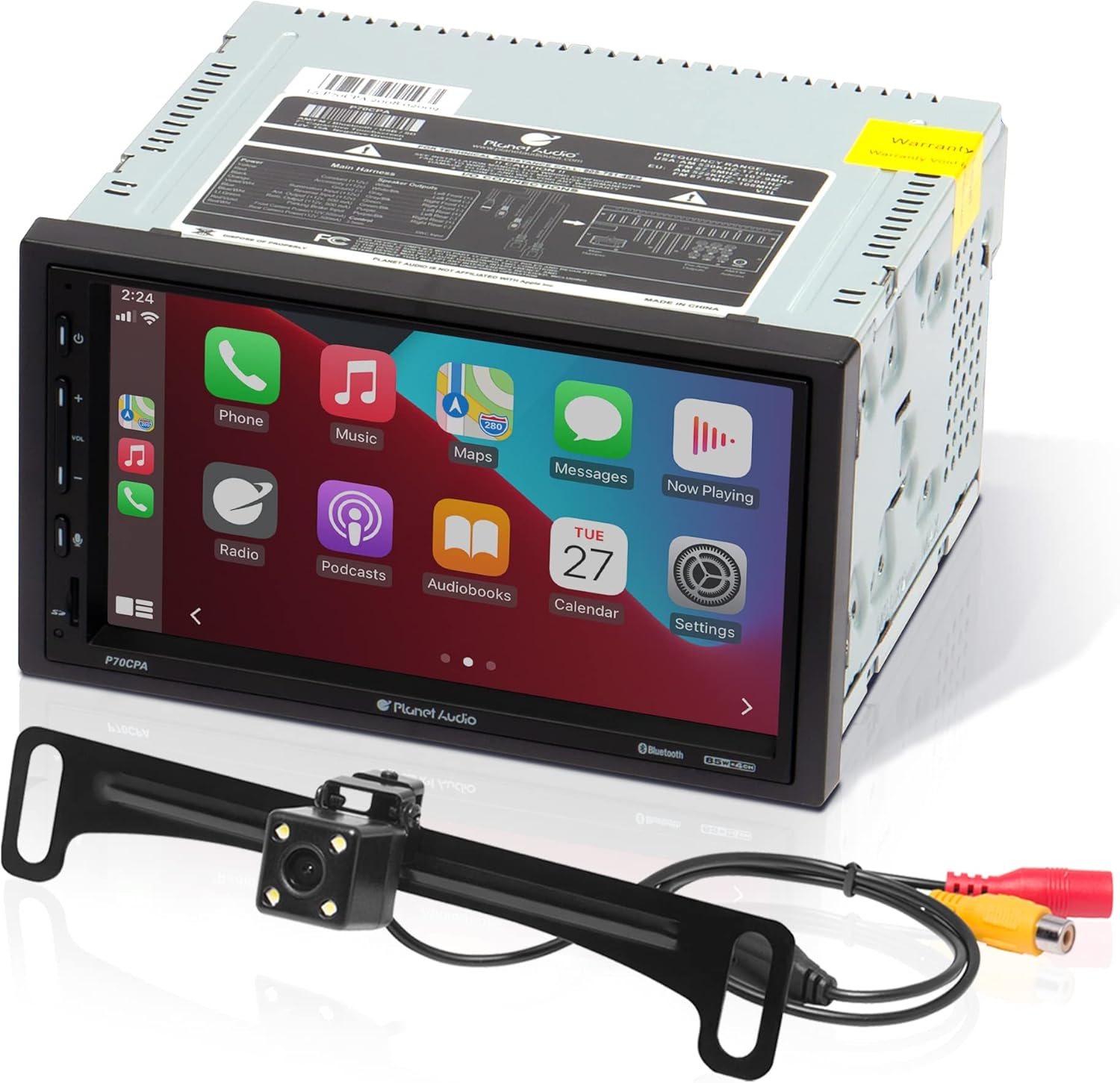
Dimensions:

4. Setup and Installation
Professional installation is strongly recommended for this product to ensure proper and safe functionality. Incorrect wiring can cause damage to the unit or your vehicle.
Wiring Connections:
Refer to the wiring diagram provided with your unit's physical manual for specific connections. General connections include:
- Power: Connect to vehicle's constant 12V, accessory, and ground wires.
- Speakers: Connect front and rear speaker outputs.
- Antenna: Connect to vehicle's radio antenna.
- Backup Camera: Connect the included camera to the dedicated camera input.
- USB: Connect USB devices for media playback or charging.
- AV Input: For external audio/video sources.
- Pre-amp Outputs: For connecting external amplifiers (front, rear, subwoofer).
Backup Camera Installation:
The included backup camera should be mounted at the rear of your vehicle, typically near the license plate. Connect its video output to the unit's rear camera input and its power to the vehicle's reverse light circuit so it activates automatically when reversing.

Steering Wheel Control Integration:
To use existing steering wheel controls, an interface module (e.g., Metra ASWC-1) is required and sold separately. Consult the module's instructions for integration with the P70CPA-C.
5. Operating Instructions
Basic Operation:
- Power On/Off: Press the power button (usually located on the front panel) to turn the unit on or off.
- Volume Control: Adjust volume using the dedicated buttons or touchscreen controls.
- Touchscreen Interface: Navigate through menus and select functions by tapping icons on the 7-inch display.
- Radio Tuner: Select the Radio source and use the touchscreen to scan for stations, save presets, and switch between AM/FM bands.
Apple CarPlay:
Connect your iPhone via USB to activate Apple CarPlay. This allows you to access iPhone features directly on the P70CPA-C touchscreen, including:
- Phone: Make calls, check voicemail.
- Music: Play music from your iPhone, Apple Music, or other supported audio apps.
- Maps: Use Apple Maps or third-party navigation apps like Google Maps or Waze.
- Messages: Send and receive messages using Siri voice commands.
- Siri Voice Control: Activate Siri for hands-free control of various functions.

Android Auto:
Connect your Android phone via USB to activate Android Auto. This provides access to Android features on the P70CPA-C touchscreen, including:
- Google Assistant: Use voice commands for navigation, calls, and messages.
- Navigation: Get real-time alerts and directions from Google Maps or Waze.
- Communication: Make calls and manage messages hands-free.
- Music: Stream music from supported apps like Spotify or Pandora.
Bluetooth Connectivity:
Pair your smartphone to the P70CPA-C via Bluetooth for hands-free calling and audio streaming.
- Enable Bluetooth on your smartphone.
- On the P70CPA-C, navigate to the Bluetooth menu.
- Search for available devices and select "Planet Audio P70CPA-C" (or similar name).
- Confirm the pairing code on both devices if prompted.
Once paired, you can make and receive calls directly from the unit and stream audio from your phone's music apps.
Media Playback (USB/SD Card):
Insert a USB drive or SD card into the respective slots to play supported audio and video files. The unit will automatically detect the media and allow you to browse and select content.
- USB Input: For media playback and charging.


- SD Card Slot: For media playback.

AV Input:
Connect external audio/video devices to the AV input for playback on the P70CPA-C screen.

Built-in Equalizer:
Access the equalizer settings to customize the audio output to your preference. Adjust bass, treble, and other frequency bands.

6. Maintenance
Proper maintenance ensures the longevity and optimal performance of your P70CPA-C system.
- Cleaning the Screen: Use a soft, lint-free cloth to gently wipe the touchscreen. Do not use abrasive cleaners or solvents.
- General Cleaning: Keep the unit free from dust and debris. Use a soft brush or compressed air for hard-to-reach areas.
- Avoid Liquids: Do not spill liquids on the unit. If contact occurs, immediately power off and disconnect the unit, then allow it to dry completely before reconnecting.
- Temperature: Avoid exposing the unit to extreme temperatures, which can affect performance and lifespan.
7. Troubleshooting
If you encounter issues with your P70CPA-C, refer to the following common problems and solutions:
| Problem | Possible Cause | Solution |
|---|---|---|
| Unit does not power on | Incorrect wiring, blown fuse, power supply issue | Check all power connections. Inspect vehicle's fuse box and the unit's inline fuse. Ensure proper grounding. |
| No sound output | Speaker wires disconnected, volume too low, mute activated, incorrect audio source | Verify speaker connections. Increase volume. Check if mute is active. Select the correct audio source. |
| Screen is blank or unresponsive | Loose connection, software glitch, unit malfunction | Ensure all cables are securely connected. Try resetting the unit (refer to the full manual for reset procedure). If issue persists, contact support. |
| Bluetooth not connecting | Pairing mode not active, device not discoverable, interference | Ensure both devices are in pairing mode. Delete previous pairings and try again. Move closer to the unit. |
| Backup camera not displaying | Camera not powered, video cable loose, reverse trigger not connected | Check camera power and video cable connections. Ensure the reverse trigger wire is correctly connected to the vehicle's reverse light. |
For issues not listed here, or if solutions do not resolve the problem, please contact Planet Audio customer support.
8. Specifications
| Feature | Detail |
|---|---|
| Model Number | P70CPA-C |
| Product Dimensions | 3.6 x 6.7 x 3.8 inches |
| Item Weight | 3.27 pounds |
| Display Size | 7 inches (18 cm) |
| Connectivity Technology | Bluetooth, USB |
| Controller Type | Android, Google Assistant, iOS |
| Compatible Devices | Android, iPhone |
| Audio Output Mode | Stereo |
| Surround Sound Channel Configuration | 2.0 |
| Video Encoding | H.264, H.265/HEVC |
| Color | Black |
| Special Features | Android Auto, Apple CarPlay, Backup Camera Included, Bluetooth Audio & Hands-Free Calling, Multi-Color Illumination, No CD/DVD Player, Touchscreen |
9. Warranty and Support
Warranty Information:
Planet Audio provides a powerful 3-year platinum online dealer warranty for the P70CPA-C, provided the purchase is made through Amazon.com. Registration may be required after purchase to activate the full warranty benefits.

Customer Support:
For technical assistance, warranty claims, or further inquiries, please contact Planet Audio customer support. Refer to the official Planet Audio website for the most current contact information.


