
LAUNCH CRP123X Elite
LAUNCH CRP123X Elite OBD2 Scanner User Manual
Model: CRP123X Elite | Brand: LAUNCH
1. Introduction
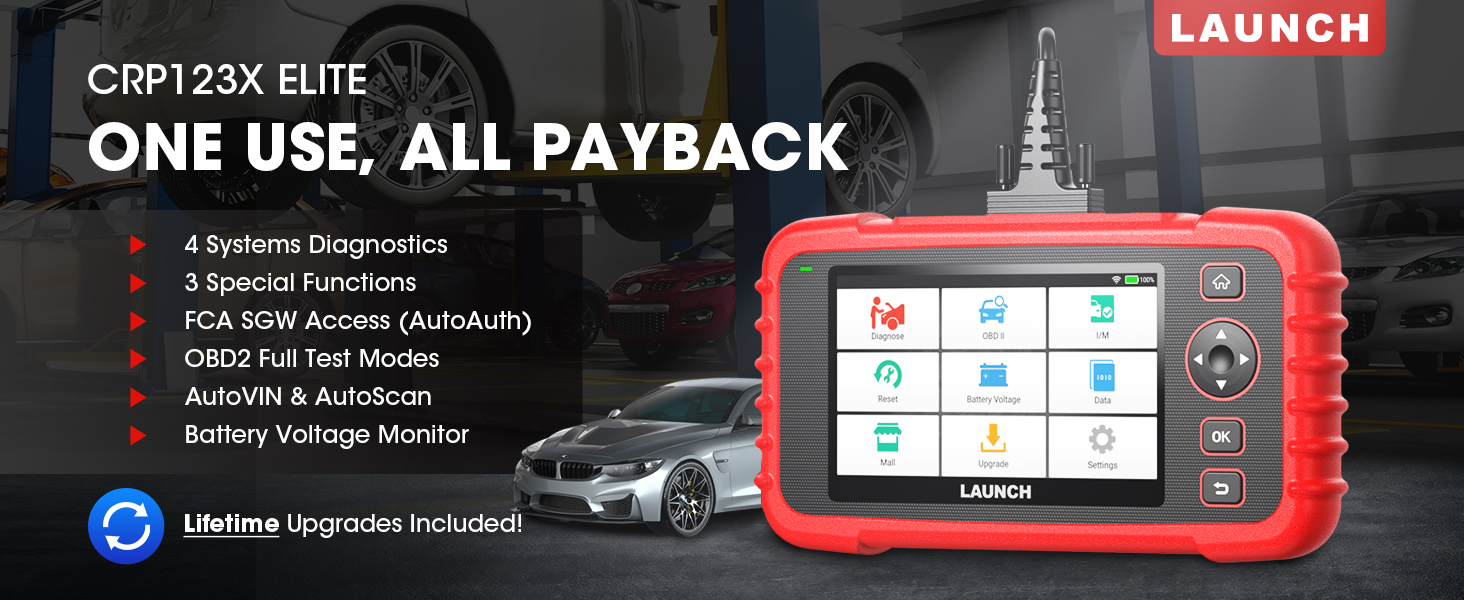
The LAUNCH CRP123X Elite is an advanced OBD2 diagnostic scan tool designed for comprehensive vehicle system analysis. It offers a wide range of functions including 4-system diagnostics (Engine, Transmission, ABS, SRS), 3 special reset services (Oil Reset, Electronic Throttle Relearn, Steering Angle Sensor Calibration), full OBD2 functions, AutoVIN technology, and lifetime free software updates via Wi-Fi. This manual provides detailed instructions for setting up, operating, and maintaining your CRP123X Elite scanner.
2. Key Features
- Lifetime Free Software Updates: Ensures compatibility with future vehicles and systems, updated wirelessly via Wi-Fi.
- 3 Hottest Special Functions: Includes Oil Reset, Electronic Throttle Relearn (ETC Reset), and Steering Angle Sensor Calibration (SAS Reset).
- 4-System Diagnostics: Comprehensive diagnostics for Engine, Anti-lock Braking System (ABS), Supplemental Restraint System (SRS), and Transmission Control Module (TCM). Read and clear DTCs, view live data, and read ECU information.
- Wide Vehicle Coverage: Supports over 72 car brands across US, EU, and Asia, including 2018+ FCA SGW (AutoAuth required).
- AutoVIN & AutoScan: Automatically identifies vehicle information and quickly scans all modules in all systems for 2006+ vehicles.
- All 10 OBD2 Test Modes: Supports all standard OBD2 functions for basic car issue diagnosis, including reading/clearing codes, live data, freeze frame, I/M readiness, O2 sensor test, EVAP system test, on-board monitor test, component test, and vehicle information retrieval.
- Real-Time Voltage Monitor: Displays dynamic graphic representation of the car's battery voltage.
- 4-in-1 Graphic Live Data: Allows merging up to 4 PIDs data on one screen for easier analysis.
- Diagnostic Report Sharing: Save and share diagnostic reports for further analysis or record-keeping.
- User-Friendly Design: Features a 5-inch HD touchscreen, Android 7.0 OS, 16GB memory, and anti-slip, shock-resistant casing.
3. Package Contents
Verify that all items are present in your package:
- LAUNCH CRP123X Elite Scanner (Red unit with 5-inch touchscreen)
- DC 5V Charging Cable (USB cable)
- OBD2 Cable (DB-15 diagnostic connector)
- Carrying Bag (Black zippered case)
- User Manual (Printed document)

4. Setup Guide
4.1 Initial Power On and Charging
Before first use, ensure the device is fully charged. Connect the provided DC 5V Charging Cable to the scanner's charging port and a suitable USB power adapter (not included) or computer USB port. The device will power on automatically or can be powered on by pressing the power button.

4.2 Wi-Fi Connection
- From the main menu, tap on "Settings".
- Select "Wi-Fi" and turn it on.
- Choose your desired Wi-Fi network from the list and enter the password if prompted.
- Once connected, the Wi-Fi icon will appear in the status bar.
4.3 Initial Software Update
It is recommended to perform a software update after connecting to Wi-Fi to ensure you have the latest vehicle coverage and functions.
- From the main menu, tap on "Upgrade".
- The system will check for available updates. Select all necessary updates and tap "Download".
- Allow the updates to complete. The device may restart during this process.

5. Operating Instructions
5.1 Connecting to Vehicle
Locate the vehicle's OBD2 port, usually under the dashboard on the driver's side. Connect the provided OBD2 cable to the scanner and then to the vehicle's OBD2 port. Turn the vehicle's ignition to the "ON" position (engine off or running, depending on the test).

5.2 System Diagnostics (Engine, ABS, SRS, Transmission)
The CRP123X Elite can diagnose four core vehicle systems:
- Engine System: Read and clear engine fault codes, view live data streams, and check engine light status.
- Anti-lock Braking System (ABS): Diagnose ABS issues, read and clear ABS fault codes, and view ABS sensor data.
- Supplemental Restraint System (SRS/Airbag): Read and clear airbag fault codes. Note: Crash data cannot be cleared from memory even with a new airbag.
- Transmission Control Module (TCM): Diagnose transmission problems, read and clear transmission fault codes, and view transmission live data.
To perform a system diagnostic:
- From the main menu, tap "Diagnose".
- Select the vehicle make and model. The AutoVIN feature (for 2006+ vehicles) can automatically detect this.
- Choose the system you wish to diagnose (e.g., "Engine", "ABS").
- Select "Read Codes" to view Diagnostic Trouble Codes (DTCs) or "Clear Codes" to erase them.
- Select "View Data Stream" to monitor real-time sensor data.

5.3 Reset Functions (Oil, ETC, SAS)
The scanner supports three common reset services:
- Oil Reset: Resets the oil life reminder after an oil change or maintenance service.
- Electronic Throttle Relearn (ETC Reset): Relearns the electronic throttle body for optimal engine performance and smooth idle.
- Steering Angle Sensor Calibration (SAS Reset): Calibrates the steering angle sensor after alignment or component replacement.
To perform a reset function:
- From the main menu, tap "Reset".
- Select the desired reset function (e.g., "Oil Reset").
- Follow the on-screen instructions to complete the procedure.

5.4 All 10 OBD2 Test Modes
The CRP123X Elite supports all 10 modes of OBD2 testing, providing comprehensive diagnostic capabilities for emissions-related issues and general vehicle health:
- Read Codes: Displays current, pending, and permanent Diagnostic Trouble Codes (DTCs).
- Erase Codes: Clears DTCs from the vehicle's computer and turns off the Malfunction Indicator Lamp (MIL).
- Live Data Stream: Displays real-time data from the vehicle's sensors in text or graph format.
- Freeze Frame Data: Shows a snapshot of operating conditions at the time an emission-related fault occurred.
- I/M Readiness: Checks the readiness of the emission monitoring systems.
- O2 Sensor Test: Retrieves and displays O2 sensor monitoring test results.
- On-Board Monitor Test: Retrieves test results for emission-related powertrain components and systems that are not continuously monitored.
- EVAP System Test: Initiates a test of the Evaporative Emission Control System.
- Component Test: Allows initiation of a leak test for the vehicle's EVAP system.
- Vehicle Information: Retrieves Vehicle Identification Number (VIN), Calibration ID (CID), and Calibration Verification Number (CVN).

5.5 Live Data Stream & Recording
The scanner can display live sensor data in various formats. You can select up to four data parameters to view simultaneously in a graphical format for easier comparison and analysis.
- From the main menu, tap "Data".
- Select "Live Data" and choose the parameters you wish to monitor.
- Tap the "Record" icon to begin recording the data for later review.

5.6 Diagnostic Report
After completing a diagnostic session, you can generate and save a diagnostic report. This report can be printed via PC or emailed for record-keeping or sharing with a mechanic.
- After a scan, navigate to "Data" and then "Diagnostic Report".
- You can view, playback, or share the report via email (requires Wi-Fi connection).

5.7 Real-Time Voltage Monitor
The scanner includes a feature to monitor the vehicle's battery voltage in real-time, displayed graphically.
- From the main menu, tap "Battery Voltage".
- Observe the real-time voltage readings and dynamic graphic.
6. Maintenance
- Cleaning: Use a soft, damp cloth to clean the scanner's exterior. Do not use abrasive cleaners or solvents.
- Storage: Store the device in its carrying bag in a dry, cool place away from direct sunlight and extreme temperatures.
- Software Updates: Regularly connect the device to Wi-Fi and perform software updates to ensure optimal performance and access to the latest vehicle data and features.
- Battery Care: Charge the device regularly, even if not in frequent use, to maintain battery health. Avoid fully discharging the battery for extended periods.
7. Troubleshooting
| Problem | Possible Cause | Solution |
|---|---|---|
| Device does not power on. | Low battery; faulty connection. | Charge the device fully. Ensure OBD2 cable is securely connected to vehicle and scanner. |
| Communication error with vehicle. | Loose connection; vehicle not OBD2 compliant; ignition off; blown fuse in vehicle. | Check all connections. Verify vehicle is OBD2 compliant (1996 and newer for US). Turn ignition ON. Check vehicle's fuse for the OBD2 port. |
| Screen freezes or device is unresponsive. | Software glitch; temporary system error. | Press and hold the power button to force a restart. If issue persists, perform a factory reset (data will be lost). |
| Cannot connect to Wi-Fi. | Incorrect password; out of range; network issue. | Verify Wi-Fi password. Move closer to the Wi-Fi router. Restart the router. |
For further assistance, please contact LAUNCH customer support.
8. Specifications
| Feature | Detail |
|---|---|
| Model Number | launch crp123x |
| Operating System | Android 7.0 |
| Display | 5-inch HD Touch Screen (LCD touch screen) |
| Memory | 16GB ROM, 2GB RAM |
| CPU | 1.5GHz |
| Connectivity | Wi-Fi |
| Product Dimensions | 10.24 x 3.15 x 7.48 inches (7.48"L x 3.15"W x 10.24"H) |
| Weight | 2.36 Pounds |
| Language | English (and 9 other languages) |
| First Available Date | November 16, 2020 |


9. Warranty & Support
LAUNCH stands behind the quality of the CRP123X Elite scanner with an extended 5-year product quality backup. Enjoy free lifetime software updates to ensure compatibility with future vehicles and systems.
For technical assistance or any inquiries, please contact LAUNCH Support:
- Toll-Free Number: 1-888-756-2936
- Hours of Operation: Monday - Friday, 9:00 AM - 6:00 PM EST
- Email: Tech_Launchoriginal@outlook.com
LAUNCH also offers a 30-day money-back policy.

Related documentsCRP123X Elite


Ask a question about this manual
Ask about setup, troubleshooting, compatibility, parts, safety, or missing instructions. Manuals+ will review the question and use this page’s manual context to help answer it.