
1. Introduction to iPhone 12 Mini
The Apple iPhone 12 Mini is a compact smartphone featuring a 5.4-inch OLED display. It is powered by the A14 Bionic chip and runs on iOS 14. This device offers 5G connectivity, water resistance, stereo speakers, and integrates various Apple services. Key features include a dual 12MP + 12MP main camera and a 12-megapixel selfie camera, which also supports Face ID for secure authentication. The display is protected by Gorilla Glass and supports Dolby Vision in HDR.
This manual provides detailed instructions for setting up and operating your iPhone 12 Mini, covering essential features and advanced functionalities of iOS 14. It is designed to assist both new and experienced users in maximizing their device's potential.
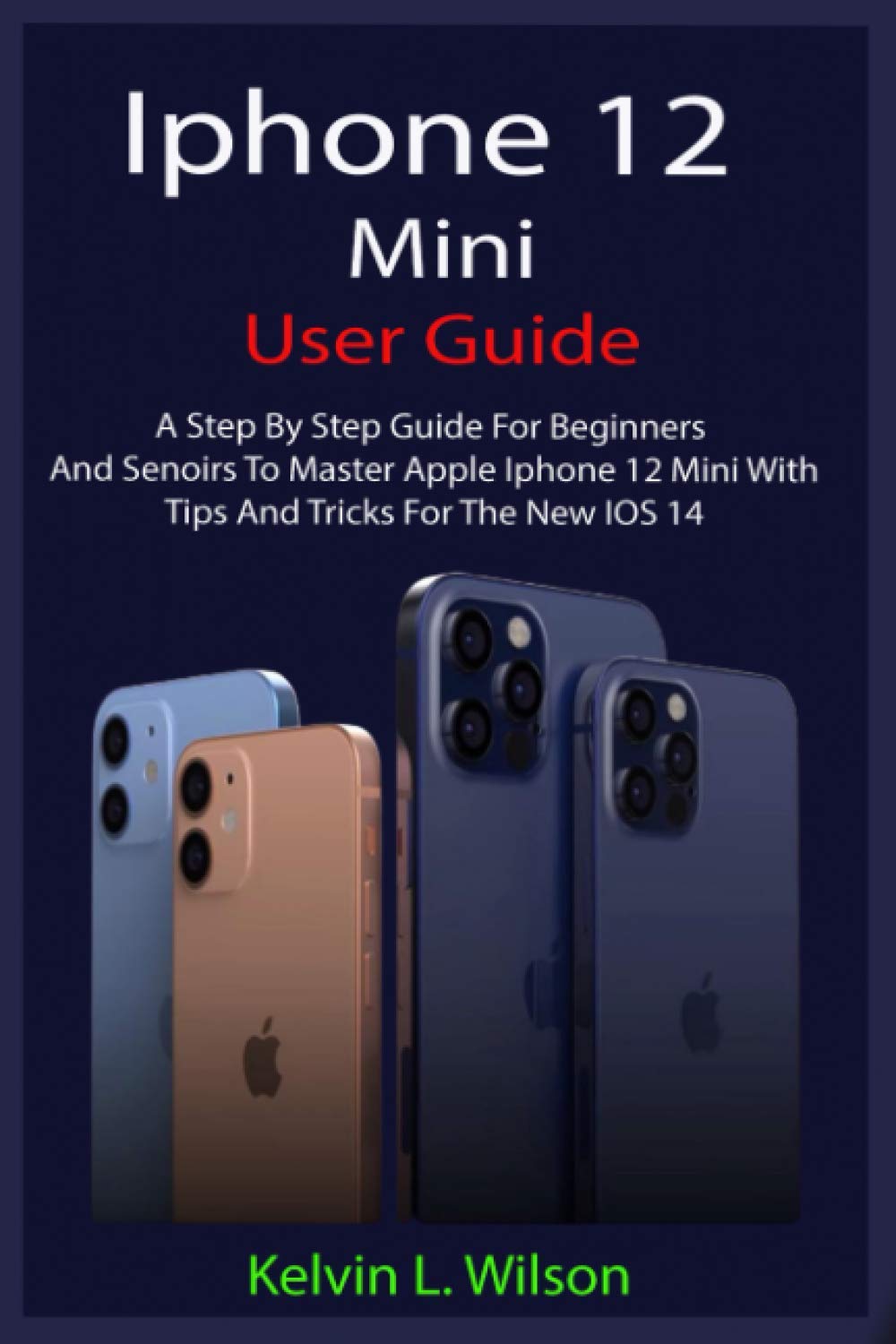
Image 1.1: Front cover of the iPhone 12 Mini User Guide. This guide provides instructions on how to master and set up all the essential features of the new iPhone 12 Mini.
2. Initial Setup
Follow these steps to set up your iPhone 12 Mini and configure essential services.
- Setting up iPhone 12 Mini: Power on your device and follow the on-screen prompts to select your language, region, and connect to a Wi-Fi network.
- Create Apple ID: If you do not have an Apple ID, create one during the setup process or later via Settings. Your Apple ID is essential for accessing Apple services like the App Store, iCloud, and iMessage.
- Setup Google Mail: To add your Google Mail account, navigate to Settings > Mail > Accounts > Add Account and select Google. Enter your credentials to sync your email, contacts, and calendars.
- Add Credit Card for Purchases: Go to Settings > [Your Name] > Payment & Shipping to add or update your payment methods for App Store and iTunes purchases.
- Set up Apple Pay Cash:
- Enable Apple Pay Cash: Go to Settings > Wallet & Apple Pay and turn on Apple Cash.
- Verify Your Identity: Follow the on-screen instructions to verify your identity, which may require providing personal information.
- Add Money to Apple Pay Cash Card: You can add funds from a linked debit card directly to your Apple Cash balance.
- Send Apple Pay Cash Balance to Bank Account: Transfer funds from your Apple Cash card to your linked bank account via the Wallet app.
- Family Sharing Setup: Initiate Family Sharing from Settings > [Your Name] > Family Sharing to share purchases, subscriptions, and location with family members.
- Setup CarPlay: Connect your iPhone to a compatible vehicle's infotainment system via USB or wirelessly to use CarPlay features.
- Setup iMessage: iMessage is automatically enabled with your Apple ID. Verify your phone number and email addresses in Settings > Messages > Send & Receive.
- Set up Device for MMS: Ensure MMS Messaging is enabled in Settings > Messages. Carrier settings may also be required.
- Setup Mail Account: Add other email accounts (e.g., Outlook, Yahoo) via Settings > Mail > Accounts > Add Account.
- Set up Headphone Level Checker: Adjust audio levels and monitor headphone exposure in Settings > Sounds & Haptics > Headphone Safety.
- Set up Your Sleep Schedule: Configure sleep tracking and schedules in the Health app under the Sleep section.
- Install Apps from the App Store: Open the App Store, search for desired applications, and tap "Get" or the price to download.
- Enable Location Services: Manage location access for apps in Settings > Privacy > Location Services.
3. Operating Your iPhone 12 Mini
This section covers various operational aspects and features of your device.
- Dark Mode: Activate Dark Mode for a darker color scheme across the system and supported apps via Settings > Display & Brightness.
- Setup and Use Siri: Enable Siri in Settings > Siri & Search. You can activate Siri by saying "Hey Siri" or by pressing and holding the Side button.
- Change iPhone 12 Mini Language: Modify the device language in Settings > General > Language & Region.
- Create a Reminder: Use the Reminders app to set up tasks and alerts.
- Connecting an Xbox One Controller: Pair your Xbox One controller via Bluetooth in Settings > Bluetooth to use it for gaming on your iPhone.
- Use Picture in Picture Mode: When watching a video, swipe up from the bottom of the screen to minimize the video into a floating window.
- Change iPhone Wallpaper: Customize your wallpaper in Settings > Wallpaper > Choose a New Wallpaper.
- Setup Live Photos as Wallpaper: Select a Live Photo from your gallery and set it as your Lock Screen wallpaper.
- Add Widget to Home Screen: Long-press on an empty area of the Home Screen, tap the '+' icon, and select widgets to add.
- Edit Widget: Long-press on a widget to access its editing options.
- Create Smart Stack: While adding widgets, select "Smart Stack" to create a rotating stack of widgets.
- Turn on Voice Control: Enable Voice Control in Settings > Accessibility > Voice Control to navigate your device using voice commands.
- Choose Contact and Message Ringtone: Customize ringtones and text tones for individual contacts or globally in Settings > Sounds & Haptics.
- Pin and Unpin Message: In the Messages app, swipe right on a conversation to pin or unpin it to the top of your conversation list.
- Delete Message: Swipe left on a conversation or message in the Messages app and tap "Delete".
- Delete Mail Account: Remove an email account from Settings > Mail > Accounts by selecting the account and tapping "Delete Account".
- Recover Deleted Emails: Deleted emails are typically moved to a "Trash" or "Bin" folder and can be recovered within a certain period, depending on your email provider.
- Take a Screenshot: Simultaneously press the Side button and the Volume Up button.
- Delete Apps: Long-press on an app icon until the context menu appears, then tap "Remove App" or "Delete App".
4. Specifications
iPhone 12 Mini Device Specifications
| Display | 5.4-inch Super Retina XDR (OLED) with Ceramic Shield front cover |
| Processor | A14 Bionic chip |
| Internal Storage Options | 64GB, 128GB, 256GB |
| Main Camera | Dual 12MP Ultra Wide and Wide cameras |
| Front Camera | 12MP TrueDepth camera with Face ID |
| Operating System | iOS 14 (at launch) |
| Connectivity | 5G cellular, Wi-Fi 6 (802.11ax), Bluetooth 5.0, NFC |
| Water Resistance | IP68 rating (maximum depth of 6 meters up to 30 minutes) |
| Audio | Stereo speakers |
| Video Features | HDR video recording with Dolby Vision |
User Manual (Book) Specifications
| Publisher | Independently published |
| Publication Date | November 14, 2020 |
| Language | English |
| Print Length | 70 pages |
| ISBN-13 | 979-8565047639 |
| Item Weight | 3.84 ounces |
| Dimensions | 6 x 0.16 x 9 inches |
5. Troubleshooting Common Issues
This section addresses common issues you might encounter with your iPhone 12 Mini.
- Device Not Responding: If your iPhone is unresponsive, perform a force restart. Quickly press and release the Volume Up button, then quickly press and release the Volume Down button, then press and hold the Side button until you see the Apple logo.
- Battery Draining Quickly: Check battery usage in Settings > Battery to identify apps consuming significant power. Adjust background app refresh, location services, and screen brightness.
- Connectivity Problems (Wi-Fi/Cellular): Try toggling Airplane Mode on and off. For Wi-Fi, forget the network and reconnect. For cellular, ensure your plan is active and reset network settings in Settings > General > Transfer or Reset iPhone > Reset > Reset Network Settings.
- App Crashing or Freezing: Force close the app by swiping up from the bottom of the screen and swiping the app card upwards. Reopen the app. If the issue persists, try reinstalling the app.
- Face ID Not Working: Ensure your face is clear and unobstructed. Check Face ID settings in Settings > Face ID & Passcode. If necessary, reset Face ID and set it up again.
6. Maintenance and Care
Proper maintenance ensures the longevity and optimal performance of your iPhone 12 Mini.
- Cleaning Your Device: Use a soft, lint-free cloth, slightly dampened with water, to clean the screen and exterior. Avoid abrasive materials or harsh cleaning agents.
- Software Updates: Regularly update your iOS to the latest version to benefit from security patches, bug fixes, and new features. Go to Settings > General > Software Update.
- Battery Health: To preserve battery health, avoid extreme temperatures and consider enabling Optimized Battery Charging in Settings > Battery > Battery Health.
- Data Backup: Regularly back up your iPhone data to iCloud or a computer to prevent data loss.
- Protective Accessories: Consider using a screen protector and a protective case to guard against scratches and accidental damage.
7. Warranty and Support
For information regarding your iPhone 12 Mini's warranty, please refer to the official Apple website or contact Apple Support directly. This user manual does not provide warranty details.
For further assistance, visit the official Apple Support website or contact their customer service. You can also find extensive resources and community forums online.


