
1. Introduction
This manual provides essential information for the safe and efficient use of your iiyama G2470HSU-B1 23.8-inch IPS Full HD 165Hz Gaming Monitor. Please read these instructions thoroughly before operating the device and retain them for future reference.
2. Safety Information
- Do not expose the monitor to rain or moisture to prevent fire or shock hazards.
- Do not open the monitor casing. There are no user-serviceable parts inside. Refer all servicing to qualified service personnel.
- Ensure proper ventilation. Do not block ventilation openings.
- Use only the power cord supplied with the monitor.
- Place the monitor on a stable, flat surface to prevent it from falling.
- Avoid placing heavy objects on the power cord.
3. Package Contents
Verify that all items listed below are present in your package:
- iiyama G2470HSU-B1 Monitor
- Monitor Stand (Base and Neck)
- Power Cable
- HDMI Cable
- DisplayPort Cable
- USB Upstream Cable
- User Manual (this document)
4. Setup
4.1 Assembling the Stand
- Carefully place the monitor face down on a soft, clean cloth to prevent scratches.
- Attach the stand neck to the back of the monitor. Ensure it clicks securely into place.
- Attach the stand base to the neck and tighten the screw at the bottom of the base.

Figure 4.1: Front view of the monitor with stand.
4.2 Connecting the Monitor
Connect the monitor to your computer or other devices using the appropriate cables.
- Video Input: Connect either an HDMI cable or a DisplayPort cable from your computer's graphics card to the corresponding port on the monitor.
- USB Hub: Connect the USB upstream cable from your computer to the USB-B port on the monitor to enable the monitor's USB 2.0 ports.
- Audio Output: If desired, connect headphones or external speakers to the 3.5mm audio output jack.

Figure 4.2: Monitor input ports.
4.3 Power Connection
Connect the power cable to the monitor's power input and then plug the other end into a grounded electrical outlet.
5. Operating Instructions
5.1 Power On/Off
Press the power button located on the rear of the monitor to turn it on or off. The power indicator light will illuminate when the monitor is on.
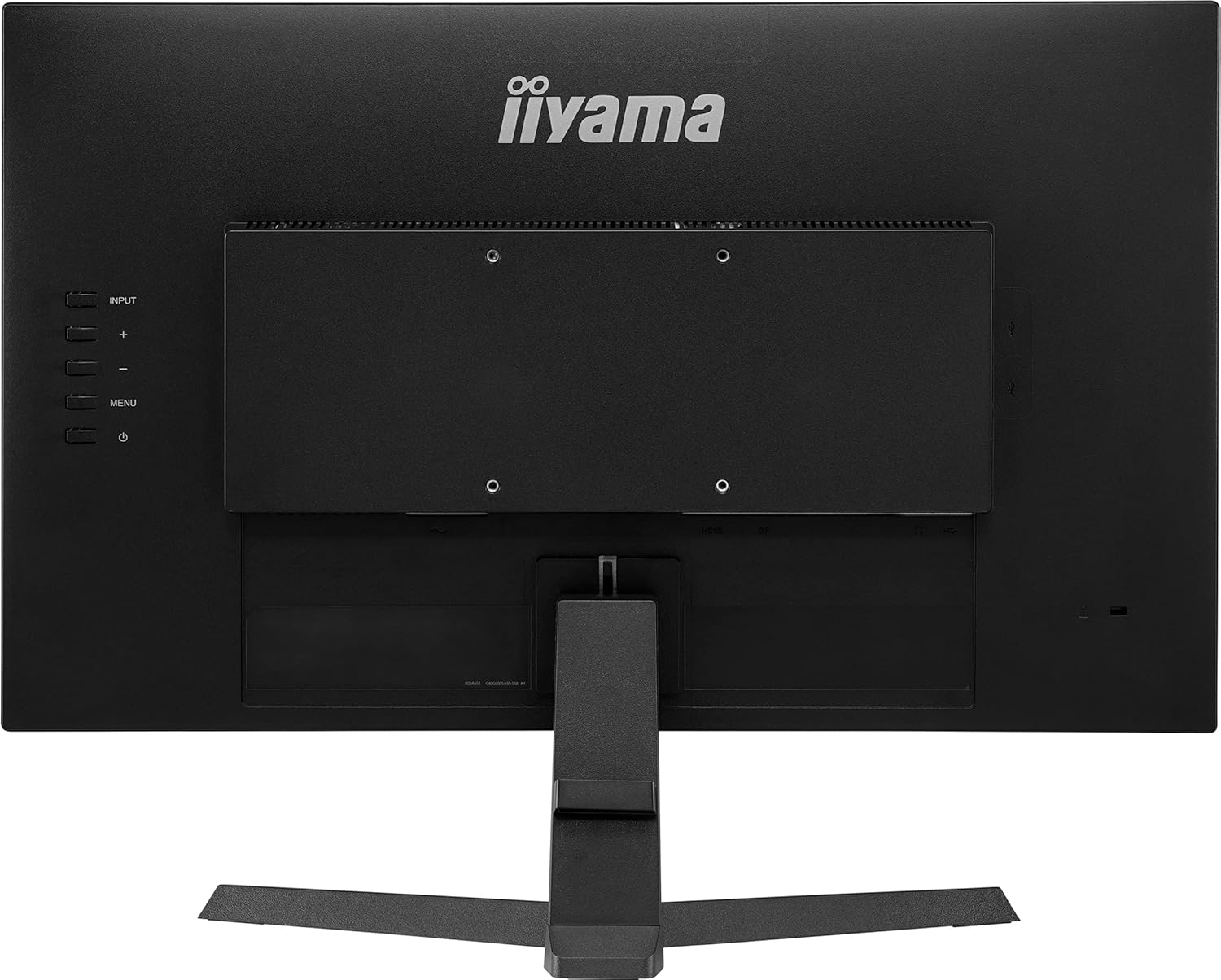
Figure 5.1: Rear view with control buttons.
5.2 On-Screen Display (OSD) Menu
The OSD menu allows you to adjust various monitor settings. Use the buttons on the rear of the monitor to navigate and select options.
- Input: Select the video input source (HDMI, DisplayPort).
- Picture: Adjust brightness, contrast, sharpness, and color temperature.
- Audio: Control volume and mute settings.
- OSD Setup: Configure OSD language, position, and timeout.
- Gaming Settings: Access features like Black Tuner, FreeSync, and response time overdrive.
5.3 Adjusting Refresh Rate
To utilize the 165Hz refresh rate, ensure your graphics card and connection cable (DisplayPort recommended) support it. Adjust the refresh rate through your computer's display settings:
- Windows: Right-click on the desktop > Display settings > Advanced display settings > Display adapter properties > Monitor tab > Screen refresh rate.
- macOS: System Settings > Displays > Refresh Rate.
5.4 FreeSync Technology
This monitor supports AMD FreeSync technology, which synchronizes the monitor's refresh rate with your graphics card's frame rate to reduce screen tearing and stuttering. Ensure FreeSync is enabled in the monitor's OSD menu and your graphics card software.
6. Maintenance
6.1 Cleaning the Screen
Gently wipe the screen with a soft, lint-free cloth. For stubborn marks, dampen the cloth with a mild, non-abrasive screen cleaner. Do not spray cleaner directly onto the screen.
6.2 Cleaning the Casing
Use a soft, dry cloth to clean the monitor casing. Avoid using strong detergents or solvents.
7. Troubleshooting
| Problem | Possible Cause | Solution |
|---|---|---|
| No image on screen | Power cable disconnected; Video cable disconnected; Incorrect input source selected. | Check power and video cable connections; Select correct input source via OSD menu. |
| Image is blurry or distorted | Incorrect resolution; Graphics driver issue. | Set resolution to 1920x1080; Update graphics drivers. |
| Screen flickering | Refresh rate mismatch; Cable issue; FreeSync not properly configured. | Ensure refresh rate is set correctly (165Hz); Try a different video cable; Verify FreeSync settings. |
| No sound from speakers/headphones | Volume too low; Audio cable disconnected; Incorrect audio output selected on PC. | Adjust volume in OSD and PC; Check audio cable connection; Select monitor as audio output on PC. |
8. Specifications
| Feature | Specification |
|---|---|
| Brand | iiyama |
| Model Number | G2470HSU-B1 |
| Screen Size | 24 Inches (23.8" viewable) |
| Display Type | IPS LED |
| Resolution | 1920x1080 (Full HD) |
| Refresh Rate | 165 Hz |
| Response Time | 0.8 Milliseconds |
| Aspect Ratio | 16:9 |
| Contrast Ratio | 1100:1 |
| Brightness | 250 cd/m² |
| Viewing Angle | 178 Degrees (Horizontal/Vertical) |
| Connectivity | 1x HDMI, 1x DisplayPort, 2x USB 2.0, Audio Out |
| Adaptive Sync | FreeSync |
| Additional Features | Flicker-Free, Black Tuner |
| Mounting Type | Wall Mount (VESA compatible) |
| Item Weight | 3.2 Kilograms |
| Power Consumption | 20 Watts |
8.1 Energy Information

Figure 8.1: Energy Label.
For detailed product information and energy efficiency data, please refer to the official EPREL database: https://eprel.ec.europa.eu/qr/160426
9. Warranty and Support
The iiyama G2470HSU-B1 monitor comes with a limited warranty. Please refer to the warranty card included in your package or visit the official iiyama website for detailed warranty terms and conditions.
For technical support, service inquiries, or further assistance, please contact iiyama customer support through their official channels.


