
1. Introduction
The Gecko in.k800 Electronic Keypad is designed to provide an advanced and intuitive user interface for controlling your spa's functions. Featuring a bright, full-color display and a 10-button layout, this keypad offers seamless navigation and control for Gecko's X and Y series control systems.
Key features include:
- Full-color interface for clear and efficient user control.
- Menu-driven interface to configure and manage all spa functions and connected accessories.
- 10-key layout for dynamic navigation and enhanced user experience.
- Compatibility with Gecko's X and Y series control systems.

2. Setup and Installation
This section outlines the general steps for setting up and installing your Gecko in.k800 Electronic Keypad. For detailed wiring and system-specific instructions, please refer to your spa's main control system manual or consult a qualified technician.
2.1 Included Components
Your package should contain the following items:
- Gecko in.k800 Keypad
- User Guide (this document)
2.2 Compatibility
The in.k800 keypad is compatible with Gecko's X and Y series control systems.
2.3 Installation Steps
- Ensure the spa's power supply is disconnected before beginning installation.
- Carefully remove the existing keypad (if applicable) or prepare the mounting location for the new in.k800 keypad.
- Connect the keypad cable to the designated port on your Gecko X or Y series control system. Ensure the connection is secure and watertight.
- Mount the in.k800 keypad in the desired location, ensuring it is securely fastened and sealed to prevent water ingress.
- Once installed, restore power to the spa. The keypad should power on and display the initial setup screen or home interface.

3. Operating Instructions
The in.k800 keypad features a user-friendly, menu-driven interface. This section provides an overview of the keypad's buttons and display elements.
3.1 Keypad Layout
The keypad consists of 10 physical buttons and a central color display. Refer to Figure 2 for the button identification.
- Settings Button: Typically used to access the main settings menu.
- Mode Button: Used to cycle through different operating modes or functions.
- Up/Down Arrows: Used for navigation within menus and adjusting values (e.g., temperature).
- Light/Key 6: Controls spa lighting or serves as a programmable function key.
- Keys 1-5: Functions for these keys may vary depending on your system's configuration.
- Selection Lights: Indicate active selections or modes.
3.2 Display Interface
The full-color display provides real-time information and allows for intuitive menu navigation. Refer to Figure 3 for an explanation of the display elements.
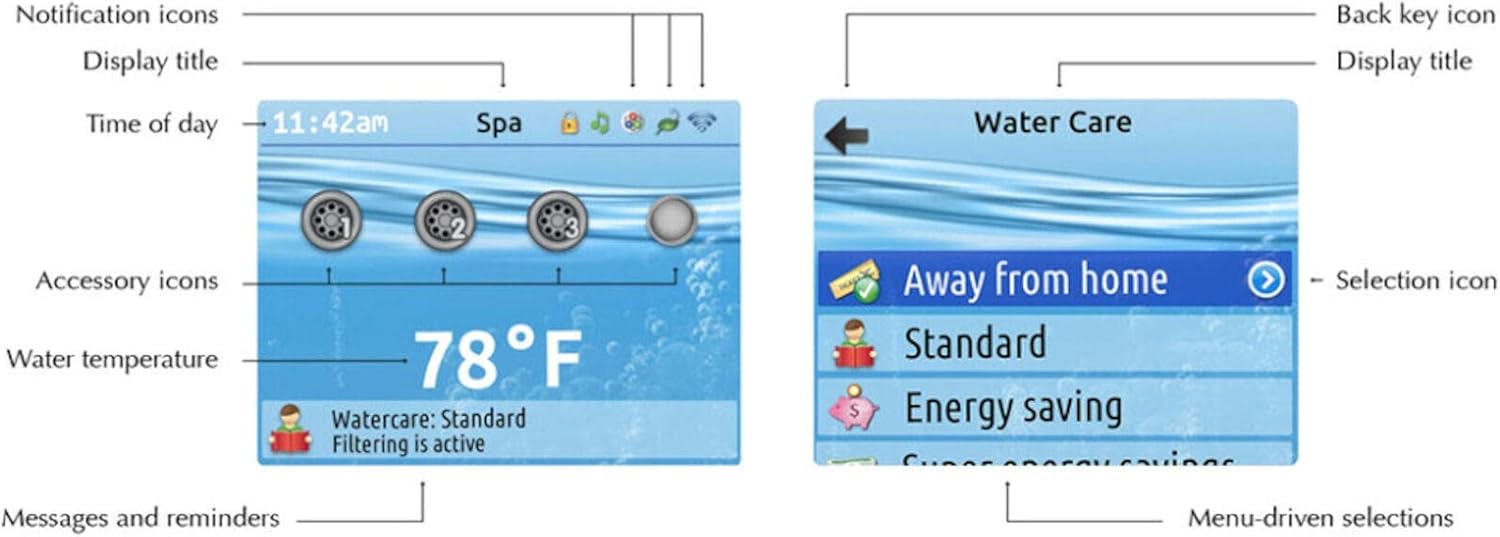
- Notification Icons: Display system alerts or status indicators.
- Display Title: Shows the current menu or screen name (e.g., "Spa", "Water Care").
- Time of Day: Indicates the current time.
- Accessory Icons: Represent active accessories (e.g., jets, blower).
- Water Temperature: Shows the current spa water temperature.
- Messages and Reminders: Provides important system messages or maintenance reminders (e.g., "Watercare: Standard Filtering is active").
- Back Key Icon: Used to return to the previous screen or menu.
- Selection Icon: Highlights the currently selected menu item.
- Menu-driven Selections: List of options available for selection (e.g., "Away from home", "Standard", "Energy saving").
3.3 Basic Navigation
To navigate the in.k800 interface:
- Use the Up and Down arrow buttons to scroll through menu options.
- Press the central Selection button (often indicated by a dot or circle) to confirm a selection or enter a submenu.
- Use the Back Key Icon (usually an arrow pointing left) to return to the previous screen.
- The Settings button provides access to advanced configurations.
4. Maintenance
Proper maintenance ensures the longevity and optimal performance of your in.k800 keypad.
4.1 Cleaning
- Gently wipe the keypad surface and display with a soft, damp cloth.
- Avoid using abrasive cleaners, solvents, or harsh chemicals, as these can damage the display and keypad finish.
- Ensure no water enters the keypad housing during cleaning.
4.2 Protection
- To prevent sun damage and prolong the life of the display, consider using a protective cover for your spa, especially if the keypad is frequently exposed to direct sunlight.
5. Troubleshooting
This section provides basic troubleshooting steps for common issues. If the problem persists, contact Gecko customer support or a qualified spa technician.
| Problem | Possible Cause | Solution |
|---|---|---|
| Keypad display is blank | No power to the spa or keypad; Loose connection | Check spa's main power supply. Ensure keypad cable is securely connected to the control system. |
| Buttons are unresponsive | Keypad malfunction; Water ingress | Ensure keypad surface is dry. If problem persists, contact support. |
| Incorrect temperature reading | Sensor issue; System calibration needed | Consult your spa's control system manual for sensor troubleshooting or recalibration. |
6. Specifications
Technical specifications for the Gecko in.k800 Electronic Keypad:
- Model Number:
- in.k800 (0607-008030)
- Product Dimensions:
- 8.75 x 4.25 x 2.5 inches
- Manufacturer:
- Gecko
- Compatible Devices:
- Gecko's X and Y series control systems
- Keyboard Description:
- Specialized Input Device with 10-Key Layout and Color Display
- Style:
- Modern
- Included Components:
- Keypad, User Guide
- Power Source:
- Passive
- Number of Buttons:
- 10
- Date First Available:
- November 5, 2020
7. Warranty and Support
For warranty information, please refer to the documentation provided with your spa control system or contact Gecko directly. For technical support or service inquiries, please visit the official Gecko website or contact your authorized dealer.
You can find more information about Gecko products at the Gecko Store on Amazon.

