
1. Introduction
The D-Link DGS-1100-05V2 is a 5-Port Gigabit Smart Managed Switch designed for small to medium business networks. This device provides advanced features for network management and optimization, including VLAN support, Quality of Service (QoS), and bandwidth control. It is engineered for energy efficiency, operates silently due to its fanless design, and supports flexible installation options such as desktop placement or wall-mounting.
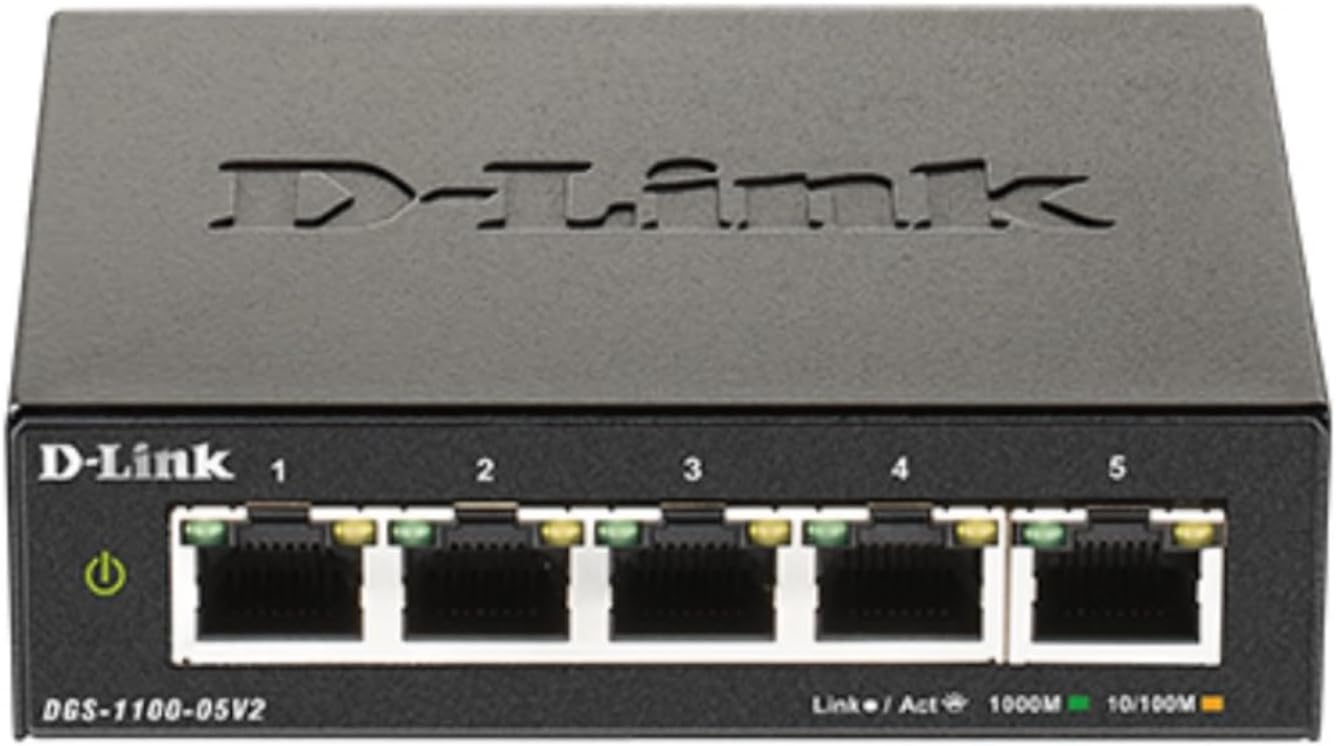
Figure 1.1: Angled front view of the D-Link DGS-1100-05V2 5-Port Gigabit Smart Managed Switch.
2. Package Contents
Verify that your package contains the following items:
- DGS-1100-05V2 5-Port Gigabit Smart Managed Switch
- Power Adapter
- Wall Mount Screws
- Installation Guide
- Warranty Card
If any items are missing or damaged, please contact your local D-Link reseller for assistance.
3. Physical Description
3.1 Front Panel
The front panel of the DGS-1100-05V2 switch features five 10/100/1000BASE-T Gigabit Ethernet ports. Each port is equipped with LED indicators to display Link/Activity status and connection speed (1000 Mbps or 10/100 Mbps). A dedicated power LED indicates the device's operational status.

Figure 3.1: Front panel view of the DGS-1100-05V2, highlighting the five Gigabit Ethernet ports and status LEDs.
3.2 Rear Panel
The rear panel includes the power input connector (5V===1A), a recessed reset button for restoring factory defaults, and a ground screw for proper electrical grounding.
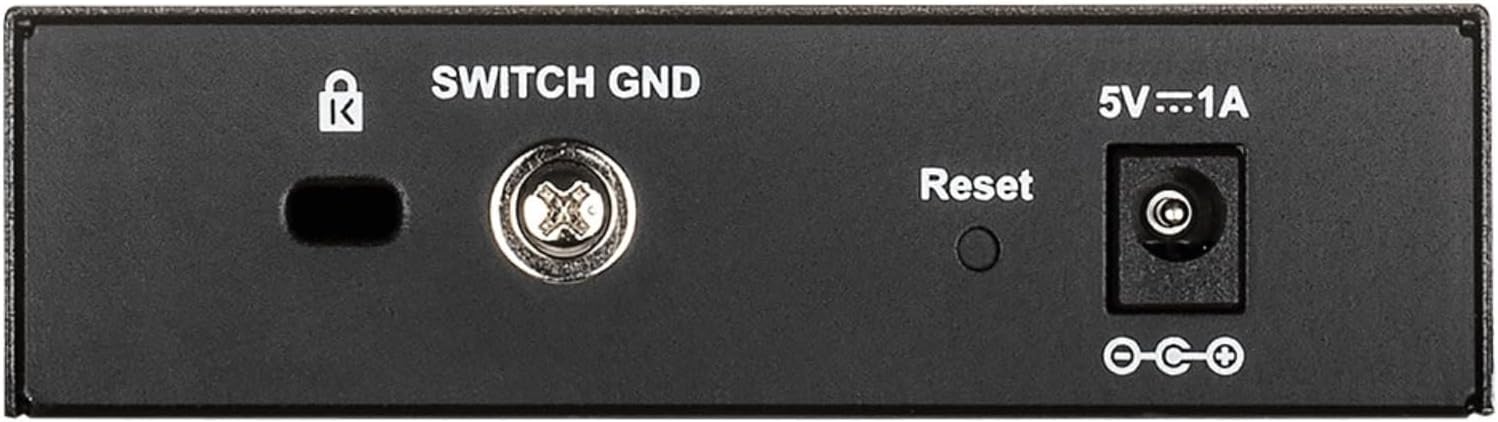
Figure 3.2: Rear panel view of the DGS-1100-05V2, showing power input, reset button, and ground screw.
4. Setup
Follow these steps to set up your DGS-1100-05V2 switch:
- Unpack: Carefully remove the switch and all included accessories from the packaging.
- Placement: Position the switch on a flat, stable surface or mount it to a wall using the provided screws. Ensure there is adequate space around the device for proper ventilation.
- Power Connection: Connect the provided power adapter to the switch's power input port, then plug the adapter into a standard electrical outlet. The power LED on the front panel should illuminate, indicating the switch is receiving power.
- Network Connection: Connect your network devices, such as computers, servers, or access points, to the Gigabit Ethernet ports on the switch using standard RJ45 Ethernet cables.
- Initial Access (Web Management): To access the switch's web-based management interface, connect a computer directly to one of the switch's ports. Configure your computer's IP address to be in the same subnet as the switch's default IP address (e.g., set your computer's IP to 10.90.90.91 with a subnet mask of 255.0.0.0 if the switch's default IP is 10.90.90.90). Open a web browser and navigate to the switch's default IP address (typically http://10.90.90.90).
5. Operating the Switch
The DGS-1100-05V2 is managed through an intuitive web-based interface, allowing for comprehensive configuration and monitoring of your network.
5.1 Web Interface Access
- Login: Upon accessing the switch's IP address in your web browser, you will be prompted for a username and password. Refer to the included Installation Guide for the default credentials (commonly 'admin' for both username and password).
- Navigation: The web interface provides various menus and options to configure the switch's features.
5.2 Key Features and Configuration
The DGS-1100-05V2 offers a range of smart managed features:
- VLAN (Virtual Local Area Network): Configure 802.1Q VLANs to logically segment your network. This enhances security by isolating traffic and improves performance by reducing broadcast domains.
- QoS (Quality of Service): Prioritize network traffic to ensure critical applications, such as Voice over IP (VoIP) or video streaming, receive sufficient bandwidth and minimal latency.
- Bandwidth Limiting: Control the maximum ingress and egress bandwidth for individual ports to prevent network congestion caused by specific devices or applications.
- Static MAC: Manually assign specific MAC addresses to switch ports. This feature enhances network security by ensuring only authorized devices can connect to designated ports.
- Storm Control: Protect your network from disruptions caused by excessive broadcast, multicast, or unknown unicast traffic (network storms) by setting thresholds for these traffic types.
- IGMP Snooping: Optimize the delivery of multicast traffic, which is particularly useful for applications like IPTV, by forwarding multicast packets only to ports that have explicitly requested them.

Figure 5.1: Overview of key features of the DGS-1100-05V2 switch.
6. Maintenance
The DGS-1100-05V2 switch is designed for low maintenance due to its robust construction and fanless operation.
- Fanless Design: The absence of a fan means no moving parts to wear out and no dust accumulation within the cooling system, contributing to a longer product lifespan and silent operation.
- Cleaning: Keep the switch's exterior clean and free from dust. Use a soft, dry cloth for cleaning. Avoid using liquid or aerosol cleaners, as they may damage the device.
- Firmware Updates: Periodically check the official D-Link support website for available firmware updates. Applying the latest firmware ensures optimal performance, security, and access to new features.
7. Troubleshooting
This section provides solutions to common issues you might encounter with your DGS-1100-05V2 switch.
- No Power: If the power LED is off, ensure the power adapter is securely connected to both the switch's power input and a functional electrical outlet. Test the outlet with another device to confirm it is working.
- No Link/Activity on Port: Verify that the Ethernet cable is securely connected to both the switch port and the connected network device. Ensure the connected device is powered on and functioning correctly. Try using a different Ethernet cable to rule out cable failure.
- Cannot Access Web Interface:
- Confirm your computer's IP address is configured within the same subnet as the switch's default IP address (e.g., 10.90.90.91 with subnet mask 255.0.0.0 if the switch's default is 10.90.90.90).
- Ensure your computer is connected directly to one of the switch's Ethernet ports.
- If you have forgotten the login credentials or made incorrect configurations, you can perform a factory reset by pressing and holding the recessed reset button on the rear panel for approximately 5-10 seconds. Note: This will erase all custom configurations.
- Network Performance Issues:
- Utilize the switch's built-in Cable Diagnostics feature (accessible via the web interface) to identify and troubleshoot faulty Ethernet cables.
- Check for network loops using the Loopback Detection feature, which can cause network instability.
- Review your QoS and Bandwidth Limiting configurations to ensure they are appropriately set for your network's traffic patterns and priorities.
8. Specifications
| Brand | D-Link |
| Model Number | DGS-1100-05V2 |
| Number of Ports | 5 |
| Interface | RJ45 |
| Data Transfer Rate | Gigabit Ethernet (10/100/1000 Mbps) per port; 10 Gbps Switching Capacity |
| Switch Type | Smart Managed, Layer 2, Metal Housing |
| Color | Black |
| Dimensions (L x W x H) | 4" x 3.25" x 1.1" (10.16 cm x 8.26 cm x 2.79 cm) |
| Weight | 8 ounces (0.23 kg) |
| Operating Voltage | 100 Volts (Input for power adapter) |
| Operating Temperature | 32°F to 104°F (0°C to 40°C) |
| Compatible Devices | Desktop, Gaming Console, Laptop, Printer |
| Key Features | IEEE 802.3az Energy Efficient Ethernet (EEE), Fanless Design, 802.1Q VLAN, QoS, Bandwidth Limiting, Static MAC, Storm Control, IGMP Snooping, Loopback Detection, Cable Diagnostics, Web-based Management |
9. Warranty and Support
9.1 Warranty Information
The DGS-1100-05V2 is covered by a Limited Lifetime Warranty. For complete details regarding the terms and conditions of this warranty, please refer to the Warranty Card included in your product package or visit the official D-Link website.
9.2 Technical Support
For technical assistance, access to comprehensive product documentation, or to download the latest firmware updates, please visit the official D-Link support website. You can find contact information for D-Link customer support in your region on their website.


