
Keychron K10-A3
Keychron K10 Full Size Mechanical Gaming Keyboard User Manual
Model: K10-A3 | Brand: Keychron
1. Introduction
The Keychron K10 is a versatile 104-key full-size mechanical keyboard designed for enhanced productivity and gaming. It offers seamless connectivity across multiple operating systems, including Mac and Windows, through both Bluetooth wireless and USB Type-C wired modes. Featuring durable Gateron G Pro Brown switches and a white LED backlight, the K10 provides a comfortable and responsive typing experience for various uses.

Image: The Keychron K10 full-size mechanical keyboard, showcasing its complete layout and design.
2. Key Features
- Full-Size 104-Key Layout: Includes a dedicated number pad for maximum productivity, suitable for both work and gaming.
- Dual Connectivity Modes: Connects wirelessly via Broadcom Bluetooth 5.1 to up to three devices simultaneously, or use the reliable USB Type-C wired connection.
- Mac & Windows Compatibility: Designed with a unique Mac layout, it also includes all essential multimedia and function keys for Windows. Extra keycaps are provided for both operating systems, allowing for easy customization.
- Gateron G Pro Brown Switches: Offers a tactile typing experience with a gentle sound level, providing unrivaled responsiveness and a lifespan of up to 50 million keystrokes.
- White LED Backlight: Enhances visibility and aesthetics, especially in low-light conditions.
- Long-Lasting Battery: Equipped with a 4000 mAh battery, providing up to 240 hours of usage with the backlight off.
- Ergonomic Design: Features two-level adjustable feet (6° and 9°) and an inclined bottom frame for comfortable, long-lasting typing.
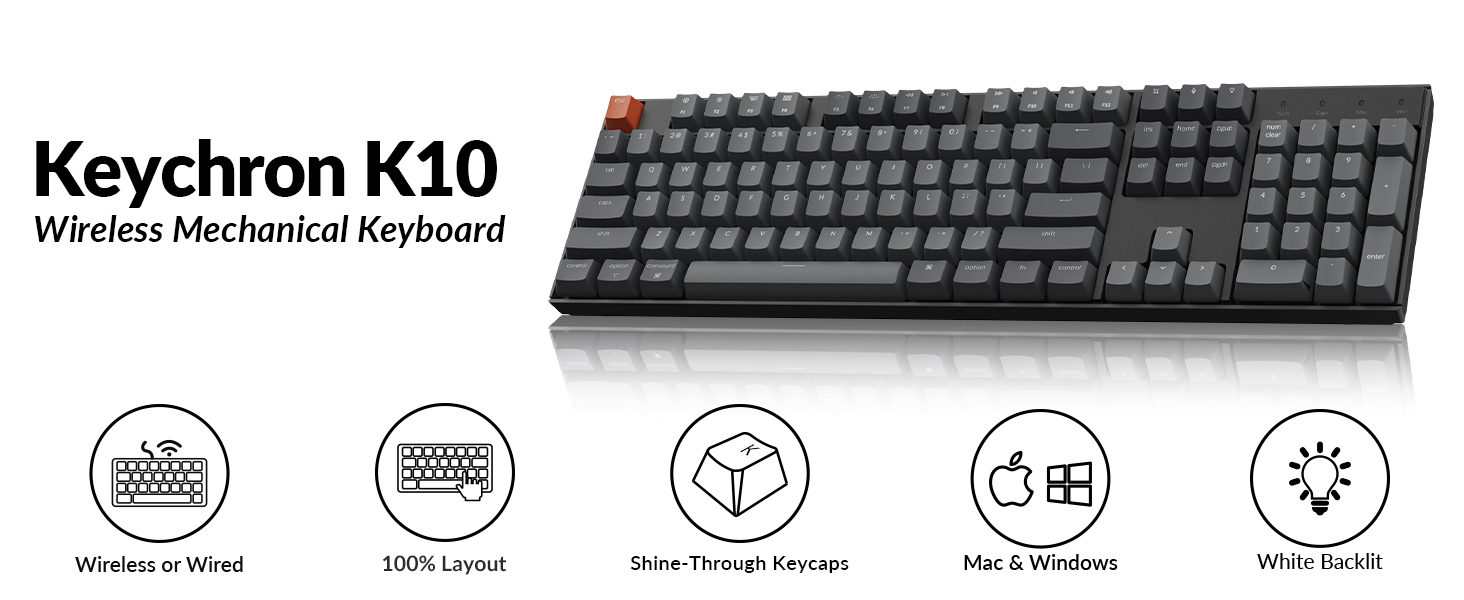
Image: Visual summary of Keychron K10 features, including wireless/wired, 100% layout, shine-through keycaps, Mac & Windows compatibility, and white backlight.
3. Setup
3.1. Bluetooth Connection
- Locate the mode switch on the side of the keyboard.
- Slide the toggle switch to the Bluetooth position.
- Hold the Fn + 1 keys simultaneously until the Bluetooth indicator light flashes repeatedly. This indicates the keyboard is in pairing mode.
- On your device (smartphone, tablet, or laptop), enable Bluetooth.
- Search for "Keychron K10" in the list of available Bluetooth devices and select it to connect.
- To switch between paired devices (up to 3), press Fn + 1, Fn + 2, or Fn + 3.

Image: Diagram illustrating the steps for connecting the Keychron K10 via Bluetooth to various devices.

Image: The Keychron K10 keyboard connected to a desktop monitor, tablet, and smartphone, demonstrating its multi-device connectivity.
3.2. Wired Connection
For a direct and stable connection, use the provided USB Type-C cable.
- Locate the mode switch on the side of the keyboard.
- Slide the toggle switch to the Cable position.
- Connect one end of the USB Type-C cable to the keyboard's USB-C port.
- Connect the other end of the cable to an available USB port on your computer.
- The keyboard will be automatically recognized and ready for use.

Image: The Keychron K10 keyboard connected via USB-C cable to a computer, illustrating both wired and wireless connectivity options.
3.3. Operating System Switch
The Keychron K10 supports both Mac and Windows operating systems. Use the dedicated OS switch located on the side of the keyboard to select the correct layout.
- Locate the OS switch next to the connectivity mode switch.
- Slide the switch to Mac for macOS devices or Windows for Windows devices.
- For optimal experience, replace keycaps (e.g., Alt/Command) using the provided keycap puller as needed.

Image: Close-up of the side of the Keychron K10 keyboard, showing the physical switch for selecting between Windows and macOS modes.
4. Operating the Keyboard
4.1. Backlight Control
The Keychron K10 features a white LED backlight. Use the following key combinations to control it:
- Press Fn + F5 to decrease backlight brightness.
- Press Fn + F6 to increase backlight brightness.
- Press Fn + Light Bulb Key (usually F12 or a dedicated key) to cycle through backlight effects.

Image: The Keychron K10 keyboard with its white LED backlight illuminated, showcasing the uniform lighting across all keys.
4.2. Multimedia and Function Keys
The K10 includes dedicated multimedia and function keys for convenience. These keys are typically located on the F-row.
- F1-F12: Function as multimedia controls (e.g., volume, play/pause) or standard F-keys depending on the operating system and settings.
- Dedicated Keys: Includes a Screenshot Key, Siri (Cortana) Key, and Screen Lock Key for quick access to system functions.

Image: Close-up of the Keychron K10 keyboard's indicator lights for Num Lock, Caps Lock, Mac Layout, and Windows Layout, providing visual feedback on keyboard status.
4.3. Battery Management
The keyboard is powered by a 4000 mAh Lithium Polymer battery. To charge, connect the keyboard via the USB Type-C cable to a power source (e.g., computer USB port, wall adapter).
- A red indicator light typically signifies charging.
- The light will turn off or change color when fully charged.
- Battery life can last up to 240 hours with the backlight off.

Image: The Keychron K10 keyboard with a prominent "4000 mAh" overlay, highlighting its large battery capacity.

Image: A graphic illustrating the Keychron K10's battery working time, indicating up to 240 hours with the backlight off.
5. Maintenance
Proper maintenance ensures the longevity and optimal performance of your Keychron K10 keyboard.
- Cleaning:
- Use a soft, lint-free cloth slightly dampened with water or a mild cleaning solution to wipe the keycaps and frame.
- For deeper cleaning, use the provided keycap puller to remove keycaps and clean dust or debris from underneath with compressed air or a small brush.
- Avoid using harsh chemicals or abrasive materials.
- Storage: Store the keyboard in a cool, dry place away from direct sunlight and extreme temperatures.
- Battery Care: For long-term storage, ensure the battery is charged to about 50% to prevent degradation.
6. Troubleshooting
If you encounter issues with your Keychron K10, refer to the following common solutions:
| Problem | Possible Solution |
|---|---|
| Keyboard not connecting via Bluetooth. |
|
| Keys not responding in wired mode. |
|
| Backlight not working or dim. |
|
| Incorrect key functions (Mac/Windows). |
|
For further assistance, please refer to the official Keychron support resources or contact customer service.
7. Specifications
| Feature | Detail |
|---|---|
| Model | K10-A3 |
| Number of Keys | 104 |
| Switch Type | Gateron G Pro Brown Mechanical Switch |
| Connectivity | Bluetooth 5.1 & USB Type-C (Wired) |
| Backlight | White LED |
| Battery | 4000 mAh Lithium Polymer (rechargeable) |
| Battery Life (Backlight Off) | Up to 240 hours |
| Dimensions (L x W x H) | 17.13 x 4.72 x 1.61 inches (435 x 120 x 41 mm) |
| Weight | 1.97 lbs (895 g) |
| Operating System Compatibility | Mac, Windows |
| Special Features | Ergonomic, Backlit, Multi-device support |
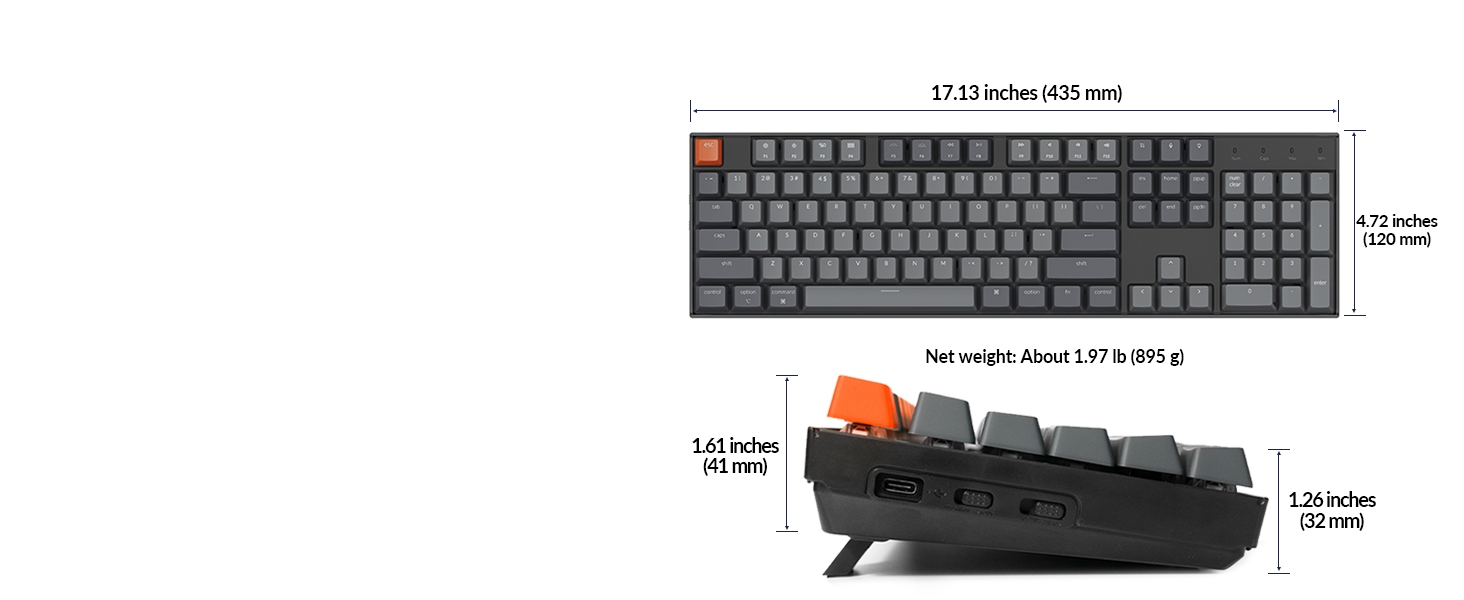
Image: Diagram showing the precise dimensions of the Keychron K10 keyboard in both inches and millimeters.

Image: Close-up view of the Gateron G Pro Brown mechanical switch, detailing its operating force, pre-travel, behavior (tactile), sound level (gentle), and lifespan.

Image: Comparison of different Gateron switch types (Silent Red, Red, Brown) and their characteristics, including operating force, pre-travel, behavior, and sound level.
8. Package Contents
The Keychron K10 package includes the following items:
- 1x Keychron K10 Mechanical Keyboard
- 1x USB-A to USB Type-C Cable
- 1x Keycap Puller
- Extra Keycaps for Mac and Windows operating systems

Image: Visual representation of the Keychron K10 keyboard and its included accessories: USB-A to USB Type-C cable and keycap puller.
9. Warranty and Support
Keychron products typically come with a limited warranty. Please refer to the warranty card included in your package or visit the official Keychron website for detailed warranty terms and conditions.
For technical support, troubleshooting, or product inquiries, you can contact Keychron customer service through their official website or the contact information provided in your product documentation.
Official User Guide (PDF): Download User Guide
Troubleshooting Guide (PDF): Download Troubleshooting Guide
10. Official Product Videos
Keychron K10 Full Size 104 Keys Bluetooth Wireless Mechanical Gaming Keyboard for Mac Windows
Video: An official product video from Keychron showcasing the K10 keyboard's features, including its Bluetooth and wired connectivity, Mac and Windows compatibility, and multi-device support. This video highlights the keyboard's versatility for various computing environments.
Related documentsK10-A3


Ask a question about this manual
Ask about setup, troubleshooting, compatibility, parts, safety, or missing instructions. Manuals+ will review the question and use this page’s manual context to help answer it.