
TOPTRO TR82
TOPTRO TR82 WiFi Projector User Manual
Model: TR82
1. Introduction
Thank you for purchasing the TOPTRO TR82 WiFi Projector. This manual provides essential information for setting up, operating, and maintaining your projector. Please read it thoroughly before use to ensure optimal performance and safety.
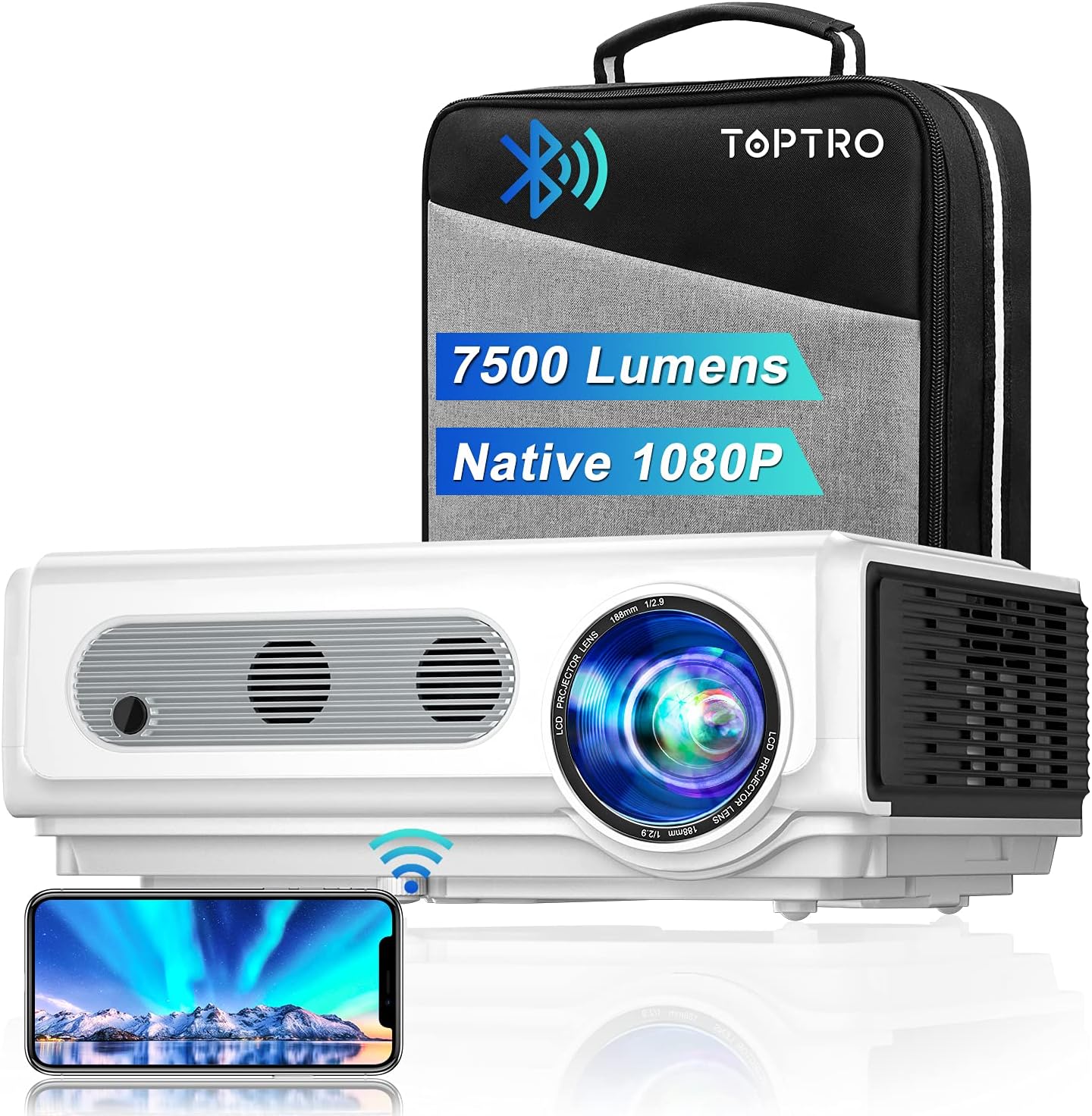
Image: The TOPTRO TR82 projector, its included carrying case, and a smartphone wirelessly connected, demonstrating screen mirroring capabilities. The image highlights the projector's 7500 lumens and Native 1080P resolution.
2. Safety Information
To prevent fire or electric shock, do not expose this appliance to rain or moisture. Do not open the casing. Refer servicing to qualified personnel only.
- Do not block ventilation openings.
- Use only attachments/accessories specified by the manufacturer.
- Unplug the projector during lightning storms or when unused for long periods.
- Avoid direct eye exposure to the projector lens when the lamp is on.
- Ensure proper ventilation to prevent overheating.
3. Package Contents
Please check that all items are present upon unpacking:
- TOPTRO TR82 Projector
- Power Cable
- HDMI Cable
- AV Cable
- Remote Control (Batteries not included)
- Lens Cap
- User Manual
- Carrying Case
4. Product Overview
Familiarize yourself with the various parts and interfaces of your TOPTRO TR82 projector.
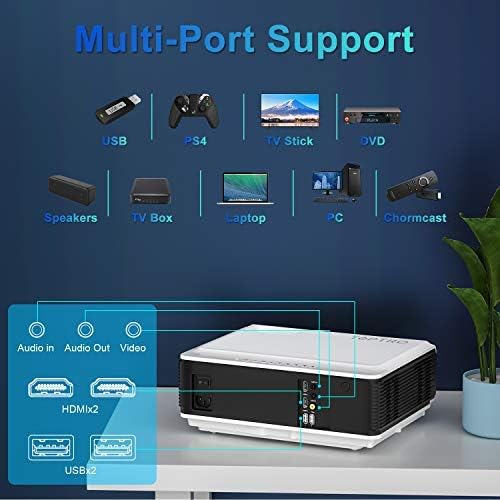
Image: An illustration of the TOPTRO TR82 projector's rear panel, highlighting its multi-port support including Audio In, Audio Out, Video, two HDMI ports, and two USB ports. Various compatible devices like USB drives, PS4, TV Stick, DVD players, speakers, TV boxes, laptops, PCs, and Chromecast are shown connected.
Front View:
- Lens
- Focus Ring
- Keystone Correction Ring
Rear View (Ports):
- HDMI 1 Port
- HDMI 2 Port
- USB 1 Port
- USB 2 Port
- AV Port
- Audio Out (3.5mm)
- Power Input
Top Panel:
- Power Button
- Navigation Buttons (Up, Down, Left, Right, OK)
- Menu Button
- Return Button
- Source Button
5. Setup
5.1 Placement
Place the projector on a stable, flat surface or mount it to the ceiling. Ensure there is adequate space around the projector for ventilation. The projection distance and screen size can vary; refer to the specifications for recommended ranges.
5.2 Power Connection
- Connect the power cable to the projector's power input port.
- Plug the other end of the power cable into a power outlet.
- The power indicator light on the projector will illuminate.
5.3 Focus and Keystone Correction
- Turn on the projector.
- Adjust the Focus Ring until the projected image is clear and sharp.
- Adjust the Keystone Correction Ring to correct any trapezoidal distortion, ensuring the image is rectangular.
5.4 Connecting Devices
The TOPTRO TR82 supports various input sources:
- HDMI: Connect Blu-ray players, game consoles (PS4), TV sticks, laptops, or other HDMI-enabled devices using an HDMI cable.
- USB: Insert USB flash drives to play media files directly.
- AV: Use the provided AV cable to connect older devices like DVD players.
- Audio Out: Connect external speakers or headphones via the 3.5mm audio jack for enhanced sound.
5.5 Wireless Connection (WiFi)
The TR82 projector supports wireless screen mirroring from your phone, tablet, or laptop.
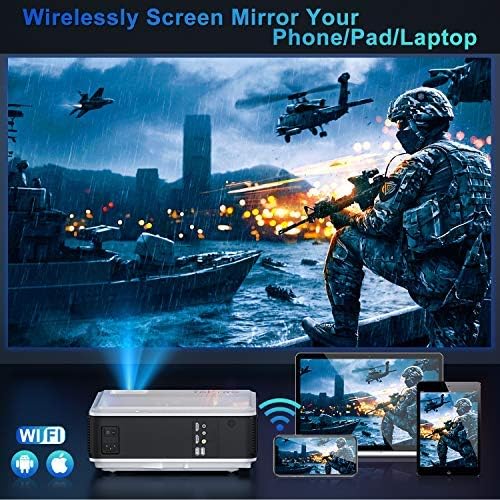
Image: A visual representation of wireless screen mirroring, showing a TOPTRO TR82 projector wirelessly connected to a smartphone, tablet, and laptop, projecting content onto a large screen. WiFi and Apple/Android logos are visible.
- Go to the projector's main menu and select the "WiFi" or "Screen Mirroring" option.
- Connect the projector to your home WiFi network.
- On your mobile device (iOS/Android) or laptop, enable screen mirroring (e.g., AirPlay for iOS, Miracast for Android/Windows).
- Select the projector from the list of available devices.
- Note: Due to HDCP copyright protection, some streaming apps like Netflix or Prime Video may not allow direct screen mirroring. You can mirror photos, videos, and other non-HDCP content. For protected content, use a TV stick or other HDMI-connected device.
5.6 Bluetooth Audio Connection
Connect the projector to external Bluetooth speakers or headphones for a better audio experience.

Image: A TOPTRO TR82 projector projecting an image onto a large screen, with sound waves emanating towards two external Bluetooth speakers, illustrating how to achieve louder and better sound quality.
- Ensure your Bluetooth speaker/headphone is in pairing mode.
- On the projector, navigate to the Bluetooth settings.
- Scan for available Bluetooth devices.
- Select your device from the list to pair.
- Note: This Bluetooth function is for audio output only and cannot connect to phones/pads as an input source.
6. Operating Instructions
6.1 Power On/Off
- To power on: Press the Power button on the projector or remote control.
- To power off: Press the Power button again. Confirm shutdown if prompted.
6.2 Menu Navigation
Use the navigation buttons (Up, Down, Left, Right) on the projector or remote to move through menu options. Press "OK" to confirm a selection. Press "Return" to go back to the previous menu.
6.3 Input Source Selection
Press the "Source" button on the projector or remote control to cycle through available input sources (HDMI1, HDMI2, USB1, USB2, AV, Screen Mirroring).
6.4 YouTube Integration
The TOPTRO TR82 features built-in YouTube access for direct video streaming.

Image: The TOPTRO TR82 projector displaying the YouTube interface on a large screen, indicating that users can watch videos directly after connecting to WiFi.
- Ensure the projector is connected to WiFi (refer to Section 5.5).
- From the main menu, select the "YouTube" application.
- Browse or search for videos directly on the projector.
6.5 X/Y Zoom Function
The zoom function allows you to adjust the screen size from 100% down to 75% without moving the projector, which is particularly useful for ceiling-mounted installations or when fine-tuning the image size.
- Access the "Picture Settings" or "Display Settings" menu.
- Locate the "Zoom" or "X/Y Zoom" option.
- Adjust the percentage to resize the image as needed.
7. Maintenance
7.1 Cleaning the Lens
Use a soft, lint-free cloth specifically designed for optical lenses. Do not use abrasive cleaners or cloths that could scratch the lens.
7.2 Dust Removal
The TOPTRO TR82 features a convenient removable dust filter on the side and a removable cover on the bottom for easy cleaning.
- Locate the removable dust filter on the side of the projector. Gently pull it out.
- Clean the filter using a soft brush or compressed air.
- For internal dust, remove the bottom cover and use compressed air to blow away dust from the internal components, especially around the optical engine.
- Reinsert the filter and replace the cover securely.
- Regular cleaning helps maintain image quality and extends the projector's lifespan.
7.3 Storage
When not in use for extended periods, store the projector in its carrying case in a cool, dry, and dust-free environment.
8. Troubleshooting
| Problem | Possible Cause | Solution |
|---|---|---|
| No image displayed | Power cable not connected; Incorrect input source; Device not powered on. | Check power connection; Select correct input source; Ensure connected device is on. |
| Image blurry | Focus not adjusted; Keystone not adjusted. | Adjust the Focus Ring; Adjust the Keystone Correction Ring. |
| No sound | Volume too low; Muted; Incorrect audio output; Bluetooth not connected. | Increase volume; Unmute; Check audio output settings; Reconnect Bluetooth device. |
| WiFi/Bluetooth connection issues | Out of range; Interference; Incorrect password; Device not in pairing mode. | Move closer to router/device; Reduce interference; Re-enter password; Ensure device is in pairing mode. |
| Screen mirroring not working for certain apps | HDCP copyright protection. | Use an HDMI-connected device (e.g., TV stick) for protected content. |
9. Specifications
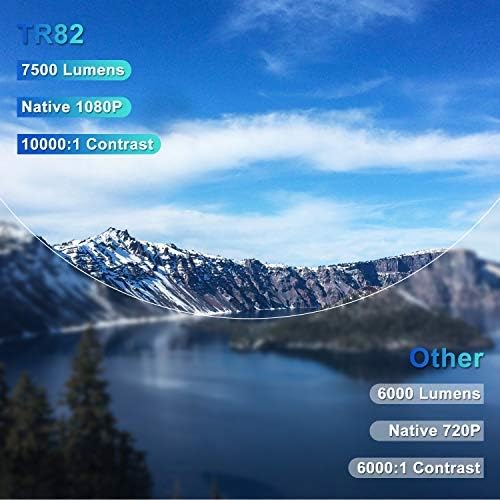
Image: A comparison graphic highlighting the TOPTRO TR82's superior specifications: 7500 Lumens, Native 1080P resolution, and 10000:1 Contrast Ratio, compared to typical "Other" projectors with lower specs.
| Feature | Detail |
|---|---|
| Brand | TOPTRO |
| Model | TR82 |
| Native Resolution | 1920 x 1080P |
| Supported Resolution | Up to 4K |
| Brightness | 7500 Lumens |
| Contrast Ratio | 10000:1 |
| Display Type | LCD |
| Connectivity Technology | USB, HDMI, AV, Bluetooth, Wi-Fi |
| Bluetooth Version | 5.0 (Output only) |
| Special Features | Built-In Speaker, Built-In Wi-Fi, X/Y Zoom Function, Removable Dust Filter, Integrated YouTube |
| Compatible Devices | Television, USB, Phone, TV Stick, PC, DVD, PS4 |
| Mounting Type | Ceiling Mount, Tabletop |
| Product Dimensions | 30.5 x 22.5 x 11.5 cm |
| Item Weight | 3.98 kg |
| Model Year | 2021 |
10. Warranty and Support
TOPTRO provides a standard warranty for the TR82 projector. Please refer to the warranty card included in your package for specific terms and conditions. For technical support, troubleshooting assistance, or warranty claims, please contact TOPTRO customer service through the following channels:
- Visit the official TOPTRO website for FAQs and support resources.
- Contact TOPTRO customer support via email or phone (contact details typically found on the warranty card or official website).
- For purchases made on Amazon, you may also contact the seller directly through your Amazon order history.
Related documentsTR82


Ask a question about this manual
Ask about setup, troubleshooting, compatibility, parts, safety, or missing instructions. Manuals+ will review the question and use this page’s manual context to help answer it.