
MekedeTech NTG 3.5
MekedeTech Android Car Multimedia Player User Manual
Model: NTG 3.5
Brand: MekedeTech
1. Introduction and Overview
This manual provides detailed instructions for the installation, operation, and maintenance of your MekedeTech Android Car Touch Screen Multimedia Player. This unit is designed to upgrade your vehicle's infotainment system while retaining original car functions.
- Retain Original Radio System: Keeps all OEM functions such as original car radio, amplifier, joystick control, rear view camera, and reverse trajectory. All operations remain consistent with your original system.
- Qualcomm Android 12 with Built-in Wireless Carplay: Features the latest Qualcomm Android 12 for faster and more sensitive response. Includes built-in Wireless Carplay, eliminating the need for an additional dongle. Supports factory and aftermarket cameras, DVR, Bluetooth Music, and Bluetooth Call.
- High Configuration - Split Screen: Equipped with a 10.25-inch screen, 1920x720 resolution, and IPS high-definition picture quality for clear and comfortable display. Powered by an 8 Core CPU, 4GB RAM, and 64GB ROM for enhanced performance and app storage. Supports multitasking with split-screen functionality.
- Non-destructive Installation: Designed for plug-and-play installation without altering original car wiring.
- Customized System: Specifically designed for Mercedes Benz S Class W221, W216, CL models from 2010-2013 (NTG 3.5 system).

Figure 1: MekedeTech Android Car Multimedia Player (NTG 3.5 model).
2. Setup and Installation
The installation process is designed to be non-destructive and plug-and-play. It is recommended to have basic automotive electrical knowledge or seek professional assistance for installation.
2.1 Pre-Installation Check
Before installation, ensure your vehicle has the "AUX" or "TV" function. Verify your car's NTG system version (NTG 3.0 or NTG 3.5) by checking the original car CD unit connection type.

Figure 2: Identifying NTG 3.0 (10PIN LVDS) and NTG 3.5 (4PIN LVDS) connections.
2.2 Package Contents
The package includes the 10.25-inch car touch screen and all necessary wire harnesses for installation.

Figure 3: Standard accessories include Power Cable, Speaker, LVDS cable, GPS Antenna, Audio Cable, and 4G Antenna.
2.3 Installation Steps (General)
- Carefully remove the original car display and trim panels.
- Connect the provided wire harnesses to the original car's wiring. Ensure all connections are secure.
- Connect the fiber optic cable:
- The original car power cord is connected to the conversion cable.
- The fiber optic cable from the original system needs to be connected to the new power cord interface.
- Connect the fiber optic cable to the host unit.
- Remove the fiber optic cable from the original harness and insert it into the new harness connector.
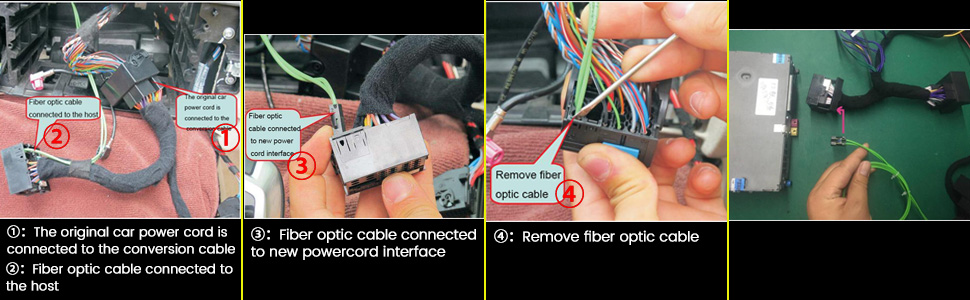
Figure 4: Detailed steps for connecting the fiber optic cable.
- Install the new MekedeTech display unit into the dashboard.
- Route additional cables such as the GPS antenna, 4G antenna, and external microphone (if applicable) to suitable locations.
- Test all functions before fully reassembling the dashboard.
Note on Audio Output: For some vehicle models, the audio may route via the AUX audio out. An adapter cable (e.g., Din to AMI) might be required to connect to the car's AMI connector, often located in the glove box. Ensure proper cable routing to avoid interference.
Note on Switch Panel Relocation: The original switch panel (e.g., for passenger airbag, ride height, parking sensors) located between the original screen and gauge cluster will need to be removed and relocated. An extension cable is provided for this purpose, often routed to the glove box.
3. Operating Instructions
The MekedeTech unit integrates seamlessly with your vehicle's existing system while providing enhanced Android functionalities.
3.1 Basic Navigation and Interface
The unit features a touch screen interface. The main screen provides access to various functions such as Navigation, Music, Telephone, NTG Menu (for original car functions), and Settings.

Figure 5: Main interface of the MekedeTech unit showing key functions.
You can switch between the Android system and the original NTG menu by selecting "NTG Menu" on the screen.
3.2 Wireless Carplay
The unit supports built-in wireless Carplay. Once connected, Carplay will automatically start and connect to your device within approximately 30 seconds of unit boot-up.

Figure 6: Carplay interface and phone navigation display comparison.
3.3 Bluetooth Connectivity
The smart Bluetooth system supports mobile phone pairing for hands-free dialing, music streaming, and calls. This feature enhances driving safety by allowing you to manage communications without handling your phone.

Figure 7: Bluetooth interface for phone pairing and dialing.
3.4 GPS Navigation
The unit includes GPS navigation capabilities, supporting North America maps. You can use pre-installed navigation apps or download others from the Google Play Store.
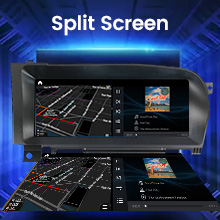
Figure 8: GPS Navigation feature icon.
3.5 Split Screen Functionality
Utilize the split-screen feature to run two applications simultaneously, such as navigation and music playback, enhancing convenience during driving.
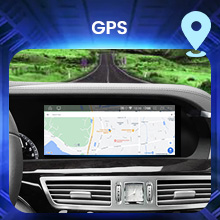
Figure 9: Split Screen feature icon.
3.6 Original Car Knob and Steering Wheel Control (SWC) Support
The unit is designed to support the original car's control knob and steering wheel controls, allowing for familiar and convenient operation of the new system.
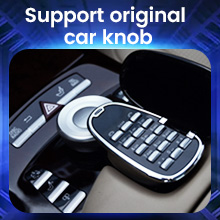
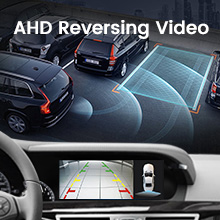
Figure 10: Icons indicating support for original car knob and steering wheel controls.
3.7 AHD Reversing Video
The unit supports AHD reversing video, providing a clear view when backing up. This feature enhances safety and ease of parking.
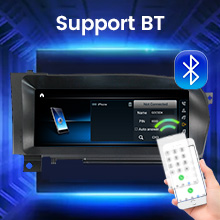
Figure 11: AHD Reversing Video feature icon.
3.8 Accessing Factory Settings
To access advanced settings, navigate to the "Settings" menu, then select "Factory". You will be prompted to enter a password, which is typically "1314".
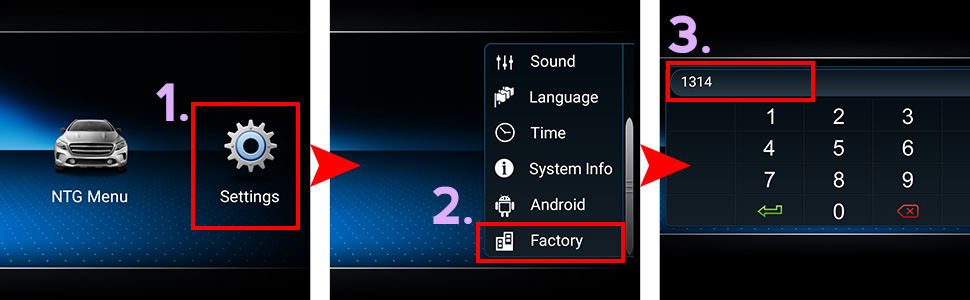
Figure 12: Steps to access the Factory Settings menu.
4. Maintenance
To ensure the longevity and optimal performance of your MekedeTech multimedia player, follow these maintenance guidelines:
- Screen Cleaning: Use a soft, lint-free cloth specifically designed for electronic screens. Do not use abrasive cleaners or sprays directly on the screen.
- Software Updates: Periodically check for software updates provided by MekedeTech to ensure system stability, new features, and security enhancements.
- Environmental Conditions: Avoid exposing the unit to extreme temperatures, direct sunlight for prolonged periods, or excessive moisture.
- Cable Connections: Ensure all cables remain securely connected. Loose connections can lead to intermittent functionality.
5. Troubleshooting
This section addresses common issues you might encounter. For problems not listed here, please contact MekedeTech customer support.
| Problem | Possible Cause | Solution |
|---|---|---|
| No sound from Android system. | Incorrect audio output routing; loose AUX cable connection; car's AUX input not selected. |
|
| Virtual buttons (e.g., airbag, sport, parking sensors) not working. | Fault codes in the car's ECU (e.g., SRS system); improper connection of the original switch panel. |
|
| Wireless Carplay not connecting or intermittent. | Bluetooth/Wi-Fi interference; incorrect phone settings; unit software issue. |
|
| Unit is slow or unresponsive. | Too many applications running; low storage; software glitch. |
|
| Original Mercedes knob works erratically. | Software compatibility; specific app behavior. |
|
6. Specifications
| Feature | Detail |
|---|---|
| Item Weight | 5.19 pounds |
| Package Dimensions | 15.47 x 9.06 x 6.85 inches |
| Display Size | 10.25 Inches |
| Display Resolution | 1920x720 |
| Voice Command | Touchscreen |
| ASIN | B08M5BYQN9 |
| Manufacturer | Shenzhen Mekede Technology Co.,Ltd |
| Brand | MekedeTech |
| Vehicle Service Type | Car |
| Special Feature | Android auto, Bluetooth, Touchscreen, wireless carplay |
| Connectivity Technology | Auxiliary, Bluetooth, USB, Wi-Fi |
| Map Type | North America |
| Included Components | 10.25 inch car touch screen and all wire harness for installation |
| Audio Output Mode | AUX |
| Mounting Type | Panel Mount |
7. Warranty and Support
7.1 Warranty Information
The MekedeTech Android Car Multimedia Player comes with a 1 Year Warranty from the date of purchase. This warranty covers manufacturing defects and malfunctions under normal use. Please retain your proof of purchase for warranty claims.
7.2 Customer Support
For technical assistance, troubleshooting, or warranty inquiries, please contact MekedeTech customer support. Refer to the contact information provided with your product packaging or visit the official MekedeTech website.
When contacting support, please have your product model (NTG 3.5) and purchase details ready to facilitate faster service.
Related documentsNTG 3.5

Ask a question about this manual
Ask about setup, troubleshooting, compatibility, parts, safety, or missing instructions. Manuals+ will review the question and use this page’s manual context to help answer it.