
Celly FLIP1
Celly FLIP1 True Wireless Bluetooth Earbuds User Manual
Model: FLIP1WH
1. Introduction
The Celly FLIP1 True Wireless Bluetooth Earbuds provide a wireless audio experience with Bluetooth 5.0 connectivity. Designed for portability and convenience, these earbuds feature a compact charging case with a lanyard and support both stereo and mono audio modes. They are suitable for various activities, including sports, and offer integrated controls for music and call management.
This manual provides instructions for setting up, operating, and maintaining your Celly FLIP1 earbuds.
2. Package Contents
Verify that all items are present in the package:
- Celly FLIP1 True Wireless Earbuds (Left and Right)
- Portable Charging Case with Lanyard
- MicroUSB Charging Cable
- User Manual (this document)
3. Product Overview
The Celly FLIP1 earbuds and charging case are designed for ease of use and portability. The earbuds fit securely in the ear, and the charging case protects them while providing additional battery life.

Image 3.1: Celly FLIP1 earbuds removed from the open charging case. The earbuds are white with a small blue indicator light on one, and the charging case is white and silver with battery indicator icons.
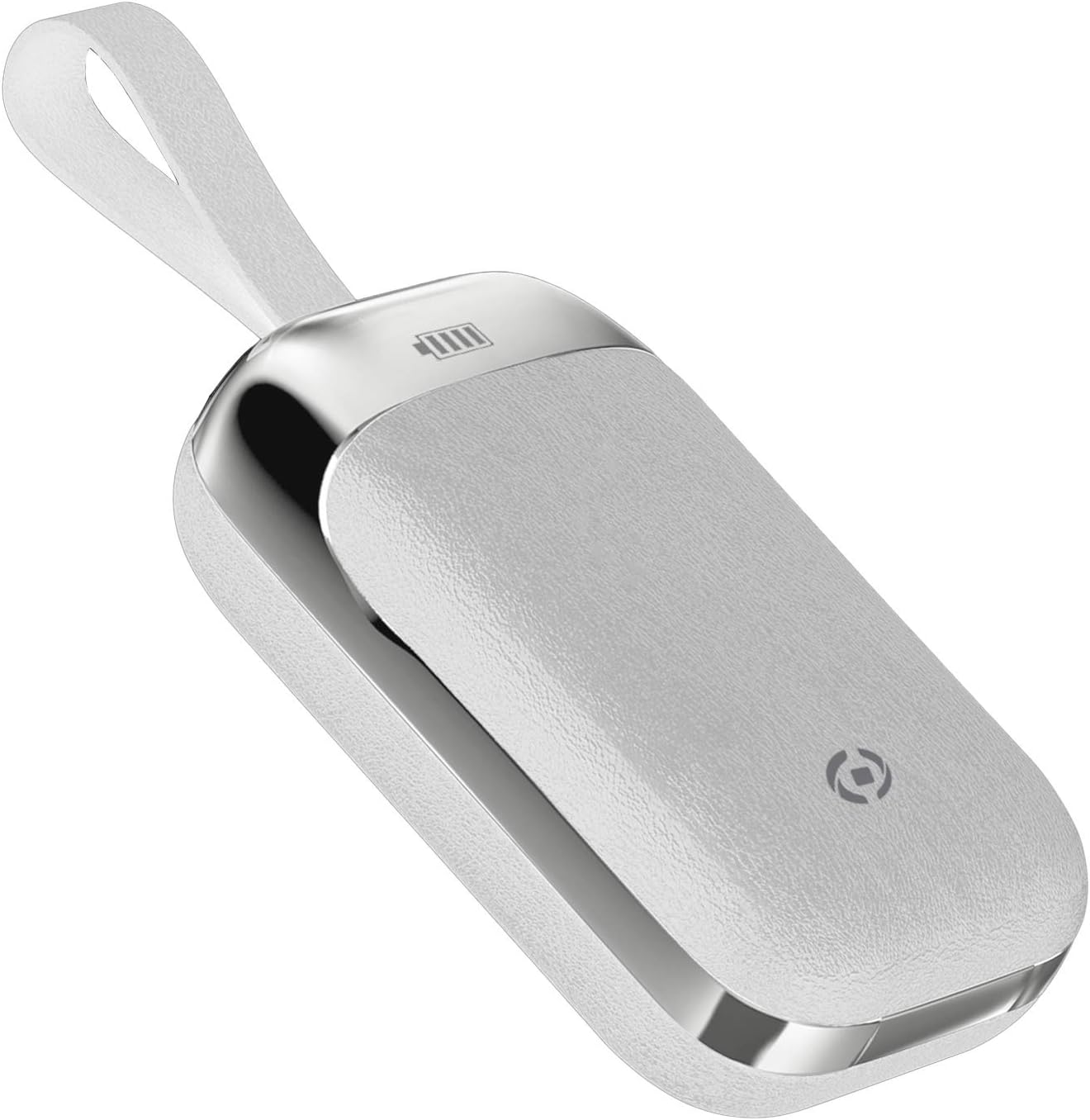
Image 3.2: The Celly FLIP1 charging case in a closed position, showing its compact design and integrated lanyard for easy carrying.

Image 3.3: An exploded view illustrating the internal components of a Celly FLIP1 earbud, including the Bluetooth 5.0 chip, battery, and speaker driver.
4. Setup
4.1 Charging the Earbuds and Case
Before first use, fully charge the earbuds and the charging case.
- Place the earbuds into the charging case. Ensure they are correctly seated in their respective slots.
- Connect the MicroUSB charging cable to the charging port on the case and the other end to a USB power source (e.g., computer USB port, wall adapter).
- The indicator lights on the case and/or earbuds will show the charging status. Refer to the case for battery level indicators.
- A full charge typically takes approximately 1.5 hours. The charging case has a 400mAh capacity, and each earbud has a 50mAh battery.
Once fully charged, the earbuds provide approximately 4 hours of continuous music playback or talk time.
4.2 Pairing with a Bluetooth Device
To connect your Celly FLIP1 earbuds to your smartphone or other Bluetooth-enabled device:
- Ensure the earbuds are charged.
- Open the charging case and remove both earbuds. They will automatically power on and enter pairing mode. You may hear an audio prompt indicating they are ready to pair.
- On your device, go to the Bluetooth settings.
- Search for new devices. Select "Celly FLIP1" (or similar name) from the list of available devices.
- Once connected, you will hear a confirmation tone, and the earbuds' indicator lights may change.
- If pairing fails, place the earbuds back in the case, close it, and repeat the steps.
The earbuds have a wireless range of up to 10 meters (33 feet) from your connected device.
5. Operating Instructions
The Celly FLIP1 earbuds feature multifunction keys for controlling audio playback and calls.
5.1 Power On/Off
- Power On: Remove earbuds from the charging case. They will power on automatically. Alternatively, press and hold the multifunction button on each earbud for a few seconds.
- Power Off: Place earbuds back into the charging case. They will power off automatically. Alternatively, press and hold the multifunction button on each earbud for several seconds until the indicator light turns off.
5.2 Music Playback
- Play/Pause: Press the multifunction button once on either earbud.
- Next Track: Double-press the multifunction button on the right earbud.
- Previous Track: Double-press the multifunction button on the left earbud.
- Volume Control: Volume is typically controlled via your connected device.
5.3 Call Management
- Answer/End Call: Press the multifunction button once on either earbud.
- Reject Call: Press and hold the multifunction button on either earbud for approximately 2 seconds.
- Voice Assistant: Triple-press the multifunction button on either earbud to activate your device's voice assistant (e.g., Siri, Google Assistant).
5.4 Mono/Stereo Mode
The Celly FLIP1 earbuds support both stereo (using both earbuds) and mono (using a single earbud) modes. Each earbud has an integrated microphone.
- To use in mono mode, simply remove one earbud from the case and leave the other in the case. The single earbud will connect to your device.
- To switch back to stereo, remove the second earbud from the case. It will automatically connect to the first earbud and your device.

Image 5.1: A user wearing Celly FLIP1 earbuds while interacting with a smartphone, demonstrating typical use.
6. Maintenance
Proper maintenance ensures the longevity and optimal performance of your earbuds.
- Cleaning: Use a soft, dry, lint-free cloth to clean the earbuds and charging case. Do not use abrasive cleaners, alcohol, or chemical solvents.
- Storage: When not in use, always store the earbuds in their charging case to protect them from dust, scratches, and damage.
- Avoid Moisture: Do not expose the earbuds or charging case to water, rain, or excessive humidity.
- Temperature: Avoid storing or using the device in extreme temperatures (hot or cold).
7. Troubleshooting
If you encounter issues with your Celly FLIP1 earbuds, refer to the following common solutions:
| Problem | Solution |
|---|---|
| Earbuds not powering on. | Ensure earbuds are charged. Place them in the charging case and connect the case to a power source. |
| Earbuds not pairing with device. | 1. Ensure Bluetooth is enabled on your device. 2. Place earbuds back in the case, close, then reopen and remove to re-enter pairing mode. 3. Forget/remove "Celly FLIP1" from your device's Bluetooth list and try pairing again. 4. Ensure earbuds are within 10 meters of your device. |
| Only one earbud is working. | 1. Ensure both earbuds are charged. 2. Place both earbuds back in the charging case, close the lid, wait a few seconds, then open and remove both simultaneously. 3. Re-pair the earbuds with your device. |
| Low volume or poor sound quality. | 1. Adjust the volume on your connected device. 2. Ensure earbuds are clean and free of debris. 3. Check the fit of the earbuds in your ears. |
| Charging case not charging. | 1. Ensure the MicroUSB cable is securely connected to both the case and the power source. 2. Try a different MicroUSB cable or power adapter. |
8. Specifications
| Feature | Detail |
|---|---|
| Model Name | FLIP1 |
| Item Model Number | FLIP1WH |
| Connectivity Technology | Wireless (Bluetooth 5.0) |
| Wireless Range | Up to 10 meters (33 feet) |
| Earbud Battery Capacity | 50 mAh (each) |
| Charging Case Battery Capacity | 400 mAh |
| Charging Time | Approx. 1.5 hours (earbuds and case) |
| Music Playback / Talk Time | Approx. 4 hours |
| Material | Plastic |
| Color | White |
| Item Weight | 50 g |
| Product Dimensions (Case) | 10 x 17 x 3.5 cm |
| Included Components | Charging box, Headphones, MicroUSB Cable |
9. Safety Information
Please read and follow these safety guidelines to prevent damage to your device or injury to yourself:
- Do not disassemble, repair, or modify the product.
- Keep the device away from extreme temperatures, direct sunlight, and open flames.
- Avoid exposing the device to water or other liquids.
- Do not use the device at high volume for extended periods to prevent hearing damage.
- Keep out of reach of children and pets.
- Dispose of the product and its batteries responsibly according to local regulations.
10. Warranty and Support
Celly products are designed and manufactured to the highest quality standards. For information regarding warranty coverage, technical support, or service, please refer to the warranty card included with your purchase or visit the official Celly website.
Please retain your proof of purchase for any warranty claims.
Related documentsFLIP1


Ask a question about this manual
Ask about setup, troubleshooting, compatibility, parts, safety, or missing instructions. Manuals+ will review the question and use this page’s manual context to help answer it.