
1. Introduction
The DUDAO 8-in-1 Type C Hub, Model A15 Pro, is a versatile multiport adapter designed to expand the connectivity of your USB-C enabled devices. It provides essential ports for data transfer, video output, power delivery, and memory card access, enhancing your productivity and convenience.
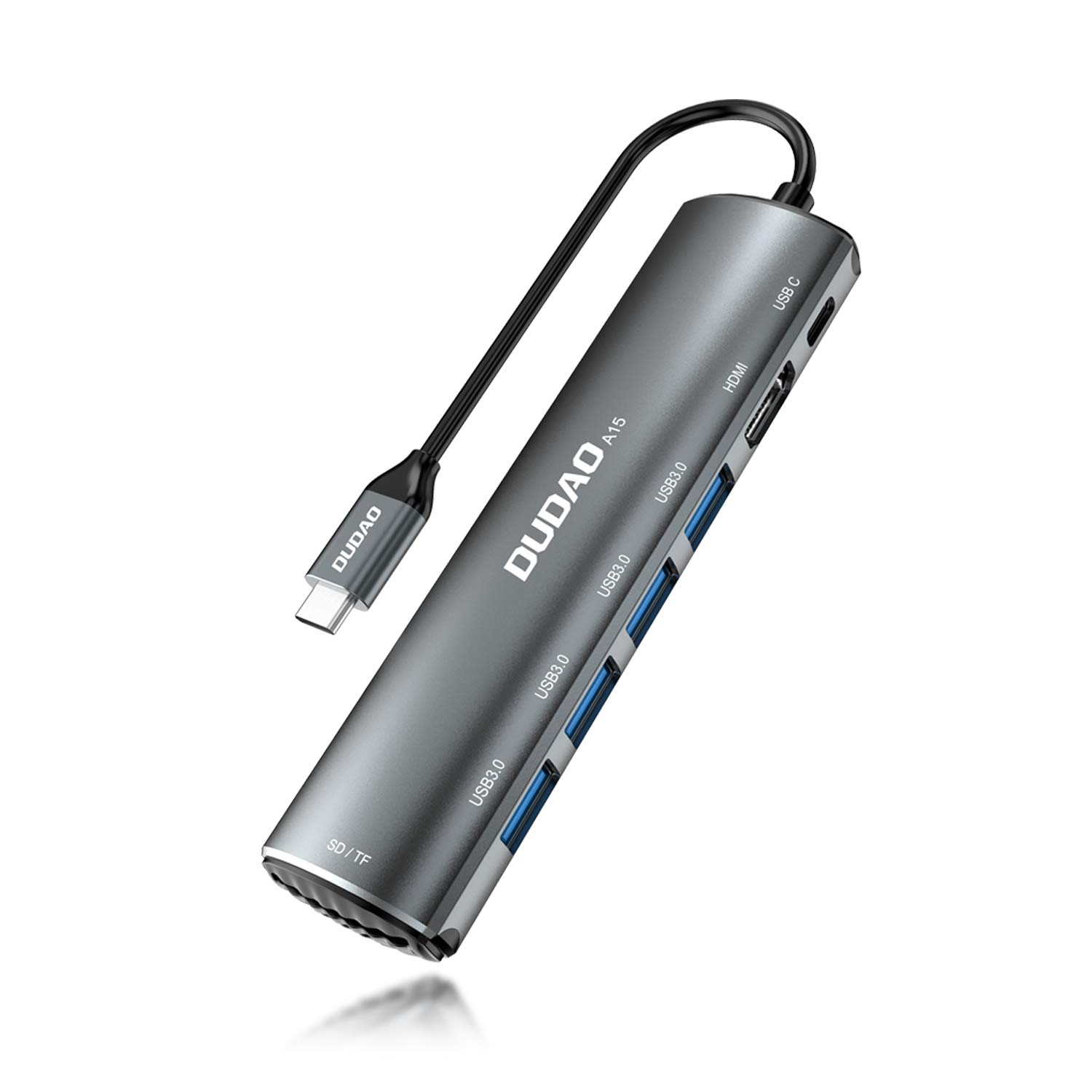
Image 1.1: Overview of the DUDAO 8-in-1 Type C Hub, Model A15 Pro, showcasing its compact design and various ports.
2. Product Features
The DUDAO 8-in-1 Type C Hub offers the following functionalities:
- Multi-Port Connectivity: Expands a single USB-C port into 8 essential ports.
- 4K HDMI Output: Connects to external displays, TVs, or projectors with support for up to 4K resolution at 30Hz.
- High-Speed USB 3.0 Ports: Features four USB 3.0 ports for connecting multiple USB devices simultaneously, offering data transfer speeds up to 5Gbps.
- 60W Power Delivery (PD): Supports fast charging for compatible USB-C devices, allowing you to power your laptop while using the hub.
- Integrated SD/TF Card Reader: Provides dedicated slots for SD and TF (MicroSD) memory cards, enabling direct access to media files.
- Wide Compatibility: Compatible with various operating systems including Android, Windows, Linux, iOS, and Mac OS.

Image 2.1: Detailed view of the DUDAO 8-in-1 Type C Hub, highlighting its various ports including Type-C PD, HDMI, USB 3.0, and SD/TF card slots.
3. Package Contents
Please verify that all items are present in your package:
- 1 x DUDAO 8-in-1 Type C Hub (Model A15 Pro)
4. Setup Guide
Follow these steps to set up your DUDAO 8-in-1 Type C Hub:
4.1. Connecting the Hub
- Locate an available USB-C port on your laptop, tablet, or smartphone.
- Insert the USB-C connector of the DUDAO hub firmly into your device's USB-C port. The hub is plug-and-play and should be recognized automatically by your operating system.
4.2. Connecting Peripherals
Once the hub is connected to your device, you can attach your peripherals:
- USB Devices: Plug your USB flash drives, external hard drives, keyboards, mice, or other USB accessories into the USB 3.0 ports.
- HDMI Display: Connect an HDMI cable from your monitor, TV, or projector to the HDMI port on the hub. Ensure your display is set to the correct HDMI input.
- Power Adapter: If your device requires charging or if you are connecting power-intensive peripherals, connect your USB-C power adapter to the Type-C PD port on the hub.
- SD/TF Cards: Insert your SD or TF (MicroSD) memory cards into the corresponding slots until they click into place.

Image 4.1: The DUDAO 8-in-1 Type C Hub connected to a laptop with various peripherals such as USB drives and an HDMI cable.
5. Operating Instructions
5.1. USB Data Transfer
The four USB 3.0 ports support data transfer speeds up to 5Gbps. Simply plug your USB devices into any of these ports. Your operating system will typically recognize the device automatically, allowing you to access files or use the peripheral.

Image 5.1: A laptop connected to the DUDAO hub, demonstrating the use of USB 3.0 ports for connecting multiple USB devices.
5.2. HDMI Display Output
Connect an HDMI cable from the hub to your external display. The hub supports resolutions up to 4K (3840x2160) at 30Hz. Your device's display settings can be used to configure mirror or extended display modes.

Image 5.2: A laptop connected to a large external display through the DUDAO hub's HDMI port, suitable for presentations or extended workspaces.
5.3. Power Delivery (PD) Charging
The Type-C PD port supports up to 60W power input. Connect your original USB-C power adapter to this port to charge your laptop or other compatible devices while simultaneously using the hub's other functions. This ensures your device remains powered during use.

Image 5.3: Close-up view of the Type-C PD 60W port on the DUDAO hub, indicating its fast charging capability.
5.4. SD/TF Card Reader
Insert your SD or TF (MicroSD) card into the corresponding slot. The card will appear as a removable drive on your computer, allowing you to transfer photos, videos, and other files. Ensure the card is inserted correctly to avoid damage.

Image 5.4: Close-up of the DUDAO hub's SD and TF card slots, shown with memory cards inserted for data access.
6. Maintenance and Care
- Cleaning: Use a soft, dry cloth to clean the hub. Avoid liquid cleaners or abrasive materials.
- Storage: Store the hub in a cool, dry place away from direct sunlight and extreme temperatures.
- Handling: Avoid dropping the hub or subjecting it to strong impacts. Do not attempt to disassemble or modify the device.
- Connectivity: Always ensure cables are inserted and removed gently to prevent damage to the ports.
7. Troubleshooting
If you encounter issues with your DUDAO 8-in-1 Type C Hub, please refer to the following common problems and solutions:
- Device Not Recognized:
- Ensure the hub's USB-C connector is fully inserted into your device's port.
- Try connecting the hub to a different USB-C port on your device.
- Restart your host device (laptop/tablet).
- Verify that your device's USB-C port supports data transfer and display output (DisplayPort Alternate Mode).
- No Display Output via HDMI:
- Check the HDMI cable connection between the hub and the display.
- Ensure the external display is powered on and set to the correct HDMI input source.
- Verify that your host device's USB-C port supports DisplayPort Alternate Mode.
- Try a different HDMI cable or display.
- USB Devices Not Working:
- Ensure the USB device is properly connected to the hub.
- If it's a high-power device (e.g., external hard drive), connect a power adapter to the hub's Type-C PD port.
- Test the USB device by connecting it directly to your host device (if possible).
- Slow Charging via PD Port:
- Ensure your power adapter is capable of providing sufficient wattage (up to 60W supported by the hub).
- Verify that your USB-C charging cable is rated for Power Delivery.
- SD/TF Card Not Detected:
- Ensure the card is fully and correctly inserted into the appropriate slot.
- Try a different SD/TF card to rule out card issues.
8. Technical Specifications
| Brand | DUDAO |
| Model | A15 Pro |
| Product Dimensions | 18 x 12 x 3 cm |
| Item Weight | 360 g |
| Operating System Compatibility | Android, All Windows Platforms, Linux, iOS, Mac OS, Unix |
| Hardware Platform | Laptop, PC |
| Hardware Interface | USB 3.0 |
| Compatible Devices | Laptops, Projectors, Televisions |
| Special Features | Fast Charging (60W PD) |
| Data Transfer Rate | 5 Gigabits Per Second (USB 3.0) |
| Number of Ports | 8 (1x HDMI, 4x USB 3.0, 1x Type-C PD, 1x SD, 1x TF) |
| Connector Type | HDMI, USB, Type-C |
| Material | Aluminum |
| Color | Grey |
9. Warranty and Support
For warranty information or technical support, please contact the manufacturer or your retailer. Keep your purchase receipt for warranty claims.
Manufacturer: Dudao
Packer: DUDAO INDIA, 101 Mall Road, Kingsway Camp, GTB Nagar Metro Station Gate No 1, NEW DELHI, DELHI 110009
Contact: +91 9310681651