
iClever DK03 Combo
iClever DK03 Bluetooth Keyboard and Mouse User Manual
Model: DK03 Combo | Brand: iClever
Introduction
This user manual provides detailed instructions for setting up, operating, and maintaining your iClever DK03 Dual-Mode Wireless Keyboard and Mouse Combo. This combo offers versatile connectivity options, including Bluetooth 4.2 and 2.4G wireless, allowing seamless switching between multiple devices.

Image: The iClever DK03 Dual-Mode Wireless Keyboard and Mouse Combo, showcasing the full-size keyboard, ergonomic mouse, and USB receiver.
Package Contents
Please verify that all items are present in the package:
- 1x Dual Mode Keyboard
- 1x Dual Mode Mouse
- 1x USB Receiver (for 2.4G wireless connection)
- 1x Keyboard Cover (silicone)
- 1x Charging Cable (USB-C)
- 1x User Manual (this document)
Setup Instructions
Initial Charging
Before first use, ensure both the keyboard and mouse are fully charged. Connect the provided USB-C charging cable to the charging port on each device and to a USB power source. The charging indicator light will turn off when fully charged.
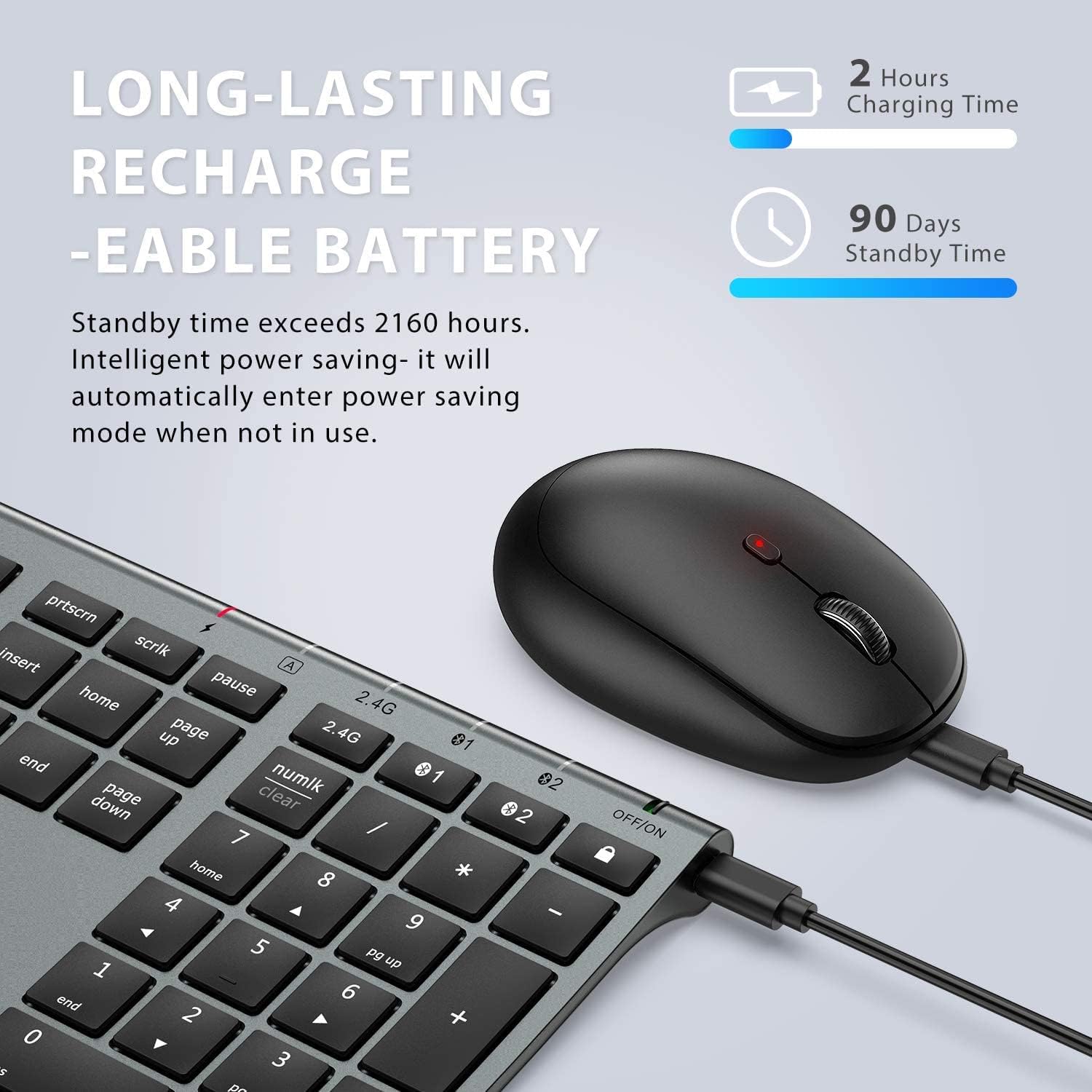
Image: The iClever keyboard and mouse connected to a charging cable, illustrating the long-lasting rechargeable battery feature.
Connecting the Keyboard and Mouse
The iClever DK03 combo supports three connection channels: one 2.4G wireless channel via USB receiver and two Bluetooth channels (BT1 and BT2).
2.4G Wireless Connection (USB Receiver)
- Insert the USB receiver into an available USB port on your computer.
- Turn on the keyboard and mouse using their respective ON/OFF switches.
- On the keyboard, press the 2.4G key. The 2.4G indicator light will illuminate.
- On the mouse, ensure the switch on the bottom is set to the 2.4G position.
- The keyboard and mouse should automatically connect to your device.

Image: Close-up of the iClever keyboard showing the 2.4G, BT1, and BT2 channel selection buttons.
Bluetooth Connection (BT1 / BT2)
- Turn on the keyboard and mouse using their respective ON/OFF switches.
- On the keyboard, press and hold either the BT1 or BT2 key for 3-5 seconds until the corresponding indicator light flashes rapidly. This indicates pairing mode.
- On the mouse, switch the button on the bottom to the desired Bluetooth channel (BT1 or BT2) and press the pairing button until the indicator light flashes.
- On your device (computer, tablet, smartphone), go to Bluetooth settings and search for new devices.
- Select "iClever IC-DK03 KB" for the keyboard and "iClever Mouse" (or similar) for the mouse from the list of available devices.
- Follow any on-screen prompts to complete the pairing process. The indicator light on the keyboard/mouse will stop flashing and remain solid when successfully connected.

Image: Diagram illustrating the iClever DK03 keyboard and mouse connecting to multiple devices (tablet, laptop, smartphone) via different channels.
Video: An official product video demonstrating the iClever DK03 Bluetooth Keyboard and Mouse Combo, including setup and usage.
Operating Instructions
Switching Between Devices
To switch between connected devices:
- On the keyboard, press the 2.4G, BT1, or BT2 key to select the desired channel. The corresponding indicator light will illuminate.
- On the mouse, switch the button on the bottom to the corresponding 2.4G, BT1, or BT2 position.
The keyboard and mouse will automatically connect to the device paired with the selected channel.
System Compatibility Selection
The keyboard is compatible with various operating systems. To optimize key functions for your system:
- For Mac/iOS devices, press Fn + Q.
- For Windows/Android devices, press Fn + W.

Image: Close-up of the iClever keyboard showing the dual-labeled keys for Windows/Android and Mac/iPad compatibility.
Multimedia and Function Keys
The keyboard features a full set of function keys (F1-F12) and multimedia shortcuts. These functions can be accessed directly or by pressing the Fn key in combination with the desired function key.
- Fn + F1-F12: Access various multimedia and system functions (e.g., brightness, volume, playback controls).
- The keyboard also includes an independent number pad for efficient data entry.
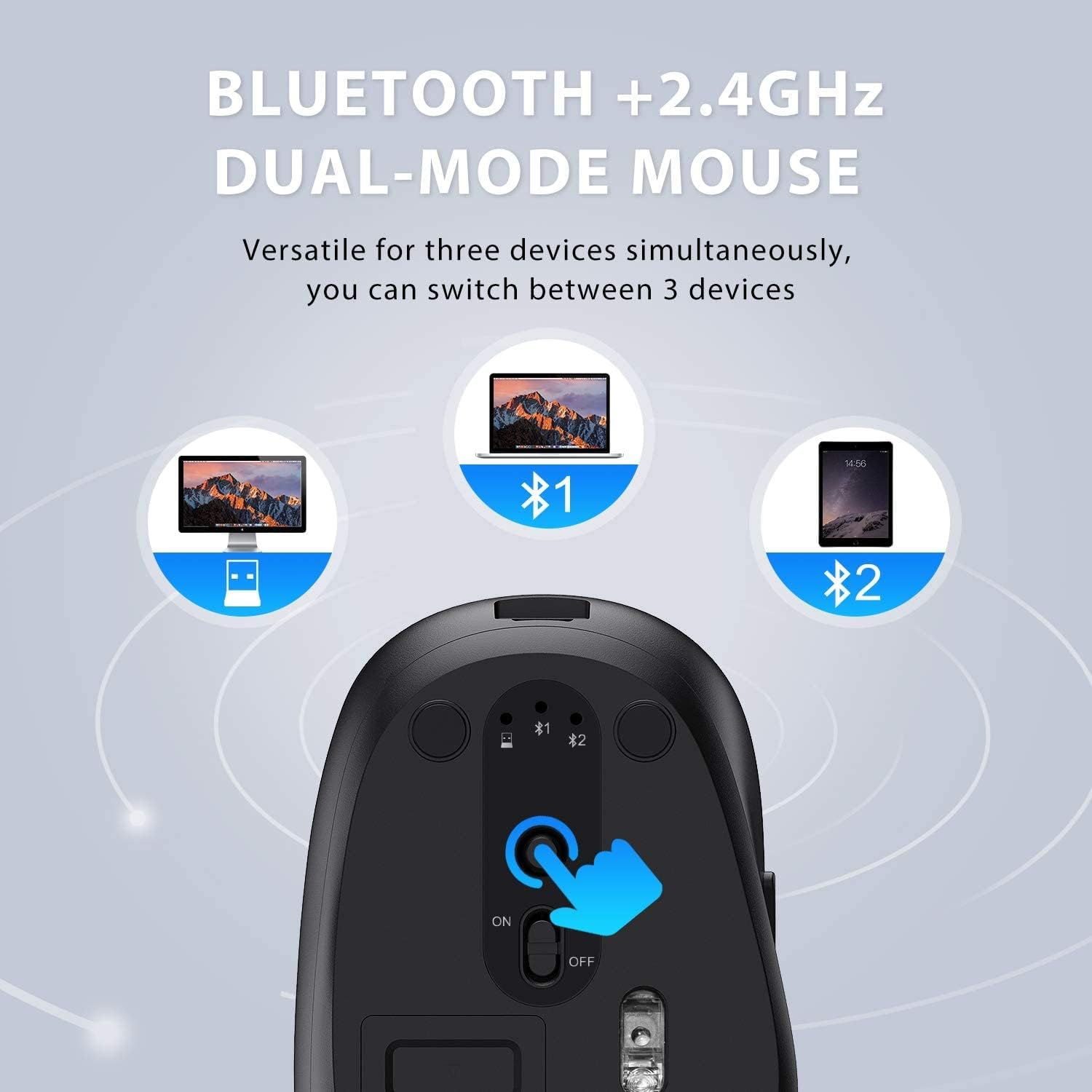
Image: The iClever keyboard highlighting the multimedia function keys and full numeric keypad.
Maintenance
Battery Management
Both the keyboard and mouse are equipped with rechargeable lithium-ion batteries. A full charge provides up to 90 hours of continuous use. To conserve energy, both devices will enter standby mode after a period of inactivity. Simply click the mouse or press any key on the keyboard to wake them up.
- Recharge when the battery indicator light flashes or when performance degrades.
- Use the provided USB-C cable for charging.
- Avoid exposing the devices to extreme temperatures or direct sunlight.
Cleaning
To clean your keyboard and mouse:
- Turn off both devices before cleaning.
- Use a soft, lint-free cloth slightly dampened with water or a mild cleaning solution.
- Do not use abrasive cleaners, solvents, or aerosol sprays directly on the devices.
- The included silicone keyboard cover can be removed and washed with mild soap and water. Ensure it is completely dry before placing it back on the keyboard.
Troubleshooting
| Problem | Solution |
|---|---|
| Keyboard/Mouse not connecting via Bluetooth. |
|
| 2.4G wireless connection issues. |
|
| Keys not responding or delayed response. |
|
For more detailed troubleshooting, please refer to the official Troubleshooting Guide (PDF) available here.
Specifications
| Feature | Detail |
|---|---|
| Product Dimensions | 16.8 x 4.92 x 0.62 inches (Keyboard) |
| Item Weight | 15.2 ounces |
| Model Number | DK03 Combo |
| Connectivity Technology | 2.4Ghz Wireless + Bluetooth 1 + Bluetooth 2 |
| Special Features | USB-C Charge, Multi-device support, Laptop typing experience, Multi-OS compatibility |
| Compatible Devices | PC, Laptop, iMac, Macbook, Tablet, Smartphone, iPhone, iPad |
| Battery Type | Rechargeable Lithium-ion |
| Battery Life (Continuous Use) | Up to 90 hours |

Image: Technical drawing showing the ultra-thin design and dimensions of the iClever DK03 keyboard and mouse.
Warranty and Support
iClever products typically come with a standard manufacturer's warranty. Please refer to the warranty card included in your package or visit the official iClever website for specific warranty terms and conditions.
For technical support, product inquiries, or assistance with any issues, please contact iClever customer service. Contact information can usually be found on the product packaging, the official iClever website, or through your purchase platform.
The manufacturer, Thousandshores Inc, provides 24-hour customer service.
Related documentsDK03 Combo


Ask a question about this manual
Ask about setup, troubleshooting, compatibility, parts, safety, or missing instructions. Manuals+ will review the question and use this page’s manual context to help answer it.