
1. Introduction
Thank you for choosing the iClever GK08 Wireless Keyboard and Mouse Combo. This full-size keyboard with a numeric keypad and a silent mouse offers a stable 2.4 GHz connection, USB-C recharging, and dual-layout compatibility for Mac and Windows systems. This manual provides detailed instructions to help you set up, operate, and maintain your new device.
2. Safety Information
- Keep the device away from water, fire, and high temperatures.
- Do not attempt to disassemble or modify the device.
- Use only the provided USB-C cable for charging.
- Avoid dropping or subjecting the device to strong impacts.
- Dispose of batteries and electronic components responsibly according to local regulations.
3. Setup Guide
3.1 Package Contents
- iClever GK08 Wireless Keyboard
- iClever Wireless Mouse
- USB-A Nano Receiver (stored inside the mouse)
- USB-C Charging Cable
- Washable Dust Cover
- User Manual
3.2 Initial Charging
Before first use, ensure both the keyboard and mouse are fully charged.
- Connect the provided USB-C charging cable to the keyboard's USB-C port (located on the top edge).
- Connect the other end of the cable to a USB power source (e.g., computer USB port, USB wall adapter).
- The charging indicator light on the keyboard will illuminate during charging and turn off when fully charged.
- For the mouse, connect the USB-C cable to its charging port. The mouse also has an indicator light.
- A full charge takes approximately 2 hours and provides up to 45 days of use for the keyboard.
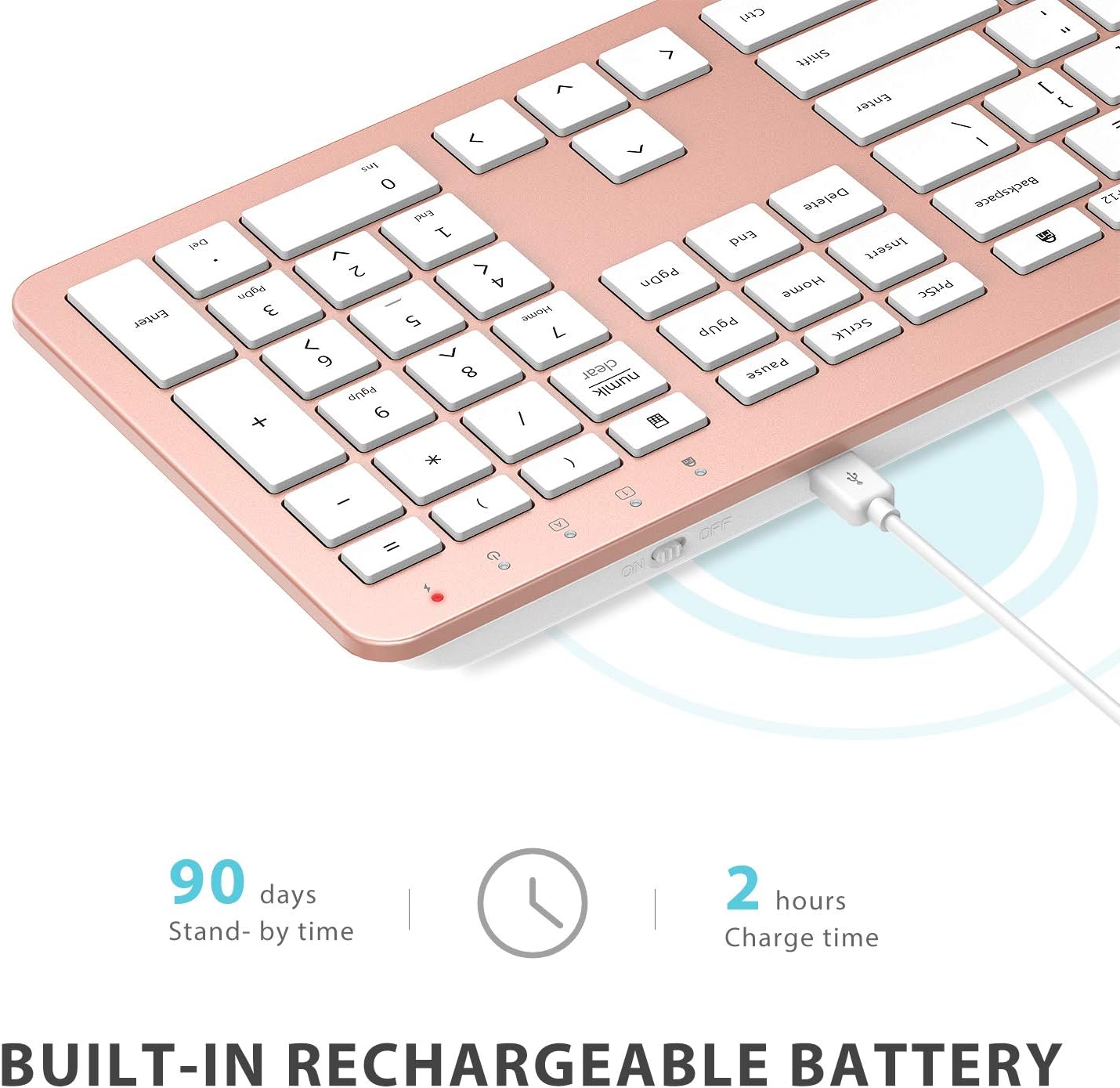
Image: The iClever GK08 keyboard connected to a USB-C charging cable, illustrating the charging process and battery life indicators.
3.3 Connecting to Your Computer (2.4 GHz Wireless)
The keyboard and mouse connect via a single 2.4 GHz USB-A nano receiver.
- Locate the USB-A nano receiver. It is typically stored in a compartment on the underside of the mouse.
- Plug the nano receiver into an available USB-A port on your computer.
- Turn on the keyboard using the ON/OFF switch (usually on the top edge).
- Turn on the mouse using the ON/OFF switch (located on the underside).
- Your computer should automatically detect and install the necessary drivers. The devices are ready for use once recognized.
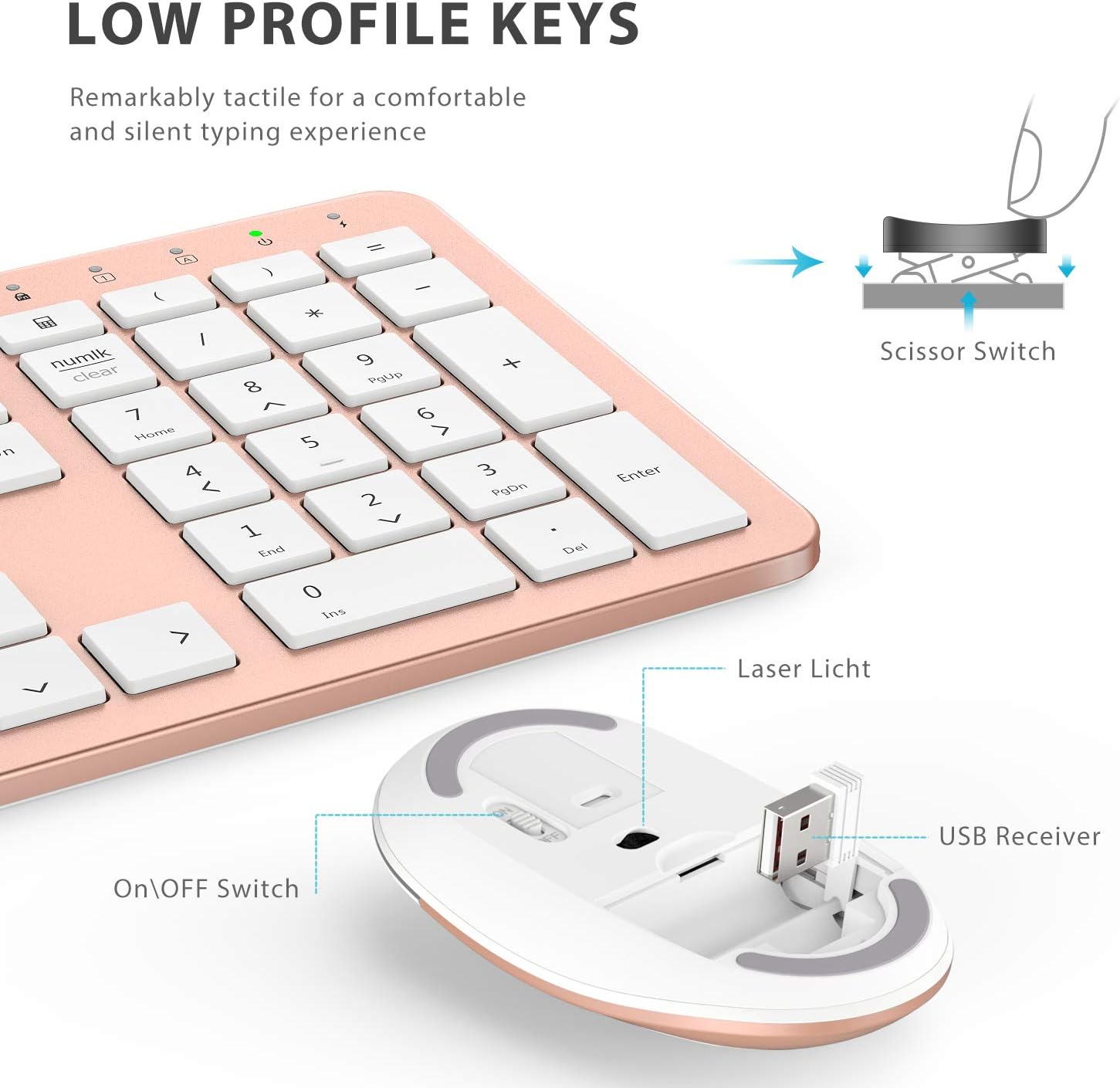
Image: A close-up view of the iClever mouse, highlighting the compartment where the USB nano receiver is stored for convenience.
3.4 Compatibility Check
This combo requires an available USB-A port for the nano receiver. For newer Macs with only USB-C ports, a USB-C to USB-A adapter (not included) is required. It is compatible with:
- Windows 10/11 PC & laptop
- macOS desktops / notebooks with USB-A port (e.g., iMac Retina 4K/5K, MacBook Air/Pro ≤ 2017)
- Chrome OS

Image: A visual representation emphasizing the requirement of a USB-A port for the 2.4G wireless receiver, with a note about USB-C adapters for newer devices.
4. Operating Instructions
4.1 Keyboard Functions
- Full-Size Layout: The keyboard features a 110-key layout with a dedicated numeric keypad for efficient data entry.
- Quiet Scissor-Switch Keys: Enjoy a comfortable and quiet typing experience with low-profile keys that produce less than 50 dB of sound.
- Media Shortcuts: Access common media functions directly from the keyboard.
- Dual-Layout Compatibility: The keyboard has clearly printed Mac and PC legends.
Switching Between Mac and Windows Layouts:
- For Windows: Press Fn + W to activate Win, Alt, NumLK functions.
- For Mac OS: Press Fn + Q to activate Alt (Option), Cmd, Clear functions.

Image: The iClever GK08 keyboard displaying the dual Mac and Windows key legends, with instructions for switching between operating system layouts using the Fn key combinations.
4.2 Mouse Functions
- Silent Click: The mouse is designed for quiet operation, minimizing distractions.
- Adjustable DPI: The mouse features 3 adjustable DPI levels (800/1200/1600) to customize cursor sensitivity. Press the DPI button (usually located near the scroll wheel) to cycle through the settings.

Image: A visual demonstrating the quiet operation of the iClever mouse and the three adjustable DPI settings (800, 1200, 1600) for varied precision needs.
4.3 Auto-Sleep Feature
To conserve battery life, both the keyboard and mouse will enter an auto-sleep mode after 10 minutes of inactivity. To wake them up, simply press any key on the keyboard or move the mouse.
Video: A seller-provided video demonstrating the plug-and-play functionality and long battery life of the iClever Wireless Keyboard and Mouse. This video highlights the ease of setup and extended usage between charges.
5. Maintenance
- Cleaning: Use a soft, damp cloth to clean the surfaces of the keyboard and mouse. Avoid harsh chemicals.
- Dust Cover: Utilize the included washable dust cover to protect the keyboard from dust and spills when not in use.
- Storage: When not in use for extended periods, turn off both devices to conserve battery. Store the USB receiver inside the mouse.
6. Troubleshooting
- No Connection:
- Ensure both keyboard and mouse are turned ON.
- Verify the USB nano receiver is securely plugged into a working USB-A port on your computer.
- Try plugging the receiver into a different USB-A port.
- Check if the devices are charged.
- Lag or Intermittent Connection:
- Ensure the devices are within the 33 ft / 10 m operating range of the receiver.
- Avoid placing the receiver near strong interference sources (e.g., other wireless devices, large metal objects).
- Re-pair the devices by unplugging and re-plugging the receiver.
- Keyboard Not Typing Correctly (Mac/Windows):
- Ensure you have selected the correct operating system layout using Fn + W for Windows or Fn + Q for Mac.
- Mouse Cursor Jumps or is Inaccurate:
- Adjust the DPI setting using the DPI button on the mouse.
- Ensure the mouse sensor is clean and free from obstructions.
- Use the mouse on a suitable surface (not highly reflective or transparent).
7. Specifications
| Feature | Detail |
|---|---|
| Brand | iClever |
| Model Number | GK08 |
| Color | Rose Gold |
| Connectivity Technology | 2.4 GHz wireless (USB-A nano receiver) |
| Wireless Range | Up to 33 ft / 10 m |
| Keyboard Layout | QWERTY, Full-size 110-key with Numpad |
| Key Type | Scissor Switch (Quiet typing < 50 dB) |
| Power Source | Rechargeable Lithium Ion Battery (Keyboard) |
| Charging Port | USB-C |
| Charging Time | Approx. 2 hours |
| Battery Life (Keyboard) | Up to 45 days (typical use) |
| Mouse DPI Settings | 800 / 1200 / 1600 DPI |
| Compatible Operating Systems | Windows 8/10/11, macOS, Chrome OS |
| Special Features | Dual Mac/Windows layout, 10-min auto-sleep, Washable dust cover |
8. Warranty and Support
iClever products typically come with a standard manufacturer's warranty. Please refer to the warranty card included in your product packaging or visit the official iClever website for detailed warranty terms and conditions.
For technical support, troubleshooting assistance, or any product-related inquiries, please contact iClever customer service through their official website or the contact information provided in your product documentation.
Online Support: www.iclever.com/support


