
1. Introduction
This manual provides detailed instructions for the setup, operation, maintenance, and troubleshooting of your cimetech 2.4G Wireless Keyboard and Mouse Combo. Please read this manual thoroughly before using the product to ensure optimal performance and longevity.

Image: The cimetech Wireless Keyboard and Mouse Combo, featuring the full-size keyboard, ergonomic mouse, and the compact USB receiver.
2. Setup
2.1. Unpacking and USB Receiver Location
Carefully remove the keyboard and mouse from their packaging. The 2.4G USB receiver is typically stored within the battery compartment of the mouse or keyboard for safekeeping during transit. Locate and remove the USB receiver before proceeding with battery installation.

Image: The USB receiver is conveniently stored inside the battery compartment of the keyboard.
2.2. Battery Installation
The keyboard requires two AAA batteries, and the mouse requires one AA battery (batteries not included). Follow these steps:
- Open the battery compartment cover on the underside of the keyboard.
- Insert two AAA batteries, ensuring correct polarity (+/-).
- Close the battery compartment cover.
- Open the battery compartment cover on the underside of the mouse.
- Insert one AA battery, ensuring correct polarity (+/-).
- Close the battery compartment cover.
2.3. Connecting to Your Device (Plug and Play)
The cimetech Wireless Combo uses a single USB receiver for both devices:
- Plug the 2.4G USB receiver into an available USB port on your computer or laptop.
- Turn on the keyboard using the ON/OFF switch located on its underside.
- Turn on the mouse using the ON/OFF switch located on its underside.
- Your computer should automatically detect and install the necessary drivers. The keyboard and mouse are now ready for use.
3. Operating the Combo
3.1. Keyboard Features
- Full-Size Layout: The keyboard features a full-size layout with 99 keys, including a numeric keypad for efficient data entry.
- Ultra-Thin Design: Its slim profile (14.5x5.8x0.2 inches) makes it portable and suitable for various environments.
- Quiet Keys: The keys are designed for reduced noise, providing a quiet typing experience.
- Ergonomic Tilt: The keyboard is designed with a tilt angle to promote a comfortable typing position, reducing wrist fatigue.

Image: Side view of the cimetech keyboard, illustrating its ergonomic tilt angle for comfortable use.
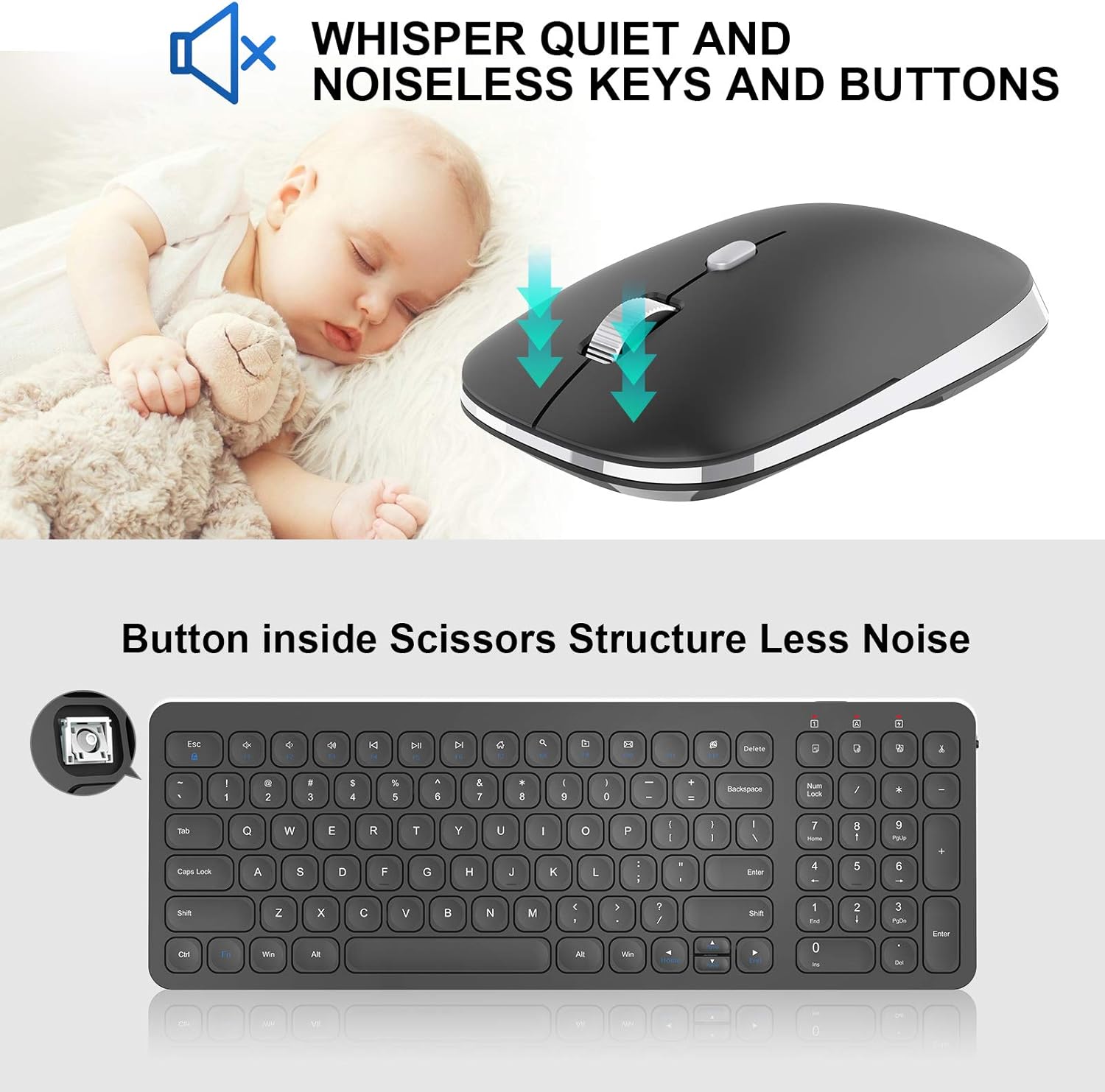
Image: Close-up of the mouse, highlighting its silent click mechanism, and a graphic indicating quiet operation for both mouse and keyboard keys.
3.2. Multimedia Shortcut Keys
The keyboard includes dedicated multimedia hotkeys for quick access to various functions:
- FN + F1-F12: Access functions such as music playback, volume control, internet browser, email, and more. Refer to the key legends for specific functions.

Image: A visual guide to the 12 multimedia shortcut keys on the cimetech keyboard, enabling quick access to various system functions.
3.3. Mouse Features
- Silent Click: The mouse features silent click buttons to minimize disturbance in quiet environments.
- Contoured Shape: Designed for comfortable grip and extended use.
- DPI Adjustment: The mouse may include a button to adjust DPI (dots per inch) sensitivity, allowing you to customize cursor speed.
4. Maintenance
4.1. Battery Replacement
When the devices stop responding or the indicator light (if present) signals low battery, replace the batteries:
- For the keyboard, replace the two AAA batteries.
- For the mouse, replace the one AA battery.
- Ensure correct polarity during installation.
4.2. Cleaning
To maintain optimal performance and hygiene:
- Use a soft, dry cloth to wipe the surfaces of the keyboard and mouse.
- For stubborn dirt, slightly dampen the cloth with water or a mild cleaning solution. Avoid excessive moisture.
- Do not use abrasive cleaners or solvents.
5. Troubleshooting
If you encounter issues with your cimetech Wireless Keyboard and Mouse Combo, try the following solutions:
- No Response: Ensure both the keyboard and mouse are turned on and have fresh batteries. Check that the USB receiver is securely plugged into a working USB port on your computer.
- Lag or Intermittent Connection: Move the devices closer to the USB receiver. Ensure there are no large metal objects or other wireless devices interfering with the 2.4G signal.
- Mouse Cursor Not Moving: Check the mouse's laser sensor for any obstructions. Ensure the mouse is on a suitable surface.
- Keys Not Working: If specific keys are not responding, try cleaning around the keys. If the entire keyboard is unresponsive, refer to the 'No Response' steps.
- Re-pairing: In rare cases, you might need to re-pair the devices with the receiver. Consult the manufacturer's website or support for specific re-pairing instructions if needed.
6. Specifications
| Feature | Detail |
|---|---|
| Brand | cimetech |
| Model (Keyboard) | KF31 |
| Model (Mouse) | TM013 |
| Connectivity Technology | 2.4G Wireless (USB Receiver) |
| Compatible Devices | Laptop, Personal Computer (Windows XP / Vista / 7 / 8 / 10) |
| Keyboard Dimensions | 14.5 x 5.8 x 0.2 inches (approx.) |
| Item Weight | 1.3 pounds |
| Special Features | Ergonomic, Lightweight, Portable, Silent Click Mouse, Multimedia Hotkeys |

Image: Diagram illustrating the dimensions of the cimetech Wireless Keyboard and Mouse, highlighting their compact and ultra-thin profiles.
7. Warranty and Support
For warranty information, technical support, or further assistance, please refer to the product packaging or visit the official cimetech website. Keep your purchase receipt for warranty claims.
You can also visit the cimetech Store on Amazon for more product information and support resources.