
1. Introduction to Apple Watch Series 6
The Apple Watch Series 6 is an advanced smartwatch designed to enhance your daily life with health, fitness, and communication features. This manual provides detailed instructions to help you understand and utilize all the capabilities of your device, from initial setup to advanced functions like Blood Oxygen (SpO2) monitoring.
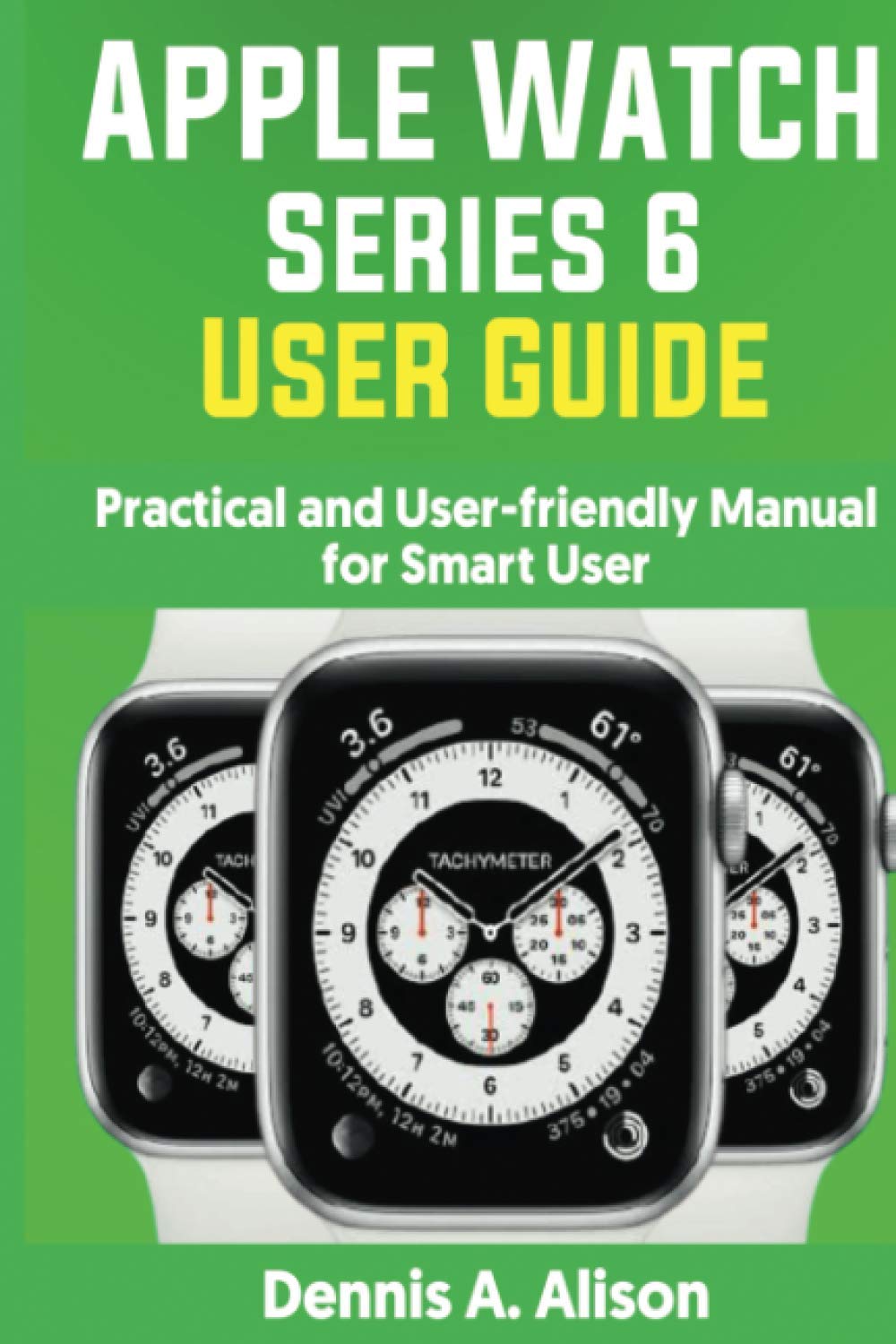
Image 1.1: Front cover of the Apple Watch Series 6 User Guide book. This image displays the title and design of the instructional manual itself.
2. Setup and Initial Configuration
Before you can begin using your Apple Watch Series 6, it must be paired with an iPhone and configured. Follow these steps for a smooth setup process.
2.1. Pairing Your Apple Watch
- Ensure your iPhone is updated to the latest iOS version and has Bluetooth enabled.
- Turn on your Apple Watch by pressing and holding the side button until the Apple logo appears.
- Place your iPhone near your Apple Watch. A pairing screen will appear on your iPhone. Tap Continue.
- Position your iPhone so that your Apple Watch appears in the viewfinder on your iPhone's screen. This will pair the devices.
- Follow the on-screen instructions on both devices to complete the setup, including choosing a wrist, setting a passcode, and enabling features like Siri and Apple Pay.
3. Operating Your Apple Watch Series 6
This section covers the primary functions and features of your Apple Watch Series 6.
3.1. Notifications Management
Your Apple Watch displays notifications from your paired iPhone. You can manage and respond to them directly from your wrist.
- Monitoring Notifications: When a notification arrives, your Apple Watch will gently tap your wrist. Raise your wrist to view the notification.
- Responding to Unread Notifications: Swipe down from the top of the watch face to access Notification Center. Tap on an unread notification to view its details and available actions.
- Responding to Live Notifications: For incoming calls or messages, options to answer, decline, or send a quick reply will appear directly on the screen.
3.2. Customizing Your Watch Face
Personalize your Apple Watch by changing its watch face and complications.
- Changing Watch Face: Press firmly on the watch face, then swipe left or right to browse available faces. Tap on a face to select it.
- Customizing Features: While browsing watch faces, tap Edit on a face to customize colors, styles, and complications (small widgets that display information like weather, activity, or calendar events).
3.3. Messages and Mail
Communicate directly from your Apple Watch.
- Reading and Replying to Messages: Tap the Messages app icon. Tap a conversation to read. To reply, scroll down and choose from quick replies, dictate a message, or use Scribble.
- Sending and Managing Messages: Open the Messages app, scroll to the top, and tap New Message. Select a contact or dictate a new message.
- Reading and Managing Mail: Open the Mail app. Tap an email to read it. You can archive, mark as unread, or reply from the options at the bottom.
3.4. Music Playback
Control music playback on your watch or a paired device.
- Playing Music on Your Watch: Open the Music app. Select a playlist, album, or song that has been synced to your watch. Connect Bluetooth headphones to listen.
- Playing Music on a Smart Device: Use the Now Playing app on your watch to control music playing on your iPhone.
3.5. Image Viewing and Management
View photos synced from your iPhone.
- Viewing Images: Open the Photos app. Scroll through your synced album.
- Managing Photo Storage: In the Apple Watch app on your iPhone, go to My Watch > Photos > Photo Sync to select which album to sync and manage storage limits.
3.6. Health and Activity Tracking
Monitor your fitness and health metrics.
- Monitoring Workouts: Open the Workout app, select your activity, and tap Start. Your watch will track metrics like heart rate, calories burned, and duration.
- Tracking Day-to-Day Activity: The Activity app tracks your Move, Exercise, and Stand rings. Aim to close your rings daily.
- Blood Oxygen (SpO2) Monitoring: The Blood Oxygen app measures the oxygen level of your blood. Ensure your watch is snug on your wrist and your arm is still during a measurement.
- Keeping Data Accurate: Regularly calibrate your Apple Watch for improved accuracy in distance, pace, and calorie measurements.
4. Maintenance and Care
Proper care ensures the longevity and optimal performance of your Apple Watch Series 6.
- Cleaning: Gently wipe your Apple Watch with a soft, lint-free cloth. If necessary, lightly dampen the cloth with fresh water. Do not use soaps or abrasive materials.
- Water Resistance: Apple Watch Series 6 is water resistant, but not waterproof. It can be used for shallow-water activities like swimming in a pool or ocean. It should not be used for scuba diving, waterskiing, or other activities involving high-velocity water or submersion below shallow depths.
- Band Care: Clean your watch band according to its material. Leather bands should not be submerged in water.
- Software Updates: Keep your watchOS updated to ensure you have the latest features and security enhancements.
5. Troubleshooting Common Problems
If you encounter issues with your Apple Watch Series 6, try these common troubleshooting steps.
- Watch Not Responding: Force restart your Apple Watch by holding both the side button and the Digital Crown for at least 10 seconds, until you see the Apple logo.
- Pairing Issues: Ensure Bluetooth is on for both devices and they are close to each other. Try restarting both your iPhone and Apple Watch.
- Battery Drain: Check for apps running in the background. Reduce notifications or disable 'Always On' display if not needed.
- Inaccurate Readings: Ensure your watch is worn snugly on your wrist. Calibrate your watch regularly for improved accuracy.
- Apps Not Loading: Ensure your watch is connected to Wi-Fi or your iPhone. Try restarting the app or your watch.
6. Specifications
Key technical specifications for the Apple Watch Series 6.
| Feature | Detail |
|---|---|
| Model | Apple Watch Series 6 |
| Display | Always-On Retina display |
| Sensors | Blood Oxygen sensor, Electrical heart sensor, Optical heart sensor, Accelerometer, Gyroscope, Ambient light sensor |
| Water Resistance | 50 meters |
| Connectivity | Wi-Fi (802.11b/g/n 2.4GHz and 5GHz), Bluetooth 5.0 |
| Processor | S6 SiP with 64-bit dual-core processor |
| Operating System | watchOS (latest compatible version) |
7. Warranty and Support
For information regarding your Apple Watch Series 6 warranty, technical support, or service options, please refer to the official Apple website or contact Apple Support directly. You can find detailed warranty terms and conditions, as well as access to online support resources and contact information, at support.apple.com/watch.


