1. Introduction
This manual provides essential instructions for the safe and effective operation of your AGFA Photo Realishot DC5200 compact digital camera. Please read this manual thoroughly before using the camera and retain it for future reference.

Figure 1: Front view of the AGFA Photo Realishot DC5200 compact camera.

Figure 2: AGFA Photo Realishot DC5200 highlighting 21MP photo resolution and HD video capability.
2. Package Contents
Verify that all items listed below are included in your camera package:
- AGFA Photo Realishot DC5200 Camera
- USB Cable
- User Manual (this document)
- Rechargeable Lithium Battery
3. Camera Components
3.1 Front View
The front of the camera features the lens, flash, and self-timer lamp.
3.2 Rear View (LCD Screen)
The rear of the camera is dominated by the 2.4-inch TFT LCD screen, used for framing shots, reviewing images, and navigating menus.

Figure 3: Rear view of the camera displaying the 2.4-inch LCD screen.
3.3 Top and Side Views
The top and sides house the power button, shutter button, zoom controls, and ports for connectivity.
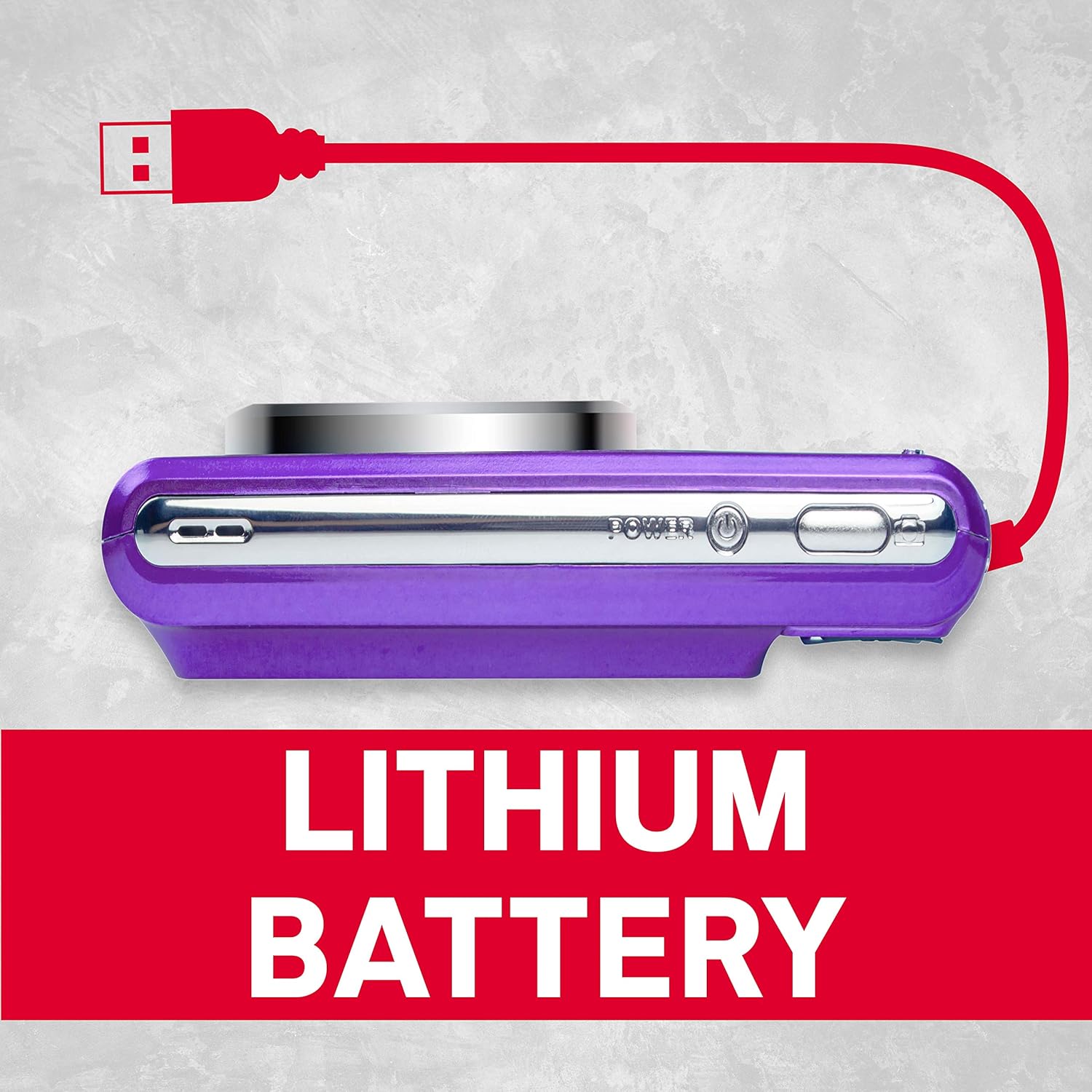
Figure 4: Side view of the camera showing the USB port for charging and data transfer.
4. Initial Setup
4.1 Charging the Battery
- Insert the provided lithium battery into the battery compartment, ensuring correct polarity.
- Connect the camera to a power source using the supplied USB cable. The charging indicator will illuminate.
- Charging is complete when the indicator light turns off.
4.2 Inserting an SD Card
The camera supports SD cards up to 32 GB (not included). A memory card is required to save photos and videos.
- Open the SD card slot cover.
- Insert the SD card with the metal contacts facing the correct direction until it clicks into place.
- Close the SD card slot cover securely.
5. Basic Operation
5.1 Power On/Off
Press and hold the Power button to turn the camera on or off.
5.2 Taking Photos
- Turn on the camera.
- Frame your shot using the LCD screen.
- Press the Shutter button halfway to focus, then press fully to capture the image.
5.3 Recording Videos
- Switch to video mode (if applicable, refer to on-screen menu).
- Press the Shutter button to start recording.
- Press the Shutter button again to stop recording.
5.4 Using Digital Zoom
The camera features 8x digital zoom. Use the zoom controls (typically labeled W for Wide and T for Telephoto) to adjust the focal length.

Figure 5: Example of 8x digital zoom capability.
5.5 Scene Modes
The camera offers various scene modes to optimize settings for different shooting conditions. Common modes include:
- Auto Mode: General purpose shooting.
- Night Mode: For low-light environments.
- Beach Mode: For bright, reflective scenes.
Access scene modes through the camera's menu system.

Figure 6: Visual representation of different scene modes available on the camera.
6. Advanced Features
6.1 Face Detection
The camera can automatically detect faces in the frame and optimize focus and exposure for portraits.

Figure 7: Camera demonstrating face detection technology.
6.2 Digital Image Stabilization
This feature helps reduce blur caused by camera shake, resulting in clearer images, especially in challenging conditions.
6.3 Self-Timer
Set a delay of 2, 5, or 10 seconds before the shutter fires, useful for self-portraits or group photos.
6.4 Red-Eye Reduction Flash
When using the flash, this feature emits a pre-flash to minimize the red-eye effect in portraits.
7. Viewing Photos and Videos
To review captured images and videos:
- Press the Playback button (often indicated by a play icon).
- Use the directional buttons to navigate through your files.
- Press the OK or Enter button to view a photo or play a video.
8. Transferring Files to a Computer
You can transfer photos and videos to a computer using the supplied USB cable.
- Ensure the camera is powered off.
- Connect the camera to your computer using the USB cable.
- Power on the camera. It should appear as a removable disk or device on your computer.
- Copy the desired files from the camera's memory card to your computer.
- Safely eject the camera from your computer before disconnecting the USB cable.
9. Care and Maintenance
- Keep the camera clean. Use a soft, dry cloth to wipe the camera body.
- For the lens and LCD screen, use a specialized lens cleaning cloth. Avoid harsh chemicals.
- Store the camera in a cool, dry place away from direct sunlight and extreme temperatures.
- Remove the battery if the camera will not be used for an extended period.
10. Troubleshooting
| Problem | Possible Cause | Solution |
|---|---|---|
| Camera does not power on. | Battery is depleted or incorrectly inserted. | Charge the battery fully. Ensure the battery is inserted with correct polarity. |
| Cannot take photos. | SD card is full, locked, or not inserted. | Insert an SD card, unlock it, or delete unnecessary files. |
| Images are blurry. | Camera shake, subject movement, or incorrect focus. | Hold the camera steady. Ensure adequate lighting. Use digital image stabilization. |
| Flash does not fire. | Flash is disabled or battery is low. | Enable flash in settings. Recharge battery. |
11. Technical Specifications
- Photo Resolution: 21 Megapixels
- Video Resolution: 720p HD (1280x720)
- LCD Screen: 2.4 inch TFT LCD
- Digital Zoom: 8x
- Image Stabilization: Digital
- Special Features: Face Detection, Self-Timer (2s/5s/10s), Red-Eye Reduction Flash
- Battery: Rechargeable Lithium Battery
- Storage: Supports SD Card up to 32 GB (not included)
- Supported File Formats: JPEG (photos), AVI (videos)
- Product Dimensions: 3.74 x 2.28 x 1.06 inches
- Item Weight: 3.14 ounces

Figure 8: Overview of key camera features and specifications.
12. Warranty and Support
For warranty information and customer support, please refer to the documentation provided with your purchase or visit the official AgfaPhoto website. Keep your proof of purchase for warranty claims.


