
Introduction
This manual provides essential information for setting up, operating, maintaining, and troubleshooting your Apple iPad (8th Generation). The iPad features a 10.2-inch Retina display, an A12 Bionic chip, and supports Apple Pencil (1st generation) and Smart Keyboard. Please read this guide thoroughly to ensure proper use and to maximize your device's capabilities.
What's in the Box
Verify that all items are present in the packaging:
- iPad (8th Generation)
- USB-C to Lightning Cable
- USB-C Power Adapter

Image: The back of the iPad (Space Gray) alongside the included USB-C to Lightning cable and USB-C power adapter.
Setup
1. Initial Power On
Press and hold the Top button until the Apple logo appears. Follow the on-screen instructions to select your language and region.
2. Connect to Wi-Fi
Select your Wi-Fi network from the list and enter the password if prompted. A stable internet connection is required for activation.
3. Data & Privacy
Review the Data & Privacy information and tap Continue.
4. Touch ID Setup
Follow the instructions to set up Touch ID using the Home button. This allows for secure authentication and Apple Pay.
5. Create a Passcode
Set a six-digit passcode to protect your device. You can choose other passcode options later in Settings.
6. Apps & Data
Choose how you want to restore or transfer apps and data to your new iPad. Options include restoring from an iCloud Backup, Mac or PC, or setting up as a new iPad.
7. Apple ID
Sign in with your Apple ID. If you do not have one, you can create one during this step. Your Apple ID is used for iCloud, App Store, iTunes Store, and other Apple services.
8. Software Updates
Ensure your iPad is running the latest version of iPadOS for optimal performance and security. Updates can be managed in Settings > General > Software Update.
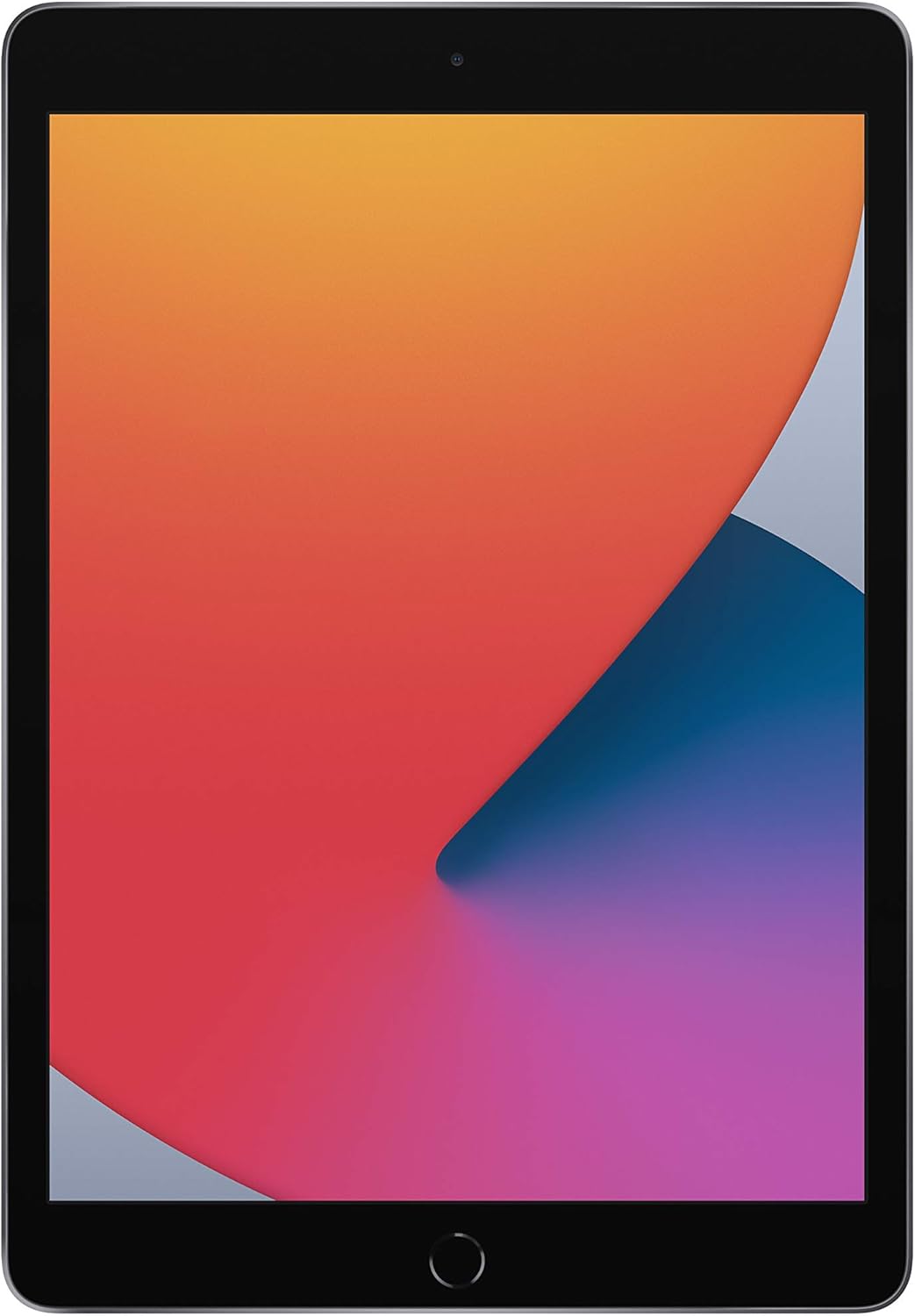
Image: The front of the iPad (8th Generation) displaying its 10.2-inch Retina screen.
Operating Instructions
Basic Navigation
- Home Button: Press once to return to the Home screen. Double-press to open the App Switcher. Press and hold for Siri.
- Top Button: Press to wake or sleep your iPad. Press and hold to power off.
- Volume Buttons: Adjust the volume up or down.
Retina Display
The 10.2-inch Retina display offers vibrant colors and sharp details. Interact with the display using multi-touch gestures such as tap, swipe, pinch, and zoom.
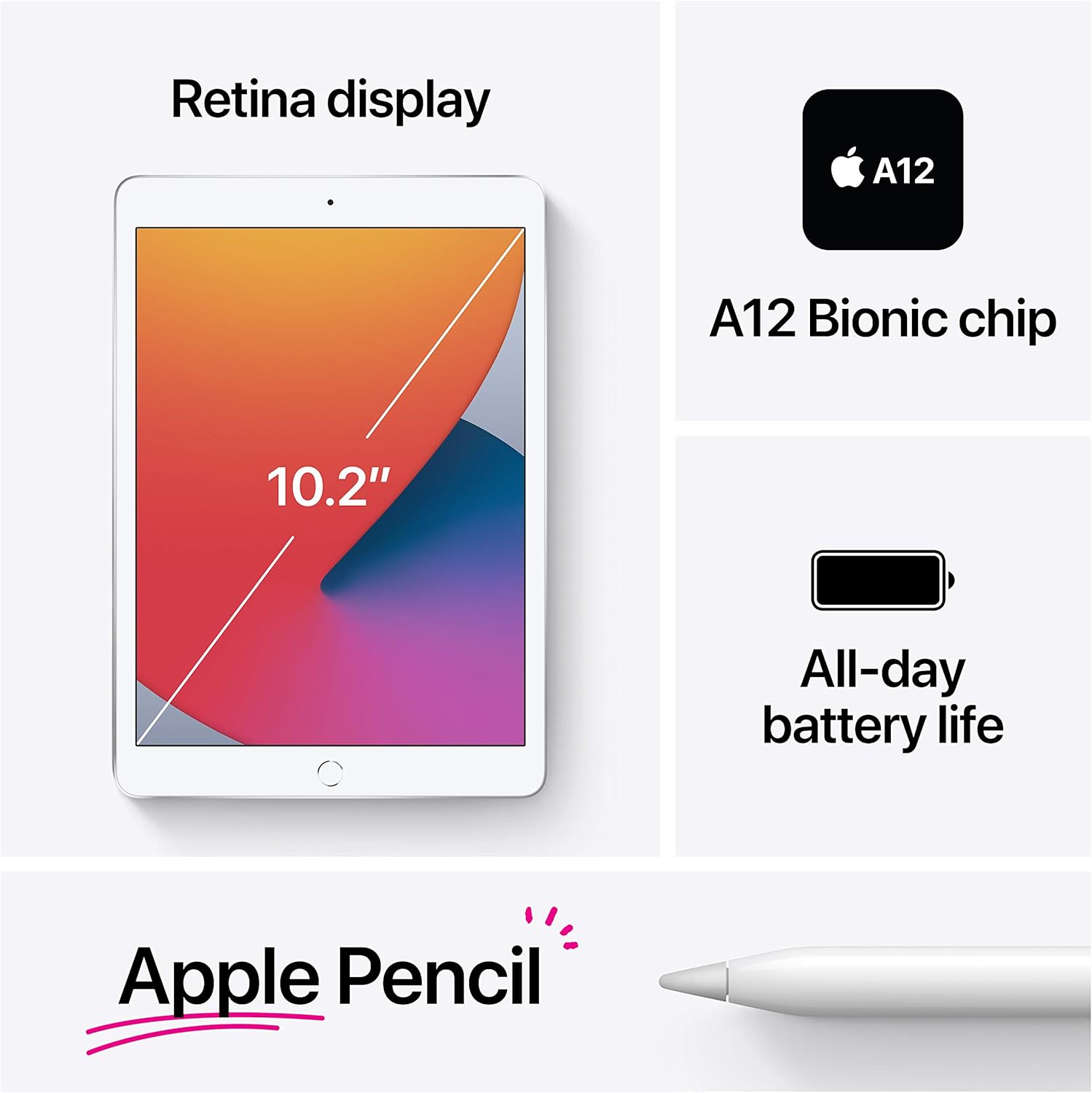
Image: A visual summary of the iPad's features, including its display size, A12 Bionic chip, battery life, and Apple Pencil support.
A12 Bionic Chip
The A12 Bionic chip with Neural Engine provides enhanced performance for demanding applications, gaming, and multitasking.
Camera Functions
- Rear Camera: The 8MP back camera supports HDR and 1080p HD video recording.
- Front Camera: The 1.2MP FaceTime HD front camera also supports HDR for clear video calls and selfies.

Image: A detailed view of the 8MP rear camera located on the back of the iPad.
Connectivity
The iPad supports 802.11ac Wi-Fi for fast wireless internet access. To connect, go to Settings > Wi-Fi and select your network.
Touch ID
Use Touch ID for secure unlocking of your iPad, authenticating purchases in the App Store, iTunes Store, and Apple Books, and for Apple Pay.
Apple Pencil (1st Generation) & Smart Keyboard
The iPad (8th Generation) is compatible with the 1st generation Apple Pencil for drawing, note-taking, and marking up documents. It also supports the Smart Keyboard for a full-size typing experience.

Image: An individual using an Apple Pencil to write on the iPad's display, illustrating its use for taking notes.
Battery Management
The iPad offers up to 10 hours of battery life for web browsing on Wi-Fi, watching videos, or listening to music. Charge your iPad using the included USB-C to Lightning Cable and USB-C Power Adapter.
iPadOS 14
iPadOS 14 introduces new features specifically designed for iPad, including enhanced multitasking, redesigned widgets, and improved app organization.

Image: Several iPads demonstrating the multitasking and application display features of iPadOS.
Maintenance
Cleaning Your iPad
To clean your iPad, unplug all cables and power off the device. Use a soft, lint-free cloth. Avoid abrasive cloths, towels, paper towels, or similar items. Do not use aerosol sprays, solvents, or abrasives. For the screen, a slightly damp cloth with water is generally sufficient. Avoid getting moisture in any openings.
Software Updates
Regularly check for and install software updates to ensure your iPad has the latest features, security enhancements, and bug fixes. Go to Settings > General > Software Update.
Battery Care
To prolong battery lifespan, avoid exposing your iPad to extreme temperatures. For long-term storage, charge the device to about 50% and power it off.
Troubleshooting
Device Not Responding
If your iPad is unresponsive, perform a force restart: Press and hold both the Top button and the Home button simultaneously. Continue holding them until the Apple logo appears.
Wi-Fi Connection Issues
- Ensure Wi-Fi is enabled in Settings.
- Restart your Wi-Fi router.
- Forget the network (Settings > Wi-Fi > tap the 'i' next to the network > Forget This Network) and reconnect.
App Crashing or Freezing
Close the app from the App Switcher (double-press Home button and swipe the app up) and reopen it. If the issue persists, restart your iPad.
Factory Reset (Last Resort)
If persistent issues occur, you may need to erase all content and settings. Warning: This will delete all data on your iPad. Ensure you have a backup. Go to Settings > General > Transfer or Reset iPad > Erase All Content and Settings.
Specifications
| Feature | Detail |
|---|---|
| Model Name | iPad (8th Generation) |
| Display | 10.2-inch Retina display (2160 x 1620 pixels) |
| Chip | A12 Bionic chip with Neural Engine |
| Storage Capacity | 32 GB |
| Rear Camera | 8MP camera with HDR, 1080p HD video |
| Front Camera | 1.2MP FaceTime HD camera with HDR |
| Connectivity | 802.11ac Wi-Fi |
| Battery Life | Up to 10 hours (Wi-Fi browsing/video/music) |
| Connector | Lightning |
| Dimensions (H x W x D) | 9.8 x 6.8 x 0.29 inches (250.6 x 174.1 x 7.5 mm) |
| Weight (Wi-Fi model) | 1.08 pounds (490 grams) |
| Release Date | September 15, 2020 |
Warranty and Support
Your Apple iPad (8th Generation) comes with a limited hardware warranty. For detailed warranty information, please refer to the documentation included with your product or visit the official Apple support website. Apple also provides various support resources, including online knowledge bases, community forums, and direct technical support.
For further assistance, visit support.apple.com/ipad.


