
Introduction to Your iPad Air
The Apple iPad Air (4th Generation) is a versatile tablet designed for a wide range of tasks, from creative work to entertainment and productivity. It features a 10.9-inch Liquid Retina display, powered by the A14 Bionic chip with Neural Engine, offering robust performance and efficiency. This manual provides essential information for setting up, operating, and maintaining your device.

Figure 1: Front view of the Apple iPad Air (4th Generation).
Key Features:
- Stunning 10.9-inch Liquid Retina display with True Tone and P3 wide color for vibrant visuals.
- A14 Bionic chip with Neural Engine for powerful performance and machine learning capabilities.
- Touch ID integrated into the top button for secure authentication and Apple Pay.
- 12MP back camera and 7MP FaceTime HD front camera for high-quality photos and video calls.
- Wide stereo audio for an immersive listening experience.
- Wi-Fi 6 (802.11ax) for fast wireless connectivity.
- Up to 10 hours of battery life for extended use.
- USB-C connector for charging and connecting various accessories.
- Support for Magic Keyboard, Smart Keyboard Folio, and Apple Pencil (2nd generation) to enhance productivity and creativity.
Video 1: An overview of the Apple iPad Air (4th Generation) features and design.
What's in the Box
Upon opening your iPad Air packaging, you should find the following items:
- 10.9-inch iPad Air
- USB-C Charge Cable (1 meter)
- 20W USB-C Power Adapter

Figure 2: The iPad Air, USB-C charge cable, and 20W USB-C power adapter included in the box.
Setup Guide
1. Initial Power On and Charging:
- Press and hold the top button until the Apple logo appears.
- If the iPad does not turn on, connect it to the 20W USB-C Power Adapter using the USB-C Charge Cable and plug it into a power outlet. Allow it to charge for at least 30 minutes before attempting to power on again.
2. Basic Setup:
- Follow the on-screen instructions to select your language and region.
- Connect to a Wi-Fi network. You will need the network name and password.
- Set up Touch ID by following the prompts to register your fingerprint. This is used for unlocking your iPad and making purchases.
- Create a passcode for additional security.
- Restore data from a previous backup (iCloud or computer) or set up as a new iPad.
- Sign in with your Apple ID. If you don't have one, you can create one during this step.
3. Connecting Accessories:
- Apple Pencil (2nd Generation): Attach the Apple Pencil magnetically to the right side of your iPad Air. It will automatically pair and begin charging.
- Magic Keyboard: Align the iPad Air with the magnetic connectors on the Magic Keyboard. The iPad will snap into place and connect automatically.

Figure 3: iPad Air connected to the Magic Keyboard.
Operating Instructions
Basic Navigation:
- Home Screen: Swipe up from the bottom edge of the screen to go to the Home Screen.
- App Switcher: Swipe up from the bottom edge and pause in the middle of the screen to view open apps.
- Control Center: Swipe down from the top-right corner to access quick settings.
- Notifications: Swipe down from the top-left corner to view notifications.
Using Touch ID:
The Touch ID sensor is integrated into the top button. To unlock your iPad or authorize purchases, place your registered finger on the top button until the device responds.

Figure 4: The top button with integrated Touch ID.
Apple Pencil (2nd Generation) Usage:
The Apple Pencil allows for precise drawing, note-taking, and marking up documents. Simply touch the tip of the Pencil to the screen to interact. Double-tap the side of the Apple Pencil to switch between tools (e.g., pen and eraser) in supported apps.
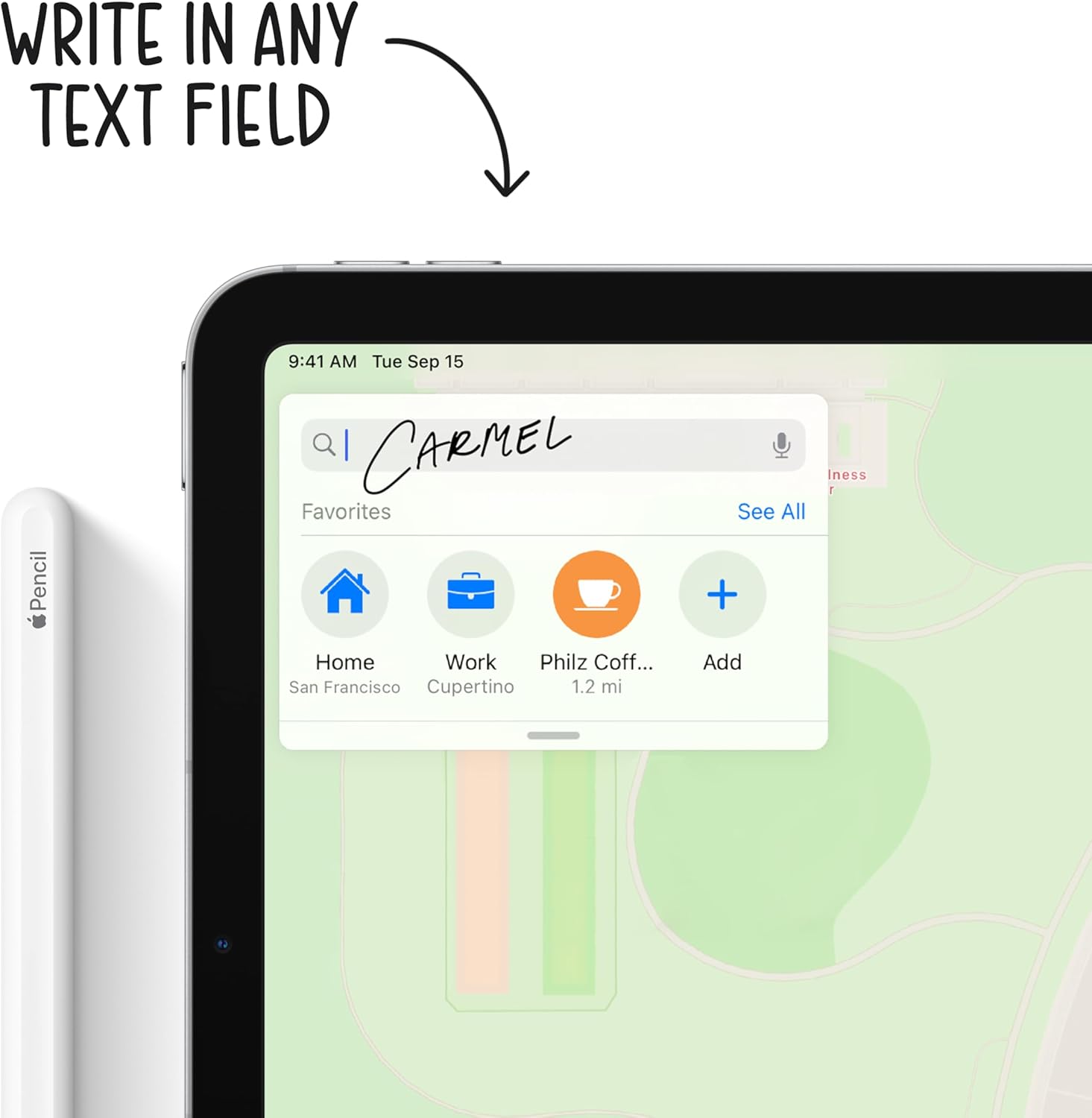
Figure 5: Using the Apple Pencil for writing on the iPad Air.
Camera Functions:
Your iPad Air is equipped with a 12MP Wide back camera and a 7MP FaceTime HD front camera. Open the Camera app to take photos, record videos, or use features like Panorama and Slo-mo. The back camera supports 4K video recording at various frame rates.
Battery Management:
To optimize battery life, adjust screen brightness, enable Low Power Mode when needed, and manage background app refresh. Charge your iPad using the provided USB-C cable and 20W power adapter.
Maintenance
Cleaning Your iPad Air:
- Unplug all cables and turn off your iPad.
- Use a soft, slightly damp, lint-free cloth (e.g., a microfiber cloth).
- Avoid excessive wiping and do not use window cleaners, household cleaners, aerosol sprays, solvents, ammonia, abrasives, or cleaners containing hydrogen peroxide.
- Do not spray cleaners directly onto the iPad.
Software Updates:
Regularly update your iPadOS to ensure optimal performance, security, and access to new features. Go to Settings > General > Software Update to check for and install available updates.
Battery Care:
For long-term battery health, avoid exposing your iPad to extreme temperatures. If storing the device for an extended period, charge it to about 50% before powering it off.
Troubleshooting
Common Issues and Solutions:
- iPad not responding: If your iPad is unresponsive, try a force restart. Press and quickly release the Volume Up button, press and quickly release the Volume Down button, then press and hold the Top button until the Apple logo appears.
- Wi-Fi connectivity issues: Ensure Wi-Fi is enabled in Control Center or Settings. Try restarting your Wi-Fi router and your iPad.
- Apps crashing or freezing: Close the app from the App Switcher and reopen it. If the issue persists, restart your iPad. Ensure all apps are updated to their latest versions.
- Charging problems: Verify that the USB-C cable and power adapter are securely connected and free from damage. Try a different power outlet.
For more detailed troubleshooting or persistent issues, refer to the official Apple Support website or contact Apple Support directly.
Specifications
| Feature | Detail |
|---|---|
| Product Dimensions | 9.74 x 7 x 0.24 inches |
| Item Weight | 1 pounds (Wi-Fi model) |
| Item Model Number | MYFN2LL/A |
| Batteries | 1 Lithium Polymer batteries required (included) |
| Date First Available | September 15, 2020 |
| Model Name | iPad Air |
| Memory Storage Capacity | 64GB (as per this variant) |
| Screen Size | 10.9 Inches |
| Display Resolution Maximum | 2360 x 1640 Pixels |
| Display Type | 10.9-inch Liquid Retina display |
| Chip | A14 Bionic chip with 64-bit architecture Neural Engine |
| Camera and Video | 12MP Wide camera with Smart HDR and 4K video at 24 fps, 30 fps, or 60 fps |
| Front Camera | 7MP TrueDepth front camera with Smart HDR |
| Battery Life | Up to 10 hours of surfing the web on Wi-Fi or watching video |
| Connector | USB-C |
| Height | 9.74 inches (247.6 mm) |
| Width | 7 inches (178.5 mm) |
| Depth | 0.24 inch (6.1 mm) |
Warranty and Support
Product Warranty:
Your Apple iPad Air is covered by a limited warranty. For specific terms and conditions, including coverage duration and service options, please refer to the warranty information provided with your purchase or visit the official Apple website.
Technical Support:
For technical assistance, software support, or hardware service, please visit the official Apple Support website at support.apple.com/ipad. You can find articles, guides, and contact options for further help.


