
Apple MYFQ2LL/A
Apple iPad Air (4th Generation) User Manual
Model: MYFQ2LL/A
Introduction
This manual provides essential information for setting up, operating, and maintaining your Apple iPad Air (4th Generation). Please read this guide thoroughly to ensure proper use and to maximize your device's capabilities.

Figure 1: Front view of the Apple iPad Air (4th Generation) in Sky Blue.
What's in the Box
Upon opening your iPad Air package, verify that all items are present:
- 10.9-inch iPad Air
- USB-C Charge Cable (1 meter)
- 20W USB-C Power Adapter

Figure 2: Included accessories: iPad Air, USB-C Charge Cable, and 20W USB-C Power Adapter.
Setup
1. Powering On and Initial Configuration
- Charge the iPad: Connect the USB-C Charge Cable to the iPad's USB-C port and the 20W USB-C Power Adapter. Plug the adapter into a power outlet.
- Power On: Press and hold the Top button until the Apple logo appears.
- Follow On-Screen Instructions: The iPad will guide you through the initial setup process, which includes:
- Selecting your language and region.
- Connecting to a Wi-Fi network.
- Setting up Touch ID for secure authentication. The Touch ID sensor is integrated into the Top button.
- Creating or signing in with your Apple ID.
- Restoring data from a backup (optional) or setting up as a new iPad.
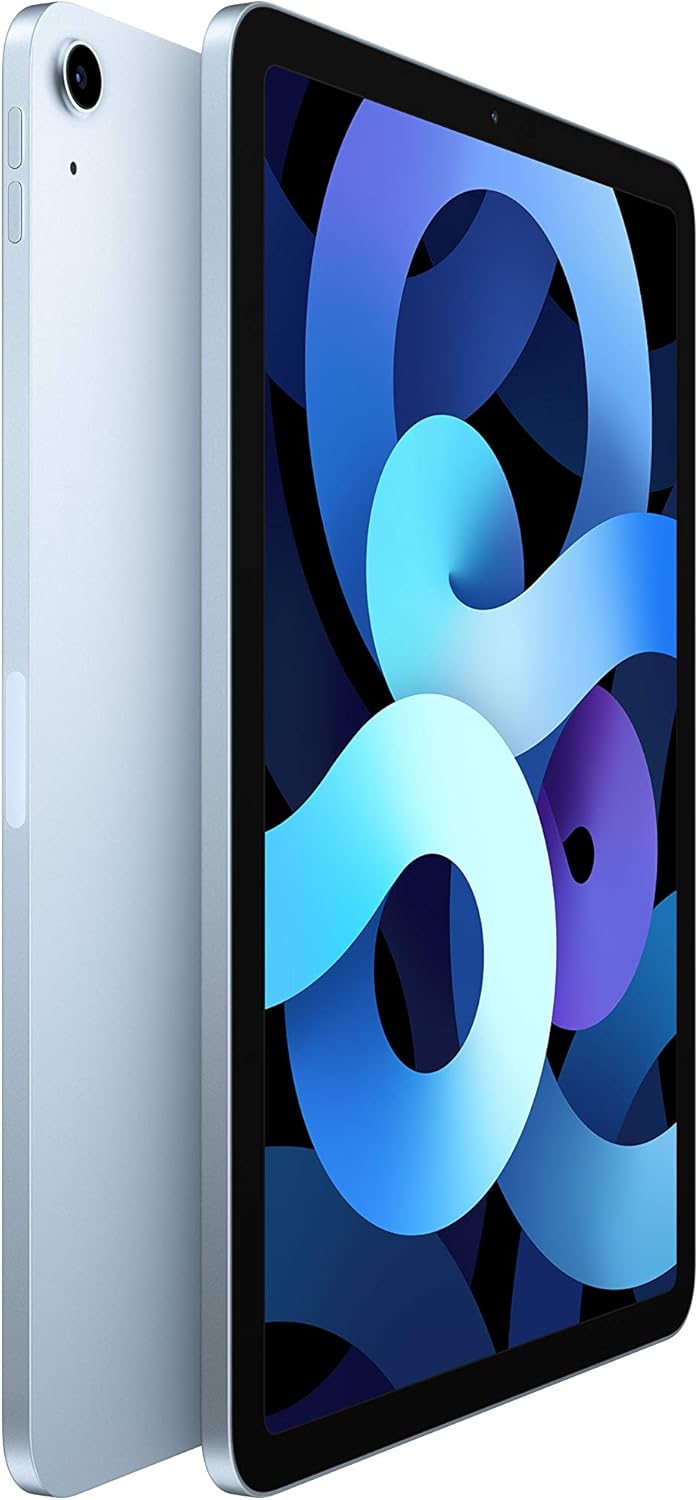
Figure 3: The Touch ID sensor is integrated into the Top button for secure authentication.
Operating Your iPad Air
Display and Navigation
The iPad Air features a stunning 10.9-inch Liquid Retina display with True Tone and P3 wide color for vibrant visuals. Navigation is primarily touch-based:
- Swipe Up: From the bottom edge to go to the Home screen or open the App Switcher.
- Swipe Down: From the top-right corner for Control Center, or from the top-center for Notifications.
- Tap: To select items or open apps.
- Pinch: To zoom in or out.

Figure 4: The 10.9-inch Liquid Retina display offers True Tone and P3 wide color.
Apple Pencil (2nd Generation) Support
The iPad Air supports the Apple Pencil (2nd generation), allowing for precise drawing, note-taking, and document markup. The Apple Pencil attaches magnetically to the side of your iPad for pairing and charging.

Figure 5: Use Apple Pencil (2nd Generation) for writing in any text field.
Magic Keyboard and Smart Keyboard Folio Support
Enhance productivity with the Magic Keyboard or Smart Keyboard Folio (sold separately). These accessories provide a comfortable typing experience and protect your iPad. The Magic Keyboard features a trackpad for precise control.
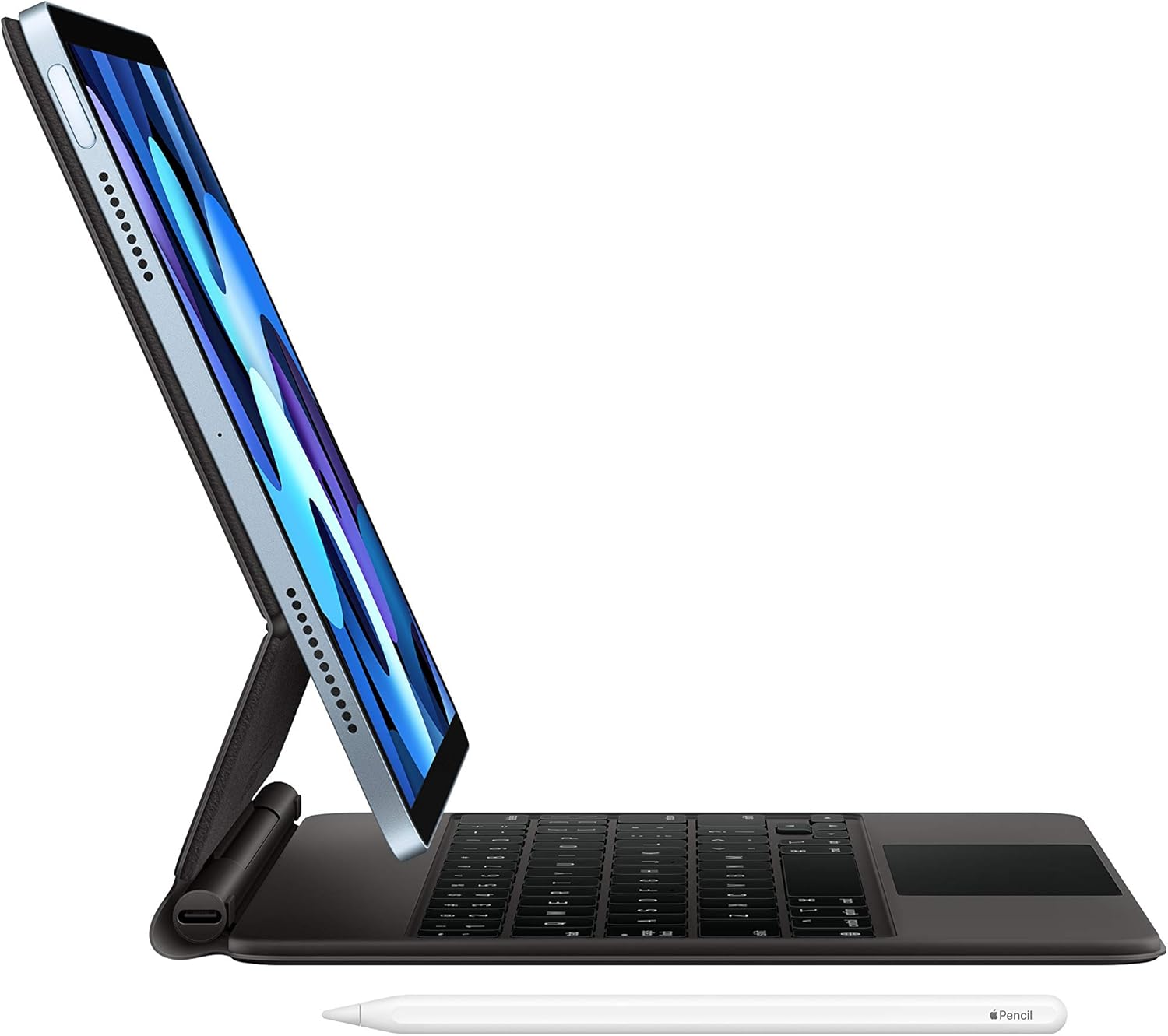
Figure 6: iPad Air with Magic Keyboard and Apple Pencil (accessories sold separately).
Cameras
The iPad Air is equipped with a 12MP back camera for high-quality photos and 4K video recording, and a 7MP FaceTime HD front camera for video calls and selfies.
- Back Camera: 12MP Wide camera with Smart HDR and 4K video at 24 fps, 30 fps, or 60 fps.
- Front Camera: 7MP TrueDepth front camera with Smart HDR.

Figure 7: The iPad Air supports 4K video recording and editing.
Connectivity and Battery
- Wi-Fi 6 (802.11ax): For fast wireless internet connectivity.
- USB-C Connector: Used for charging, data transfer, and connecting various accessories.
- Battery Life: Up to 10 hours of web surfing on Wi-Fi or watching video.
- Wide Stereo Audio: Provides an immersive audio experience.
Maintenance
Cleaning Your iPad Air
To clean your iPad Air, use a soft, lint-free cloth. Avoid abrasive cloths, towels, paper towels, or similar items that could scratch the screen. Do not use aerosol sprays, solvents, or abrasives. Unplug all cables and power off your iPad before cleaning.
Battery Care
The iPad Air uses a rechargeable lithium-ion battery. To prolong battery lifespan, avoid exposing the device to extreme temperatures. For long-term storage, charge the battery to about 50% and power off the device.
Troubleshooting
Common Issues and Solutions
- iPad Not Responding: If your iPad is unresponsive, force restart it. Press and quickly release the volume up button, press and quickly release the volume down button, then press and hold the top button until the Apple logo appears.
- Charging Issues: Ensure the USB-C cable and power adapter are securely connected and that the power outlet is functional. Try a different cable or adapter if available.
- Wi-Fi Connectivity Problems: Go to Settings > Wi-Fi and ensure Wi-Fi is turned on. Try restarting your Wi-Fi router. If the issue persists, forget the network and reconnect.
- App Crashing: Close the app from the App Switcher (swipe up from the bottom and swipe the app up) and reopen it. If the problem continues, check for app updates in the App Store.
Specifications
| Feature | Detail |
|---|---|
| Model Name | iPad Air (4th Generation) |
| Item Model Number | MYFQ2LL/A |
| Display | 10.9-inch Liquid Retina display with True Tone and P3 wide color |
| Display Resolution Maximum | 2360 x 1640 Pixels |
| Chip | A14 Bionic chip with 64-bit architecture Neural Engine |
| Memory Storage Capacity | 64 GB (also available in 256GB) |
| Back Camera | 12MP Wide camera with Smart HDR and 4K video at 24 fps, 30 fps, or 60 fps |
| Front Camera | 7MP TrueDepth front camera with Smart HDR |
| Battery Life | Up to 10 hours of surfing the web on Wi-Fi or watching video; Up to 9 hours using cellular data network (Wi-Fi + Cellular models) |
| Connector | USB-C |
| Wireless Connectivity | Wi-Fi 6 (802.11ax) |
| Dimensions (H x W x D) | 9.74 x 7 x 0.24 inches (247.6 x 178.5 x 6.1 mm) |
| Weight | 1.0 pound (458 grams) Wi-Fi model; 1.01 pounds (460 grams) Wi-Fi + Cellular model |
| Batteries | 1 Lithium Polymer battery (included) |
| Manufacturer | Apple |
| Release Date | September 15, 2020 |

Figure 8: Overview of key features including the A14 Bionic chip and Touch ID.
Product Overview Video
Watch this official video for a quick overview of the Apple iPad Air (4th Generation) features and design.
Video 1: Official preview video showcasing the design, Apple Pencil, Magic Keyboard, and performance of the iPad Air (4th Generation).
Warranty and Support
Warranty Information
Your Apple iPad Air (4th Generation) is covered by a one-year limited warranty from the date of original retail purchase. This warranty covers manufacturing defects but does not cover accidental damage or unauthorized modifications. For full terms and conditions, please refer to the warranty documentation included with your product or visit the official Apple website.
Customer Support
For technical assistance, service, or additional information, please visit the official Apple Support website or contact Apple customer service. You can find contact details and support resources at support.apple.com.
Related documentsMYFQ2LL/A


Ask a question about this manual
Ask about setup, troubleshooting, compatibility, parts, safety, or missing instructions. Manuals+ will review the question and use this page’s manual context to help answer it.