
Introduction
This manual provides essential information for setting up, operating, maintaining, and troubleshooting your Apple Watch SE (GPS, 44mm). The Apple Watch SE is designed to enhance your daily life by providing communication, fitness tracking, and health monitoring features directly from your wrist.
Setup
1. Unboxing and Components
Carefully remove all items from the packaging. Ensure the following components are present:
- Apple Watch SE (Silver Aluminum Case)
- White Sport Band (S/M & M/L sizes)
- Magnetic Charging Cable
This image presents the main components of the Apple Watch SE: the watch face, the white sport band, and the magnetic charging cable, illustrating what is included in the box.
2. Attaching the Band
Slide the band pieces into the slots on the Apple Watch until you feel and hear a click. Ensure the band is securely attached before wearing the watch.
3. Charging Your Apple Watch
Connect the magnetic charging cable to a USB power adapter (sold separately) and plug it into a power outlet. Place the back of your Apple Watch on the magnetic charger. The watch will display a charging indicator.
4. Pairing with iPhone
To use your Apple Watch SE, it must be paired with an iPhone 6s or later running the latest version of iOS. Power on your Apple Watch by pressing and holding the side button. Bring your iPhone near your Apple Watch, and a pairing screen will appear on your iPhone. Follow the on-screen instructions to complete the pairing process, which includes setting up a passcode and choosing your preferred settings.
Operating
1. Basic Navigation
The Apple Watch SE features a Digital Crown and a Side Button for interaction, in addition to the touch-sensitive display.
- Digital Crown: Rotate to scroll, zoom, or adjust values. Press once to go to the watch face or app list. Double-press to switch between the last two apps. Press and hold for Siri.
- Side Button: Press once to open the Dock (recently used apps). Double-press for Apple Pay. Press and hold for power options or Emergency SOS.
- Touch Display: Tap to select, swipe to navigate between screens, and force touch (press firmly) for additional options in some apps.

This image shows a detailed view of the Apple Watch SE's right side, highlighting the textured Digital Crown for navigation and the elongated side button for accessing the Dock or Apple Pay.
2. Communication
With the GPS model, you can make and receive calls and reply to texts directly from your wrist when your iPhone is nearby or connected to Wi-Fi.
- Making Calls: Tap the Phone app, then choose a contact or use the keypad.
- Sending Messages: Tap the Messages app, select a contact, and dictate, scribble, or choose a quick reply.

This image displays the Apple Watch SE screen with a text message conversation. A message from 'Liz' asks 'When are you running your 10K?', and the reply 'This Saturday!' is shown with celebratory emojis.
3. Activity and Workout Tracking
The Apple Watch SE tracks your daily activity and offers various workout modes.
- Activity Rings: Monitor your Move, Exercise, and Stand goals throughout the day.
- Workout App: Open the Workout app to select from activities like running, walking, cycling, yoga, swimming, and dance. Track metrics such as duration, calories burned, and heart rate.

The Apple Watch SE display shows the Workout application interface, featuring options for 'Yoga' and 'Pool Swim' with 'OPEN GOAL' indicators, demonstrating its fitness tracking capabilities.
4. Health Monitoring
The Apple Watch SE includes features for monitoring your health.
- Heart Rate Monitor: The watch continuously monitors your heart rate and can alert you to unusually high or low heart rates.
- Sleep Tracking: Use the Sleep app to track your sleep patterns and set sleep goals.
5. Music Playback
Sync your favorite music to your Apple Watch and listen directly from the watch using Bluetooth headphones, even without your iPhone nearby.

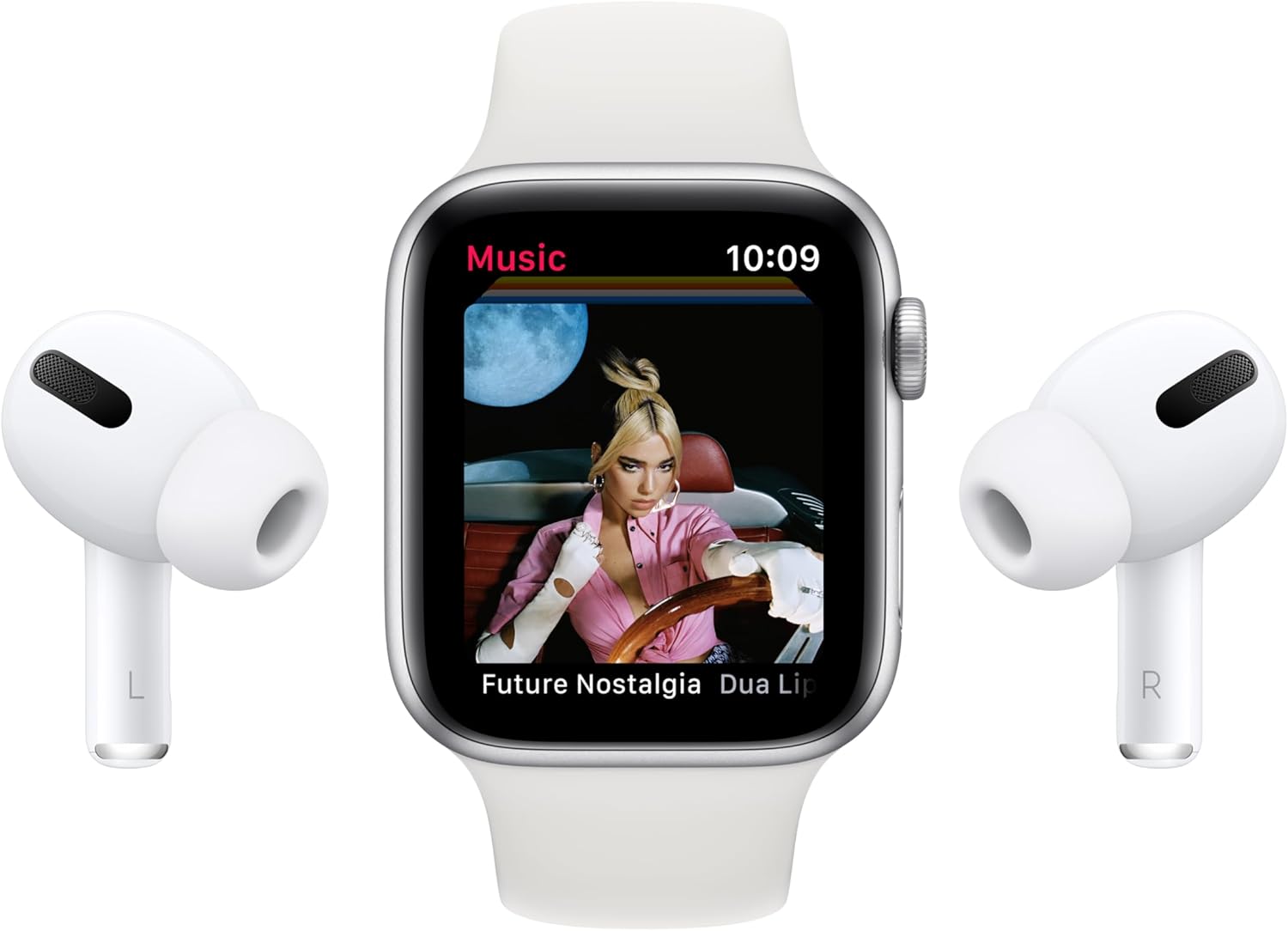
The Apple Watch SE screen shows the Music app playing 'Future Nostalgia' by Dua Lipa, flanked by a pair of white AirPods Pro, indicating seamless audio integration.

A collage illustrating key Apple Watch SE features, including sleep tracking (7HR 36M), a variety of workout icons (running, cycling, swimming), heart rate monitoring, and the Move, Exercise, and Stand activity rings.
Maintenance
1. Cleaning Your Apple Watch
To clean your Apple Watch, wipe it with a non-abrasive, lint-free cloth. If necessary, lightly dampen the cloth with fresh water. Do not use soaps, cleaning products, abrasive materials, or compressed air. Avoid submerging the watch in cleaning solutions.
2. Water Resistance
The Apple Watch SE has a water resistance rating of 50 meters under ISO standard 22810:2010. This means it can be used for shallow-water activities like swimming in a pool or ocean. It should not be used for scuba diving, waterskiing, or other activities involving high-velocity water or submersion below shallow depths. Water resistance is not a permanent condition and may diminish over time.
3. Battery Care
For optimal battery life, avoid exposing your Apple Watch to extreme temperatures. Charge your watch regularly, ideally before the battery completely drains. If storing the watch for an extended period, charge it to about 50% to prevent deep discharge.
Troubleshooting
Common Issues and Solutions
- Watch not pairing: Ensure your iPhone is updated to the latest iOS, Bluetooth is enabled, and the watch is charged. Try restarting both devices.
- Battery draining quickly: Check for background app refresh settings, reduce screen brightness, or disable unnecessary notifications.
- Apps not responding: Force quit the app by pressing the side button, then rotating the Digital Crown to the app, swiping left, and tapping the 'X'.
- Watch not turning on: Place the watch on its charger for at least 30 minutes. If it still doesn't turn on, contact Apple Support.
Restarting Your Apple Watch
If your Apple Watch is unresponsive, you can force restart it by pressing and holding both the side button and the Digital Crown for at least 10 seconds, until you see the Apple logo.
Resetting Your Apple Watch
If troubleshooting steps do not resolve an issue, you may need to erase all content and settings. On your Apple Watch, go to Settings > General > Reset > Erase All Content and Settings. This will unpair your watch from your iPhone and restore it to factory settings.
Specifications
| Model Number | MYDQ2LL/A |
| Product Dimensions | 1.73 x 1.5 x 0.42 inches |
| Item Weight | 1.28 ounces |
| Screen Size | 44 millimeters |
| Operating System | WatchOS |
| Memory Storage Capacity | 32 GB |
| Connectivity Technology | Bluetooth, GPS, NFC, Wi-Fi |
| Special Features | Activity Tracker, Heart Rate Monitor |
| Battery Cell Composition | Lithium Ion |
| Date First Available | September 15, 2020 |
Warranty and Support
Your Apple Watch SE is covered by a limited warranty. For detailed warranty information, please refer to the documentation included with your product or visit the official Apple support website. For technical assistance, troubleshooting, or service, contact Apple Support directly through their website or authorized service centers.


