
Introduction
The ieGeek WiFi Video Doorbell Camera is a comprehensive home security solution designed to enhance your property's safety and convenience. Featuring 2K Ultra HD video, two-way audio, and advanced human detection, this doorbell allows you to monitor your doorstep, communicate with visitors, and receive instant alerts directly on your smart devices. Its robust design ensures reliable performance in various weather conditions, providing peace of mind day and night.
Package Contents
Please verify that all items are present and in good condition upon opening the package.

Image: The ieGeek WiFi Video Doorbell Camera, along with its wireless chime and DC power adapter, illustrating the main components included in the package.
- ieGeek WiFi Video Doorbell Camera
- Wireless Chime
- DC 12V Power Adapter
- Mounting Bracket
- Mounting Screws and Anchors
- Wiring Harness (for existing doorbell wiring)
- User Manual
Product Overview
Familiarize yourself with the main components of your ieGeek Video Doorbell Camera.
- Camera Lens: Captures 2K QHD video.
- PIR Motion Sensor: Detects human movement.
- Microphone: For two-way audio communication.
- Speaker: For two-way audio communication and alerts.
- Push Button: Activates the doorbell chime and sends notifications.
- Status Indicator Light: Provides visual feedback on device status.
- SD Card Slot: Supports local storage up to 128GB (SD card not included).
- Power Port: For DC 12V adapter or existing AC 12V-24V wiring.
Setup
1. Powering the Doorbell
The ieGeek doorbell can be powered in two ways:
- Using the included DC 12V Power Adapter: Connect the adapter to the doorbell's power port and plug it into a standard electrical outlet.
- Using existing Doorbell Wiring (AC 12V-24V): Connect the doorbell to your existing doorbell wires. Ensure the power is off at the breaker before handling electrical wiring.
2. App Installation and Configuration
The "Cloudedge" app is required for full functionality.
- Download the "Cloudedge" app from the App Store (iOS) or Google Play Store (Android).
- Register for an account and log in.
- Tap the "+" icon to add a new device.
- Follow the in-app instructions to connect your doorbell to your 2.4GHz Wi-Fi network. (Note: 5GHz Wi-Fi is not supported).
- Once connected, you can name your doorbell and begin live viewing.
3. Chime Pairing
Pair the wireless chime with your doorbell for audible alerts inside your home.
- Plug the wireless chime into a power outlet.
- Press the pairing button on the chime (refer to chime's specific instructions for location).
- Press the doorbell button on the ieGeek camera. The chime should ring, indicating successful pairing.
4. Physical Installation
Choose a suitable location near your front door. The doorbell is IP66 weatherproof for outdoor use.
- Mark the drilling points using the mounting bracket as a template.
- Drill holes and insert wall anchors if mounting on masonry or stucco.
- Secure the mounting bracket to the wall with screws.
- Attach the doorbell camera to the mounting bracket, ensuring it clicks securely into place.
Operating Instructions
Live View and Two-Way Audio
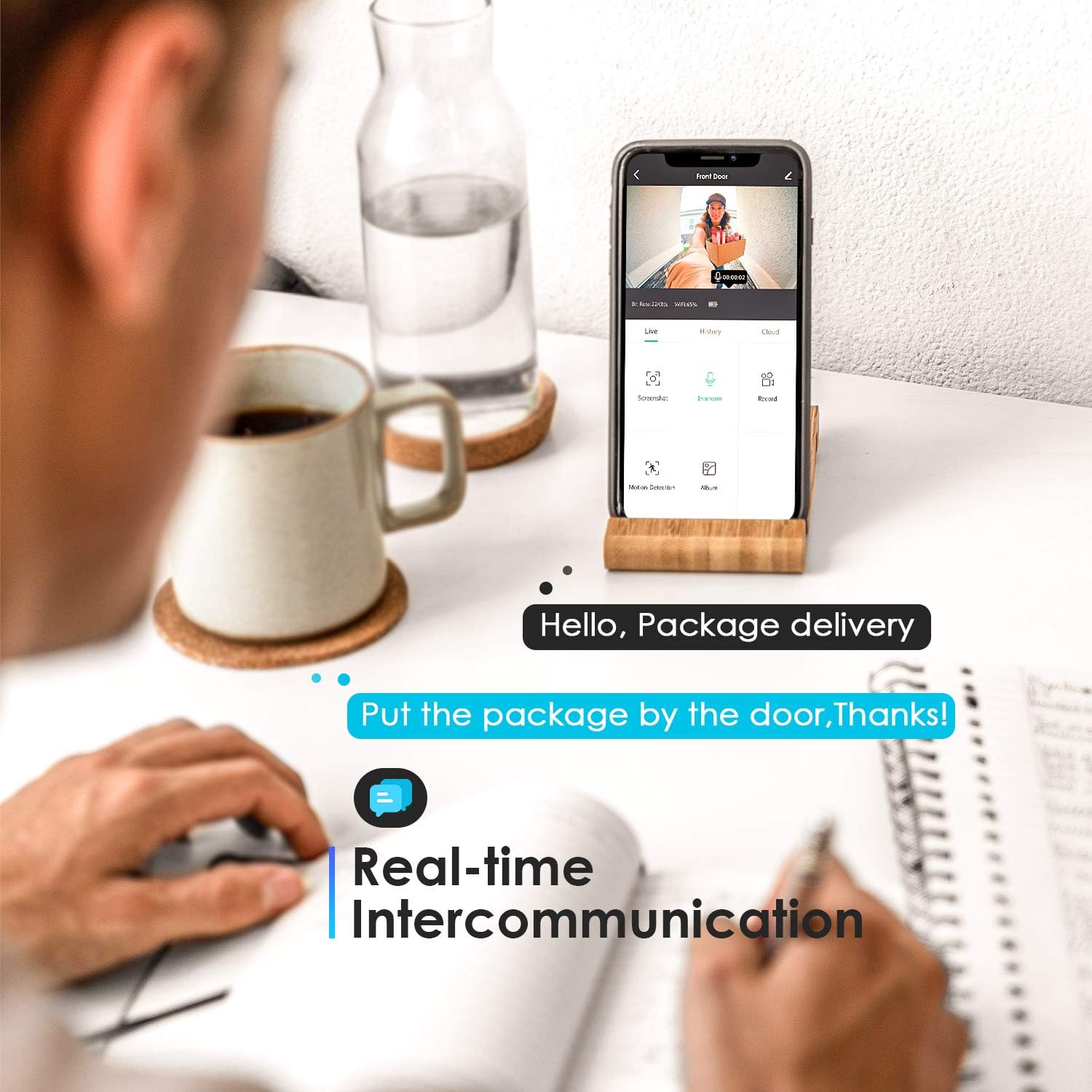
Image: A smartphone screen showing the live feed from the ieGeek doorbell, demonstrating the real-time intercommunication feature with text bubbles for quick responses.
Open the "Cloudedge" app to access the live video feed from your doorbell. Tap the microphone icon to initiate two-way audio communication with visitors. You can also send pre-recorded voice messages (up to 30 seconds each) when the doorbell rings.
Motion Detection and Alerts

Image: The ieGeek doorbell detecting movement, with a smartphone displaying an alert notification, highlighting the suspicious movement alerts feature powered by AI algorithms.
The doorbell features AI human motion detection. When human shape is detected within the 16ft monitoring range, you will receive instant push notifications on your smartphone. You can adjust the sensitivity and set specific monitoring zones within the app to reduce unnecessary alerts.

Image: A smartphone screen demonstrating how to draw and customize monitoring zones on the live camera feed, allowing users to define specific areas for motion detection.
Night Vision

Image: A smartphone showing the clear 2K QHD night vision capability of the ieGeek doorbell, providing enhanced clarity for nighttime monitoring.
The doorbell is equipped with IR night vision for clear visibility in low-light conditions. You can set the night vision mode to Auto, On, or Off via the app.
Video Storage
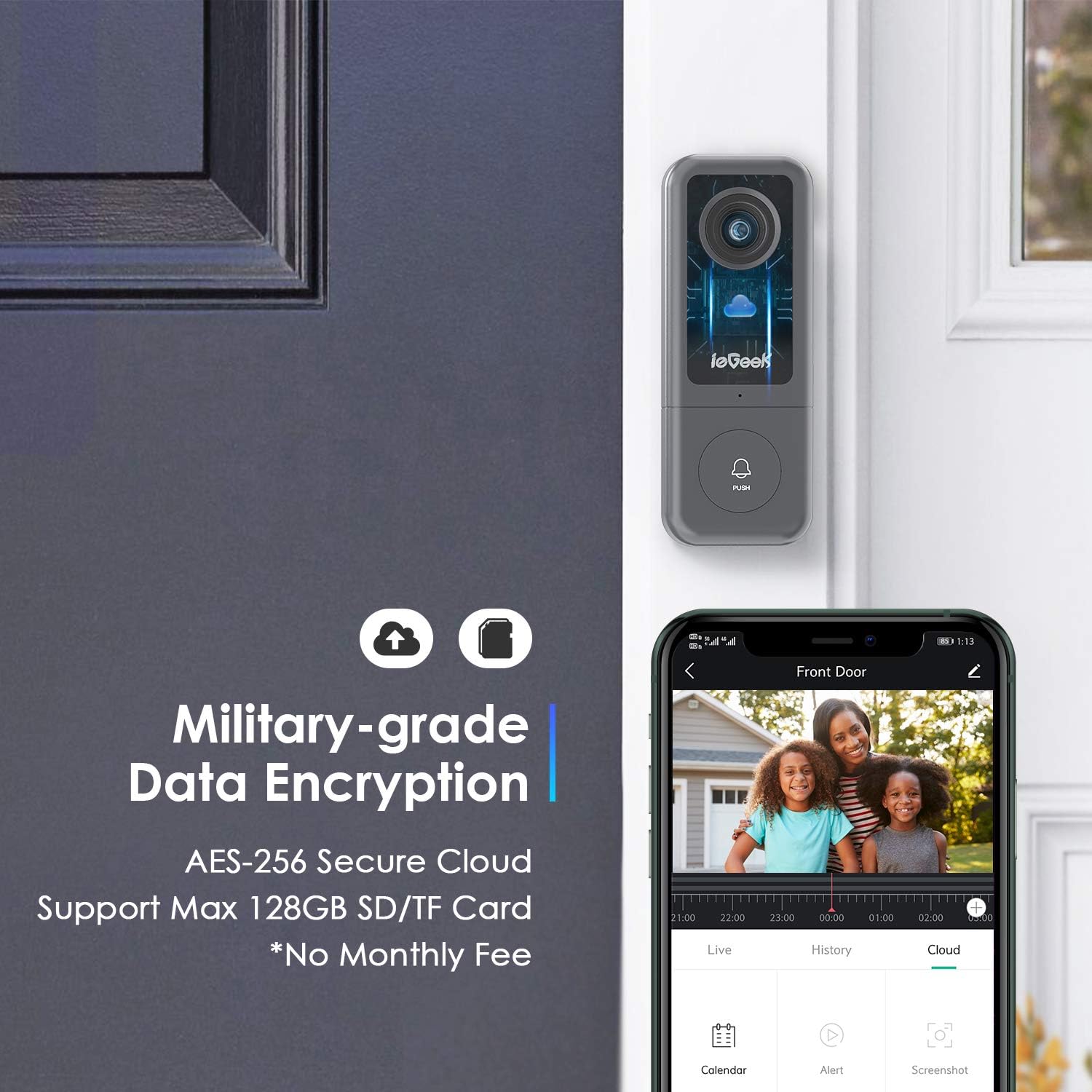
Image: The ieGeek doorbell highlighting its military-grade data encryption for both cloud and local storage (up to 128GB SD/TF card), emphasizing no monthly fees for local storage.
Recorded videos can be stored either on a local SD card (up to 128GB, not included) or via bank-level encrypted cloud storage (7-day free trial available). Access recordings through the "Cloudedge" app.
Smart Home Integration

Image: The ieGeek doorbell positioned next to a smart display, illustrating its compatibility with Amazon Alexa and Google Hub for integrated smart home control and viewing.
The ieGeek doorbell works with Amazon Alexa and Google Hub devices, allowing you to view the live feed on compatible smart displays and interact with visitors hands-free.
Maintenance
- Cleaning: Wipe the camera lens and doorbell surface with a soft, damp cloth. Avoid abrasive cleaners or solvents.
- Firmware Updates: Regularly check the "Cloudedge" app for firmware updates to ensure optimal performance and security.
- Weather Protection: While IP66 rated, extreme weather conditions (e.g., heavy snow, ice buildup) may temporarily affect performance. Ensure the lens is clear of obstructions.
- SD Card Management: If using an SD card, periodically review and delete old recordings to free up space, or enable loop recording if supported by the app.
Troubleshooting
| Issue | Possible Cause | Solution |
|---|---|---|
| Doorbell offline frequently | Weak Wi-Fi signal; 5GHz Wi-Fi connection. | Ensure doorbell is within strong 2.4GHz Wi-Fi range. Relocate router or use a Wi-Fi extender. Reset and re-pair if necessary. |
| Chime not ringing | Chime not paired; Chime out of range; Power issue. | Re-pair the chime with the doorbell. Ensure chime is plugged in and within range. |
| No motion detection alerts | Motion detection disabled; Sensitivity too low; Incorrect monitoring zone. | Enable motion detection in the app. Adjust sensitivity settings. Verify monitoring zones are correctly configured. |
| Poor video quality (e.g., blurry, frozen) | Weak Wi-Fi signal; Dirty lens. | Check Wi-Fi signal strength in the app. Clean the camera lens. |
| Cannot connect to Alexa/Google Hub | Incorrect skill/action enabled; Device not recognized. | Ensure the "Cloudedge" skill/action is correctly linked in your Alexa/Google Home app. Some features like live view may have compatibility limitations. |
Specifications
- Video Capture Resolution: 2K QHD
- Viewing Angle: 167° Wide Angle
- Connectivity: Wi-Fi (2.4GHz only)
- Power Source: Corded Electric (DC 12V adapter included, or AC 12V-24V existing wiring)
- Weatherproof Rating: IP66
- Operating Temperature: -4°F to 122°F (-20°C to 50°C)
- Storage: Local (Max 128GB SD/TF Card, not included) & Cloud Storage (7-day free trial)
- Human Detection: AI-powered with up to 16ft range
- Two-Way Audio: Yes, with pre-recorded message option
- Smart Home Compatibility: Works with Amazon Alexa & Google Hub
- Dimensions (L x W x H): 4.53 x 1.77 x 1.06 inches
- Item Weight: 1.23 pounds
Warranty and Support
For warranty information, technical support, or further assistance, please refer to the official ieGeek website or contact their customer service directly. Details can typically be found on the product packaging or within the "Cloudedge" app's help section.
Online Resources:
- Visit the ieGeek Store on Amazon for product information and updates.