
Introduction
This manual provides detailed instructions for the setup, operation, maintenance, and troubleshooting of your OMOTON 2.4G USB Wireless Keyboard, model WK002. Please read this manual thoroughly before using the product to ensure proper functionality and longevity.
Package Contents
- OMOTON 2.4G USB Wireless Keyboard WK002
- USB Receiver (typically stored in the battery compartment of the keyboard)
- User Manual
Setup
Follow these steps to set up your OMOTON wireless keyboard:
- Insert Batteries: Open the battery compartment on the back of the keyboard. Insert two AAA batteries (not included) according to the polarity indicators (+/-).
- Locate USB Receiver: The USB receiver is typically stored inside the battery compartment for safe keeping. Carefully remove it.
- Connect USB Receiver: Plug the USB receiver into an available USB port on your computer or laptop. Your operating system should automatically detect and install the necessary drivers.
- Power On Keyboard: Turn on the keyboard using the power switch, usually located on the back or side of the keyboard. The keyboard should now be ready for use.
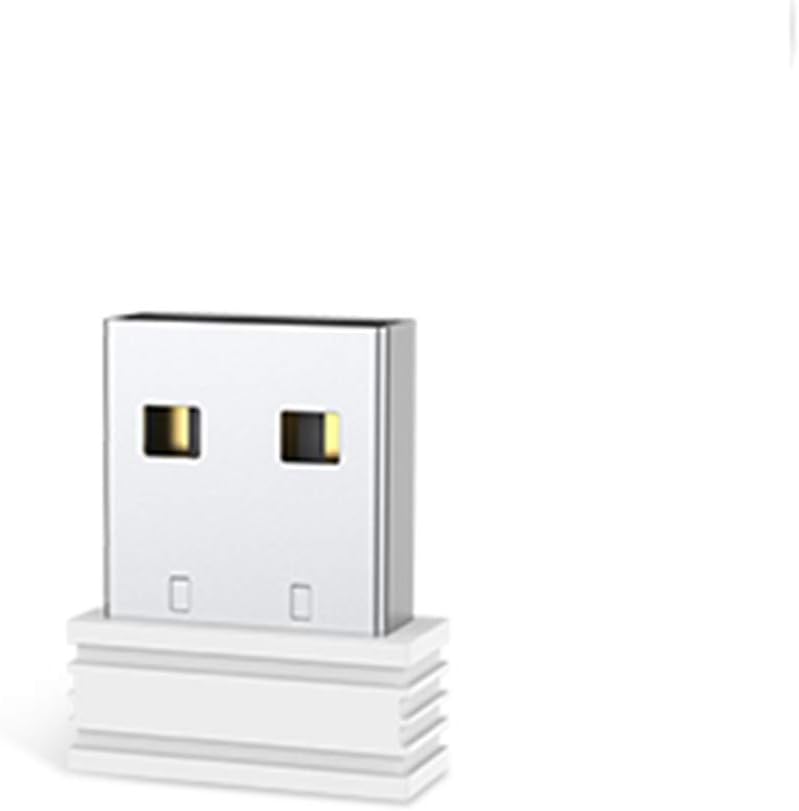
Image Description: A white USB receiver, designed for wireless connectivity, is shown. It features a standard USB-A connector with gold-colored contacts visible inside the port. The receiver has a compact, rectangular shape with a textured base, indicating it is ready to be plugged into a computer's USB port. This component facilitates the wireless connection between the keyboard and the computer.
Operating Instructions
Once the setup is complete, your OMOTON WK002 keyboard is ready for use. It operates on a 2.4G wireless frequency, providing a stable connection up to 10 meters (33 feet) without significant obstacles.
- Automatic Connection: The keyboard and receiver are pre-paired at the factory. Simply plug in the receiver and turn on the keyboard.
- Power Saving Mode: To conserve battery life, the keyboard will automatically enter sleep mode after a period of inactivity. Press any key to wake it up.
- Compatibility: This keyboard is compatible with laptops and desktop computers running various operating systems that support standard USB input devices.
Maintenance
Proper maintenance ensures the longevity and optimal performance of your keyboard.
- Cleaning: Use a soft, dry cloth to clean the keyboard surface. For stubborn dirt, slightly dampen the cloth with water or a mild, non-abrasive cleaner. Avoid spraying liquids directly onto the keyboard.
- Battery Replacement: When the keyboard's performance degrades or it stops responding, it's likely time to replace the batteries. Follow the steps in the "Setup" section to replace the AAA batteries.
- Storage: When not in use for extended periods, turn off the keyboard and store the USB receiver in its designated compartment to prevent loss.
Troubleshooting
If you encounter issues with your OMOTON WK002 keyboard, refer to the following common solutions:
- Keyboard Not Responding:
- Ensure the keyboard is powered on.
- Check if the batteries are correctly inserted and have sufficient charge. Replace them if necessary.
- Verify that the USB receiver is securely plugged into a working USB port on your computer. Try a different USB port.
- Move the keyboard closer to the USB receiver to rule out range issues or interference.
- Restart your computer.
- Keys Not Functioning Correctly:
- Clean the keyboard to remove any debris that might be obstructing the keys.
- Ensure no other software or settings are interfering with keyboard input.
- Intermittent Connection:
- Avoid placing the receiver near other wireless devices (e.g., Wi-Fi routers, cordless phones) that might cause interference.
- Ensure there are no large metal objects between the keyboard and the receiver.
Specifications
| Brand | OMOTON |
| Model | WK002 (Info-USB-White) |
| Connectivity Technology | 2.4G Wireless |
| Interface | USB (for receiver) |
| Special Feature | Wireless |
| Compatible Devices | Laptop, Desktop Computer |
Warranty and Support
OMOTON products are designed for reliability and performance. For warranty information, technical support, or customer service inquiries, please refer to the contact information provided with your product packaging or visit the official OMOTON website.
Please retain your proof of purchase for warranty claims.


