
Chieftec CW-01B-OP
Chieftec CW-01B-OP Computer Unit Tower Black User Manual
Model: CW-01B-OP
Introduction
The Chieftec CW-01B-OP Computer Unit Tower is a robust ATX mid-tower case designed for optimal ventilation and component compatibility. It features a mesh front panel for enhanced airflow, a tempered glass side panel for visibility, and comprehensive cable management options. This manual provides essential information for setting up, operating, and maintaining your computer case.

Figure 1: Angled front view of the Chieftec CW-01B-OP Computer Unit Tower in black.
Setup
Proper setup is crucial for the performance and longevity of your computer system. Follow these steps for installing components into the CW-01B-OP case.
1. Preparing the Case
- Place the case on a stable, flat surface.
- Carefully remove the tempered glass side panel by unscrewing the thumb screws at the rear.
- Identify the internal layout, including motherboard standoffs, drive bays, and cable routing channels.

Figure 2: Internal view of the CW-01B-OP case, highlighting the spacious motherboard tray and cable management cutouts.
2. Motherboard Installation
- Ensure the motherboard standoffs align with your ATX motherboard's screw holes. Adjust if necessary.
- Gently place the motherboard onto the standoffs.
- Secure the motherboard with the provided screws.
3. Drive Installation
The case offers multiple mounting options for hard drives and SSDs.
- Locate the 3.5-inch and 2.5-inch drive bays.
- Slide drives into the appropriate bays and secure them using the provided tool-less mechanisms or screws.

Figure 3: Close-up view of the internal drive bays, demonstrating the extensive mounting options for storage devices.
4. Power Supply and Cable Management
- Install the power supply unit (PSU) in the designated rear mount area.
- Utilize the integrated cable management system to route cables neatly behind the motherboard tray, ensuring optimal airflow and a clean build.
- Connect all necessary power cables to your components.
5. Front Panel Connections
- Connect the front panel USB 3.0 (1 port), USB 2.0 (2 ports), audio, power, and reset cables to the corresponding headers on your motherboard.
Operating
Once all components are installed and secured, the Chieftec CW-01B-OP case is ready for operation.
Powering On
- Ensure all external peripherals (monitor, keyboard, mouse) are connected.
- Connect the power cable to the PSU and a wall outlet.
- Press the power button located on the front panel of the case.
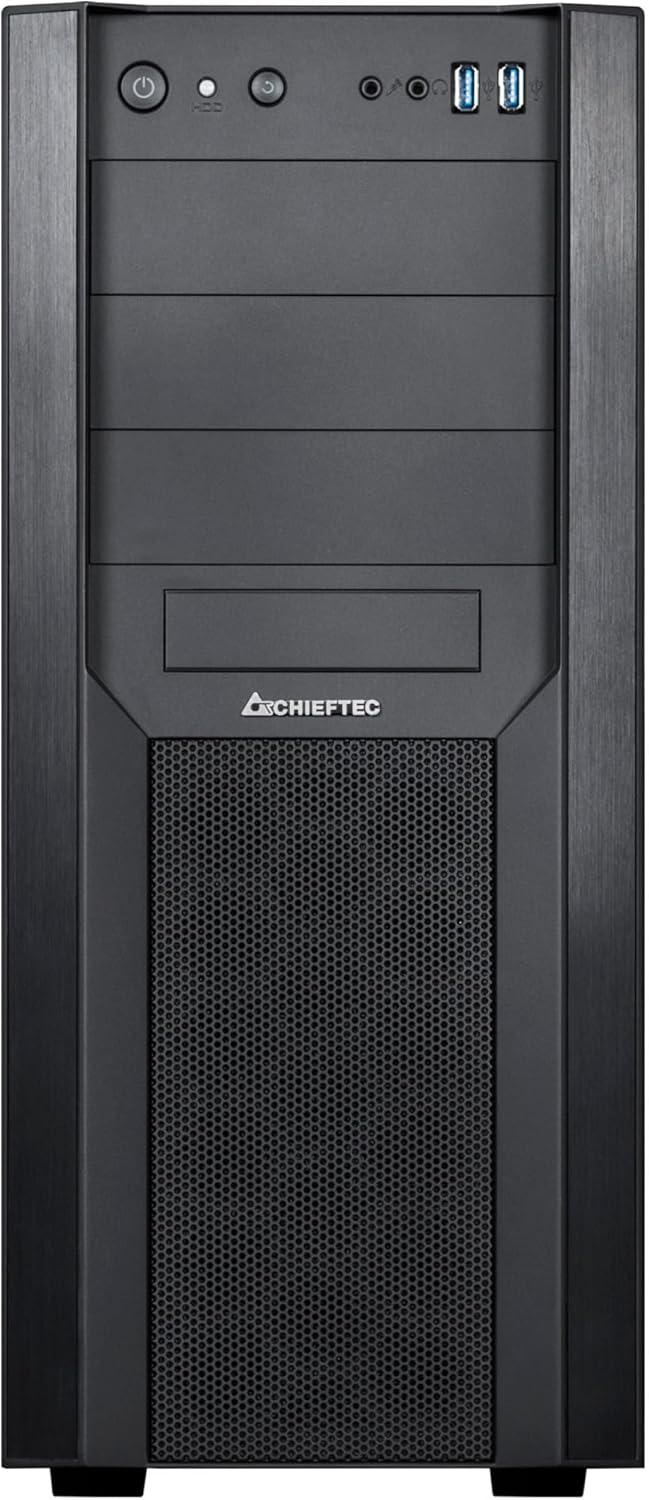
Figure 4: Front view of the CW-01B-OP case, detailing the power button, reset button, audio jacks, and USB ports.
Optimal Airflow
The mesh front panel and overall design of the CW-01B-OP are engineered for optimal airflow. Ensure no obstructions block the front mesh or rear exhaust areas to maintain efficient cooling.
Maintenance
Regular maintenance helps ensure the longevity and performance of your computer system.
Dust Management
- Periodically clean the mesh front panel and any fan filters to prevent dust buildup, which can impede airflow and cooling efficiency.
- Use compressed air to remove dust from internal components.
Cleaning the Tempered Glass Panel
- Use a soft, lint-free cloth and a non-abrasive glass cleaner to clean the tempered glass side panel. Avoid harsh chemicals.
Troubleshooting
This section addresses common issues you might encounter.
System Not Powering On
- Check Power Connections: Ensure the power cable is securely connected to the PSU and the wall outlet. Verify the PSU switch is in the 'ON' position.
- Front Panel Headers: Confirm that the power button cable from the front panel is correctly connected to the motherboard's power header.
- PSU Functionality: Test the power supply unit if possible, or try a different PSU.
Poor Airflow or Overheating
- Dust Buildup: Clean the mesh front panel and any installed fan filters.
- Fan Orientation: Ensure fans are installed with the correct airflow direction (intake/exhaust).
- Cable Management: Verify that cables are neatly routed and not obstructing airflow.
Specifications
Detailed specifications for the Chieftec CW-01B-OP Computer Unit Tower.
| Feature | Detail |
|---|---|
| Model Name | CW-01B-OP |
| Brand | Chieftec |
| Case Type | Mid Tower |
| Motherboard Compatibility | ATX |
| Dimensions (LxWxH) | 19.29 x 8.27 x 18.54 inches (490 x 210 x 471 mm) |
| Material | Tempered Glass, Metal |
| Color | Black |
| Front I/O Ports | 1x USB 3.0, 2x USB 2.0, Audio In/Out |
| Power Supply Mounting | Rear Mount |
| Cooling Method | Air (Mesh design for optimal ventilation) |
| Fan Size Support | 120 Millimeters (common fan size) |
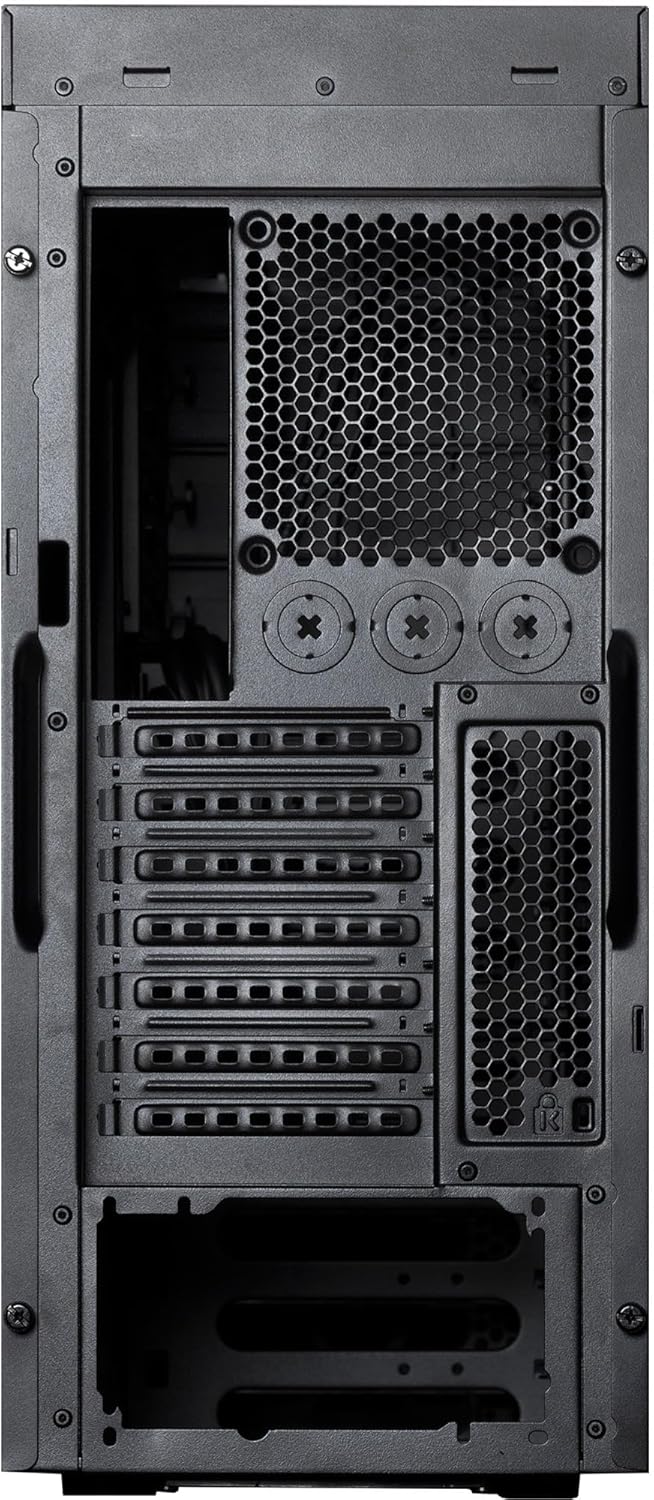
Figure 5: Rear view of the CW-01B-OP case, illustrating the expansion slots and rear fan mounting area.
Warranty and Support
For warranty information and technical support, please refer to the official Chieftec website or contact their customer service. Keep your purchase receipt as proof of purchase.
Manufacturer: Chieftec
Model: CW-01B-OP
Date First Available: March 1, 2021
Related documentsCW-01B-OP


Ask a question about this manual
Ask about setup, troubleshooting, compatibility, parts, safety, or missing instructions. Manuals+ will review the question and use this page’s manual context to help answer it.