
NVIDIA 930-13700-2500-100
NVIDIA SHIELD Remote User Manual
Model: 930-13700-2500-100
Introduction
The NVIDIA SHIELD Remote is designed to enhance your SHIELD TV experience with advanced features for intuitive control. This manual provides comprehensive instructions for setting up, operating, and maintaining your remote.
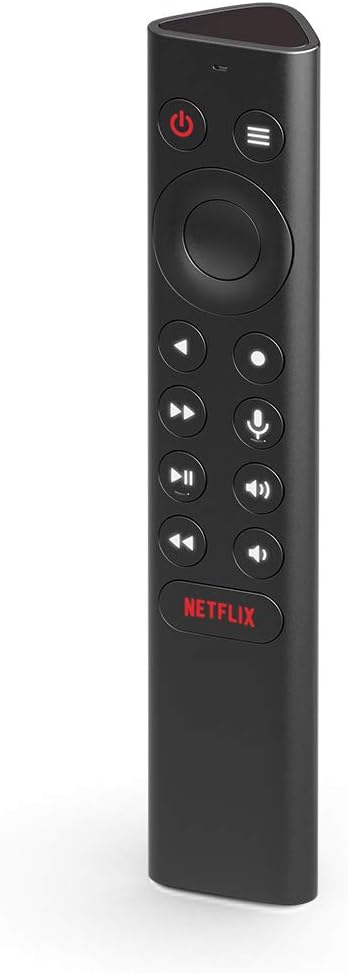
Front view of the NVIDIA SHIELD Remote, showcasing its sleek design and button layout.
What's Included
Your NVIDIA SHIELD Remote package includes the following items:
- NVIDIA SHIELD Remote
- 2 AAA Batteries (pre-installed or included separately)

The retail packaging for the NVIDIA SHIELD Remote, indicating the product inside.

Side view of the NVIDIA SHIELD Remote box, highlighting the "WHAT'S INSIDE" section.
Features
The NVIDIA SHIELD Remote offers a range of features designed for convenience and enhanced control:
- Voice Search: Integrated microphone for Google Assistant and voice control.
- Motion-Activated Backlit Buttons: Buttons illuminate automatically when the remote is picked up, ideal for low-light environments.
- IR Blaster: Control your home theater devices, including TV volume, power, and input source.
- Customizable Menu Button: A three-way user-customizable button for quick access to favorite apps, AI upscaling, mute, and more.
- Dedicated Buttons: Includes specific buttons for power, volume, fast-forward, rewind, and play/pause.
- Bluetooth Connectivity: Connects wirelessly to your SHIELD TV, allowing control even when the device is out of sight.
- Remote Locator: Use the SHIELD remote app to locate a misplaced remote.
- Standard AAA Batteries: Uses easily replaceable AAA batteries.

Back of the NVIDIA SHIELD Remote box, detailing key features such as voice control, backlit buttons, and IR blaster.
Setup
1. Battery Installation
The NVIDIA SHIELD Remote requires two AAA batteries. These are typically included with your purchase.
- Locate the battery compartment cover on the back of the remote.
- Slide the cover downwards to open the compartment.
- Insert two AAA batteries, ensuring the positive (+) and negative (-) terminals align correctly with the indicators inside the compartment.
- Slide the battery compartment cover back into place until it clicks securely.
2. Pairing with SHIELD TV
The remote connects to your SHIELD TV via Bluetooth. Ensure your SHIELD TV is powered on and connected to a display.
- On your SHIELD TV, navigate to Settings.
- Select Remotes & Accessories.
- Choose Add Accessory.
- The SHIELD TV will begin searching for nearby Bluetooth devices.
- On the NVIDIA SHIELD Remote, press and hold the Select button (center of the directional pad) and the Back button (left of the directional pad) simultaneously for approximately 5 seconds until the remote's LED indicator begins to flash.
- Once "NVIDIA SHIELD Remote" appears on your SHIELD TV screen, select it to complete the pairing process.
- If pairing issues occur, try resetting the remote by holding down the Back and Home buttons while inserting the batteries, then re-attempt pairing.
3. IR Blaster Setup (Optional)
The IR blaster allows the SHIELD Remote to control your TV or AV receiver's power, volume, and input. This is configured through your SHIELD TV settings.
- On your SHIELD TV, go to Settings.
- Select Display & Sound.
- Choose Power control or Volume control (depending on what you want to configure).
- Follow the on-screen prompts to select your TV or AV receiver brand and test the IR functions.
Operating the Remote
Familiarize yourself with the buttons and their functions:
- Power Button: Turns your SHIELD TV on or off.
- Directional Pad (D-Pad): Navigate menus and select items.
- Select Button: Confirms selections.
- Back Button: Returns to the previous screen.
- Home Button: Returns to the SHIELD TV home screen.
- Volume Buttons: Adjusts the volume of your SHIELD TV or connected IR device.
- Play/Pause Button: Controls media playback.
- Fast-Forward/Rewind Buttons: Skips forward or backward in media.
- Microphone Button: Activates Google Assistant for voice commands and search.
- Customizable Menu Button: Performs a user-defined action (see Customization section).
- Netflix Button: Launches the Netflix application directly.
Voice Control
Press and hold the Microphone Button to activate Google Assistant. Speak clearly into the remote to search for content, control smart home devices, get information, and more.
Customization
The NVIDIA SHIELD Remote features a highly customizable menu button, allowing you to assign up to three different actions based on how you press it:
- Single Press: A quick press and release.
- Double Press: Two quick presses in succession.
- Long Press: Press and hold the button.
To customize the menu button:
- On your SHIELD TV, go to Settings.
- Select Remotes & Accessories.
- Choose your SHIELD Remote.
- Select Customize Menu Button.
- From the options, assign desired actions for single, double, and long presses. Options include launching apps, enabling AI upscaling, muting sound, taking screenshots, and more.

An illustration of the customization options available for the SHIELD Remote, including launching apps, AI upscaling, and quick settings.
Maintenance
To ensure the longevity and optimal performance of your NVIDIA SHIELD Remote, follow these maintenance guidelines:
- Cleaning: Use a soft, dry, lint-free cloth to clean the remote. Do not use liquid cleaners, aerosols, or abrasive solvents.
- Battery Replacement: Replace batteries when the remote's performance degrades or the SHIELD TV indicates low battery. Always use new AAA batteries.
- Storage: Store the remote in a cool, dry place away from direct sunlight and extreme temperatures.
- Avoid Liquids: Do not expose the remote to water or other liquids.
- Handle with Care: Avoid dropping the remote or subjecting it to strong impacts.
Troubleshooting
| Problem | Solution |
|---|---|
| Remote not responding. |
|
| Buttons not lighting up. |
|
| Voice commands not working. |
|
| IR control (TV/AVR volume/power) not working. |
|
| Remote locator not working. |
|
Specifications
| Attribute | Detail |
|---|---|
| Model Number | 930-13700-2500-100 |
| Dimensions (L x W x H) | 6.5 x 1.57 x 1.57 inches |
| Weight | 4.8 ounces |
| Power Source | 2 x AAA batteries (included) |
| Connectivity | Bluetooth, IR Blaster |
| Compatible Devices | NVIDIA SHIELD TV (2015/2017/2019 models) |
| Color | Black |
| Manufacturer | NVIDIA |
| Country of Origin | Korea, Republic of |
Warranty Information
NVIDIA provides a limited warranty for the SHIELD Remote. For detailed information regarding warranty terms, conditions, and duration, please refer to the official NVIDIA website or the warranty card included with your product. You can typically find this information at nvidia.com/warranty.
Support
For further assistance, technical support, or to access frequently asked questions, please visit the official NVIDIA SHIELD support page:
- NVIDIA SHIELD Support: nvidia.com/shield
- Online Forums: Engage with the NVIDIA community for tips and solutions.
- Contact Support: Information for direct contact with NVIDIA customer service can be found on their support website.
Related documents930-13700-2500-100


Ask a question about this manual
Ask about setup, troubleshooting, compatibility, parts, safety, or missing instructions. Manuals+ will review the question and use this page’s manual context to help answer it.