
Introduction
Thank you for purchasing the Leelbox T2 DVB-T2 Digital Terrestrial Decoder. This device is designed to receive digital terrestrial television broadcasts, converting them for display on your analog or digital television. It supports Full HD 1080p resolution, HEVC 10-bit H.265 decoding, and offers various multimedia functions including PVR recording and USB media playback. Please read this manual carefully before operating the device to ensure proper use and to maximize its features.
Key Features
- DVB-T2 Digital TV Reception: Receives free local digital TV channels, supporting channels 100 and 200.
- Full HD 1080p Output: Delivers high-definition video output for a clear viewing experience.
- HEVC 10-bit H.265 Decoding: Advanced video compression support for efficient broadcasting.
- PVR (Personal Video Recorder) Function: Allows recording of TV programs to a USB storage device.
- USB Media Playback: Supports playback of photos, MP3 music files, and recorded videos from a USB drive.
- EPG (Electronic Program Guide): Provides program information for upcoming broadcasts.
- Multi-language Support: Includes support for various languages and subtitles.
- Time Shift Function: Pause live TV and resume later.
- Learning Remote Control: A remote control with learning capabilities for convenience.
- Internet Services: Compatible with YouTube via network connection (USB Wi-Fi or Ethernet).
Package Contents
Please check the box for the following items:
- Leelbox T2 DVB-T2 Digital Terrestrial Decoder
- Remote Control
- User Manual
- Power Cable
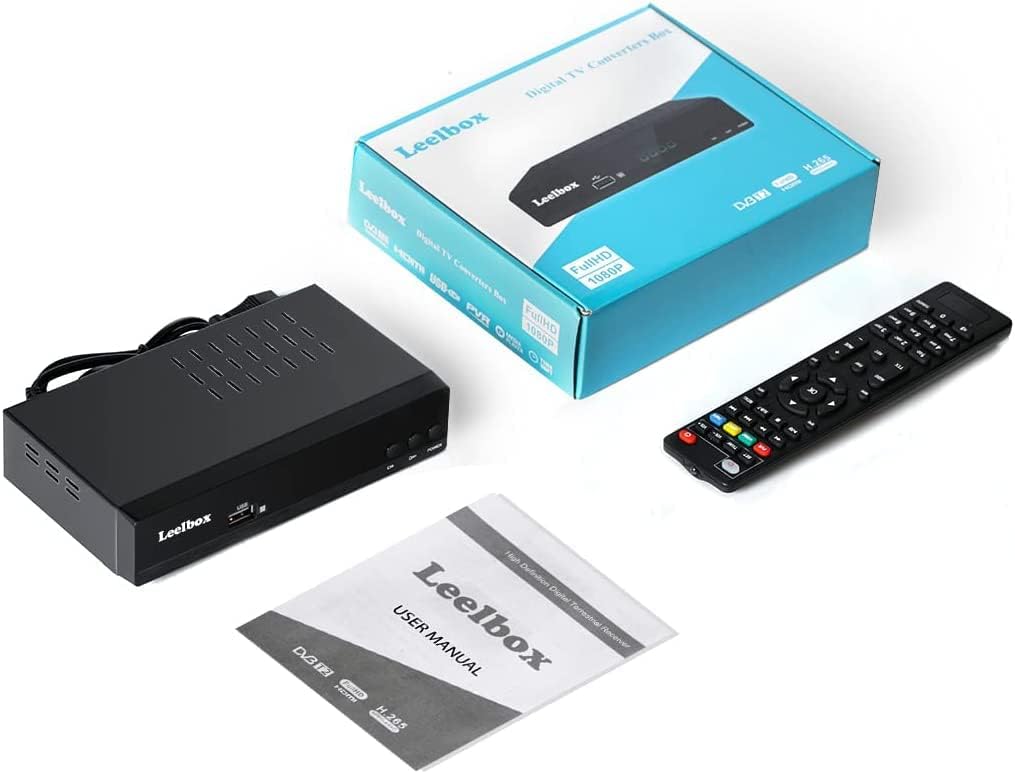
Image: Leelbox T2 package contents, showing the decoder unit, remote control, user manual, and product box.
Setup Guide
1. Connecting the Decoder
Ensure your television and the decoder are powered off before making any connections.
- Antenna Connection: Connect your terrestrial antenna cable to the ANT IN port on the back of the Leelbox T2 decoder.
- TV Connection:
- For HD TVs, connect an HDMI cable from the HDMI port on the decoder to an HDMI input on your TV.
- For Analog TVs or TVs without HDMI, connect a SCART cable from the TV (SCART) port on the decoder to the SCART input on your TV.
- For audio output to an external sound system, use the COAXIAL or S/PDIF port.
- Power Connection: Connect the power cable to the POWER CABLE input on the decoder and then plug it into a power outlet.
- Network Connection (Optional):
- For wired internet, connect an Ethernet cable to the ETHERNET port.
- For wireless internet, insert a compatible USB Wi-Fi dongle (not included) into the USB port.

Image: Rear panel of the Leelbox T2 decoder, highlighting various connection ports including antenna input, HDMI, Ethernet, and SCART.

Image: Detailed connection diagram for the Leelbox T2, illustrating how to connect the antenna, TV (via HDMI or SCART), and network (via LAN or optional USB Wi-Fi).
2. Initial Power On and Channel Scan
- Power on your television and select the correct input source (HDMI or AV/SCART) corresponding to the connection you made with the decoder.
- Power on the Leelbox T2 decoder using the POWER button on the front panel or the remote control.
- Upon first use, the decoder will guide you through an initial setup wizard. Follow the on-screen prompts to select your language, country, and perform an automatic channel scan.
- The channel scan process may take several minutes. Once complete, the decoder will save the found channels, and you can begin watching TV.

Image: Signal flow diagram showing how digital broadcast signals are received by the Leelbox T2 converter box and then output to an analog television, demonstrating HEVC Main10 compatibility.
Operating Instructions
Basic TV Viewing
- Use the CH+ and CH- buttons on the remote control or the front panel to change channels.
- Press the OK button to view the channel list and select a channel directly.
- Press the INFO button to display current program information.
- Press the EPG button to access the Electronic Program Guide for detailed program schedules.
PVR (Recording) Function
The PVR function allows you to record live TV programs to an external USB storage device (e.g., USB hard drive). USB flash drives are generally not recommended for recording due to potential performance limitations.
- Connect a formatted USB hard drive to the USB port on the front of the decoder.
- To record instantly, press the REC button on the remote control while watching a program. Press REC again to stop recording.
- To schedule a recording, go to the EPG, select the desired program, and press the REC button to set a timer.
- To play back recorded programs, press the PVR button or access the multimedia menu and navigate to the recorded files.

Image: Illustration of the PVR function, demonstrating how to record TV programs to a USB drive for later viewing.
USB Media Playback
The Leelbox T2 supports playback of various media files from a USB storage device.
- Insert a USB drive containing your media files (photos, music, videos) into the USB port.
- Access the multimedia menu (usually via a dedicated button or through the main menu).
- Select the type of media you wish to play (Photo, Music, Movie) and browse your files.

Image: The Leelbox T2 connected to a USB drive, demonstrating its capability to play back various media files directly on your television.
Internet Services (YouTube)
If connected to the internet via Ethernet or USB Wi-Fi, the decoder supports certain internet services, such as YouTube.
- Ensure your decoder is connected to a stable internet connection.
- Navigate to the "Internet" or "Applications" section in the main menu.
- Select the YouTube application to access its content.
Remote Control
The included remote control provides full functionality for the Leelbox T2. It also features a learning function, allowing you to program certain buttons to control your TV (e.g., Power, Volume, Input).
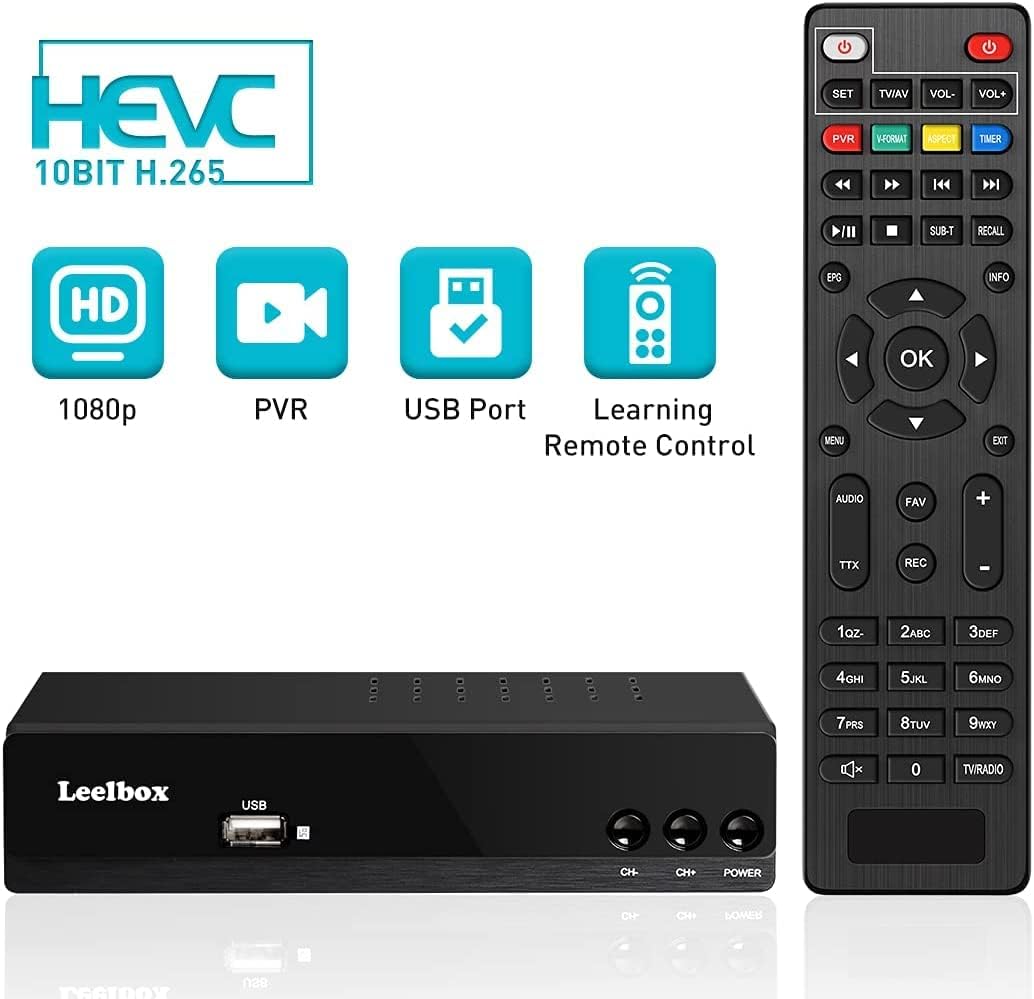
Image: The Leelbox T2 decoder alongside its remote control, illustrating the device's main capabilities.
Maintenance
To ensure the longevity and optimal performance of your Leelbox T2 decoder, follow these maintenance guidelines:
- Cleaning: Use a soft, dry cloth to clean the exterior of the device. Do not use liquid cleaners or abrasive materials.
- Ventilation: Ensure the decoder is placed in a well-ventilated area. Do not block the ventilation holes on the top or sides of the unit.
- Environment: Keep the device away from direct sunlight, heat sources, and excessive moisture.
- Power Off: If the device will not be used for an extended period, unplug it from the power outlet.
Troubleshooting
If you encounter issues with your Leelbox T2 decoder, please refer to the following common problems and solutions:
| Problem | Possible Cause | Solution |
|---|---|---|
| No picture or sound | Incorrect TV input selected; loose cables; decoder not powered on. | Check TV input source (HDMI/AV). Ensure all cables are securely connected. Verify decoder is powered on. |
| "No Signal" message | Antenna not connected or poor signal; no channels scanned. | Check antenna connection. Adjust antenna position. Perform a new channel scan. |
| Remote control not working | Batteries are dead or inserted incorrectly; obstruction between remote and decoder. | Replace batteries. Ensure correct polarity. Remove any obstructions. Point remote directly at the decoder. |
| Cannot record to USB | USB drive not formatted correctly; insufficient space; USB drive not compatible. | Ensure USB drive is formatted to FAT32 or NTFS. Check available space. Try a different USB hard drive (flash drives may not be suitable). |
| Internet services not working | No network connection; incorrect network settings. | Verify Ethernet cable is connected or USB Wi-Fi dongle is inserted. Check network settings in the decoder menu. Ensure your router is working. |
Specifications
| Feature | Detail |
|---|---|
| Brand | Leelbox |
| Model Number | T2 |
| Color | Black |
| Connectivity Technology | USB, Wi-Fi (via dongle), Ethernet |
| Compatible Devices | Television |
| HDMI Ports | 1 |
| Audio Output Mode | Stereo, 5.1 Surround Sound (via Coaxial/S/PDIF) |
| Output Power | 5 Watts |
| Supported Internet Services | YouTube |
| Video Decoding | HEVC 10-bit H.265, MPEG-2/4 |
| Output Resolution | Up to 1080p Full HD |
Warranty and Support
For information regarding warranty, technical support, or service, please refer to the official Leelbox website or contact their customer support directly. Details can typically be found on the product packaging or the manufacturer's official online resources.