1. Introduction
This manual provides detailed instructions for the installation, operation, and maintenance of the YuYue Electronic Universal Wireless Steering Wheel Remote Control Buttons. This device is designed to enhance driving safety and convenience by allowing control of your car's head unit functions directly from the steering wheel.
The controller is compatible with all head units that feature a steering wheel control wire and support steering wheel control functionality. It offers 8 programmable function keys to manage common in-car functions.
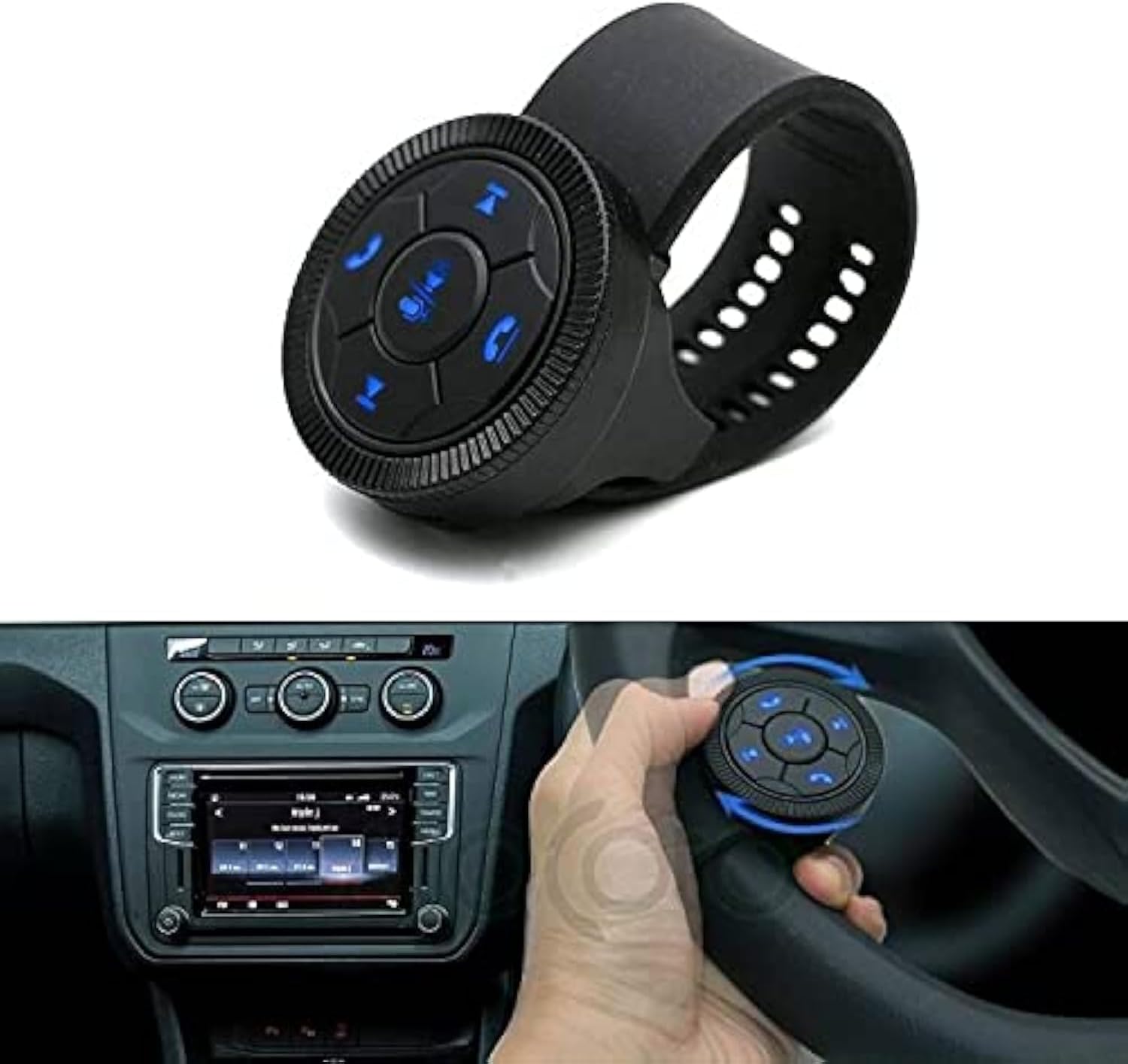
Figure 1: Wireless steering wheel control button with receiver and in-car application view. This image displays the complete product, including the wireless steering wheel control unit and its receiver box. The lower part of the image illustrates how the controller is positioned on a car's steering wheel, with the car's head unit visible in the dashboard.
2. Setup and Installation
Follow these steps for proper installation of your wireless steering wheel control system. Ensure your vehicle's head unit supports steering wheel control functionality before proceeding.
2.1. Receiver Box Wiring
- Locate the steering wheel control wire on your car's head unit. This wire is typically labeled as "KEY1" or "SW1".
- Connect the three wires from the receiver box to your head unit as follows:
- Black wire: Connect to the head unit's GND- (ground) wire.
- Red wire: Connect to the head unit's ACC+ (accessory power) wire.
- White wire: Connect to the head unit's KEY1/SW1 (steering wheel control) wire.
- The longest wire on the receiver box functions as an antenna and does not require a direct connection to the head unit. Ensure it is positioned for optimal signal reception.
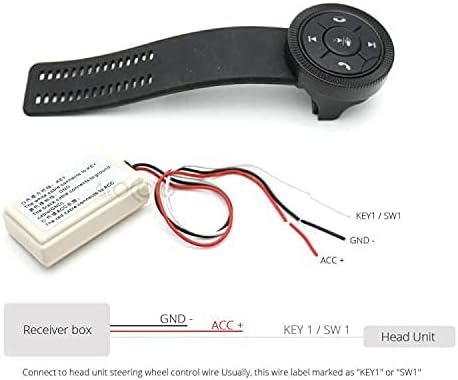
Figure 2: Wiring diagram for the wireless steering wheel control receiver box. This diagram illustrates the connection points for the receiver box. It shows three wires (GND-, ACC+, KEY1/SW1) connecting to the head unit, with the longest wire serving as an antenna.
2.2. Controller Placement
The wireless controller can be flexibly installed anywhere along your steering wheel for convenient access. Use the adjustable strap to secure it firmly.

Figure 3: Controller mounted on a steering wheel. The controller is shown mounted on a steering wheel, with an arrow indicating the rotary knob's function for volume adjustment (VOL+ and VOL-).
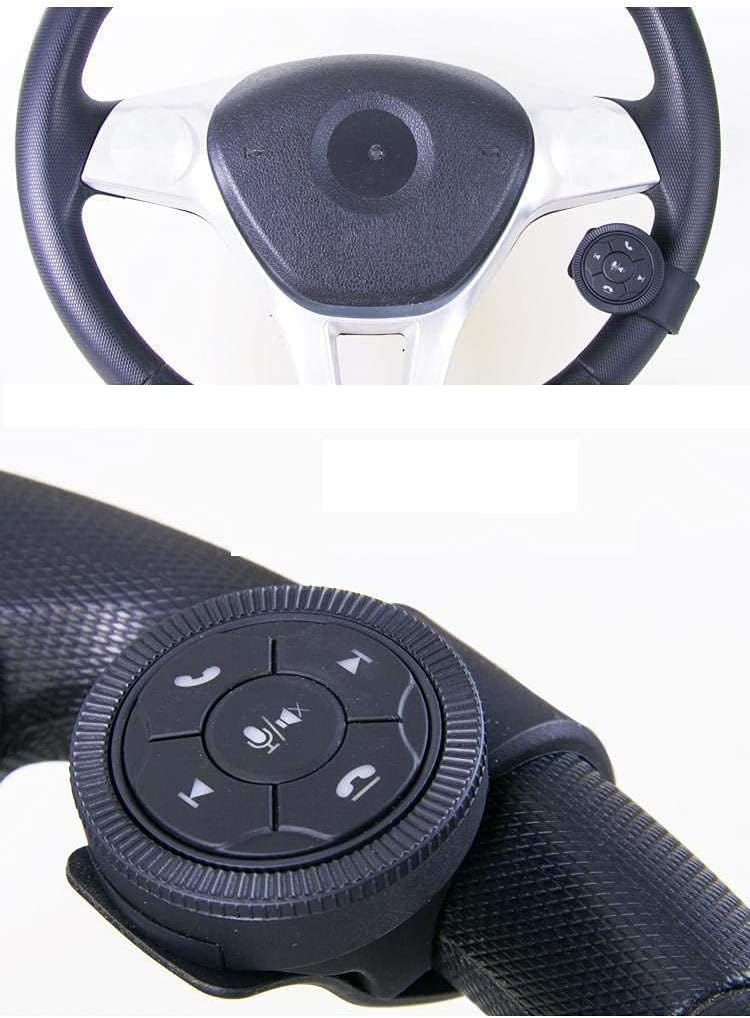
Figure 4: Overhead view of the controller on a steering wheel. An overhead view of a car's steering wheel with the wireless control button securely attached, providing a sense of its size and placement in a vehicle.
2.3. Key Learning (Programming)
After connecting the receiver, you must program the functions of the steering wheel controller through your head unit's settings.
- Access the key learning menu or steering wheel control settings within your head unit's factory setup menu. Refer to your head unit's manual for specific instructions on how to enter this mode.
- Follow the on-screen prompts to assign functions to each of the 8 buttons on the wireless controller. Typically, you will select a function on the head unit's screen and then press the corresponding button on the wireless controller.
- Once programmed, the functions will be permanently stored on the controller until deliberately removed or reset.
3. Operating Instructions
The wireless steering wheel control provides convenient access to various functions of your car's head unit. The controller features a rotary knob and multiple buttons for intuitive operation.
3.1. Button Functions
The controller includes 8 soft buttons that can be programmed to control various audio and communication functions. Common functions include:
- Volume Control: Adjust volume up (+) and down (-) using the rotary knob.
- Track Navigation: Move to the previous or next track/station.
- Mute: Silence audio output.
- Call Management: Answer or hang up phone calls.
- Mode Selection: Switch between audio sources (e.g., Radio, USB, Bluetooth).
- GPS: Activate GPS navigation functions.
- BAD (Band): Change radio bands.

Figure 5: Button functions and dimensions. A detailed diagram providing the physical dimensions of the control unit (45mm diameter, 8mm thickness, 120mm strap length) and labeling each button's function, including Volume +/-, Next/Previous, Answer Call, Hang Up, and Mute.
Figure 6: Close-up of the control unit. A detailed view of the wireless control button, highlighting its circular design, the central microphone/mute button, and the surrounding navigation and call control buttons.
3.2. Rotary Knob Operation
The outer ring of the controller functions as a rotary knob, primarily for volume adjustment. Rotate it clockwise for volume up and counter-clockwise for volume down. For optimal response, rotate the knob at a moderate speed.
4. Maintenance
To ensure the longevity and optimal performance of your wireless steering wheel control, follow these simple maintenance guidelines:
- Cleaning: Wipe the controller with a soft, dry cloth. Avoid using abrasive cleaners, solvents, or harsh chemicals, as these can damage the surface and internal components.
- Environmental Conditions: Avoid exposing the device to extreme temperatures, direct sunlight for prolonged periods, or excessive moisture.
- Battery Replacement: (If applicable, not specified in product data, assume internal or long-life battery) If the device uses replaceable batteries, refer to the product packaging or manufacturer's website for specific battery type and replacement instructions.
- Secure Mounting: Periodically check that the controller is securely fastened to the steering wheel to prevent movement during driving.
5. Troubleshooting
If you encounter issues with your wireless steering wheel control, refer to the following troubleshooting steps:
- Controller Not Responding:
- Ensure the receiver box is correctly wired to the head unit's ACC+ (power) and GND- (ground) wires.
- Verify that the head unit is powered on.
- Check if the controller's battery (if applicable) needs replacement.
- Ensure the controller is within range of the receiver and there are no obstructions.
- Functions Not Working After Installation:
- Re-enter the head unit's key learning menu and repeat the programming process for each button.
- Confirm that the white wire from the receiver is correctly connected to the head unit's steering wheel control input (KEY1/SW1).
- Verify that your head unit explicitly supports external steering wheel controls. Some head units may require specific adapters or have compatibility limitations.
- Delayed Response or Inconsistent Operation:
- Ensure the receiver's antenna wire is not obstructed and is positioned for optimal signal reception.
- When using the rotary knob for volume, try adjusting it at a slower, more deliberate pace.
- Check for potential electromagnetic interference from other devices in the vehicle.
- Receiver Box Overheating:
- Immediately disconnect power to the receiver box.
- Verify all wiring connections are correct and secure, especially power and ground. Incorrect wiring can cause overheating.
- If overheating persists after verifying connections, discontinue use and contact customer support.
6. Specifications
| Feature | Detail |
|---|---|
| Product Dimensions | 4.72 x 1.77 x 0.01 inches (Controller unit: 45mm diameter, 8mm thickness) |
| Item Weight | 6.4 ounces |
| Model Number | 613464505365 |
| Brand | YuYue Electronic |
| Special Feature | Universal compatibility with head units supporting steering wheel control |
| Color | Black |
| Max Number of Supported Devices | 1 (per receiver) |
| Compatible Devices | DVD/Blu-ray Player head units with steering wheel control input |
7. Warranty and Support
Specific warranty information for this product is not provided in the available documentation. For details regarding warranty coverage, technical support, or replacement parts, please contact YuYue Electronic directly or refer to the product packaging.
You may also visit the YuYue Electronic Store on Amazon for additional product information or to contact the seller.