
Razer RZ04-03240100-R3M1
Razer BlackShark V2 X Gaming Headset
Model: RZ04-03240100-R3M1
Introduction
The Razer BlackShark V2 X is a lightweight esports gaming headset designed for competitive play. It features excellent audio clarity, a clear microphone, and superior sound isolation. This manual provides detailed instructions for setting up, operating, maintaining, and troubleshooting your headset.

Image: Front view of the Razer BlackShark V2 X Gaming Headset.
Package Contents
Verify that all components are present in your package:
- Razer BlackShark V2 X Gaming Headset
- Detachable Razer HyperClear Cardioid Microphone
- 3.5mm audio cable (1.3m)
- USB Sound Card (for 7.1 Surround Sound on PC)
- Important Product Information Guide
Setup Instructions
Connecting to PC (with 7.1 Surround Sound)
- Connect the 3.5mm audio cable from the headset to the included USB Sound Card.
- Plug the USB Sound Card into an available USB port on your Windows 10 64-bit PC.
- Install the necessary drivers or software (if prompted) for 7.1 Surround Sound functionality.
- Attach the detachable Razer HyperClear Cardioid Microphone to the headset's microphone port.
Connecting to PC, Mac, PS4, PS5, Xbox One, Nintendo Switch, and Mobile Devices (3.5mm Analog)
- Connect the 3.5mm audio cable directly from the headset to the 3.5mm audio jack on your device.
- Attach the detachable Razer HyperClear Cardioid Microphone to the headset's microphone port.
- Ensure your device's audio settings are configured to use the headset as the input and output device.
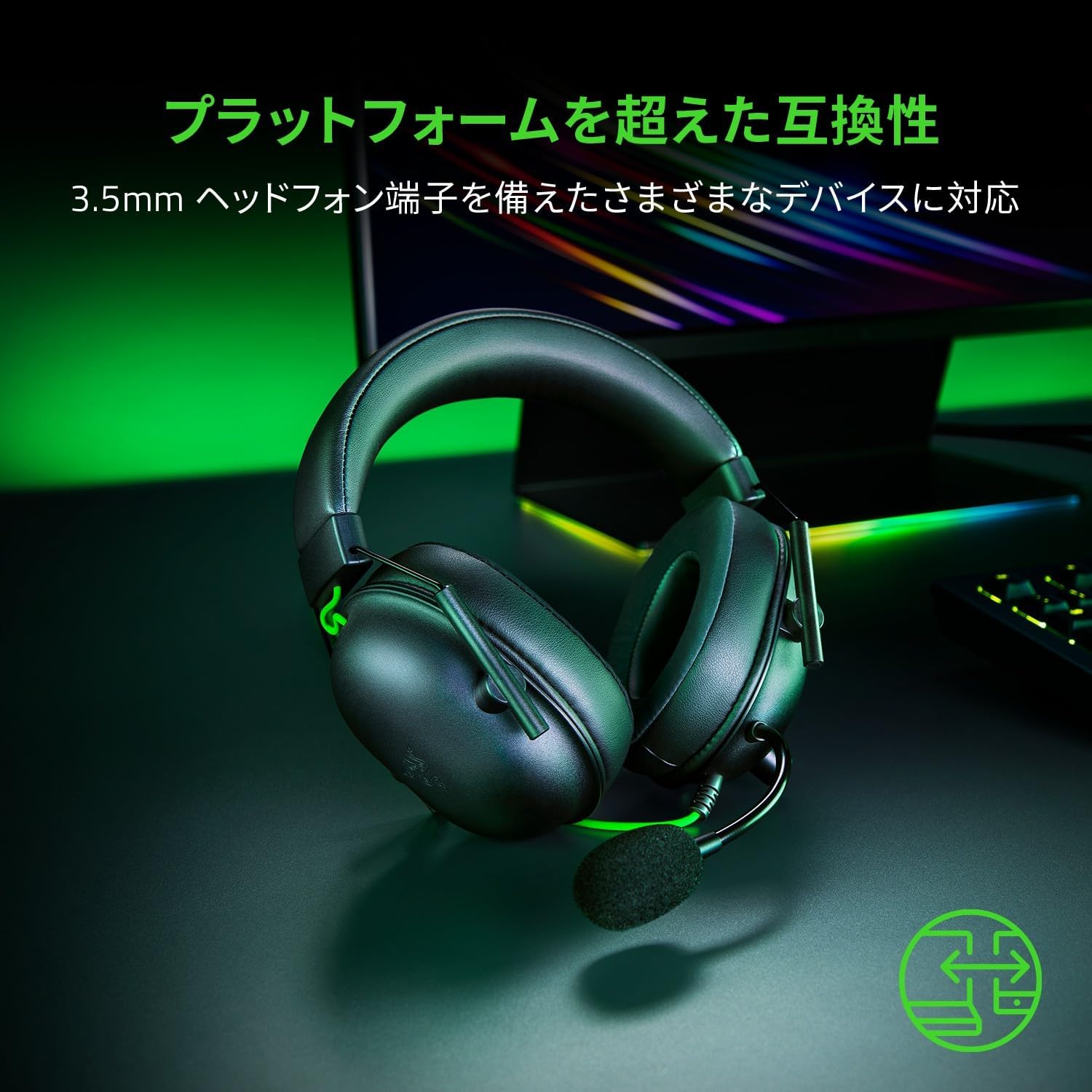
Image: The Razer BlackShark V2 X headset connected via its 3.5mm jack, illustrating multi-platform compatibility.
Operating Instructions
Volume Control
Adjust the volume using the volume wheel located on the left ear cup. Rotate the wheel upwards to increase volume and downwards to decrease it.
Microphone Mute
To mute or unmute the microphone, press the microphone mute button located on the left ear cup, below the volume wheel.
Key Features
Razer TriForce 50mm Drivers
The Razer BlackShark V2 X features patented 50mm TriForce drivers, which allow for individual tuning of high, mid, and low audio frequencies. This design provides brighter, clearer sound with richer trebles and powerful bass, enhancing the overall audio experience for gaming and multimedia.

Image: Exploded view diagram illustrating the separate tuning chambers for bass, mid, and treble within the Razer TriForce 50mm driver.
Razer HyperClear Cardioid Microphone
The detachable HyperClear Cardioid Microphone offers enhanced voice clarity and noise cancellation. Its optimized microphone housing design ensures that your voice is captured clearly while minimizing background noise, crucial for effective team communication.

Image: Diagram showing the cardioid pickup pattern of the Razer HyperClear microphone, highlighting the voice pickup area.
Advanced Passive Noise Cancellation
The headset features special closed earcups that fully cover your ears, providing superior passive noise isolation. This design, combined with soft cushions, effectively blocks out distractions like crowd noise and equipment hum, allowing for uninterrupted focus during gameplay.

Image: A person wearing the Razer BlackShark V2 X headset while gaming, demonstrating its immersive design.
Lightweight Comfort
Weighing only 240g, the BlackShark V2 X is designed for extended gaming sessions without discomfort. It features a thicker headband padding and improved memory foam ear cushions made with breathable fabric and soft leatherette, ensuring a comfortable fit for prolonged use.

Image: The Razer BlackShark V2 X headset, emphasizing its lightweight construction and comfortable earcups.
7.1 Surround Sound
Experience precise positional audio with 7.1 Surround Sound, allowing you to accurately pinpoint the direction of sounds in battle. This feature is supported only on Windows 10 64-bit systems, providing an immersive audio advantage in compatible games.

Image: The Razer BlackShark V2 X headset with an icon representing 7.1 surround sound capability.
Compatibility
The BlackShark V2 X offers broad compatibility across various platforms using its 3.5mm connector:
- PC (7.1 Surround Sound supported on Windows 10 64-bit with USB Sound Card)
- Mac
- PlayStation 4 (PS4)
- PlayStation 5 (PS5)
- Xbox One
- Nintendo Switch
- Mobile devices with a 3.5mm audio port
Maintenance
Cleaning the Headset
- Wipe the headset with a soft, damp cloth. Avoid using harsh chemicals or abrasive materials.
- For ear cushions, gently wipe with a dry cloth. Do not immerse in water.
- Ensure the microphone port and 3.5mm jack are free from dust and debris.
Storage
When not in use, store the headset in a cool, dry place away from direct sunlight and extreme temperatures. Avoid placing heavy objects on the headset to prevent damage.
Troubleshooting
No Sound from Headset
- Check if the 3.5mm cable is securely connected to both the headset and your device.
- Ensure the volume wheel on the headset is turned up.
- Verify your device's audio output settings are configured to the headset.
- If using the USB Sound Card, ensure it is properly connected and drivers are installed (Windows 10 64-bit).
- Test the headset with another device to rule out a device-specific issue.
Microphone Not Working
- Ensure the microphone is securely attached to the headset.
- Check if the microphone mute button on the headset is not activated.
- Verify your device's audio input settings are configured to the headset microphone.
- Test the microphone with another application or device.
Specifications
| Model Name | BlackShark V2 X |
| Model Number | RZ04-03240100-R3M1 |
| Connectivity Technology | Wired (3.5mm Jack) |
| Headphone Jack | 3.5mm Jack |
| Cable Length | 1.3 meters |
| Weight | 0.24 kg (240g) |
| Material | Faux Leather |
| Control Type | Noise Cancelling |
| Other Features | TriForce 50mm Drivers, Surround Sound, Noise Isolation, Microphone |
| Color | Black |
Warranty and Support
Razer products come with a limited warranty. For detailed warranty information, please refer to the official Razer website or the warranty card included with your product. For technical support, product registration, or further assistance, visit the official Razer support page:
Related documentsRZ04-03240100-R3M1


Ask a question about this manual
Ask about setup, troubleshooting, compatibility, parts, safety, or missing instructions. Manuals+ will review the question and use this page’s manual context to help answer it.