
Introduction
Thank you for choosing the ABKO K515 RGB Gaming Mechanical Keyboard. This manual provides essential information for setting up, operating, maintaining, and troubleshooting your new keyboard. The K515 features GTMX Quick Swap Switches, Cherry Stabilizers, a 1000Hz polling rate for rapid response, and vibrant RGB backlighting. It is designed for durability with a waterproof feature and constructed from Acrylonitrile Butadiene Styrene (ABS) material. This specific variant comes with English/Korean keycaps.

Image: The ABKO K515 RGB Gaming Mechanical Keyboard, showcasing its white design and RGB lighting.
Setup
- Unpack the Keyboard: Carefully remove the keyboard and any accessories from the packaging. Ensure all components, including the keycap puller, are present.
- Connect to Computer: Plug the USB cable of the ABKO K515 keyboard into an available USB port on your computer. The keyboard is designed for plug-and-play functionality and should be recognized automatically by most operating systems.
- Driver Installation: No additional drivers are typically required for basic functionality. Your operating system will install necessary generic drivers.
- Initial Power-On: The RGB backlighting should illuminate upon successful connection, indicating the keyboard is powered on and ready for use.

Image: The USB cable of the ABKO K515 keyboard, featuring a ferrite bead for signal stability.
Operating Instructions
Indicator Lights
The keyboard features indicator lights located at the top right, which display the status of Num Lock, Caps Lock, Scroll Lock, and Win Lock. These lights illuminate when the respective function is active.
RGB Backlighting
The K515 keyboard supports various RGB lighting effects, including a rainbow LED effect. Specific key combinations (often involving the 'Fn' key) are used to cycle through different lighting modes, adjust brightness, and change effect speed. Refer to the keyboard's function key legends for detailed controls.
Quick Swap Switches
The Quick Swap Switch feature allows for easy replacement of individual mechanical switches without soldering. This enables customization of typing feel or replacement of faulty switches. Use the provided switch puller for safe removal and insertion of switches.
1000Hz Polling Rate
The keyboard operates at a 1000Hz polling rate, ensuring rapid data transmission between the keyboard and your computer. This high polling rate minimizes input lag, which is beneficial for gaming and fast typing.

Image: A detailed view of the ABKO K515 keyboard's function keys and status indicator lights.
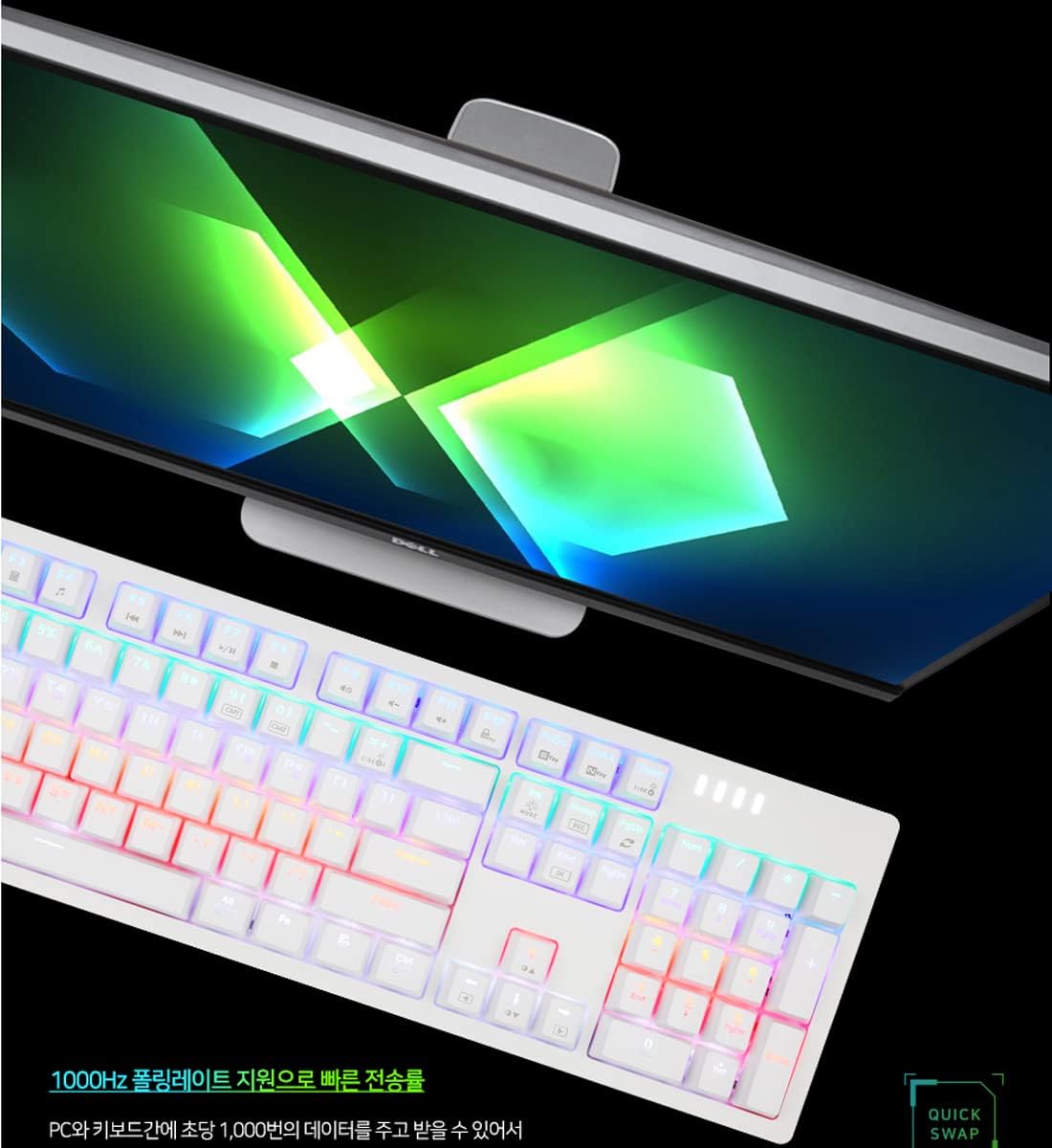
Image: The ABKO K515 keyboard connected to a computer, illustrating its high-performance capabilities with a 1000Hz polling rate.
Maintenance
Cleaning
The ABKO K515 keyboard features a waterproof design, allowing for easier cleaning. To clean, disconnect the keyboard from your computer. Use a soft, damp cloth to wipe down the keycaps and chassis. For deeper cleaning, you can remove keycaps using the provided keycap puller and clean underneath. Ensure the keyboard is completely dry before reconnecting it.
Keycap and Switch Replacement
Use the included keycap puller to gently remove keycaps. For switch replacement, use the switch puller to carefully extract the mechanical switch. Align the new switch correctly with the pins and press firmly until it clicks into place. Avoid excessive force to prevent damage to the switch or PCB.

Image: The keycap puller and switch puller tools, essential for keyboard maintenance and customization.
Troubleshooting
- Keyboard Not Responding:
- Ensure the USB cable is securely connected to both the keyboard and the computer.
- Try plugging the keyboard into a different USB port.
- Restart your computer.
- Test the keyboard on another computer to rule out system-specific issues.
- RGB Lights Not Working:
- Check if the RGB lighting is turned off or set to minimum brightness using the keyboard's function keys.
- Ensure no software conflicts are preventing the lighting from functioning.
- Keys Not Registering:
- Remove the keycap and inspect the switch for any debris.
- If using Quick Swap Switches, ensure the switch is fully seated and properly aligned. Consider swapping the problematic switch with a known working one to diagnose.
Specifications
| Model | K515 |
| Brand | ABKO |
| Product Dimensions | 17.52 x 5.28 x 1.38 inches (445 x 134 x 35 mm) |
| Item Weight | 2.29 pounds (840 g) |
| Connectivity Technology | USB |
| Keyboard Type | Mechanical, Quick Swap Switch |
| Switch Type | GTMX Switch (Blue Switch variant), Cherry Stabilizer |
| Polling Rate | 1000Hz |
| Backlighting | RGB (Rainbow LED effect) |
| Special Feature | Waterproof |
| Material | Acrylonitrile Butadiene Styrene (ABS) |
| Keycaps | English/Korean |
Warranty Information
Specific warranty details for the ABKO K515 keyboard are not provided in this manual. Please refer to the warranty card included with your product or visit the official ABKO website for the most current and detailed warranty information. Keep your proof of purchase for any warranty claims.
Customer Support
For technical assistance, troubleshooting beyond this guide, or general inquiries about your ABKO K515 keyboard, please contact ABKO customer support. Contact information can typically be found on the official ABKO website or on the product packaging.