
Introduction
Thank you for choosing the KPREPUBLIC SK64 60% Custom Mechanical Keyboard. This manual provides detailed instructions for setting up, operating, maintaining, and troubleshooting your new keyboard. The SK64 features a compact 60% layout, RGB backlighting, hot-swappable optical switches, and a versatile Type-C USB connection, designed for both gaming and office use.
Package Contents
- KPREPUBLIC SK64 Mechanical Keyboard
- USB Type-C Cable
Setup
Connecting the Keyboard
To connect your SK64 keyboard, simply plug the provided USB Type-C cable into the port located on the back of the keyboard and connect the other end to an available USB port on your computer. The keyboard is plug-and-play and should be recognized automatically by most operating systems.
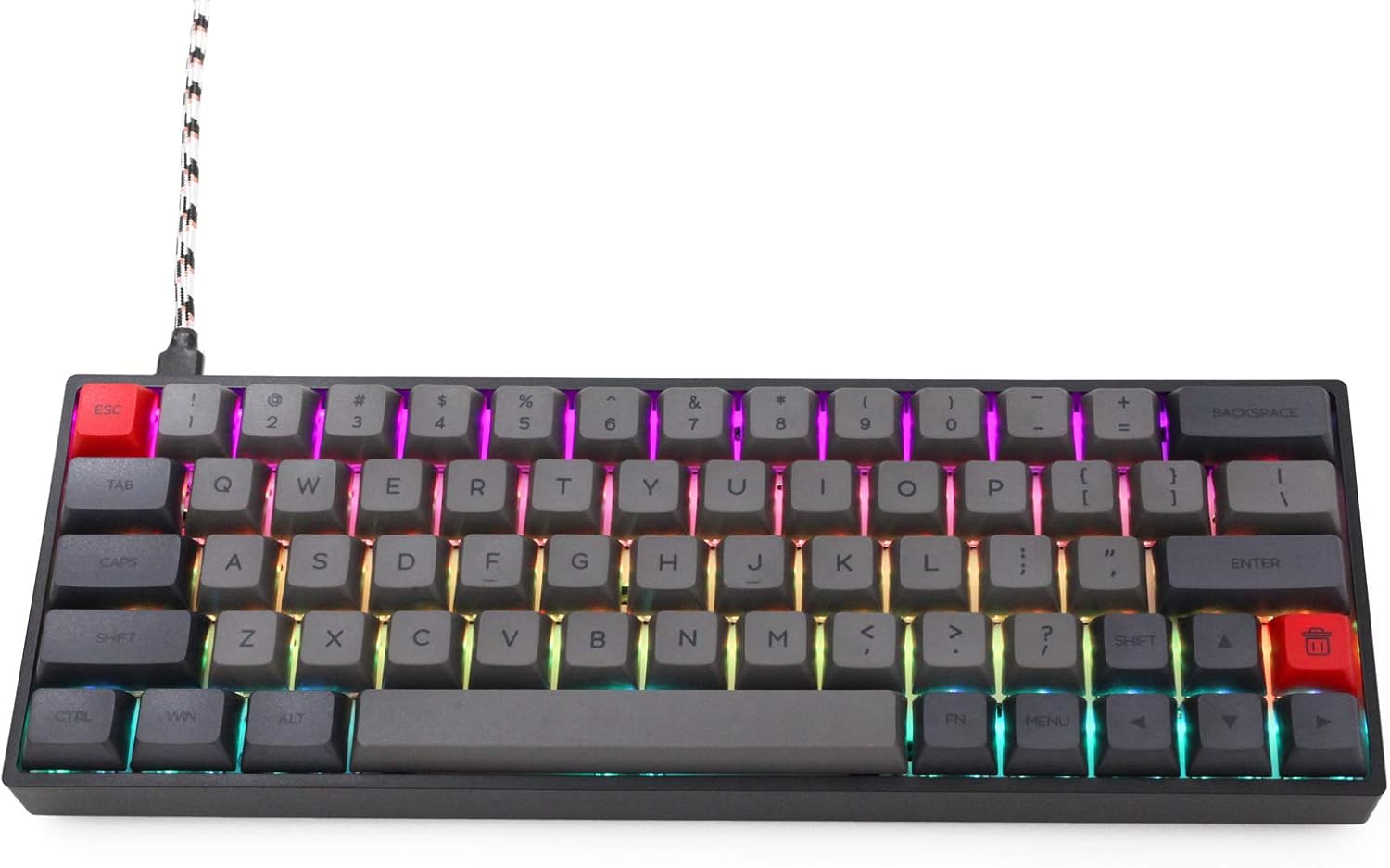
Image: The KPREPUBLIC SK64 keyboard with its USB-C cable connected, ready for use.
Software Installation
For advanced customization, including key remapping, macro creation, and detailed RGB lighting effects, download the official KPREPUBLIC control software from the manufacturer's website. Follow the on-screen instructions for installation.
Operating Instructions
Key Layout and Function Layer
The SK64 features a compact 60% layout, which means some keys have secondary functions accessed via the Fn key. For example, arrow keys, function row (F1-F12), and other multimedia controls are typically accessed by holding down the Fn key and pressing the corresponding key.

Image: Top view of the KPREPUBLIC SK64 keyboard, illustrating the compact 60% key layout.
RGB Lighting Control
The SK64 keyboard supports 16.8 million colors with various RGB lighting effects. You can cycle through different lighting modes, adjust brightness, and change colors using specific key combinations (often involving the Fn key and designated lighting control keys) or through the customization software.
Hot-Swappable Switches
The SK64 is equipped with hot-swappable optical switches, allowing you to change switches without soldering. This feature enables easy customization of your typing experience or replacement of faulty switches. Use the provided switch puller tool to carefully remove and insert switches.

Image: A close-up showing the hot-swappable optical switches on the SK64 keyboard, with a switch removed to reveal the socket.
Maintenance
Cleaning
To clean your keyboard, disconnect it from your computer. Use a soft brush or compressed air to remove dust and debris from between the keycaps. For stubborn dirt, gently wipe the keycaps and case with a slightly damp cloth. Avoid using harsh chemicals or excessive moisture.
Switch Replacement
Refer to the 'Hot-Swappable Switches' section under Operating Instructions for details on how to safely remove and install optical switches.
Troubleshooting
- Keyboard not responding: Ensure the USB cable is securely connected to both the keyboard and the computer. Try a different USB port or cable.
- RGB lighting not working: Check if the lighting is turned off or set to a very low brightness. Use the keyboard's lighting control shortcuts or the software to adjust.
- Keys not registering: For hot-swappable switches, ensure the switch is fully seated in its socket. If a specific key is not working, try replacing its switch.
- Software not detecting keyboard: Ensure the software is up-to-date and the keyboard is properly connected. Restart your computer and try again.
Specifications
| Manufacturer | KPREPUBLIC |
| Model | SK64 |
| Key Count | 64-key |
| Switch Type | Gateron Optical Switches (Hot-swappable) |
| Connectivity | USB Type-C |
| Backlighting | RGB (16.8 million colors) |
| Compatible Devices | Keyboard |
| Recommended Uses | Gaming, Office |
| Included Components | USB Cable |
Warranty and Support
KPREPUBLIC products typically come with a manufacturer's warranty. Please refer to the warranty information provided at the time of purchase or visit the official KPREPUBLIC website for specific warranty terms and conditions. For technical support or further assistance, please contact KPREPUBLIC customer service through their official channels.
