1. Product Overview
The Hisense 120L10E 4K UHD Smart Laser Projector TV combines advanced movie-theater technology with a simple tabletop setup to deliver a stunning visual and audio experience. This system provides a razor-sharp, realistic picture with natural motion, rich colors, and exceptional detail on a large 120-inch screen.
Designed for immersive home theater, its ultra-short throw optics allow the projector to be placed just inches from the wall and approximately 8 inches from the included 120-inch screen. It delivers 4K UHD resolution, offering four times the detail of standard Full HD TVs, along with a wide color gamut and MEMC technology for smooth fast-moving images.
The integrated 40-watt Harman Kardon speakers and a 60-watt wireless subwoofer, enhanced with DBX-TV sound technology, provide deep, rich 3D surround sound for a complete cinematic experience.

Image 1.1: The Hisense 120L10E Laser Projector TV displaying a large, vibrant image in a living room setting.
2. What's in the Box
Upon unpacking, please ensure all components are present and undamaged:
- Hisense Laser TV Projector Unit
- 120-inch Ambient Light Rejecting (ALR) Screen
- Harman Kardon Speakers (integrated into the projector unit)
- 60-watt Wireless Subwoofer
- Remote Control
- Power Cable(s)
- User Manual (this document)

Image 2.1: A detailed view of the Hisense Laser Projector unit, showcasing its design and connectivity ports.
3. Setup Guide
3.1 Screen Installation
- Choose a suitable location for your 120-inch ALR screen. Ensure the wall is flat and free from obstructions.
- Follow the screen assembly instructions provided separately with the screen. This typically involves assembling the frame and attaching the screen material.
- Mount the assembled screen securely to the wall at the desired viewing height.
3.2 Projector Placement
- Place the Hisense Laser TV projector unit on a stable, flat surface directly in front of the screen.
- Position the projector approximately 8 inches (20 cm) away from the screen. The ultra-short throw lens projects the image upwards onto the screen.
- Ensure the projector is centered horizontally with the screen for optimal image alignment.
3.3 Connecting Components
- Wireless Subwoofer: Place the wireless subwoofer in a suitable location within range of the projector. It will automatically pair with the projector upon power-on.
- Power: Connect the power cable to the projector unit and then to a power outlet. Connect the subwoofer power cable to a power outlet.
- External Devices: Connect any external devices (e.g., Blu-ray player, gaming console, cable box) to the HDMI ports on the rear of the projector.
- Network: For internet connectivity, connect an Ethernet cable to the LAN port or configure Wi-Fi settings after initial power-on.
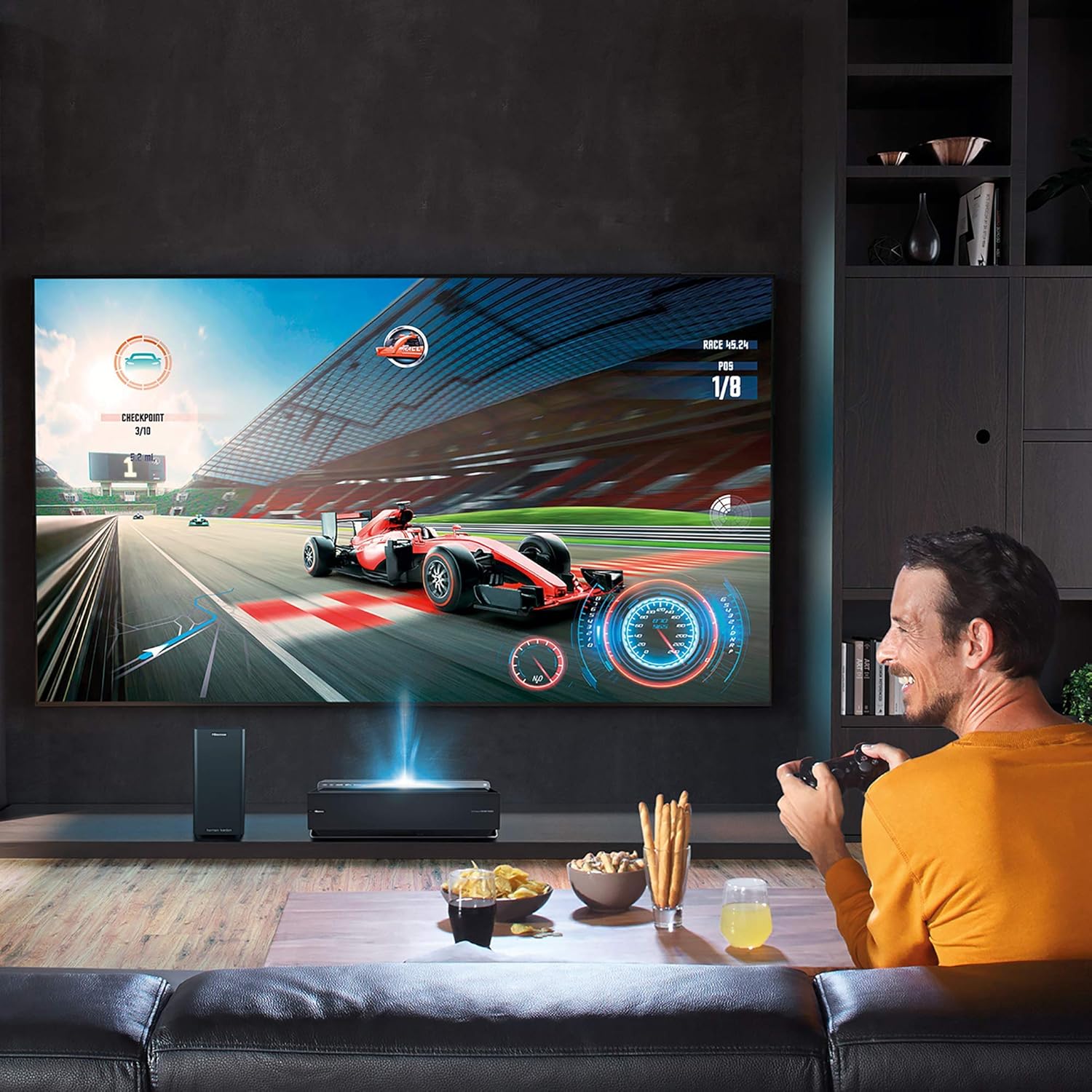
Image 3.1: The Hisense Laser TV setup in a gaming environment, demonstrating its versatility.
4. Operating Instructions
4.1 Initial Power-On and Setup Wizard
- Press the power button on the projector or the remote control to turn on the unit.
- The TV will guide you through an initial setup wizard. Follow the on-screen prompts to select your language, country, time zone, and connect to your Wi-Fi network.
- Perform an automatic channel scan if connecting to an antenna.
4.2 Using the Remote Control
The provided remote control allows full navigation and control of your Hisense Laser TV. It features dedicated buttons for popular streaming services and essential functions.
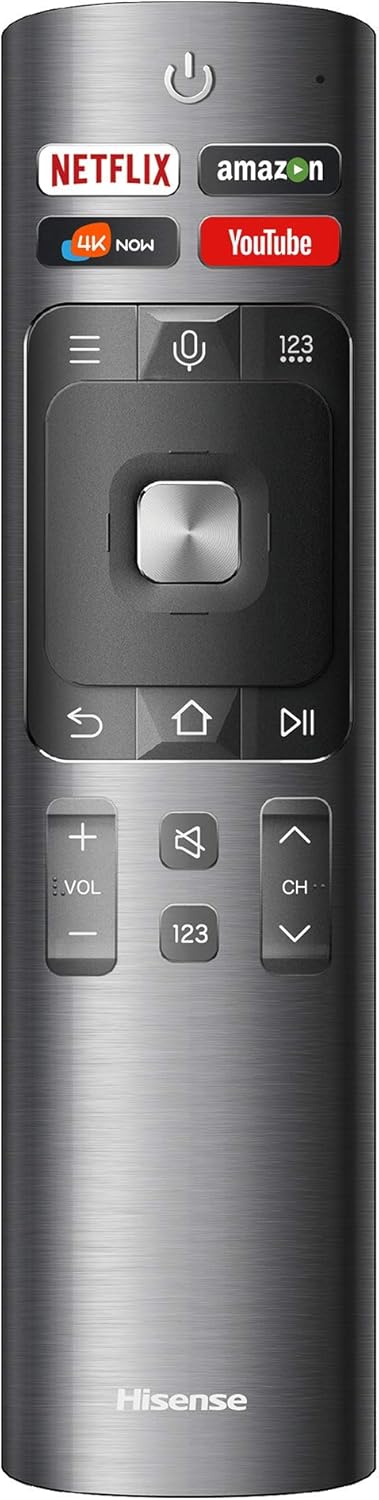
Image 4.1: The Hisense remote control, featuring quick access buttons for streaming services and standard TV controls.
- Power Button: Turns the TV on or off.
- Navigation Pad (Up/Down/Left/Right/OK): Used to navigate menus and select options.
- Volume +/-: Adjusts the audio volume.
- Channel +/-: Changes TV channels.
- Home Button: Returns to the Smart TV home screen.
- Back Button: Returns to the previous screen or menu.
- Dedicated App Buttons: Quick access to Netflix, Amazon, 4K Now, and YouTube.
- Microphone Button: Activates voice control (if supported and configured).
4.3 Smart TV Features
The Hisense 120L10E is a Smart TV, providing access to a variety of streaming services and applications. Use the Home button on your remote to access the Smart TV interface, where you can browse and launch apps, manage settings, and access connected devices.
4.4 Audio System
The integrated Harman Kardon speakers and wireless subwoofer provide a high-quality audio experience. DBX-TV sound enhancement technology optimizes audio for clarity and depth. Adjust volume using the remote control. Advanced audio settings can be found in the TV's sound menu.
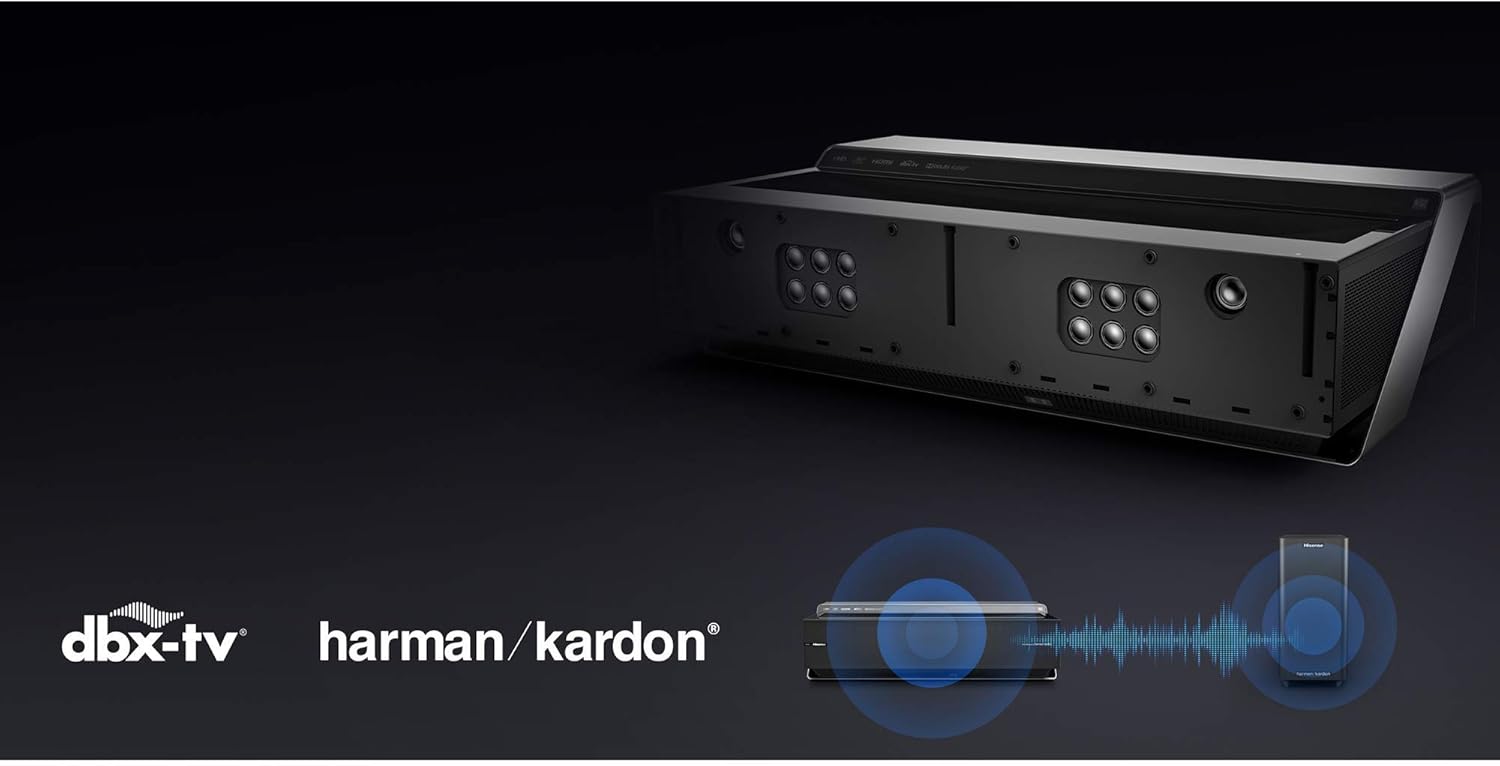
Image 4.2: Visual representation of the integrated dbx-tv and Harman Kardon audio technologies.
5. Maintenance
5.1 Cleaning the Projector Unit
- Ensure the projector is turned off and unplugged before cleaning.
- Use a soft, dry, lint-free cloth to gently wipe the exterior surfaces of the projector.
- For the projector lens, use a specialized lens cleaning cloth and solution. Avoid abrasive materials or harsh chemicals.
- Keep ventilation openings clear of dust and debris.
5.2 Cleaning the Screen
- Use a soft, dry microfiber cloth to gently wipe the screen surface.
- For stubborn marks, lightly dampen the cloth with distilled water. Do not use harsh cleaning agents, solvents, or abrasive materials, as these can damage the screen's special coating.
6. Troubleshooting
If you encounter issues with your Hisense Laser TV, please refer to the following common troubleshooting steps:
- No Power: Ensure the power cable is securely connected to both the projector and a working power outlet. Try a different outlet.
- No Picture:
- Check that the projector is powered on.
- Verify the correct input source is selected (e.g., HDMI 1, HDMI 2).
- Ensure external devices are powered on and connected correctly.
- No Sound:
- Check the volume level on the TV and any connected external devices.
- Ensure the TV is not muted.
- Verify the wireless subwoofer is powered on and paired.
- Remote Control Not Working:
- Replace the batteries in the remote control.
- Ensure there are no obstructions between the remote and the projector.
- Poor Picture Quality:
- Check the resolution settings of the input source.
- Ensure the projector lens and screen are clean.
- Adjust picture settings (brightness, contrast, color) in the TV menu.
For more complex issues or persistent problems, please contact Hisense customer support or refer to the official Hisense support website.
7. Specifications
| Feature | Specification |
|---|---|
| Brand | Hisense |
| Model | 120L10E |
| Screen Size | 120 Inches |
| Display Technology | Laser |
| Resolution | 4K UHD |
| Refresh Rate | 120 Hz |
| Aspect Ratio | 16:9 |
| Speaker Type | Harman Kardon (integrated), Wireless Subwoofer |
| Connectivity Technology | Bluetooth, Ethernet, Wireless (Wi-Fi) |
| Product Dimensions (Projector) | 27.1"W x 16.4"D x 8.1"H |
| Item Weight (Projector) | 50.1 Pounds |
8. Warranty and Support
This Hisense 120L10E Laser Projector TV is a renewed product. Renewed products are professionally inspected and tested to work and look like new. If not satisfied with the purchase, renewed products are eligible for replacement or refund under the Amazon Renewed Guarantee.
For specific warranty details, technical support, or service inquiries beyond the Amazon Renewed Guarantee, please refer to the official Hisense website or contact Hisense customer service directly. Keep your purchase receipt and product serial number handy when contacting support.


