
WiMiUS K2
WiMiUS K2 Portable Projector User Manual
Model: K2 | Brand: WiMiUS
Important Safety Instructions
Please read all instructions carefully before using the projector and retain this manual for future reference. Improper operation may cause electric shock, fire, or other hazards.
- Do not block the ventilation openings. Ensure adequate space around the projector for proper airflow.
- Use only the power adapter supplied with the projector.
- Avoid direct eye exposure to the projector lens when the lamp is on.
- Do not disassemble the projector. Refer all servicing to qualified service personnel.
- Keep the projector away from water or other liquids. Do not expose to rain or moisture.
- Clean the projector only with a dry, soft cloth.
Product Overview
Package Contents
- 1 x WiMiUS K2 Projector
- 1 x Remote Control
- 1 x Power Cable
- 1 x AV Cable
- 1 x HDMI Cable
- 1 x Lens Cap
- 1 x User Manual
- 1 x Cleaning Cloth
Key Features
- Native 1280 x 720P Resolution, supports Full HD 1080P.
- 6500 Lumens Brightness for vivid images.
- 7000:1 Contrast Ratio.
- Wireless Screen Mirroring for iOS, Android, and Windows devices.
- Projection Size up to 500 inches.
- Built-in Dual 10W HiFi Stereo Speakers with SRS Sound System.
- Wide Compatibility: Connects to TV Stick, Chromecast, PC, Laptop, Xbox, TV Box, PS3/PS4, iPhone.
Physical Components
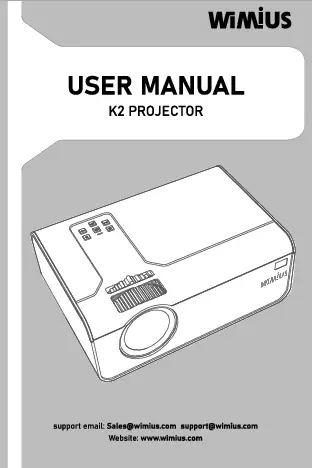
The WiMiUS K2 projector features a sleek white design with a prominent lens at the front. Control buttons are located on the top panel, and various input/output ports are on the rear and sides.

Image: Front view of the WiMiUS K2 projector, highlighting its compact design and wireless capabilities, with a projection screen and a smartphone demonstrating screen mirroring.

Image: Visual comparison demonstrating the superior brightness (6000 Lumens vs 4000 Lumens) and contrast ratio (7000:1 vs 5000:1) of the WiMiUS K2 projector compared to other 1080P supported projectors.
Initial Setup
Power Connection
Connect the power cable to the projector's power input port and then plug the other end into a power outlet. The power indicator light will illuminate.
Positioning the Projector
Place the projector on a stable, flat surface or mount it to the ceiling. Adjust the distance from the projection surface (wall or screen) to achieve your desired screen size. The optimal projection distance ranges from 3.5m to 6m for a screen size of 100 to 200 inches.

Image: Diagram illustrating flexible projection sizes (36", 100", 200") and corresponding projection distances (1.2m, 3.5m, 6.0m) for the WiMiUS K2 projector.
Focus and Keystone Correction
Turn the focus ring on the projector lens until the image appears sharp and clear. Use the keystone correction feature (if available on your model) to adjust the image shape if it appears trapezoidal.
Operating the Projector
Connecting Devices
- HDMI Connection: Connect your PC, laptop, game console (PS3/PS4, Xbox), or TV Stick to the projector's HDMI port using an HDMI cable. Select the correct HDMI input source on the projector.
- AV Connection: Use the provided AV cable to connect older devices like DVD players. Select the AV input source.
- USB Connection: Insert a USB drive into the USB port to play media files directly.
Wireless Screen Mirroring
The WiMiUS K2 supports wireless screen mirroring for iOS, Android, and Windows devices, allowing you to project content without cables.

Image: Illustration of wireless screen mirroring, showing a WiMiUS K2 projector wirelessly connected to iOS, Android, and Windows 10 devices, projecting content onto a large screen.
- For iOS Devices: Ensure your iPhone/iPad and the projector are connected to the same Wi-Fi network. Select 'Screen Mirroring' on your iOS device and choose the projector from the list.
- For Android Devices: Ensure your Android phone/tablet and the projector are connected to the same Wi-Fi network. Enable 'Wireless Projection' or 'Screen Cast' on your Android device and select the projector.
- For Windows 10: Use the 'Connect' feature in Windows 10 to mirror your screen to the projector.
Audio Output
The projector has dual built-in 10W HiFi stereo speakers. For enhanced audio experience, you can connect external speakers or a soundbar via the 3.5mm audio output port.

Image: A WiMiUS K2 projector in a living room setting, illustrating its dual built-in 5W speakers and Hi-Fi Stereo SRS Sound capabilities, providing immersive audio for entertainment.
Adjusting Settings
Use the remote control or the buttons on the projector to navigate the on-screen menu. You can adjust picture settings (brightness, contrast, color mode), sound settings, input source, and other system preferences.
Maintenance and Care
- Cleaning the Lens: Use a professional lens cleaning cloth to gently wipe the lens. Avoid touching the lens directly with your fingers.
- Cleaning the Projector Body: Wipe the surface with a soft, dry cloth. Do not use abrasive cleaners or solvents.
- Ventilation: Regularly check and clean the ventilation openings to prevent dust buildup, which can affect performance and lifespan.
- Storage: When not in use for an extended period, store the projector in a cool, dry place, protected from dust and extreme temperatures.
Troubleshooting Guide
If you encounter issues with your projector, refer to the table below for common problems and solutions.
| Problem | Possible Cause | Solution |
|---|---|---|
| No picture | Power cable disconnected; Incorrect input source; Device not connected properly. | Check power connection; Select correct input source (HDMI, AV, USB); Reconnect device cables securely. |
| Blurry image | Out of focus; Incorrect projection distance. | Adjust the focus ring; Adjust projector distance; Use keystone correction. |
| No sound | Volume too low; Muted; External speakers not connected or selected. | Increase volume; Unmute; Check external speaker connection and settings. |
| Wireless mirroring issues | Not on same Wi-Fi network; Device compatibility; Network interference. | Ensure both devices are on the same Wi-Fi; Restart projector and device; Try a wired connection if persistent. |
| Remote control not working | Dead batteries; Obstruction; Remote sensor blocked. | Replace batteries; Remove obstructions; Point remote directly at the projector's IR sensor. |
Technical Specifications
| Feature | Specification |
|---|---|
| Brand | WiMiUS |
| Model Number | K2 |
| Display Resolution | Native 1280 x 720P (Supports 1080P Full HD) |
| Brightness | 6500 Lumens |
| Contrast Ratio | 7000:1 |
| Connectivity Technology | Wi-Fi, HDMI, AV, USB |
| Compatible Devices | iPhone, TVbox, Fire TV Stick, PC, Chromecast, Laptop, PS3/PS4, Xbox, TV Stick |
| Built-in Speakers | Dual 10W HiFi Stereo with SRS Sound |
| Form Factor | Portable |
| Color | White |
Warranty and Customer Support
WiMiUS provides professional lifetime technical support for its products. If you have any questions or require assistance with your K2 projector, please do not hesitate to contact WiMiUS customer service. They are committed to providing prompt and effective solutions.
For warranty claims or technical inquiries, please refer to the contact information provided on the WiMiUS official website or your purchase documentation.
Related documentsK2



Ask a question about this manual
Ask about setup, troubleshooting, compatibility, parts, safety, or missing instructions. Manuals+ will review the question and use this page’s manual context to help answer it.