
1. Introduction
The ASTRO Gaming A20 Wireless Headset Gen 2 provides a high-quality audio experience for gaming across multiple platforms. This manual details the setup, operation, maintenance, and troubleshooting for your headset, ensuring optimal performance and longevity.

Image 1.1: The ASTRO Gaming A20 Wireless Headset Gen 2, featuring a white and green design.
2. Package Contents
Verify that all items are present in your product packaging:
- ASTRO Gaming A20 Wireless Headset Gen 2
- USB Transmitter (Console Specific)
- USB-C to USB-A Charging Cable
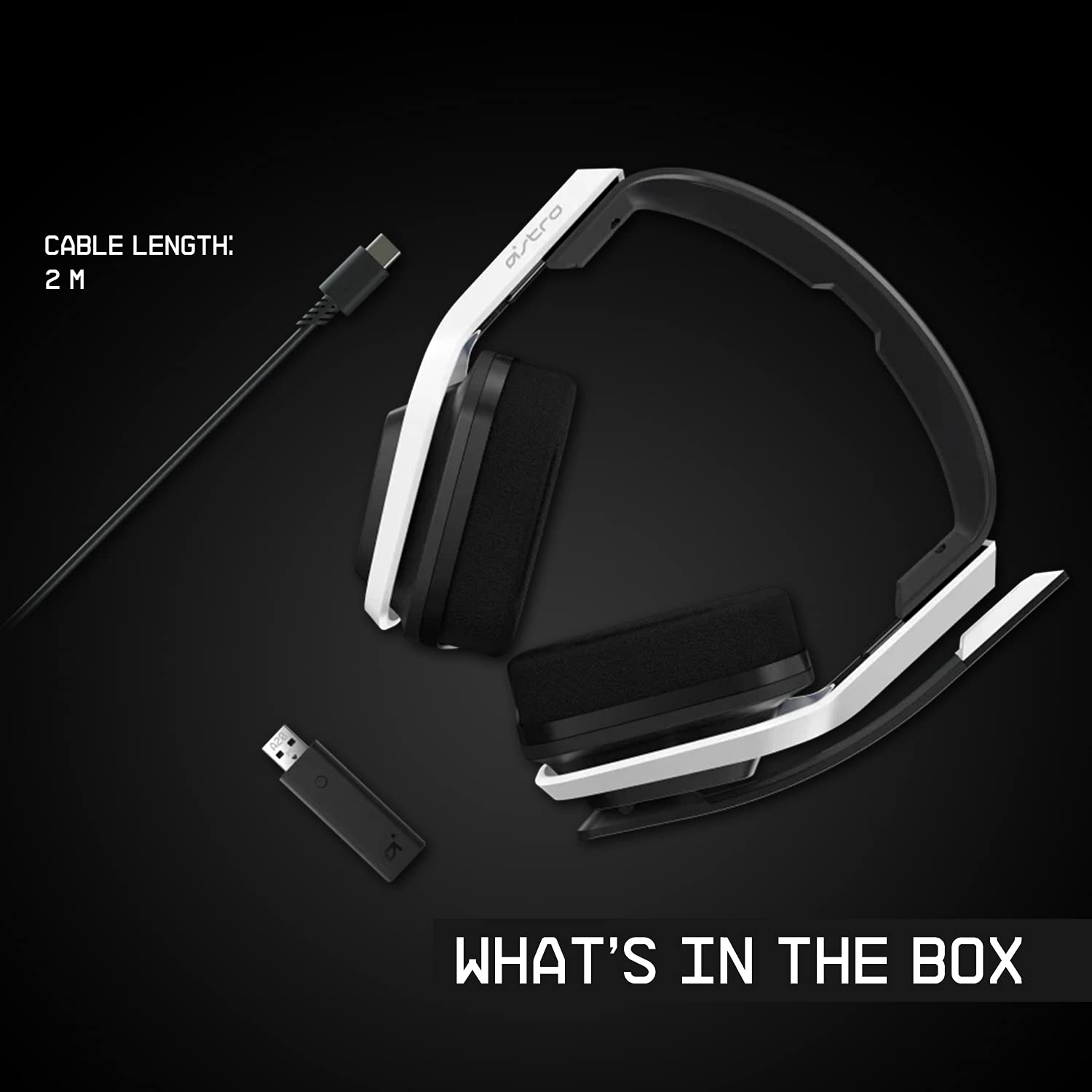
Image 2.1: Contents of the ASTRO Gaming A20 Wireless Headset Gen 2 package, including the headset, USB transmitter, and charging cable.
3. Setup
3.1 Initial Charging
Before first use, fully charge the headset. Connect the USB-C end of the charging cable to the headset's USB-C port and the USB-A end to a powered USB-A port on your console, PC, or a wall adapter. A full charge provides approximately 15 hours of battery life.
3.2 Connecting to Xbox (Series X|S, Xbox One)
- Plug the USB Transmitter into an available USB port on your Xbox console.
- Power on your ASTRO A20 Wireless Headset.
- The headset and transmitter should automatically pair. The LED indicator on both devices will show a solid light when connected.
- Ensure your Xbox audio output settings are configured to send audio to the headset.
3.3 Connecting to PC / Mac
- Plug the USB Transmitter into an available USB port on your PC or Mac.
- Power on your ASTRO A20 Wireless Headset.
- The headset and transmitter should automatically pair. The LED indicator on both devices will show a solid light when connected.
- Navigate to your operating system's sound settings and select the ASTRO A20 as the default playback and recording device.

Image 3.1: The ASTRO Gaming A20 Wireless Headset Gen 2 demonstrating cross-platform connectivity with an Xbox console.
4. Operating Instructions
4.1 Headset Controls
The ASTRO A20 Gen 2 features intuitive controls located on the headset for easy access during gameplay.
- Power Button: Turns the headset on or off.
- Volume Wheel: Adjusts the overall audio volume.
- Game/Voice Balance Buttons: Allows you to adjust the balance between game audio and voice chat audio. Press the 'Game' button to increase game volume relative to chat, or the 'Voice' button to increase chat volume relative to game.
- EQ Preset Button: Cycles through 3 different equalizer presets to optimize audio for various content types.
- Flip-to-Mute Microphone: Flipping the microphone boom arm up mutes the microphone. Flipping it down unmutes it.

Image 4.1: The ASTRO Gaming A20 Wireless Headset Gen 2 demonstrating the flip-to-mute microphone feature.
4.2 Battery Life and Charging
The headset provides over 15 hours of continuous use on a full charge. When the battery is low, you will hear an audible alert. Recharge the headset using the provided USB-C to USB-A cable as described in Section 3.1.

Image 4.2: The ASTRO Gaming A20 Wireless Headset Gen 2 highlighting its 15+ hours of battery life.
5. Maintenance
Proper care ensures the longevity and performance of your headset:
- Cleaning: Use a soft, dry cloth to clean the headset. Avoid abrasive cleaners or solvents.
- Storage: Store the headset in a cool, dry place away from direct sunlight and extreme temperatures.
- Battery Care: For optimal battery health, avoid fully discharging the battery frequently. Recharge when the low battery indicator appears.
6. Troubleshooting
If you encounter issues with your ASTRO A20 Wireless Headset Gen 2, refer to the following common solutions:
| Issue | Possible Solution |
|---|---|
| No audio / Headset not connecting |
|
| Microphone not working / Static in mic |
|
| Short battery life / Not charging |
|
| Audio cutting out / Wireless range issues |
|
7. Specifications
| Feature | Detail |
|---|---|
| Model Name | ASTRO A20 Wireless Headset Gen 2 |
| Item Model Number | 939-001882 |
| Connectivity Technology | Wireless (RF 2.4 GHz) |
| Wireless Range | Up to 15 meters (50 feet) |
| Battery Life | Approximately 15 hours |
| Audio Driver Size | 40 mm Dynamic Drivers |
| Frequency Range | 20 Hz - 20 kHz |
| Microphone | Flip-to-mute functionality |
| Controls | Volume wheel, Game/Voice balance, EQ preset button |
| Charging Port | USB-C (for charging via USB-A source) |
| Weight | 318 Grams (11.2 ounces) |
| Compatible Devices | Xbox Series X|S, Xbox One, PC, Mac |
8. Warranty and Support
For detailed warranty information, technical support, and additional resources, please visit the official Logitech G / ASTRO Gaming support website. You can also refer to the official User Guide PDF for further details:
- Official User Guide (PDF): Download Here
- Logitech G Support: Visit Website


