
ANCEL BD200
ANCEL BD200 Bluetooth OBD2 Scanner User Manual
Model: BD200 | Brand: ANCEL
Introduction
This manual provides detailed instructions for the setup, operation, and maintenance of your ANCEL BD200 Bluetooth OBD2 Scanner. The BD200 is a diagnostic tool designed to connect wirelessly to your vehicle's On-Board Diagnostics (OBD-II) system via Bluetooth, allowing you to read and clear trouble codes, monitor live data, perform battery tests, and analyze vehicle performance using a dedicated mobile application.

Image: The ANCEL BD200 device and its accompanying mobile application interface.
What's in the Box
Upon opening the package, verify that all components are present:
- One (1) ANCEL BD200 Bluetooth OBDII Scanner
- One (1) User Manual
- One (1) Colorful box (packaging)

Image: Contents of the ANCEL BD200 product package.
Setup Guide
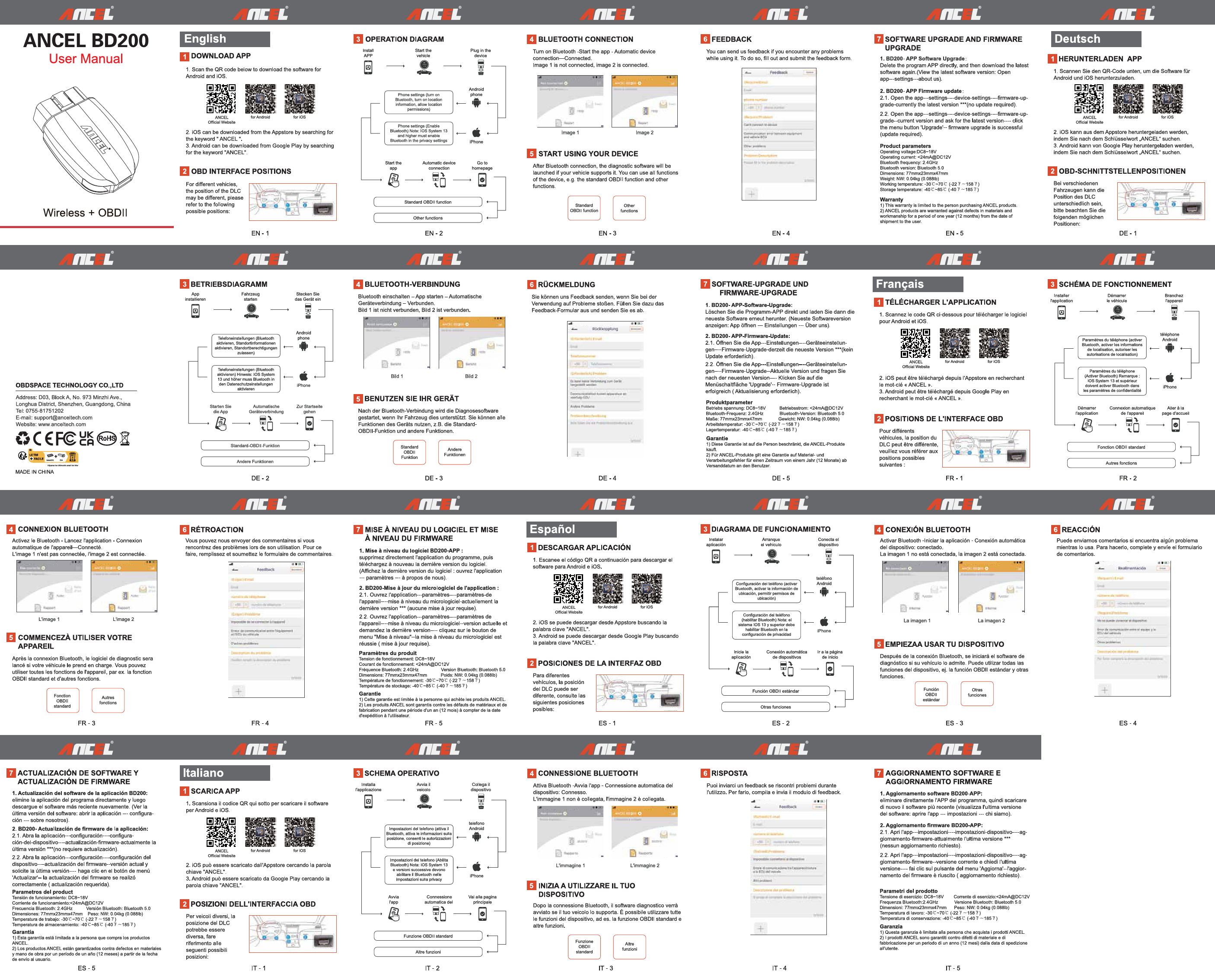
1. Download the ANCEL App
The ANCEL BD200 requires the exclusive ANCEL app for operation. This app is compatible with both iOS and Android devices.
- Scan the QR code provided in the product packaging or below to download the official ANCEL app.
- Alternatively, search for "ANCEL" in the Apple App Store (for iOS) or Google Play Store (for Android) and install the application.
Image: QR codes for ANCEL app download.
Note: The ANCEL BD200 is designed to work exclusively with the ANCEL app and may not be compatible with other third-party OBD-II applications.
2. Locate the OBD-II Port
The OBD-II (On-Board Diagnostics II) port is typically located under the dashboard on the driver's side of the vehicle. Its exact position may vary depending on the vehicle make and model. Common locations include:
- Under the steering wheel
- Near the center console
- Behind an ashtray or coin tray

Image: Common OBD-II port locations.
3. Connect the BD200 to Your Vehicle
- Ensure the vehicle's ignition is in the OFF position.
- Plug the ANCEL BD200 device firmly into the vehicle's OBD-II port.
- Once connected, turn the vehicle's ignition to the ON position (engine off). The BD200's indicator light should illuminate.
4. Pair with the ANCEL App via Bluetooth
- Enable Bluetooth on your smartphone or tablet.
- Open the ANCEL app. The app will automatically search for and connect to the BD200 device.
- Follow any on-screen prompts within the app to complete the connection.

Image: Step-by-step connection guide for the ANCEL BD200.
Operating Instructions
The ANCEL app provides various diagnostic functions. Navigate through the app's interface to access the desired features.

Image: Overview of diagnostic functions available in the ANCEL app.
1. Check Engine Trouble Codes (DTCs)
- Read Codes: Access this function to retrieve current, pending, and permanent Diagnostic Trouble Codes (DTCs) from your vehicle's Engine Control Unit (ECU). The app will provide a description of each code.
- Clear Codes: After addressing the underlying issue, use this function to clear the stored DTCs and turn off the Check Engine Light (MIL).
- DTC Lookup: This feature allows you to search for definitions of specific trouble codes.
2. Live Data Stream
Monitor real-time sensor data from your vehicle's computer system. This includes parameters such as engine RPM, vehicle speed, coolant temperature, fuel system status, oxygen sensor readings, and more. Data can be displayed in various formats, including graphs, to help diagnose intermittent issues.
3. Battery Voltage Test
The BD200 can detect and display your vehicle's battery voltage in real-time. This helps assess the battery's health, especially before starting the engine in cold weather. The app presents the data graphically for easy interpretation.

Image: Real-time battery voltage display in the ANCEL app.
Note: This function supports battery voltage detection for 12V vehicles only. It does not perform charge tests, cranking tests, or battery resets.
4. Performance Test
Evaluate your vehicle's performance with tests for acceleration, braking, and distance. The app displays the duration of the test and changes in speed and RPM on a dashboard or PID chart.

Image: Performance test results and PID chart in the ANCEL app.
5. Trip Analysis
Record and analyze trip status data, including coolant temperature, speed changes, RPM, and distance. This feature helps monitor driving habits and vehicle efficiency.
6. Safe Driving Alarm
Configure voice alerts for various driving parameters to enhance safety. These include:
- Speed Alarm: Alerts you when a set speed limit is exceeded.
- Water Temperature Alarm: Notifies you if the engine coolant temperature reaches a critical level.
- Driver Fatigue Alarm: Provides reminders for breaks during long drives.

Image: Safe driving alarm settings in the ANCEL app.
7. Other Diagnostic Functions
- I/M Readiness: Checks if the various emissions-related systems on the vehicle are operating correctly and are ready for inspection and maintenance testing.
- EVAP System Test: Monitors the integrity of the Evaporative Emission Control System.
- O2 Sensor Test: Retrieves oxygen sensor monitor test results for the most recently completed tests from the vehicle's on-board computer.
- Freeze Frame Data: Records a snapshot of critical vehicle operating conditions at the moment a DTC is set.
- Vehicle Information: Displays the Vehicle Identification Number (VIN), Calibration ID (CALID), and Calibration Verification Number (CVN).
- Diagnostic Report: Generates a comprehensive report of diagnostic findings, which can be shared via email.
Maintenance and Software Updates
The ANCEL BD200 supports lifetime free software upgrades to ensure compatibility with new vehicle models and to introduce new features. Updates are performed via the ANCEL app.
- Ensure your smartphone or tablet has an active internet connection.
- Open the ANCEL app and navigate to the "Settings" or "Firmware Upgrade" section.
- Follow the on-screen instructions to check for and install available updates.
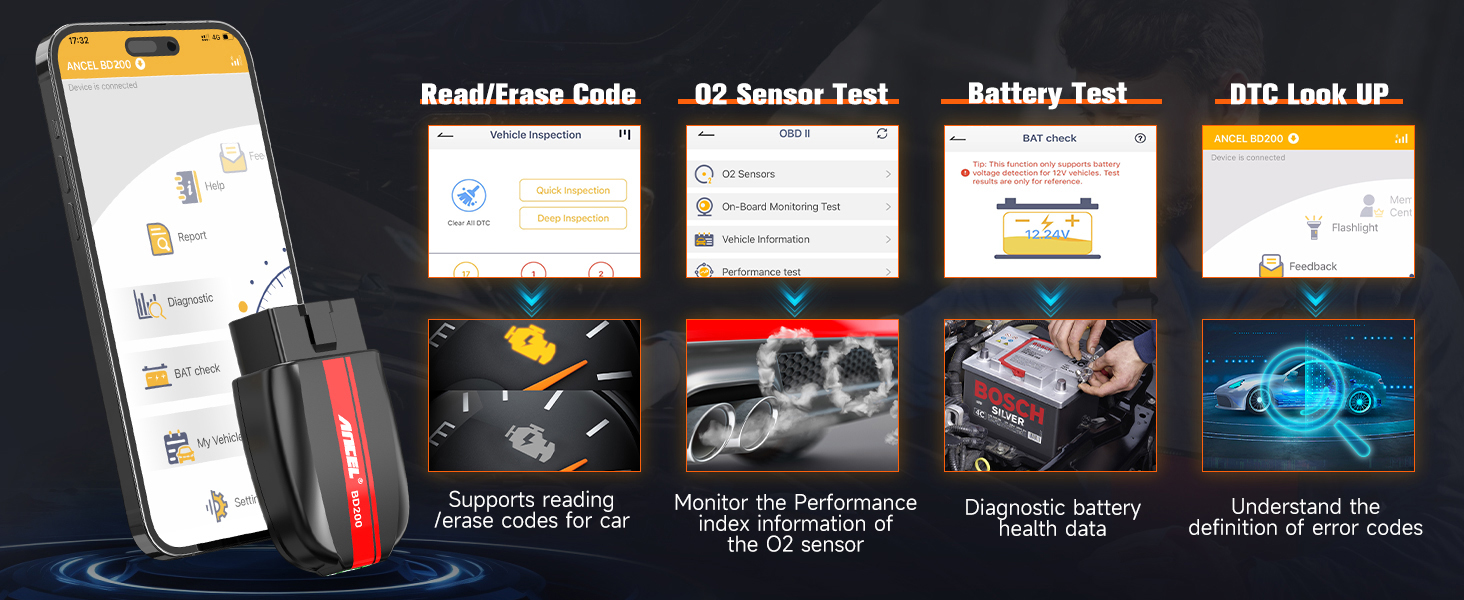
Image: ANCEL app interface for firmware upgrades and vehicle information.
Intelligent Sleep Mode
The device features a configurable intelligent sleep mode to conserve vehicle battery power. You can set the sleep timer within the ANCEL app or disable it if preferred.

Image: Intelligent sleep mode functionality.
Troubleshooting
If you encounter issues while using your ANCEL BD200, consider the following:
- Connection Issues:
- Ensure the BD200 is firmly plugged into the OBD-II port.
- Verify the vehicle's ignition is in the ON position (engine off).
- Confirm Bluetooth is enabled on your mobile device.
- Restart the ANCEL app and try connecting again.
- Check if your vehicle is compatible (US 1996+, EU 2002+, Asia 2008+).
- App Not Responding:
- Close and reopen the ANCEL app.
- Restart your mobile device.
- Ensure the app is updated to the latest version.
- No Data or Incorrect Readings:
- Verify the connection to the vehicle and app.
- Ensure the vehicle supports the specific OBD-II parameter you are trying to read.
- Some older vehicles or specific modules may not support all advanced functions.
- Battery Drain:
- While the BD200 has a sleep mode, it is recommended to unplug the device from the OBD-II port if the vehicle will be parked for an extended period (e.g., several days or weeks) to prevent potential battery drain.
For further assistance, please refer to the "Help" section within the ANCEL app or contact ANCEL customer support.
Product Specifications
| Feature | Specification |
|---|---|
| Model Number | ANCEL BD200 |
| Connection Method | Bluetooth 5.0 |
| Operating Voltage | 12 Volts (from vehicle OBD-II port) |
| Supported OS | iOS, Android |
| Supported Protocols | All OBD2 Protocols (KWP2000, ISO9141, J1850 VPW, J1850 PWM, etc.) |
| Vehicle Compatibility | US vehicles 1996 & newer, Europe vehicles 2002 & newer, Asia vehicles 2008 & newer |
| Dimensions | 2.95 x 1.14 x 4.33 inches |
| Item Weight | 2.11 ounces |
| Special Features | Battery check, Performance tests (acceleration, brake, distance), Trip analysis, Voice alarms (speed, water temperature, fatigue), Lifetime free software upgrades |
Warranty and Support
Warranty Information
The ANCEL BD200 OBD2 Scanner is covered by a 5-Year Warranty from the date of purchase, covering any possible quality problems. Please retain your proof of purchase for warranty claims.
Customer Support
For technical support, questions, or warranty inquiries, please contact ANCEL customer support:
- Email: support@anceltech.com
- 24/7 support is available.
Related documentsBD200


Ask a question about this manual
Ask about setup, troubleshooting, compatibility, parts, safety, or missing instructions. Manuals+ will review the question and use this page’s manual context to help answer it.