
1. Introduction
This manual provides essential information for setting up, operating, maintaining, and troubleshooting your AVITA Essential NE14A2INC433-MB laptop. Please read this manual thoroughly before using your device to ensure proper functionality and longevity.
2. Product Overview
The AVITA Essential NE14A2INC433-MB is a thin and light 14-inch laptop designed for everyday use. It features an aluminum body and a unique cloth design on the palm rest.

Figure 2.1: AVITA Essential Laptop (Matt Black) with screen and keyboard visible.
2.1 Display Features
The laptop is equipped with a 14-inch Full HD (1920x1080) anti-glare IPS display. The ultra-narrow bezels provide an immersive viewing experience.

Figure 2.2: Close-up of the AVITA Essential display, showcasing the FHD IPS Anti-Glare Panel and 4mm Narrow Bezels.
2.2 Ports and Connectivity
The AVITA Essential laptop offers various ports for connectivity, including two USB 3.0 Type A ports, one full-size HDMI port, and a Micro SD card reader.
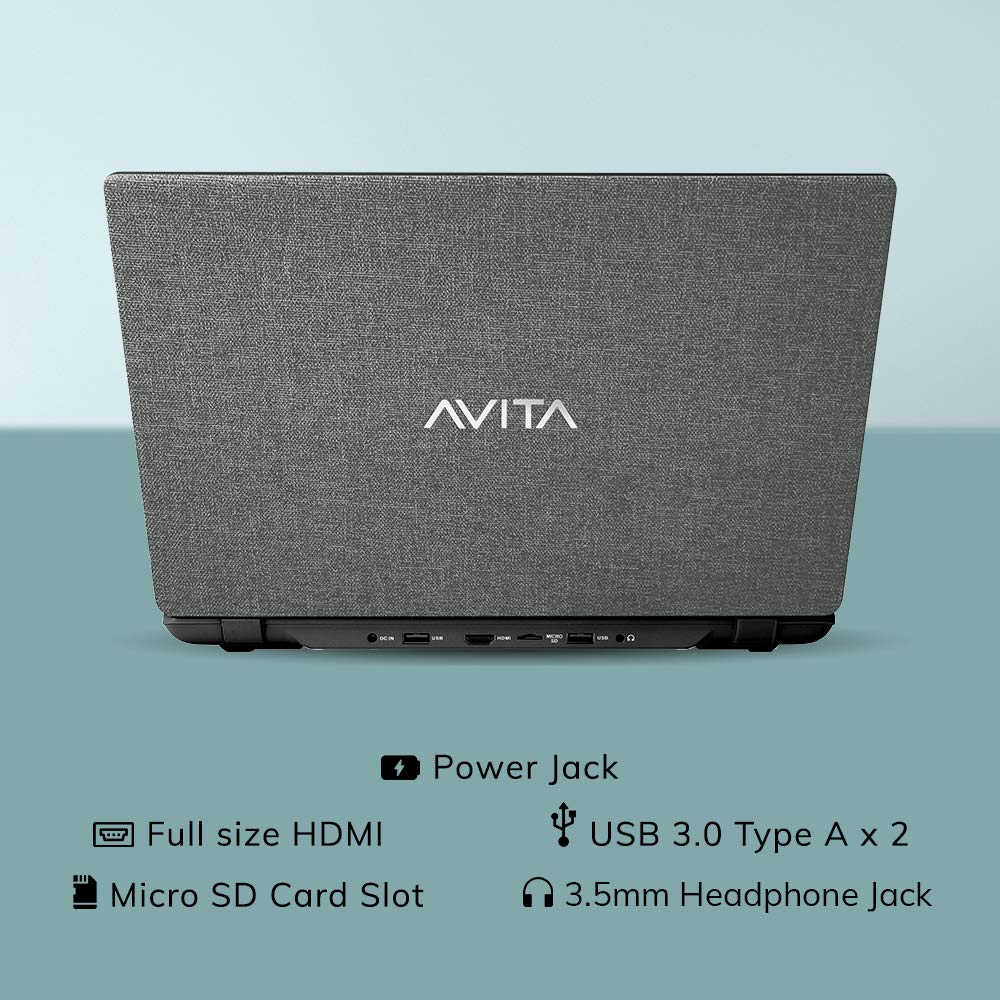
Figure 2.3: Rear view of the laptop detailing the available ports for external devices and power.
2.3 Keyboard and Webcam
The laptop features a full-size island-style keyboard for comfortable typing and an integrated webcam for video conferencing.

Figure 2.4: Top-down view of the laptop's island-style keyboard and integrated webcam.
2.4 Design
The AVITA Essential boasts a unique cloth design, contributing to its aesthetic appeal.

Figure 2.5: The laptop in a closed position, highlighting its distinctive cloth design.
3. Setup
- Unboxing: Carefully remove the laptop and all accessories from the packaging. Ensure all items listed in the "What's in the Box" section are present.
- Initial Charge: Connect the AC adapter to the laptop's power jack and then to a power outlet. Allow the laptop to charge for at least 30 minutes before the first use, or until the battery indicator shows a sufficient charge.
- Power On: Open the laptop lid and press the power button. The laptop will begin the initial boot process.
- Windows 10 Home in S Mode Setup: Follow the on-screen instructions to complete the Windows 10 Home in S Mode setup. This includes selecting your region, language, connecting to a Wi-Fi network, and creating a user account.
- Software Updates: After initial setup, connect to the internet and allow Windows to download and install any available updates. This ensures optimal performance and security.
4. Operating Instructions
4.1 Windows 10 Home in S Mode
Your AVITA Essential laptop comes with Windows 10 Home in S Mode, which is designed for security and performance. In S Mode, you can only install apps from the Microsoft Store and must use Microsoft Edge for safe browsing. You can switch out of S Mode to regular Windows 10 Home at any time, but you cannot switch back.
The laptop is eligible for a free upgrade to Windows 11 when available. The upgrade rollout plan is scheduled to begin late in 2021 and continue into 2022, with specific timing varying by device.
4.2 Performance and Storage
Powered by an Intel Celeron N4000 processor and 4GB DDR4 RAM, combined with a 128GB SSD, the laptop offers responsive performance for daily tasks. The Solid State Drive (SSD) ensures faster boot times and quicker application loading compared to traditional hard disk drives.
Video 4.1: This video highlights key features of the AVITA Essential laptop, including its FHD IPS display, narrow bezels, island-style keyboard, integrated webcam, and fast SSD storage. It demonstrates the laptop's sleek design and quick performance for everyday computing tasks.
Video 4.2: This video illustrates the benefits of a modern PC with Windows 10 and an SSD, emphasizing thin and light design, faster startups, improved efficiency, longer battery life, and enhanced durability and security due to fewer moving parts.
5. Maintenance
- Cleaning: Use a soft, lint-free cloth to clean the screen and exterior. For stubborn smudges, slightly dampen the cloth with water or a screen-safe cleaner. Avoid harsh chemicals.
- Battery Care: To maximize battery life, avoid fully discharging the battery frequently. It is recommended to keep the battery charged between 20% and 80%. Store the laptop in a cool, dry place when not in use for extended periods.
- Software Updates: Regularly check for and install operating system and driver updates to ensure optimal performance and security.
- Storage Management: Periodically review and delete unnecessary files to free up storage space on the 128GB SSD. Consider using external storage or cloud services for large files.
- Ventilation: Ensure the laptop's vents are not obstructed to prevent overheating. Use the laptop on a hard, flat surface rather than soft furnishings.
6. Troubleshooting
6.1 Common Issues and Solutions
- Laptop Not Powering On:
- Ensure the AC adapter is securely connected to both the laptop and a working power outlet.
- Verify the power outlet is functional by plugging in another device.
- If the battery is completely drained, allow it to charge for some time before attempting to power on.
- Slow Performance:
- Close unnecessary applications running in the background.
- Check for and install any pending Windows updates.
- Ensure sufficient free space on the SSD.
- Run a system scan for malware or viruses.
- Wi-Fi Connectivity Issues:
- Restart your Wi-Fi router and the laptop.
- Check if Wi-Fi is enabled in Windows settings.
- Update Wi-Fi drivers from the AVITA support website.
- Windows 10 S Mode App Restrictions:
- Remember that in S Mode, only apps from the Microsoft Store can be installed.
- If you need to install apps from other sources, you must switch out of S Mode. This is a one-way process.
7. Specifications
| Feature | Detail |
|---|---|
| Brand | AVITA |
| Model Name | Essential |
| Model Number | NE14A2INC433-MB |
| Screen Size | 14 Inches (35cm) |
| Display Resolution | 1920 x 1080 (Full HD) |
| Display Type | FHD Anti-Glare IPS LED |
| Processor | Intel Celeron N4000 (1.10 GHz base, 2.60 GHz Max) |
| RAM Memory | 4 GB DDR4 |
| Storage | 128 GB SSD |
| Operating System | Windows 10 Home in S Mode |
| Graphics | Intel Integrated UHD Graphics 600 |
| Battery Life | Up to 6 Hours (as per MobileMark) |
| Weight | 1.37 kg |
| Ports | 2x USB 3.0 Type A, 1x Full Size HDMI, Micro SD Card Reader |
| Wireless Connectivity | 802.11 b/g/n/ac Wi-Fi, Bluetooth 4.0 |
| Webcam | Integrated Front Camera |
8. Warranty and Support
8.1 Warranty Information
Your AVITA Essential laptop comes with an 18+6 months onsite domestic warranty from AVITA. This warranty covers manufacturing defects and does not cover physical damage. For detailed terms and conditions, please refer to the warranty section provided with your product or visit the official AVITA support website.
8.2 What's in the Box
Upon unboxing, you should find the following items:
- AVITA Essential Laptop
- AC Adapter
- User Guide
- Manuals